In this article, I’ll walk you through everything from signing up for NordVPN to how to use it, complete with screenshots.
Among paid VPNs, NordVPN offers fast speeds, a large number of servers, and extensive Japanese language support, making it a user-friendly VPN. I’ll also explain how to use it on both computers and smartphones.
For more details on connection speeds and other topics, please read the article below.
NordVPN Features
- Fast connection speeds
- High ability to bypass video streaming restrictions
- Supports up to 6 devices
- Strong Japanese language support
- Comprehensive 24/7 support available in Japanese
- 30-day money-back guarantee
- Guaranteed no-logs policy
Sign-up, Payment, and Account Creation
Once you sign up, you’ll be taken to the plan selection screen. After choosing your preferred plan, you’ll proceed to email registration and payment. Since there’s a 30-day money-back guarantee, I decided to go with the Standard Plan for one month.
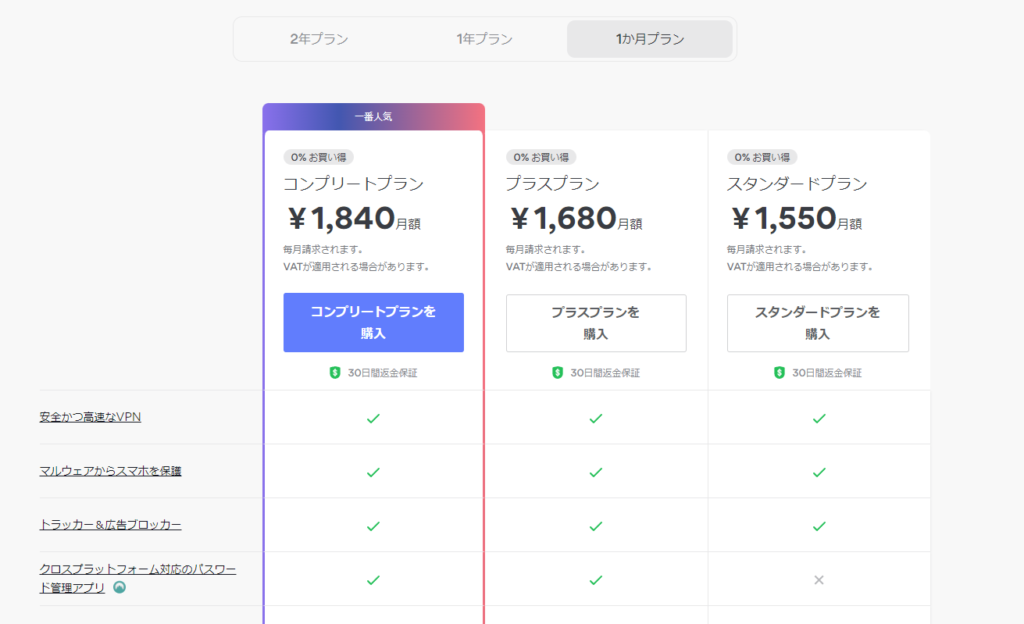
You’ll then be taken to the email registration and payment screen.
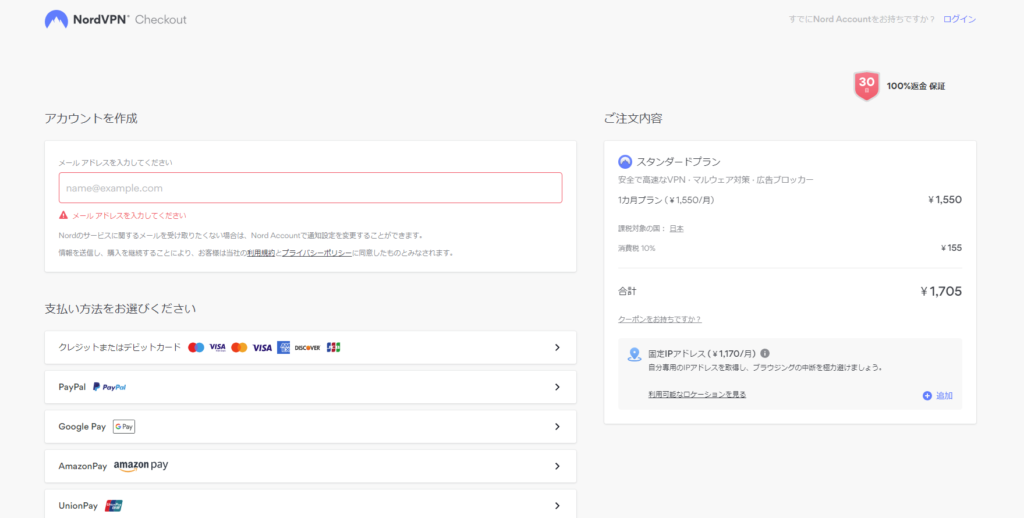
Enter your email address, select a payment method, and complete the payment. The payee will be "Paddle.com Market Limited."
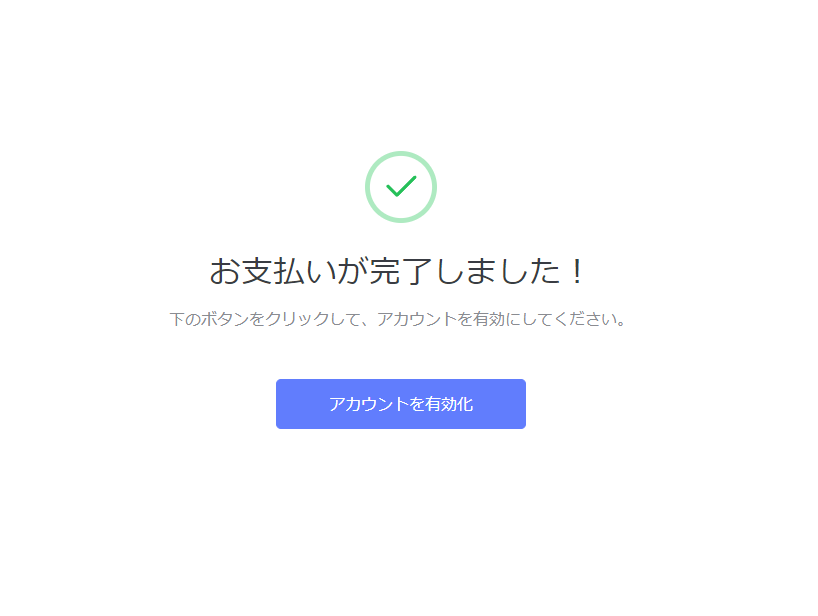
Once payment is complete, a "Activate Account" button will appear; click it.
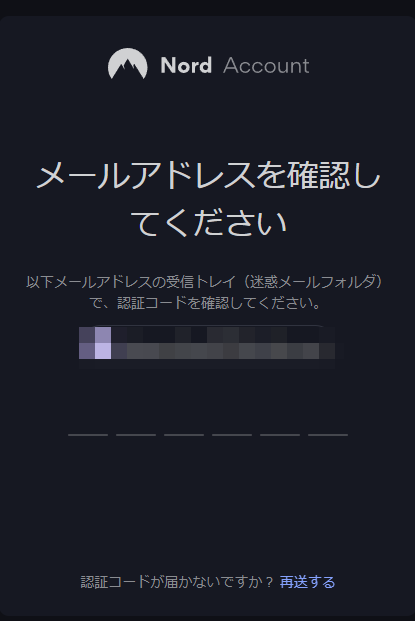
An authentication code will be sent to the email address you registered; enter it.
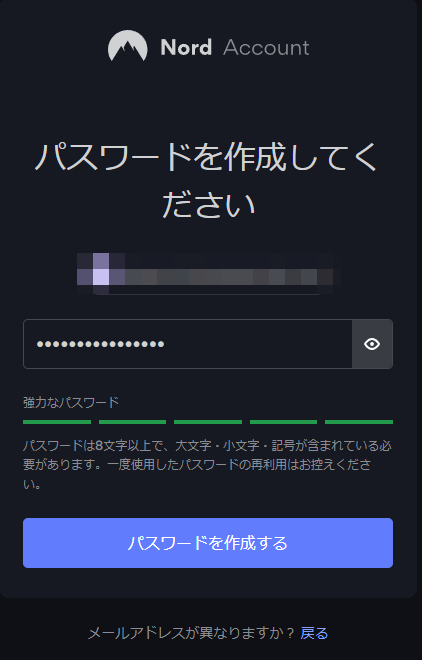
Next, set your password.
For security reasons, it’s best to use a strong password. Use a password generator to create a strong password that combines lowercase and uppercase letters, numbers, and symbols.
Once you’ve created your password, you’ll be taken to the app download screen.
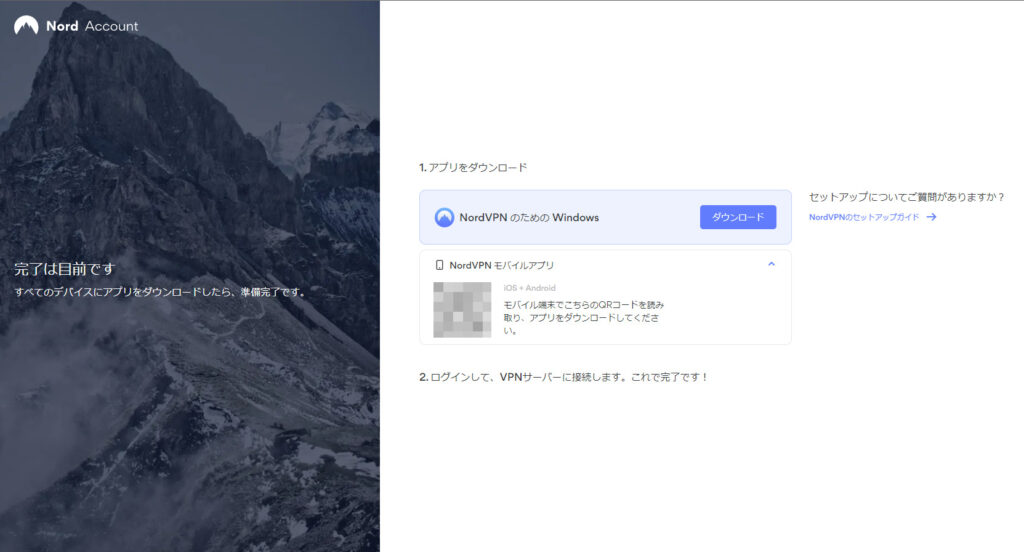
You’ll see options to download the app to your computer or a QR code for the smartphone app, which you can use to install the app on your smartphone.
You can also log in by clicking "Nord Account" in the top-left corner of this screen.
Points
Signing up for NordVPN is easy! When creating your account, be sure to set a strong password that combines lowercase and uppercase letters, numbers, and symbols for security.


to 64% now!
Get 3 months free with a 1- or 2-year subscription
How to Use
How to Use the App
Install the app you downloaded from the page that appears immediately after signing up.
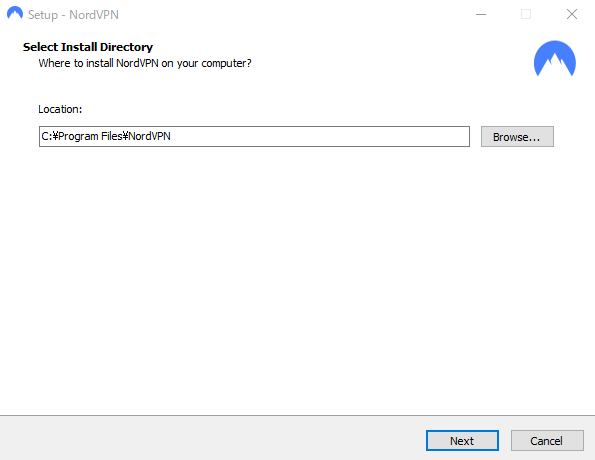
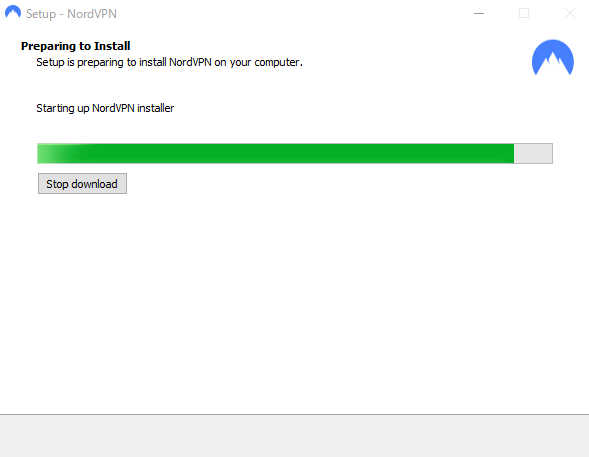
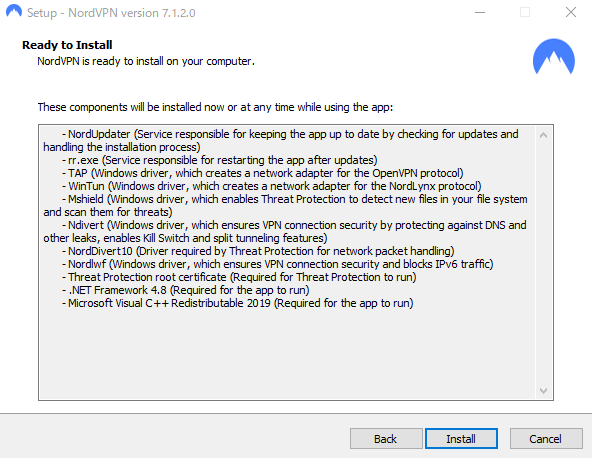
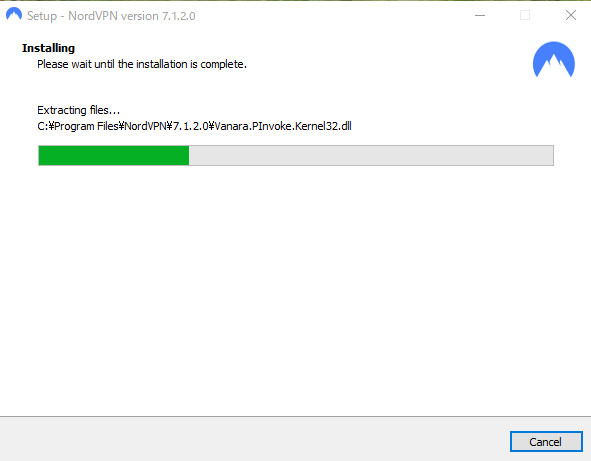
A checkbox will appear asking if you want to install the "Nord Pass" password manager; check it and install if needed.
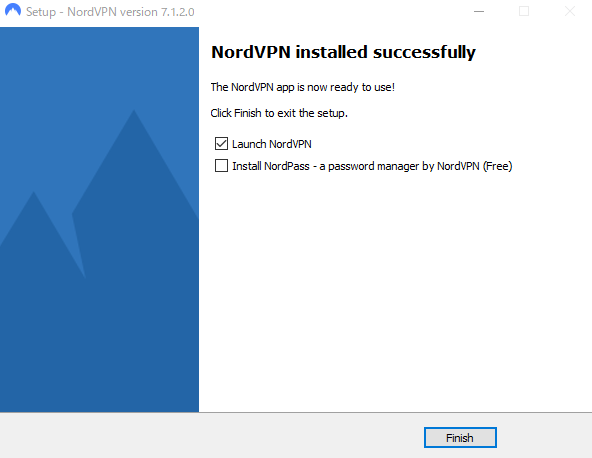
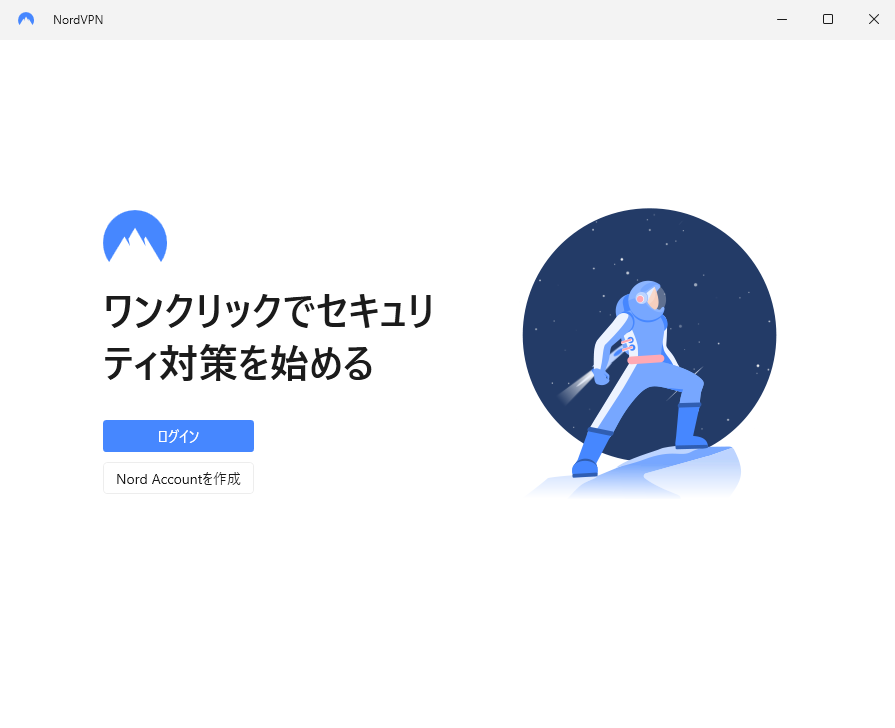
After installation, the app will launch. Click the "Log In" button.
Your browser will open and take you to the login screen.
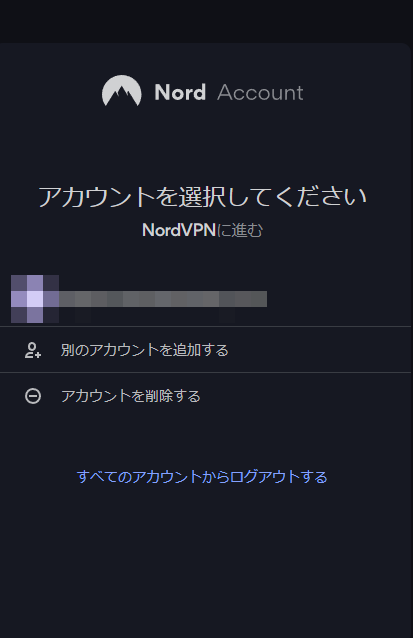
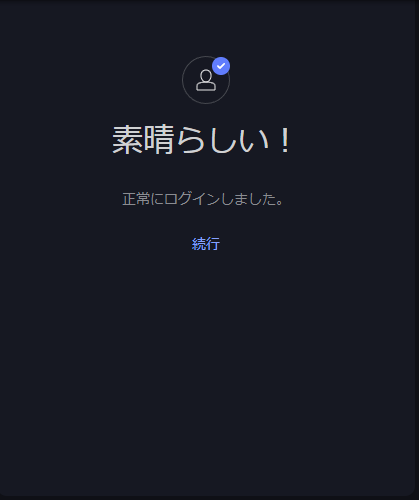
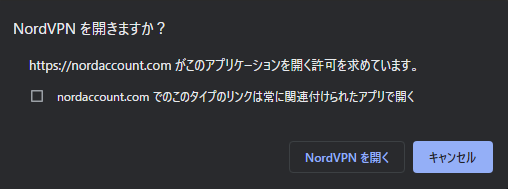
Once you’ve successfully logged in, a “Open NordVPN” dialog will appear; click it to open NordVPN.
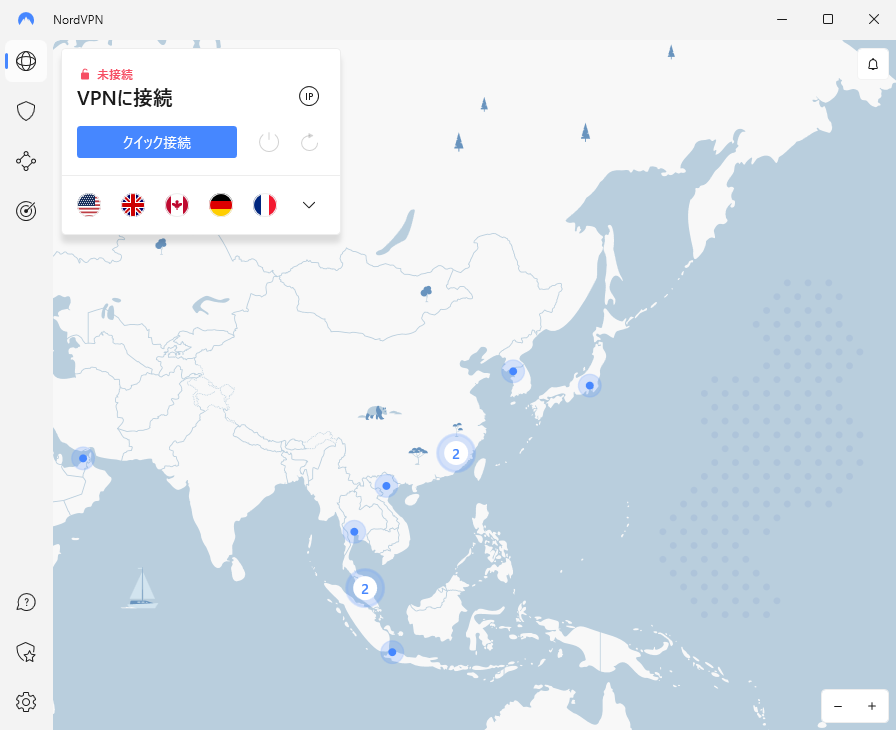
A map will open, and you will be able to connect to the VPN.
The Quick Connect button will automatically find and connect you to the best server.
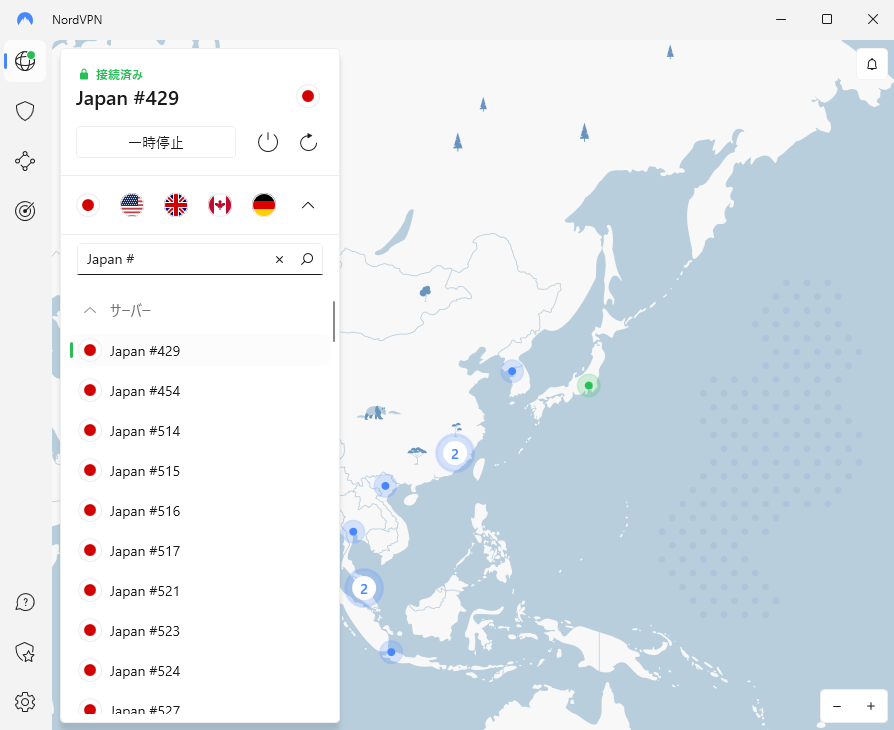
You can also click the down arrow below the Quick Connect button to display the server search bar. Entering "Japan #" or similar will display a list of servers in Japan, allowing you to select and connect to one from there.
Once connected, a security check screen will appear. Configure the settings as needed: whether to connect automatically when the app launches, whether to automatically disconnect from the internet if the VPN connection is lost (Kill Switch), whether to enable threat protection, whether to enable Dark Web Monitor, and whether to enable two-factor authentication.
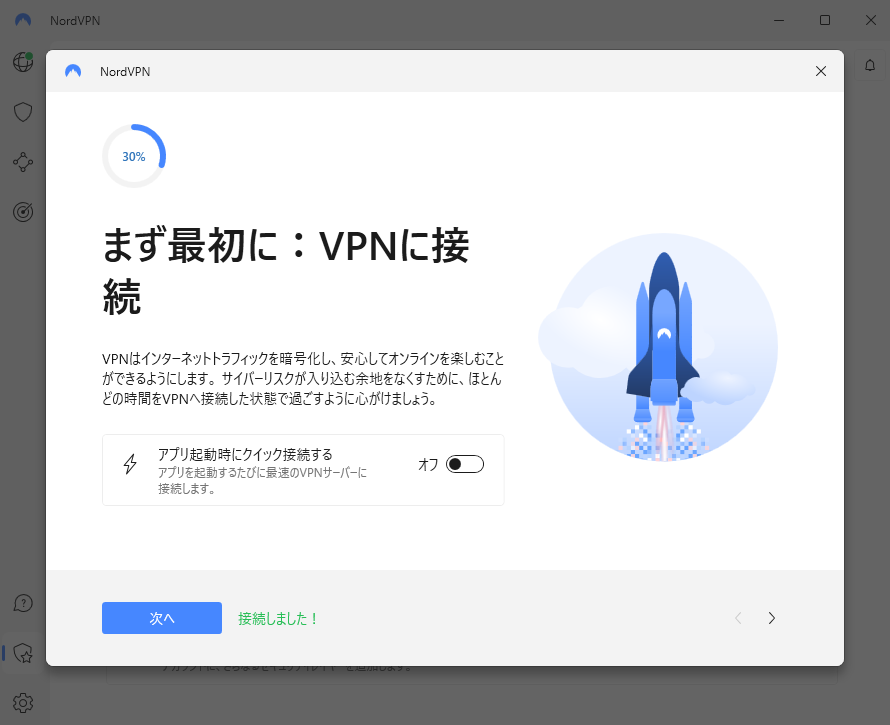
If you’re already using antivirus software, I don’t think the threat protection feature is necessary since it would overlap with your existing protection.
I recommend enabling the Dark Web Monitor and multi-factor authentication.
In the app settings, you can configure which applications to exclude from the VPN or, conversely, specify which applications should use the VPN connection (split tunneling).
Also, under "Settings" → "Connection," you'll find the VPN protocol settings. By default, it's set to auto-select, but I recommend choosing "NordLynx" since it offers both high speed and strong security.
Key Points
Downloading and installing the app is easy! For security, set up Dark Web Monitor and multi-factor authentication. If you aren’t using antivirus software, be sure to enable threat protection as well.
You can connect using Quick Connect, but if you enter something like "Japan #" in the search bar, a list of servers for that country will appear, allowing you to select one and connect from there.

How to Use the Browser Extension
Go to NordVPN.

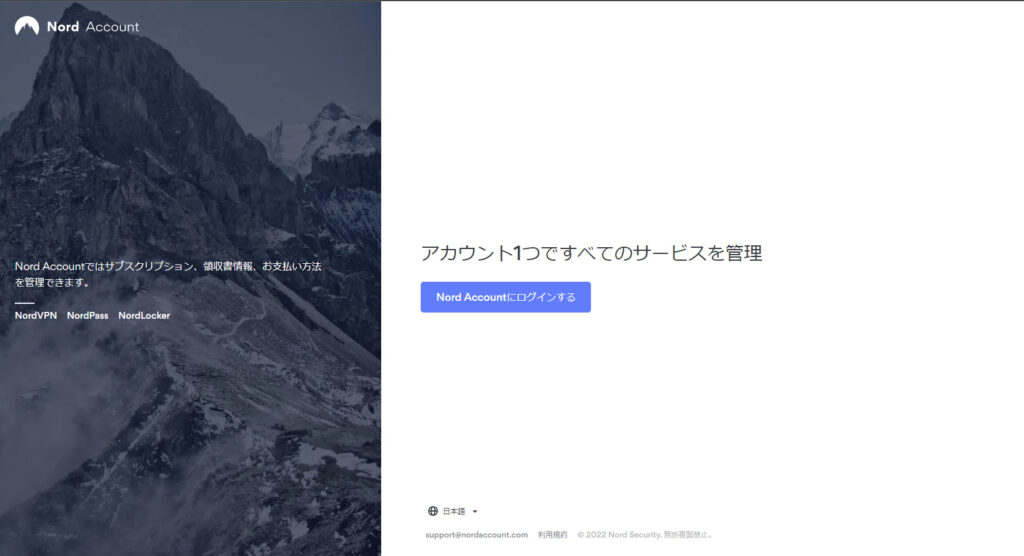
Click the "Log in to Nord Account" button.
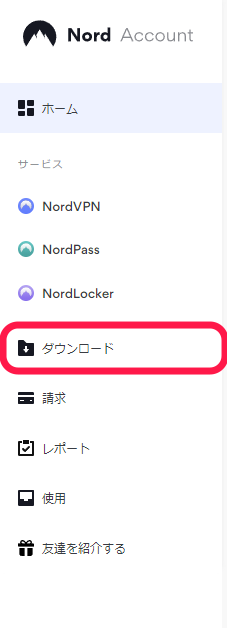
Once logged in, click "Download" in the left-hand menu.
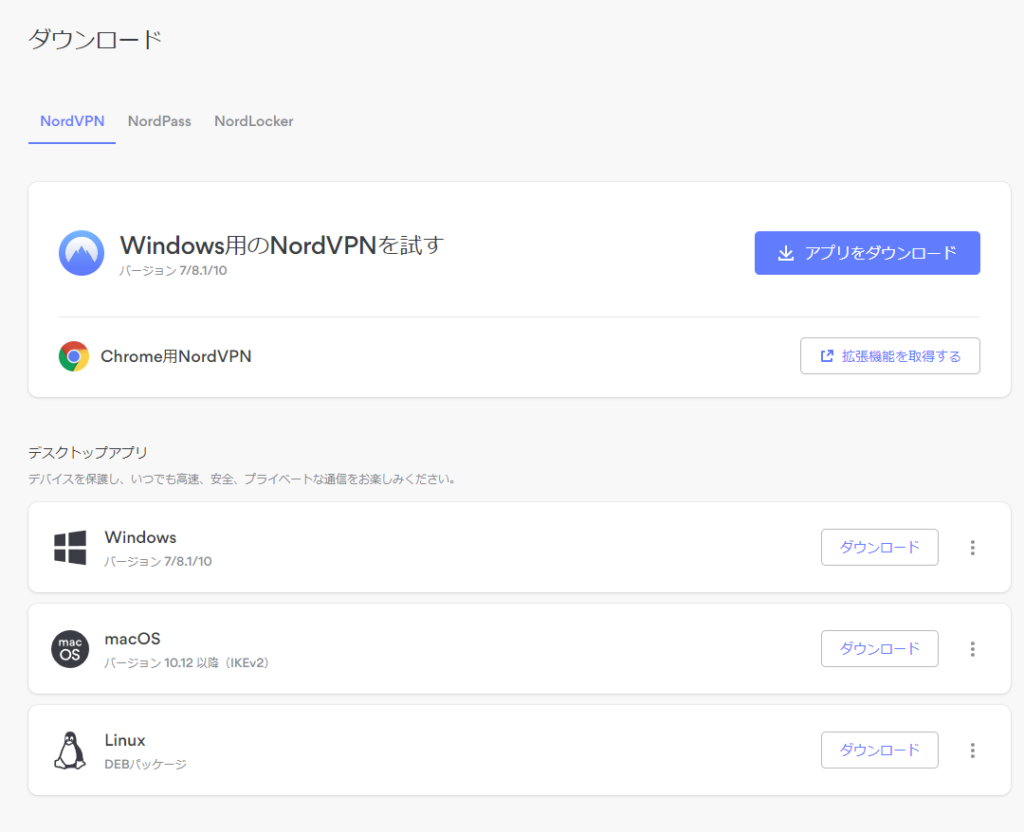
Add the NordVPN browser extension via your browser’s extension store.
Click the browser extension icon to display the "Log in" button.
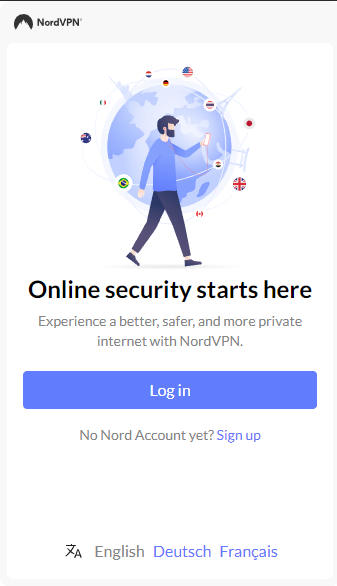
Clicking it will open the login screen in a new tab; log in there.
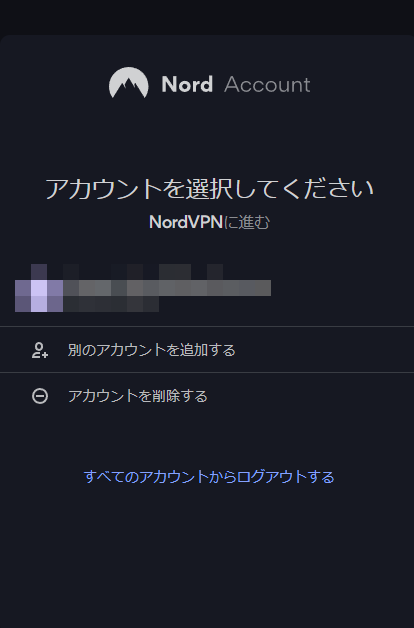
Once logged in, you’ll be able to connect to NordVPN via the browser extension.
The "Quick Connect" button will find and connect you to the optimal server, just like the app does.
After connecting, you may occasionally experience connection issues with certain websites. In most cases, this can be resolved by pausing the connection with the "Pause" button or changing the server using the "Refresh" button to its right.
The button on the far right is the disconnect button.
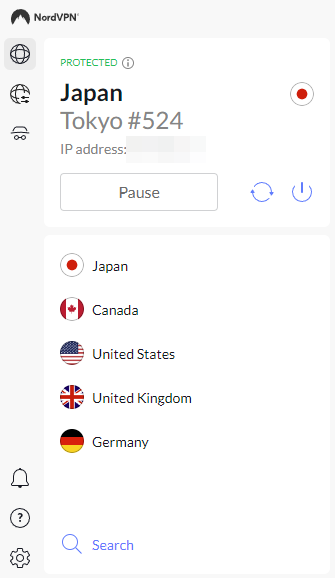
You can select the country you want to connect to from the list below it.
Clicking "Search" lets you choose from even more countries.
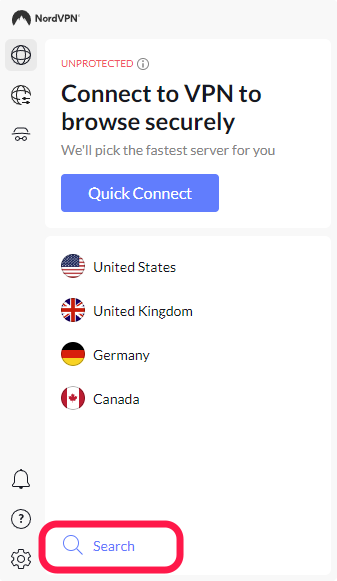
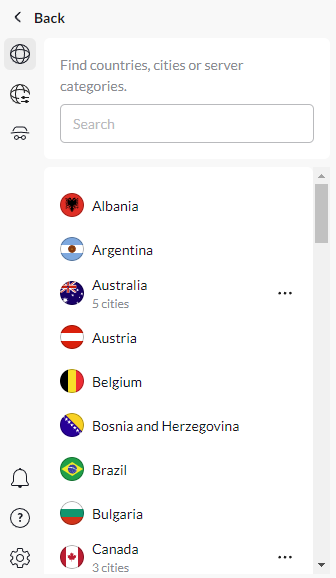
If you enter a country name in the search bar, that country will appear, but unlike the app, entering "Japan #" will not display a list of servers for that country. With the browser extension, you can select a country, but the server is automatically chosen and connected to.
Clicking the second icon from the top on the left, "VPN settings," allows you to configure the app to connect automatically when the browser starts, or to specify websites to exclude from the VPN connection.
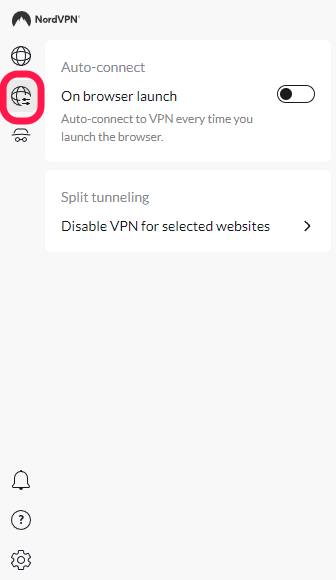
Click the gear icon at the bottom of the left-hand side to access settings. You can also change the language, but as of November 10, 2022, the options are limited to English, German, and French.
I usually connect to NordVPN using the browser extension. When connecting via the app, it’s like connecting the entire system to NordVPN. If you use both the app and the browser extension simultaneously, you may experience connection issues with certain websites.
Please read the article below for more details.

Key Points
Connecting via browser extensions is easy! If you're having trouble connecting to a website, try clicking the "Refresh" button on the right to switch servers. If you set it to connect automatically when you launch your browser, you'll be connected to the VPN just by opening your browser.

Connecting on a Smartphone
If you signed up on a computer, you can install the app by logging into your account and scanning the QR code on the right side of the "Download" page. Otherwise, visit the account page below.
Tap the "Log In" button to log in.
You can install the app by selecting "Download App" under "Download."
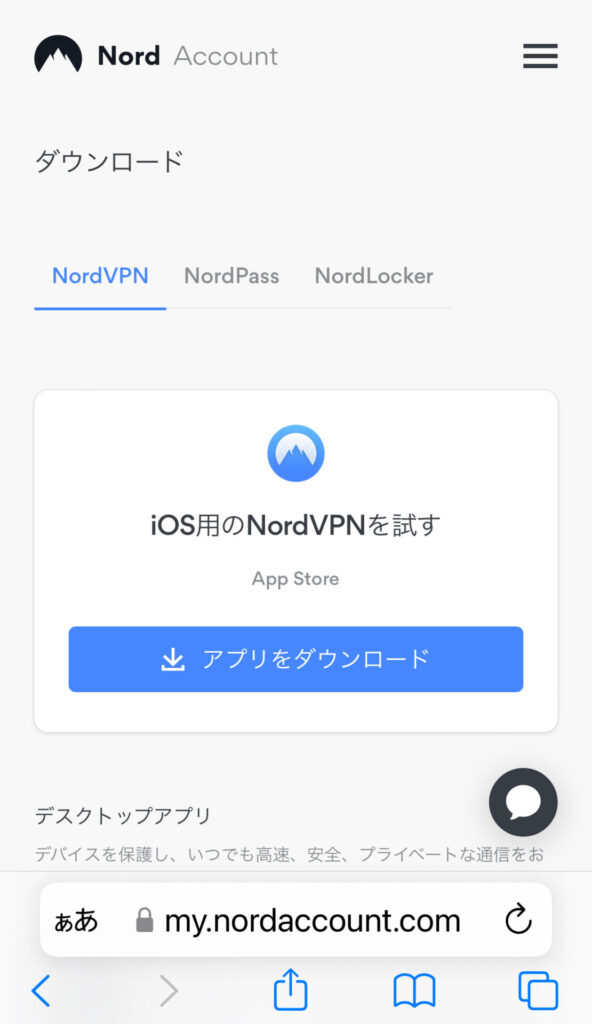
Once the app is installed, you will be taken to the connection screen; tap the "Connect" button. On an iPhone, a dialog will appear during the first connection stating "NordVPN is requesting to add a VPN configuration"; tap "Allow."
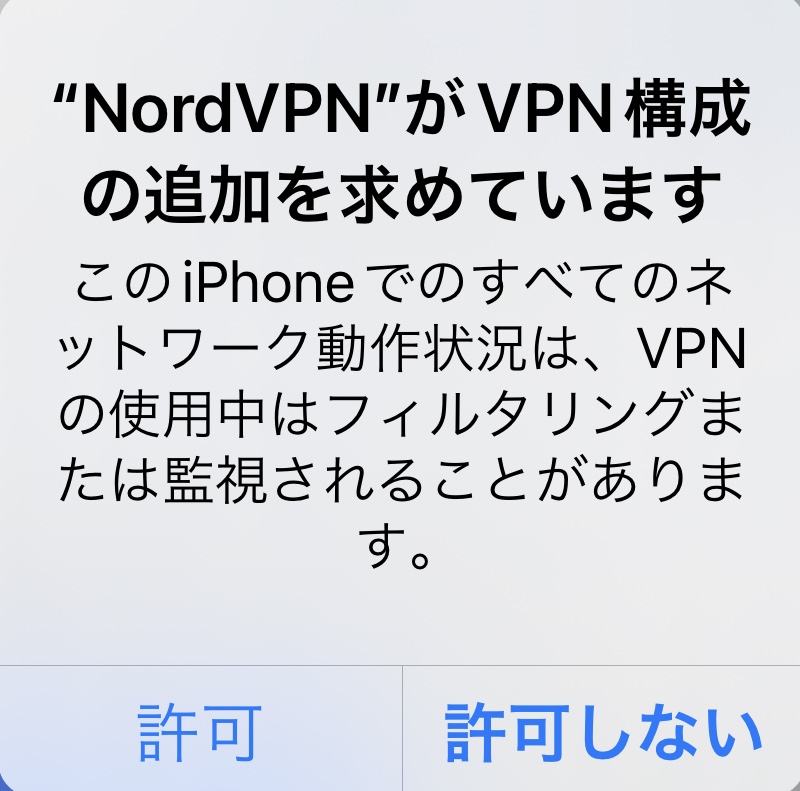
NordVPN NordLynx will be added under "Settings" → "General" → "VPN & Device Management" → "VPN".
On an iPhone, if you enable "NordVPN NordLynx" under "Settings" → "VPN," you will automatically connect to NordVPN.
You can also launch the app from the icon to connect quickly. If "Connected" or "Auto-connect is enabled" is displayed, you are connected and protected.
You can select a country, but it doesn’t appear that you can choose a specific server. Tap the blue Refresh icon to change servers.
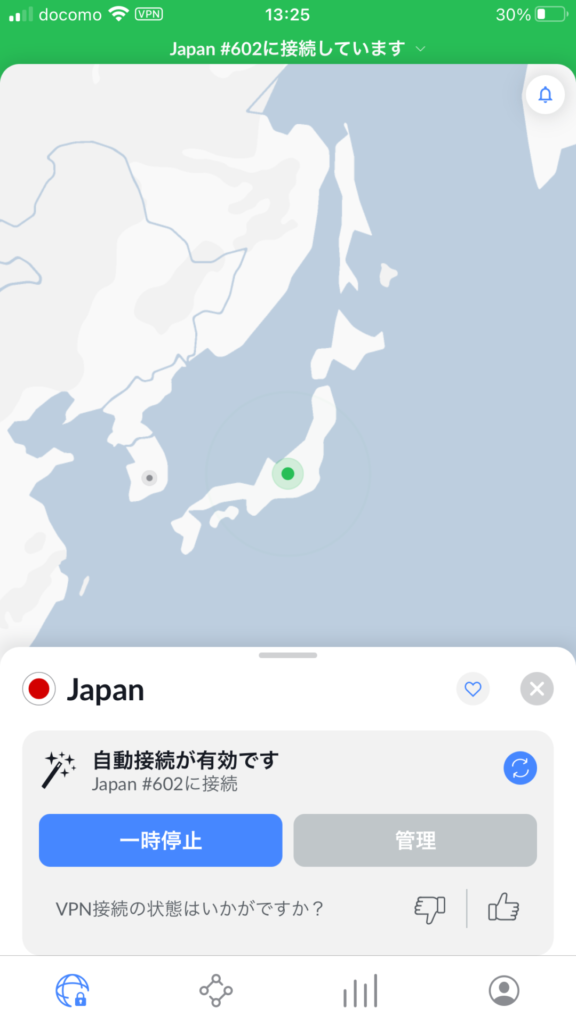
You can also manage your account by tapping the person icon on the far right.
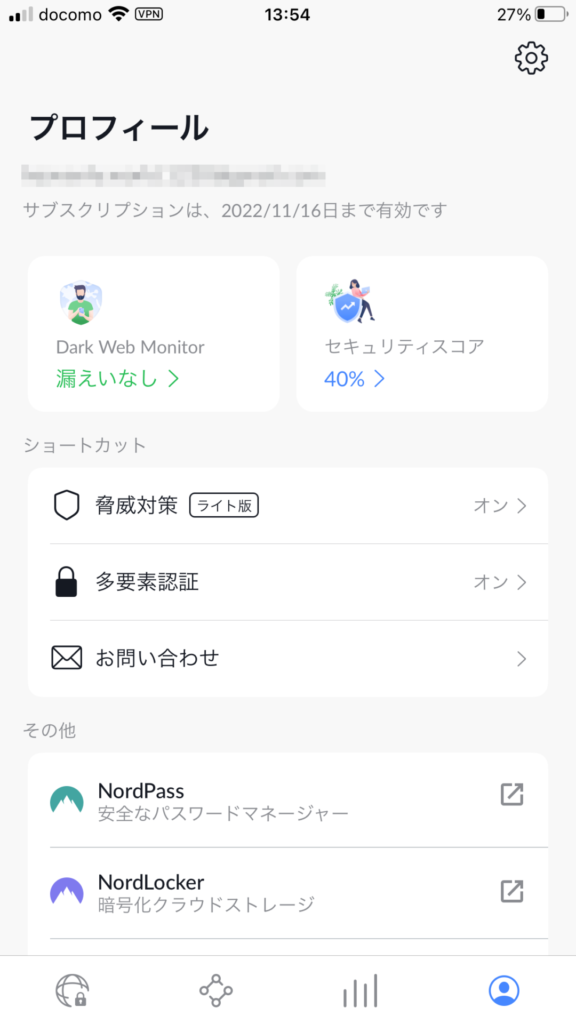
Tap the gear icon in the upper-right corner of the "Profile" screen to access various settings.
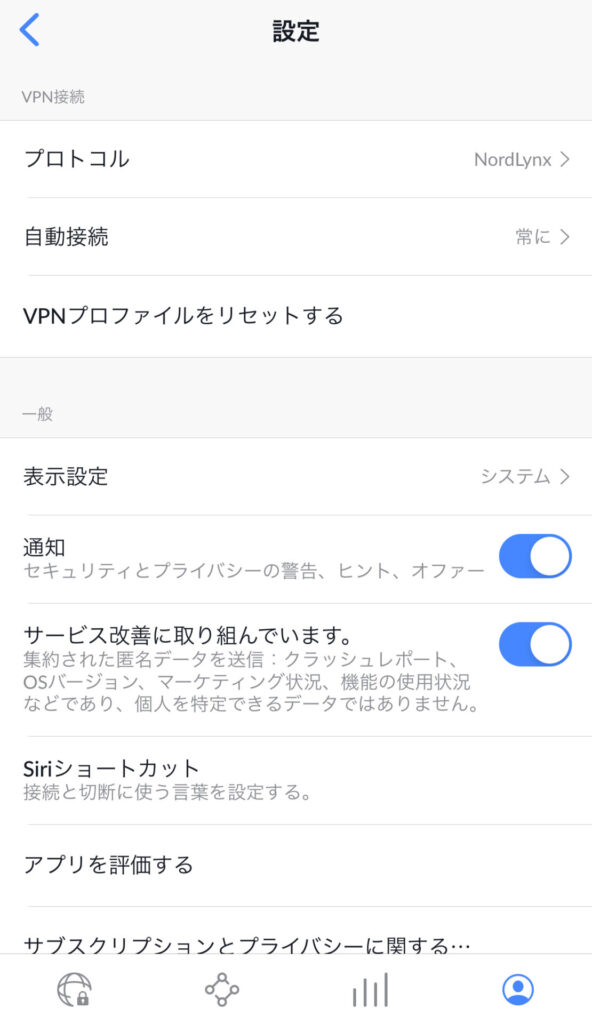
We strongly recommend keeping Auto-Connect enabled.
There are four "Protocol" options, and while the default is set to auto-select, I recommend choosing "NordLynx" as it offers high speed and security.
Key Points
When connecting your smartphone to public Wi-Fi while out and about, a VPN is essential for security! Download and install the app, then connect using Quick Connect. You can switch servers by tapping the "Refresh" button. In the settings, make sure to set the protocol to NordLynx!
Summary
We’ve covered everything from signing up for NordVPN to how to use it. While the browser extension doesn’t support Japanese, the app is fully localized into Japanese. Support is also largely available in Japanese, so I think it’s easy for Japanese users to use. With the app, the entire system is connected to NordVPN. You can also configure which applications to exclude.
When connecting via the browser extension, it’s convenient to set it to connect automatically when you launch your browser.
On smartphones, you can download and install the app and connect using Quick Connect. Setting the protocol to “NordLynx” ensures secure and fast connectivity.
NordVPN is highly recommended because it causes minimal slowdown in connection speeds, is fully localized in Japanese, and is highly effective at bypassing video streaming restrictions.
When connecting to public Wi-Fi while out and about, such as on a smartphone, it’s safer to use a VPN. We highly recommend connecting via a VPN.


!
Now up to 64% OFF! Get 3 months free with a 1- or 2-year subscription!
よろしければ応援お願いします


