
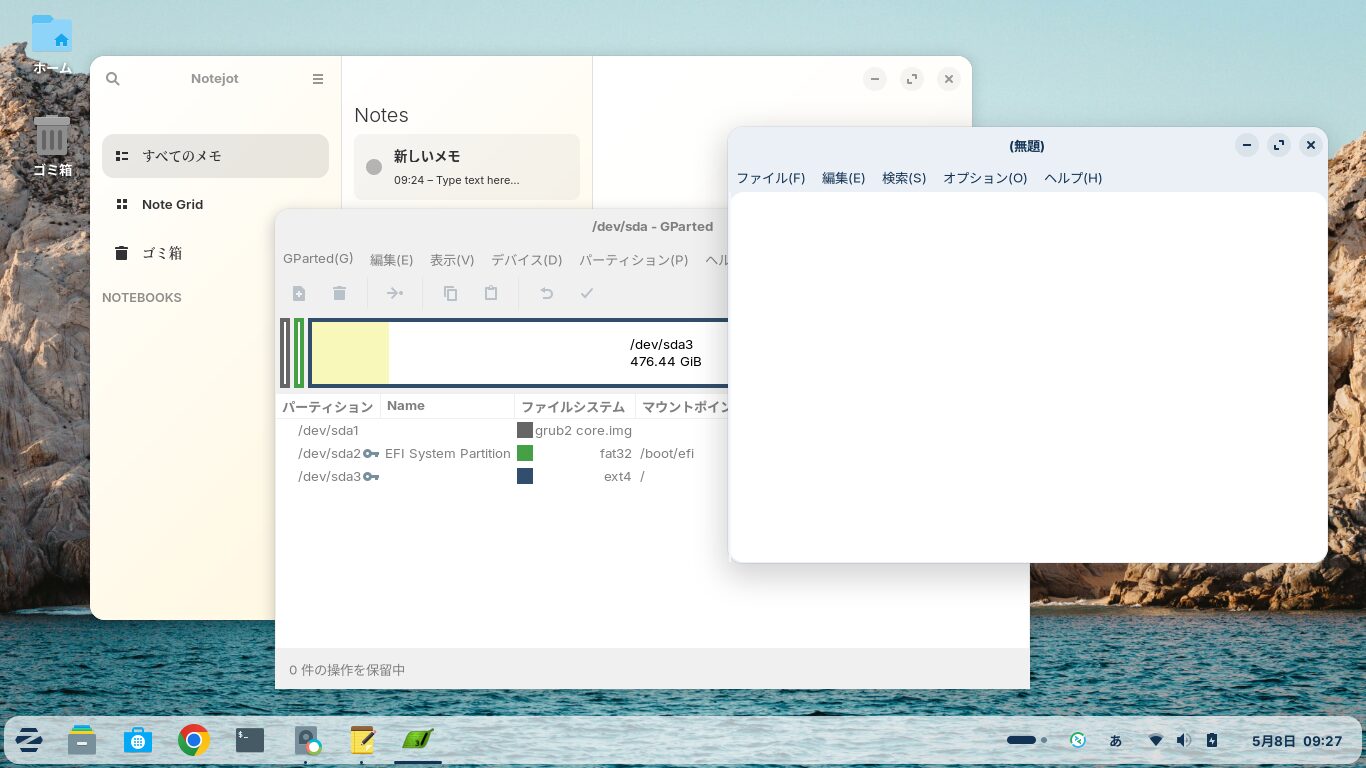
In this article, I’ll introduce 15 pieces of software that are worth installing after performing a clean install of Zorin OS 18.1.
I’ve carefully selected software that’s easy for Linux beginners to use, including both apps available from the software store and those that require downloading a DEB file from the developer’s website.
Zorin OS 18 was released on October 14, 2025, to coincide with the end of support for Windows 10, and was subsequently updated to Zorin OS 18.1 (as of May 6, 2026).
Zorin OS is a very lightweight Linux distribution that is also popular among Japanese users.
Since its interface is similar to Windows, it’s a great option for switching from Windows to Zorin OS or for installing on an old Windows machine.
In this article, I’d like to list 15 pieces of software that are useful when using Zorin OS 18.1 as a regular desktop.
The office suite included is LibreOffice.
Please note that the instructions provided are based on the default layout.
Click here for an Overview of Zorin OS 18.1 Core


1. Synaptic Package Manager
Synaptic Package Manager is a program that allows you to install and uninstall various applications using a graphical user interface.

Click “Software” (the blue bag icon) on the left side of the taskbar, then click the magnifying glass icon in the upper-left corner to search for and install it.
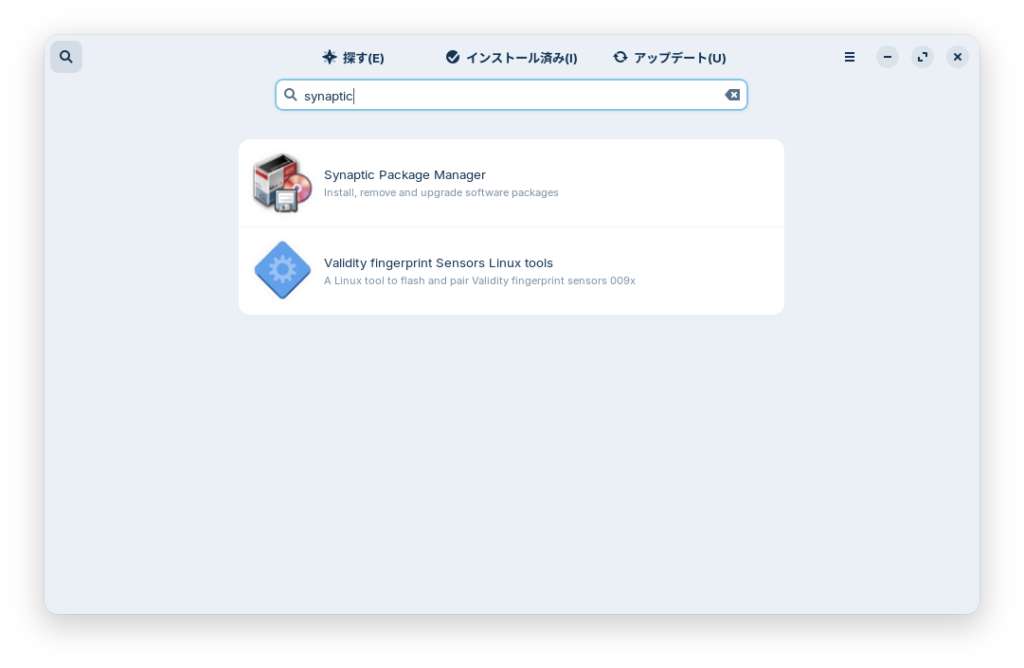
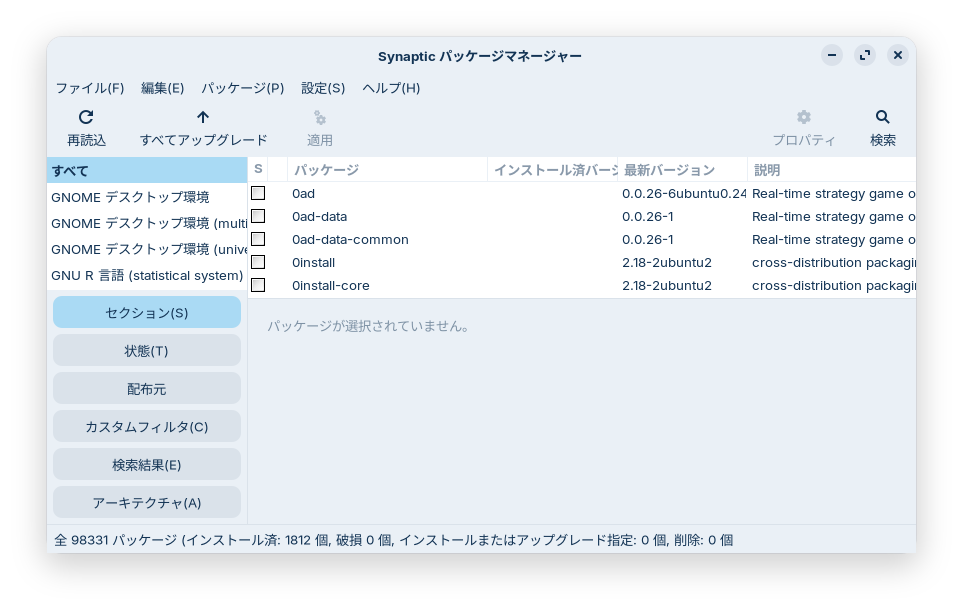
After installation, launch it from Start Menu > System Tools.
These days, Linux versions are often available for download from software websites or the developers' sites, so its usefulness may be limited.
It essentially provides a graphical interface for running the apt command.

2. Google Chrome
The default browser for Zorin OS 18.1 is Brave.
If you already use Brave, this won’t be a problem, but if you use Google Chrome on Windows, you can sync your bookmarks, passwords, and other data simply by logging in, which is very convenient.

Once installed, you can launch it from the Start menu > Internet.


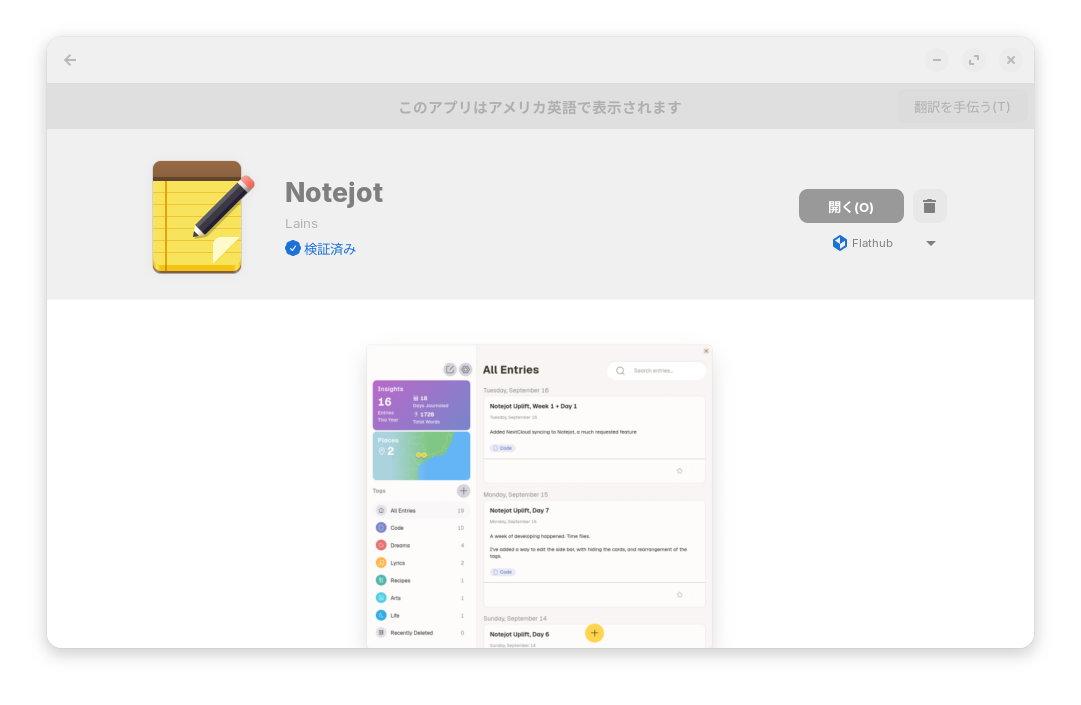
3. Notejot
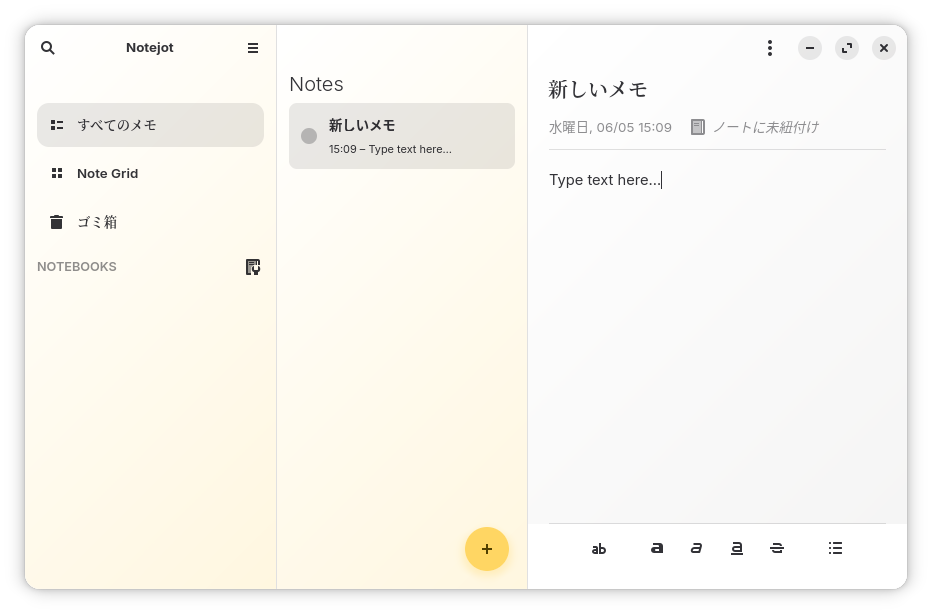
It's a note-taking app similar to iPhone Notes or Microsoft OneNote.
Dates are added automatically, and notes can be linked to one another. You can use it for jotting down ideas or keeping a diary.
You can install it from the App Store.
4. Thunderbird
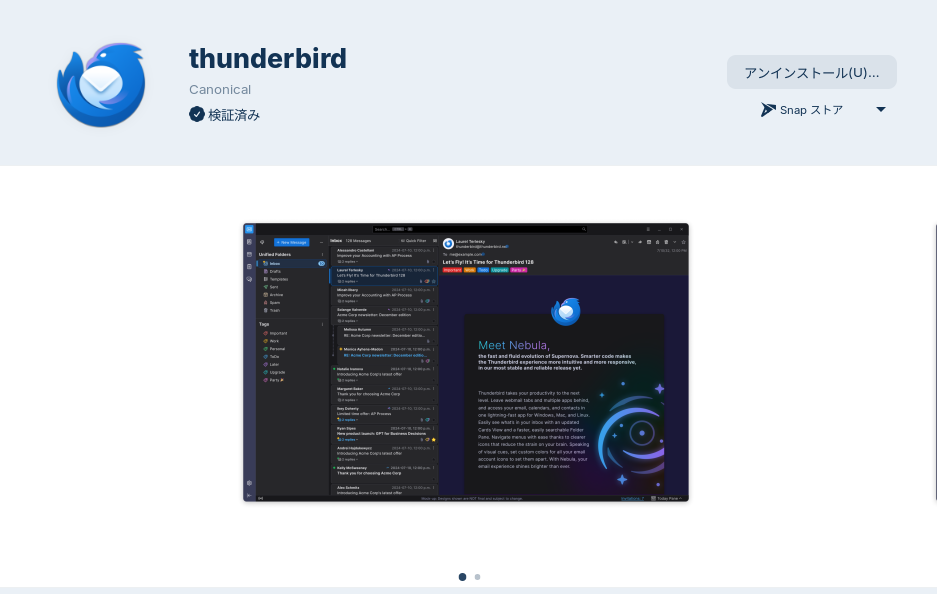
It's an email client. You can install it from the software store. It's up to you, but I think the Snap version is better choice.


5. L3afpad
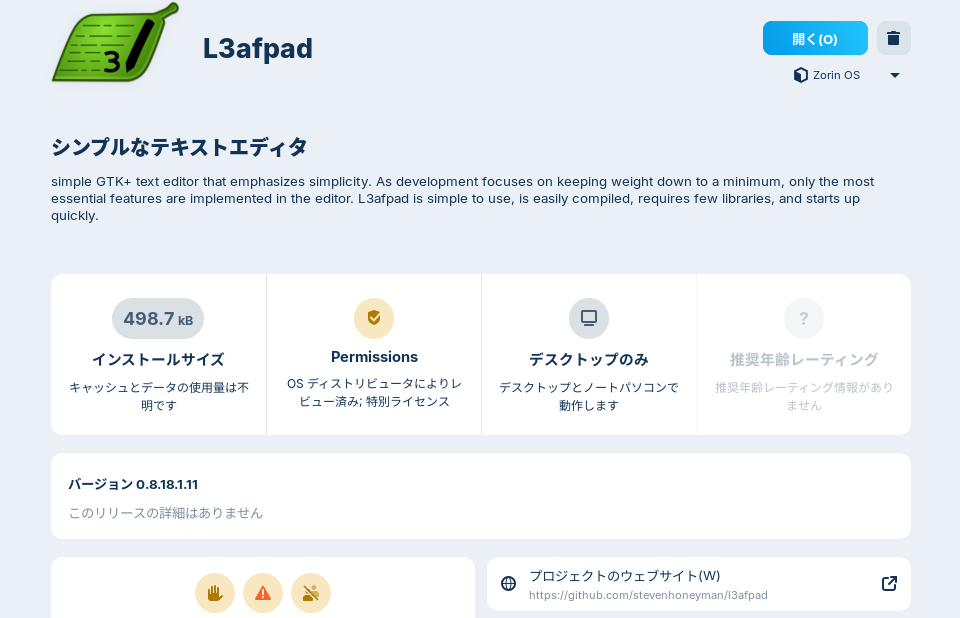
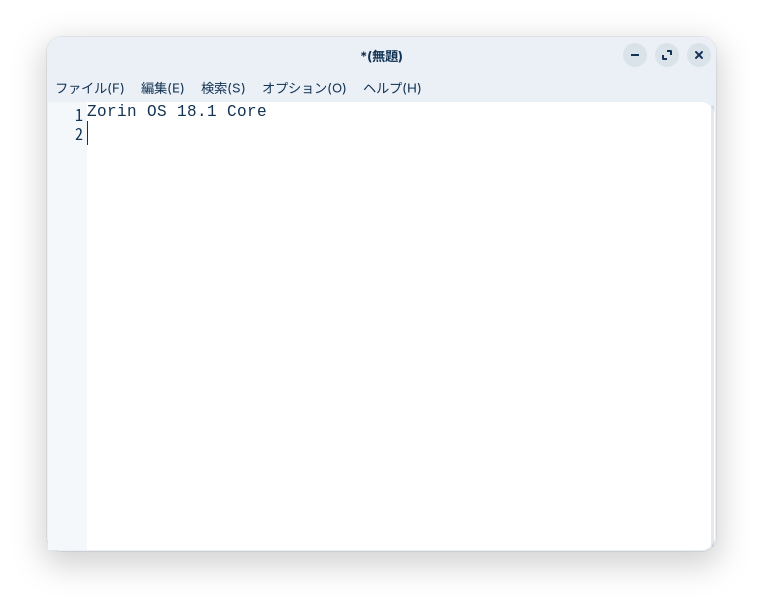
The default text editor in Zorin OS 18.1 is gnome-text-editor, but L3afpad is a simple, lightweight text editor with minimal features.
You can use it for jotting down quick notes.
You can install it from the Software.
You can also install it using the Synaptic Package Manager.
It also appears as “Leafpad” in the Software.

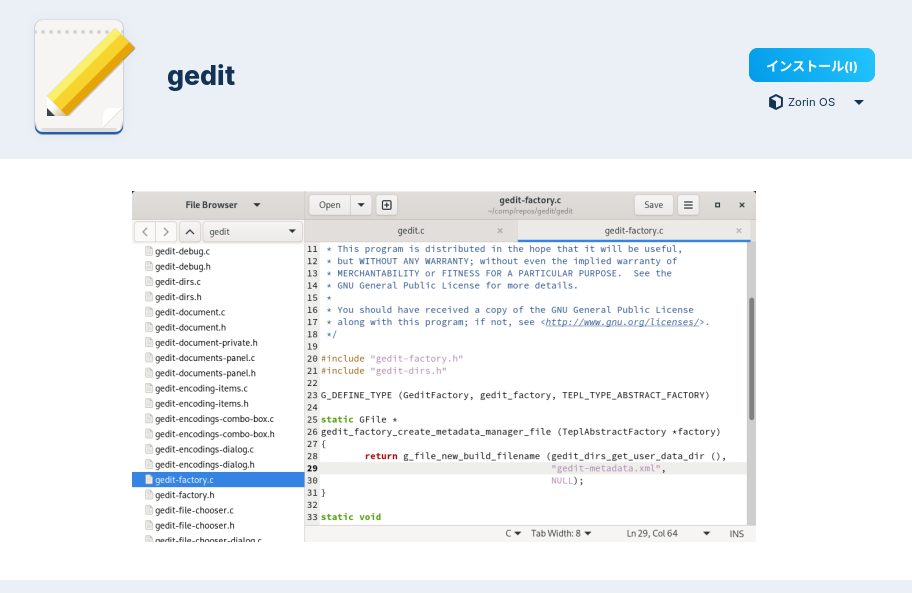
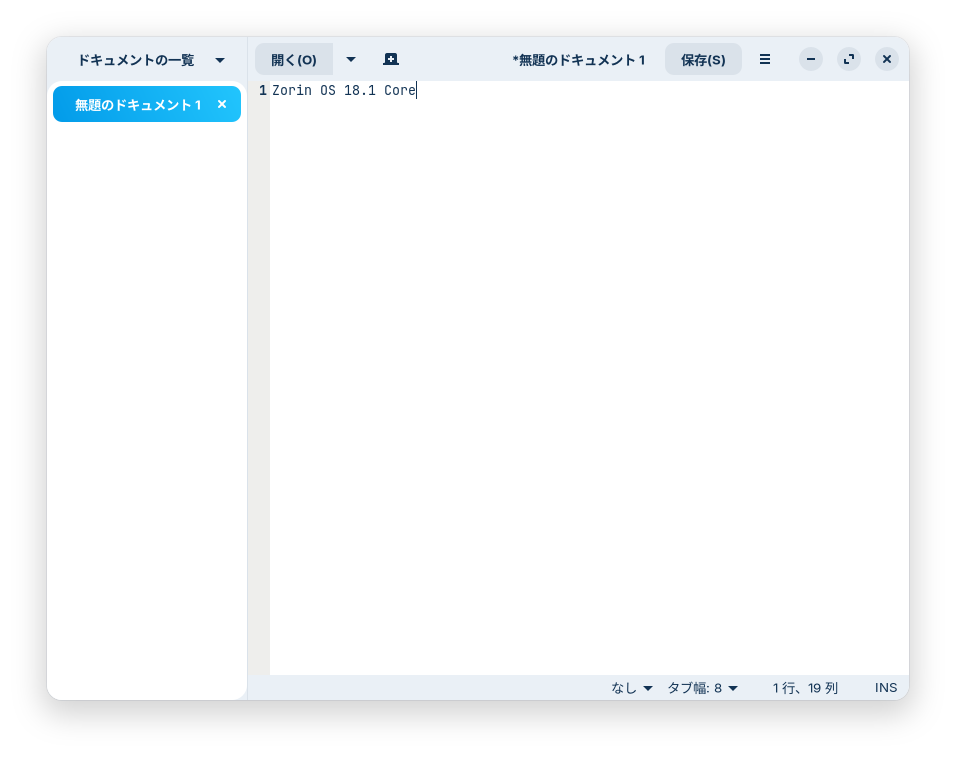
6. Gedit
Up until Zorin OS 17.3, Gedit was the default text editor.
While the default text editor in Zorin OS 18.1, gnome-text-editor, looks and works much the same, Gedit has a shorter name when launched from the terminal, so installing it can save you some trouble.
You can install it from the Software. I recommend setting the “Source” option below the Install button to “Zorin OS.”

7. GParted
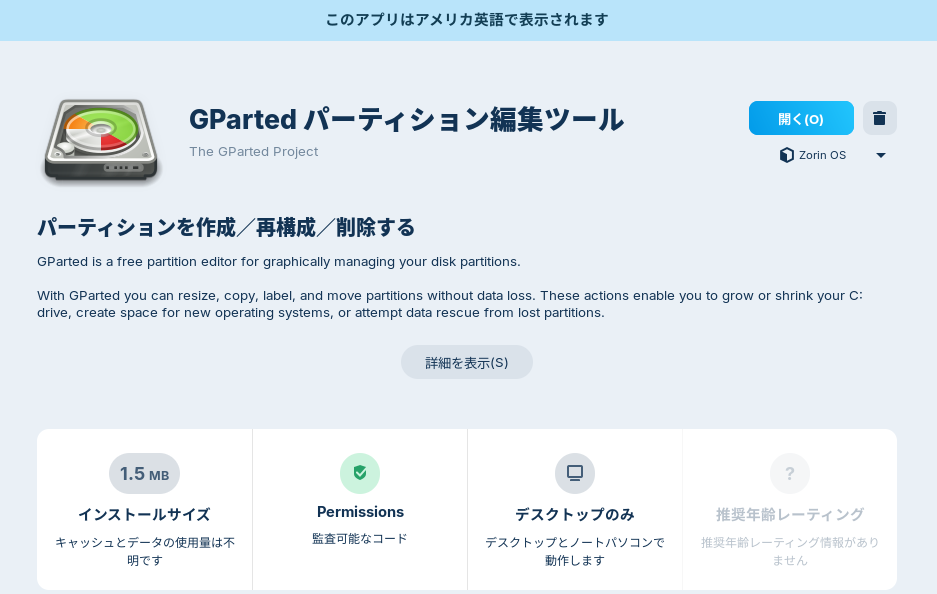
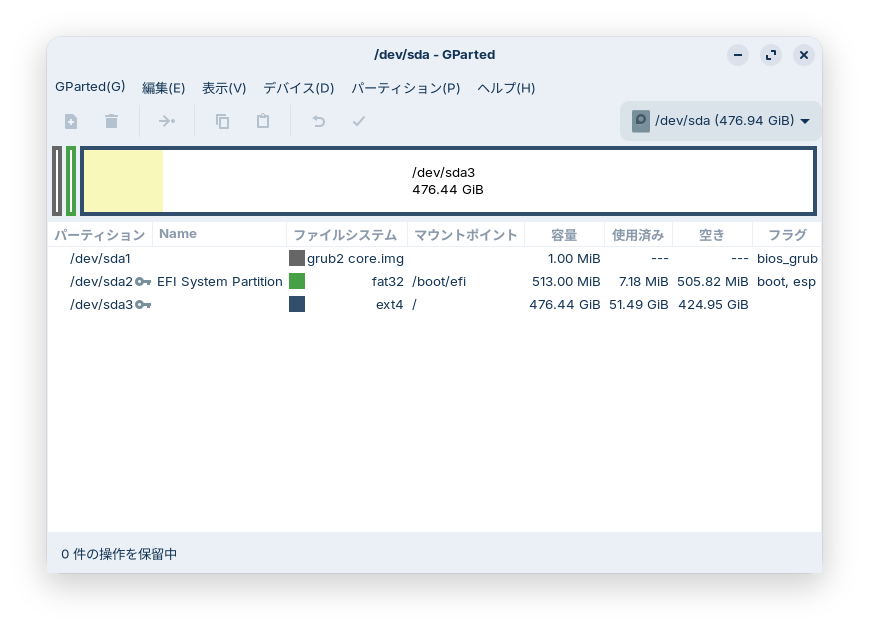
This is an app for partitioning, merging, and editing disk partitions.
You can install it from the Software.

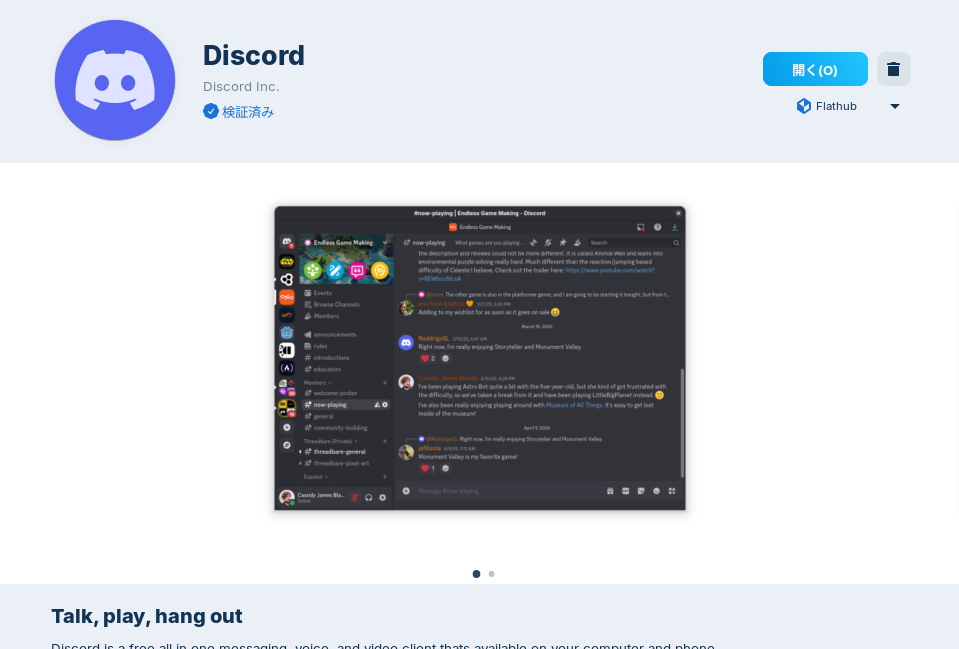
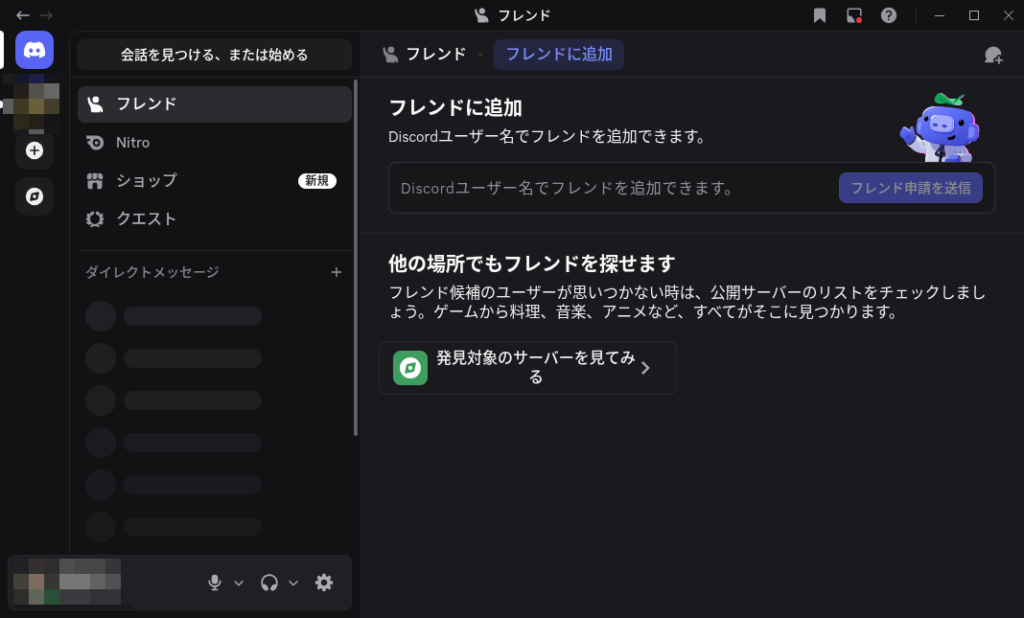
8. Discord
This is a versatile app for chatting, calling, and conferencing.
Now that Skype is gone, I’m sure many of you have switched to Discord.
Download it here or install it from Software.


9. GIMP
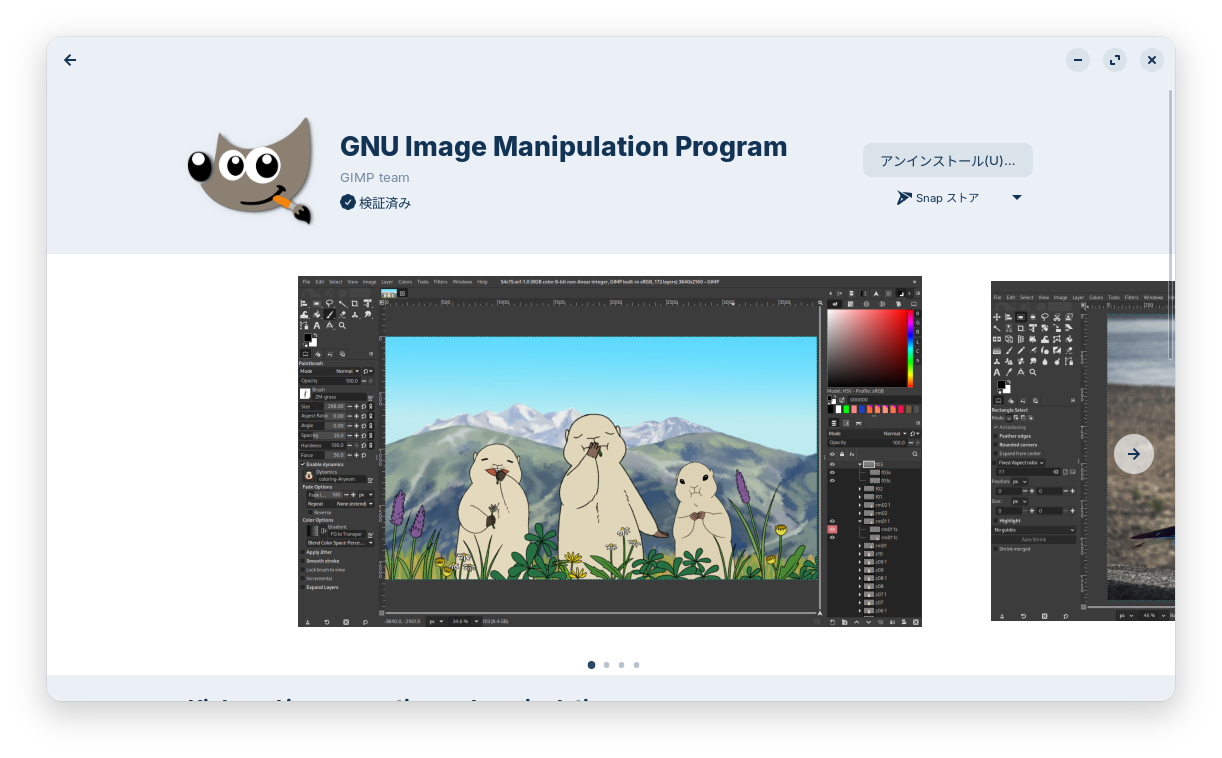
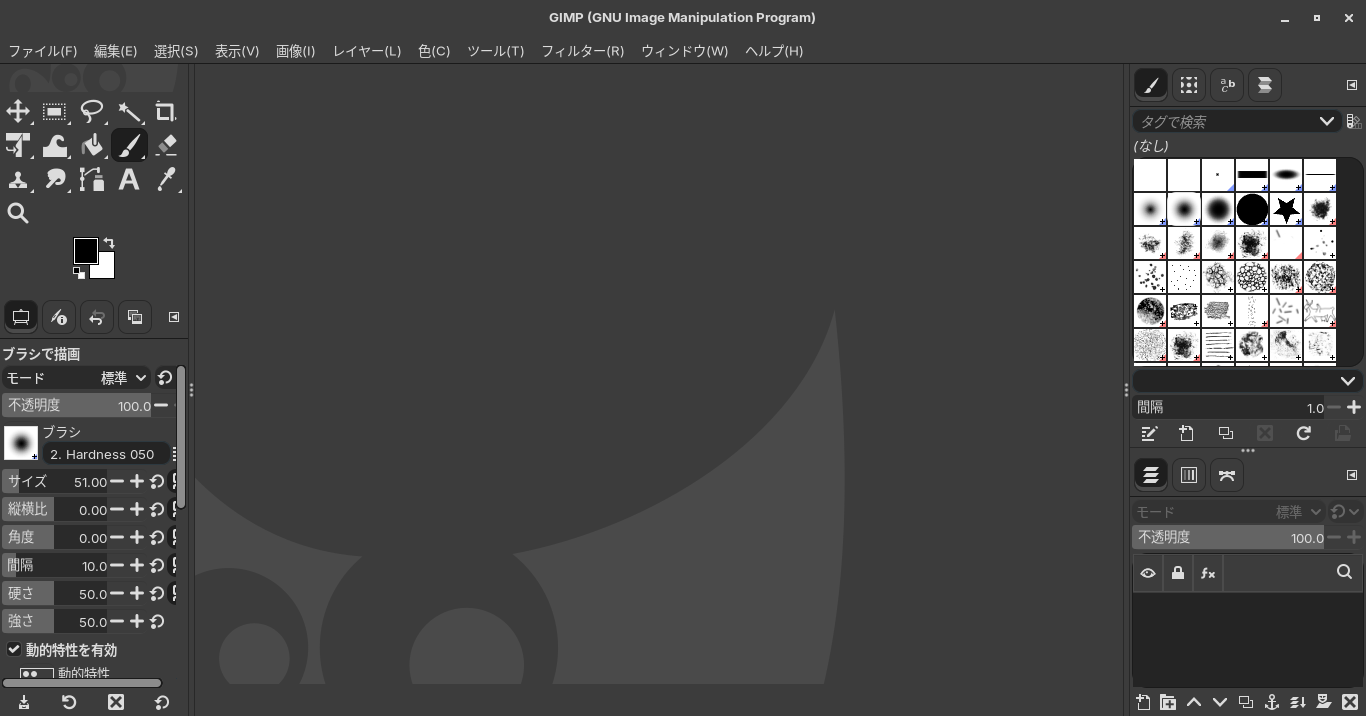
A versatile photo and image editing program.
You can install it from here. However, it’s an AppImage.
I installed the Snap version from the software.

You can edit photos and images to a considerable extent.
For example, you can brighten a photo that came out a bit dark by increasing the exposure, or simply use the automatic white balance correction to make it brighter.

10. Obsidian
Obsidian is a glassy rock commonly used in the Flint Age; when struck, it shatters into sharp flints.
Obsidian apparently helps sharpen and refine your thinking by allowing you to jot down multiple short notes and link them together.
Additionally, if you install community plugins like Dataviewjs or Chartsjs, you can create tables, graphs, calendars, and more.
You write primarily in Markdown.
By writing in Markdown, you can easily create links and other connections between notes.
It’s an app that can be used for a variety of purposes.
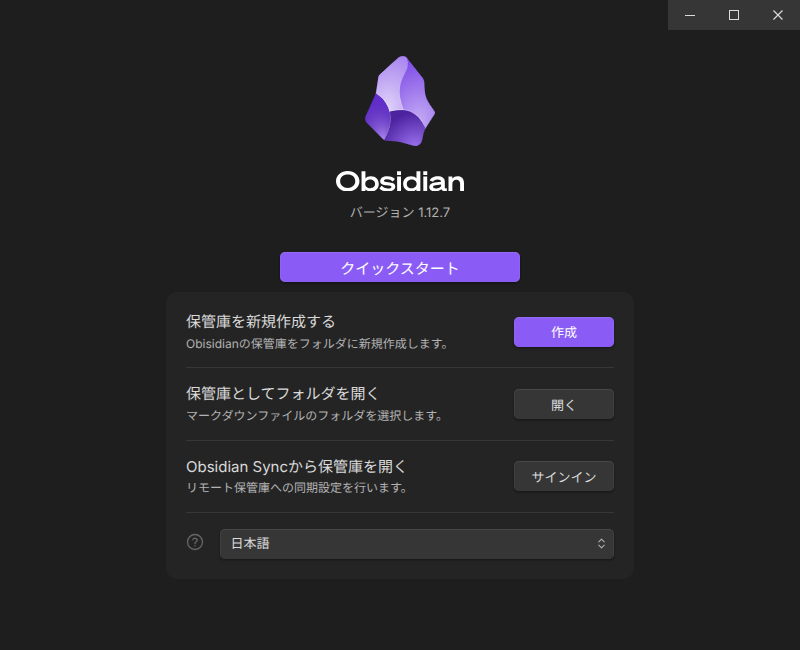
You can download and install it from here. I downloaded and installed the .deb version.

11. Typora
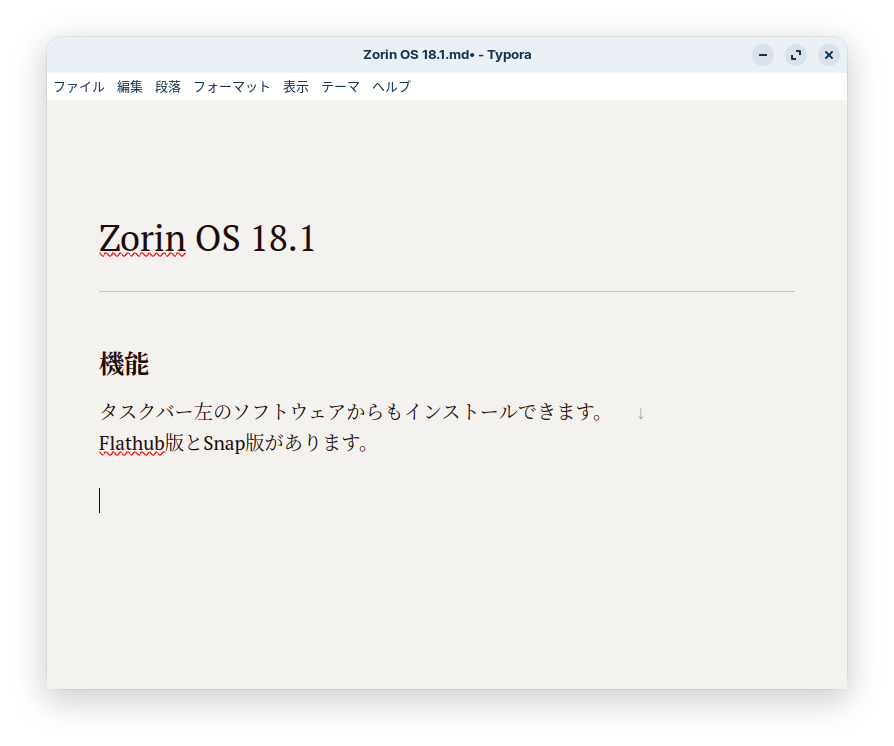
This is a simple, easy-to-use Markdown editor. I use it for drafting blog posts and the like.
If you paste it directly into Gutenberg, line breaks and other formatting may become distorted.
Also, while in standard Markdown, two single spaces followed by Enter creates a forced line break without starting a new paragraph, in Typora, two single spaces followed by Shift+Enter creates a forced line break, so there are some differences from standard Markdown conventions.
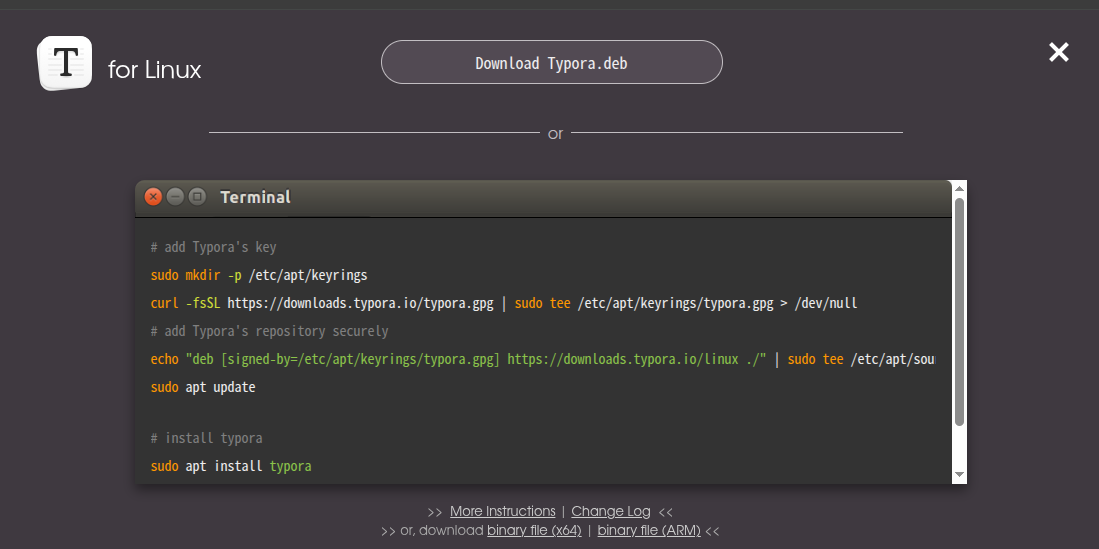
You can download it here. You can also find and install it through your software center.


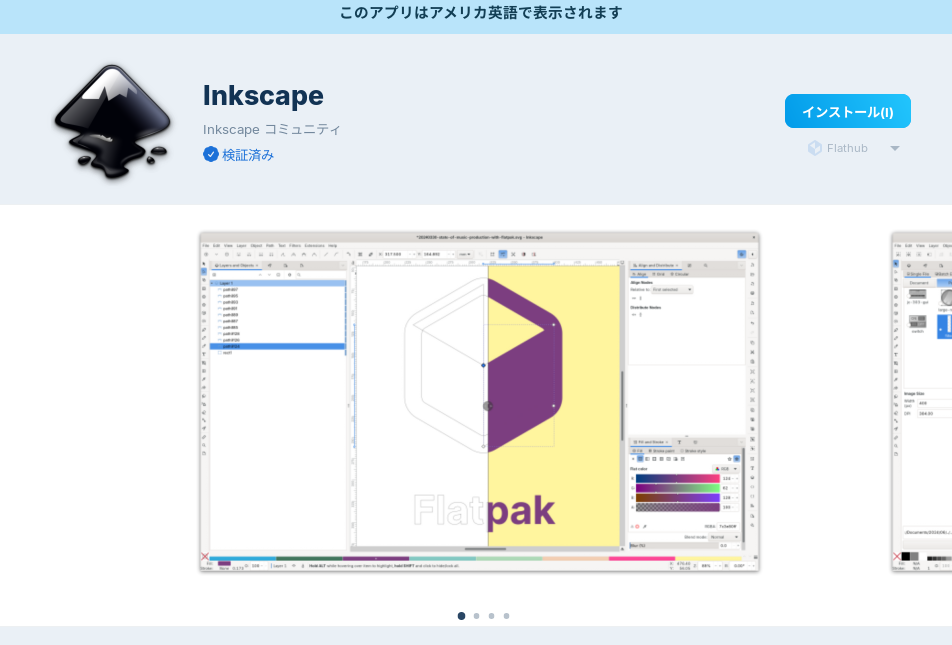
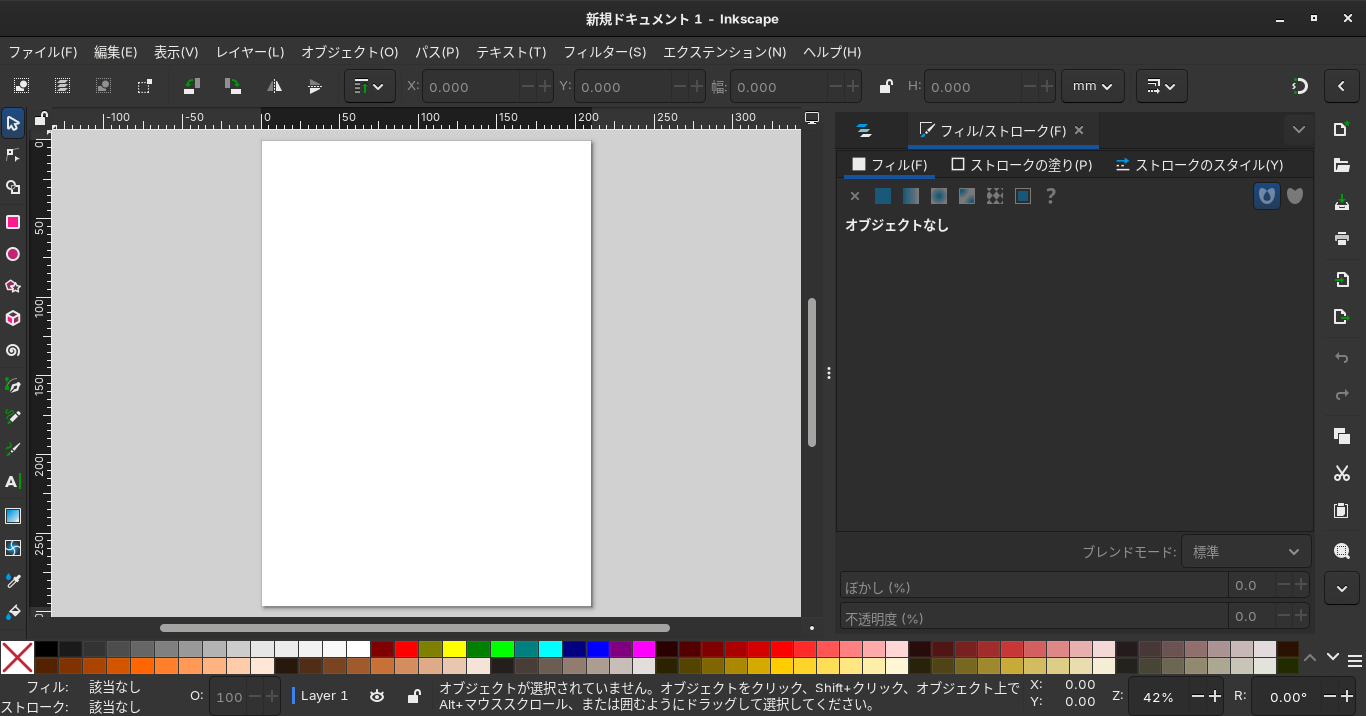
12. Inkscape
While GIMP handles raster images such as JPEGs and PNGs, Inkscape handles vector images.
Vector images tend not to become pixelated even when enlarged.
They are well-suited for drawing building exteriors and illustrations.
You can install it from Software.
13. Teamviewer
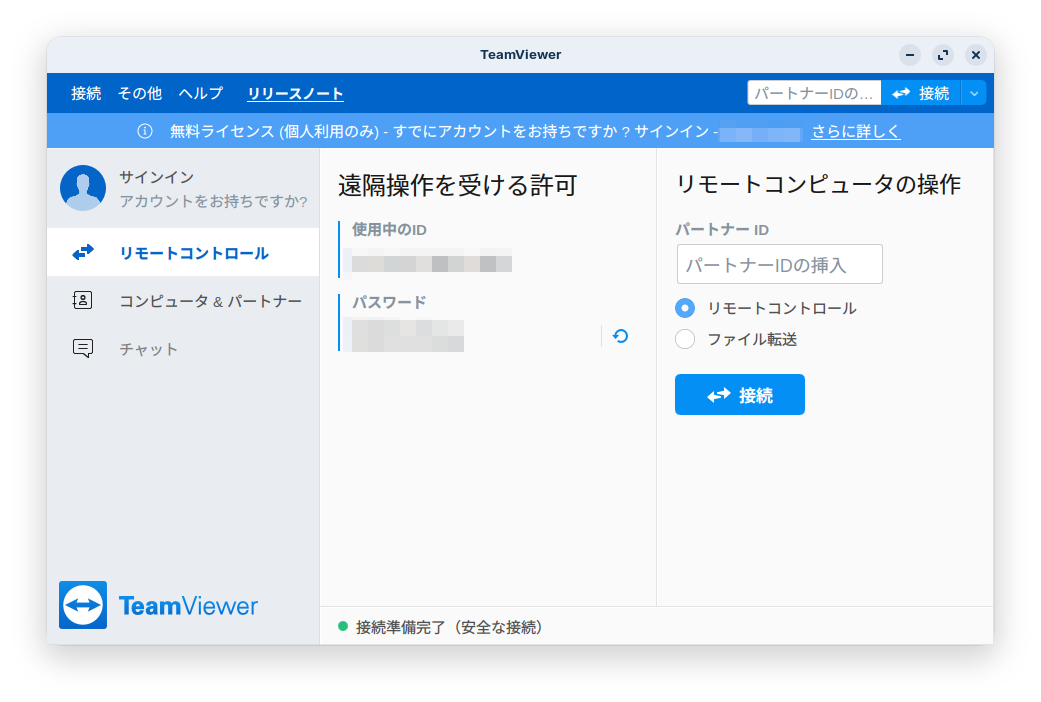
This app allows you to remotely access other devices and receive support.
You can download it here.

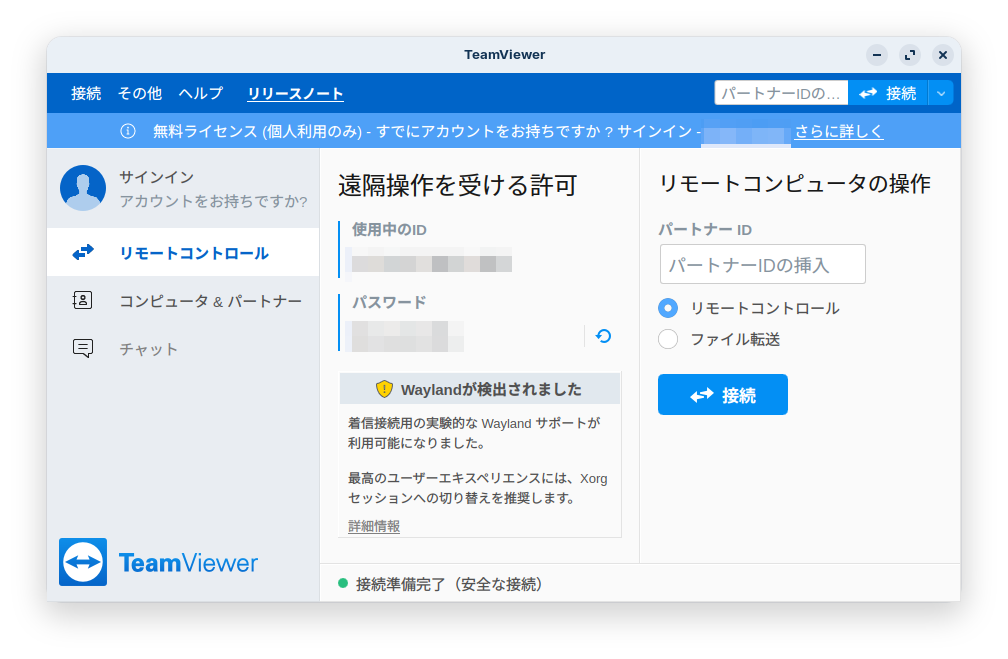
Since the message “We recommend switching to an Xorg session” appears, it seems best to log out, enter your password at the login screen, then select “Zorin Desktop on Xorg” from the gear icon in the lower-right corner before logging in.
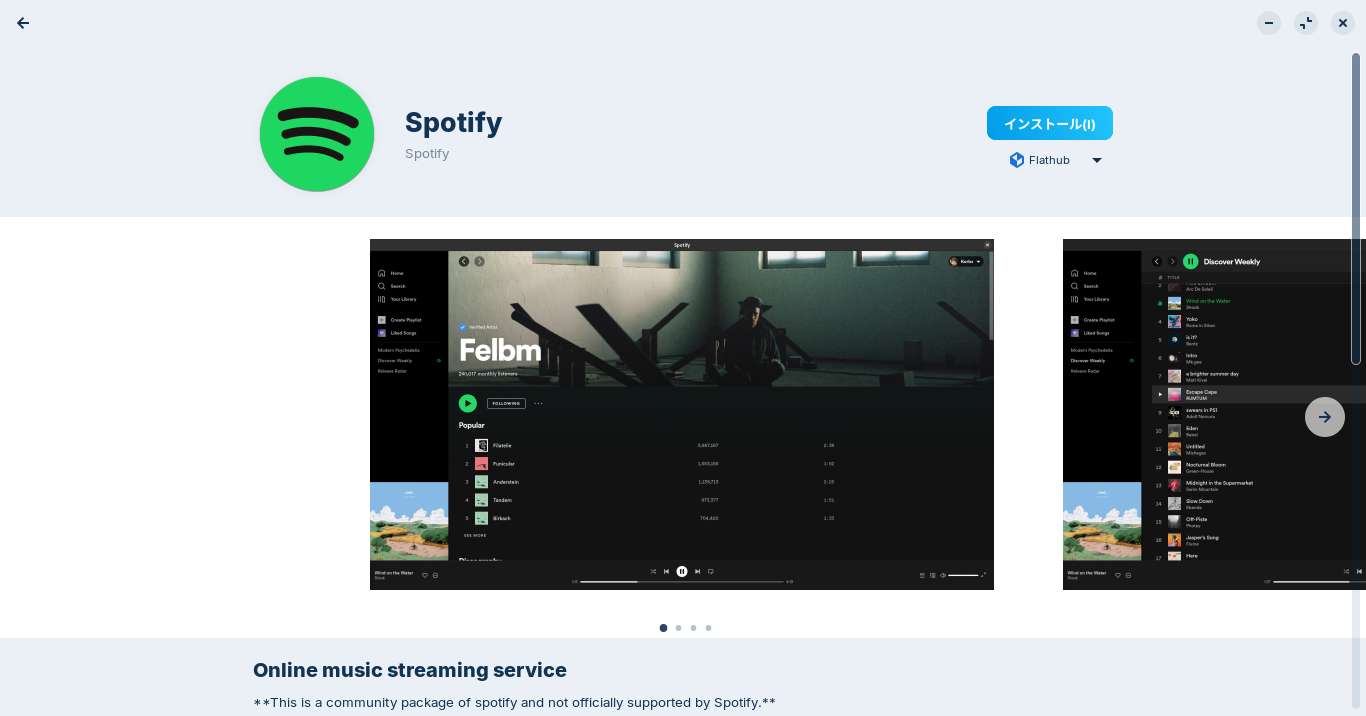
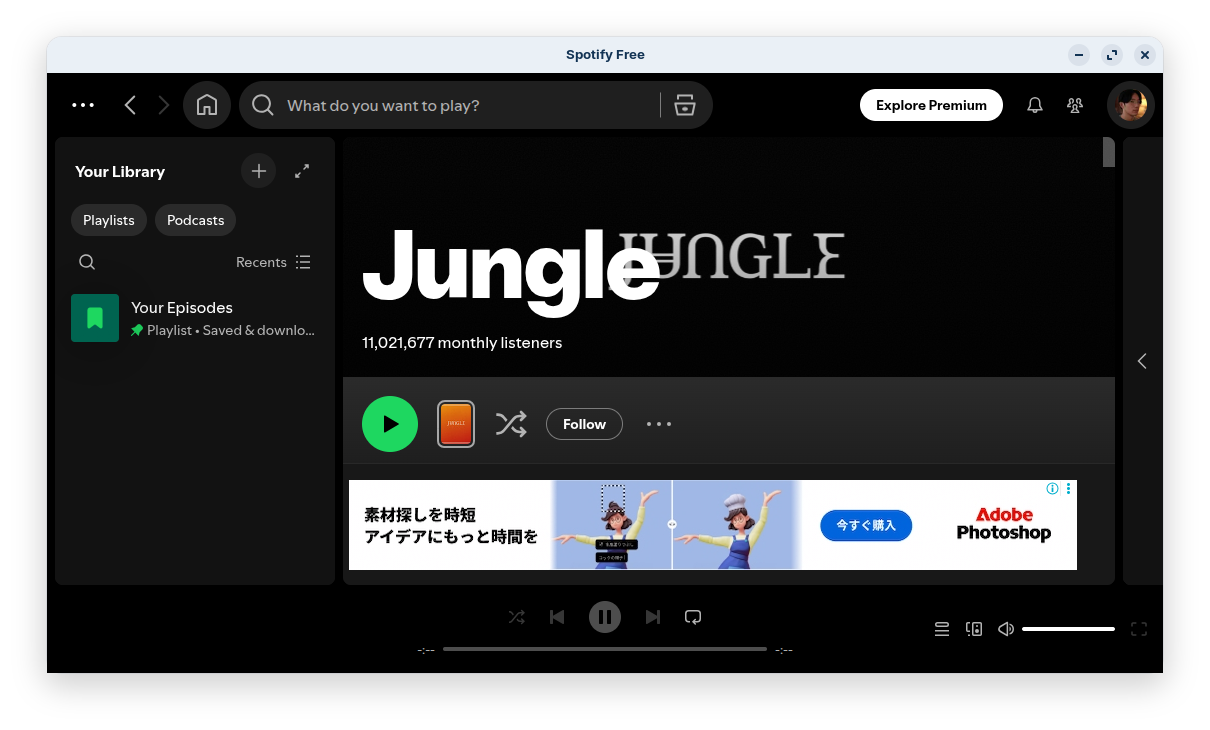
14. Spotify
You can install it here.
Click the link to open Software.

15. Steam
It’s a platform where you can play a variety of games.
You can download it here.

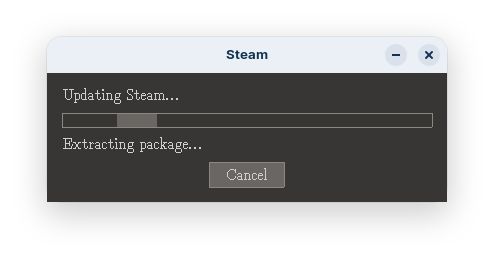
Install the .deb file, then launch the Steam installer found in the “Games” section via the Start menu.
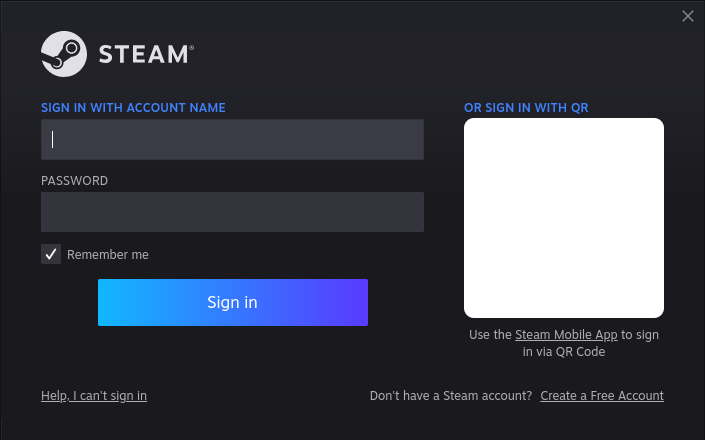
It seems you need to create a Steam account first, and then create accounts for each individual game.
I tried to play VRChat, but even after opening several .exe files, I couldn’t get into the game.
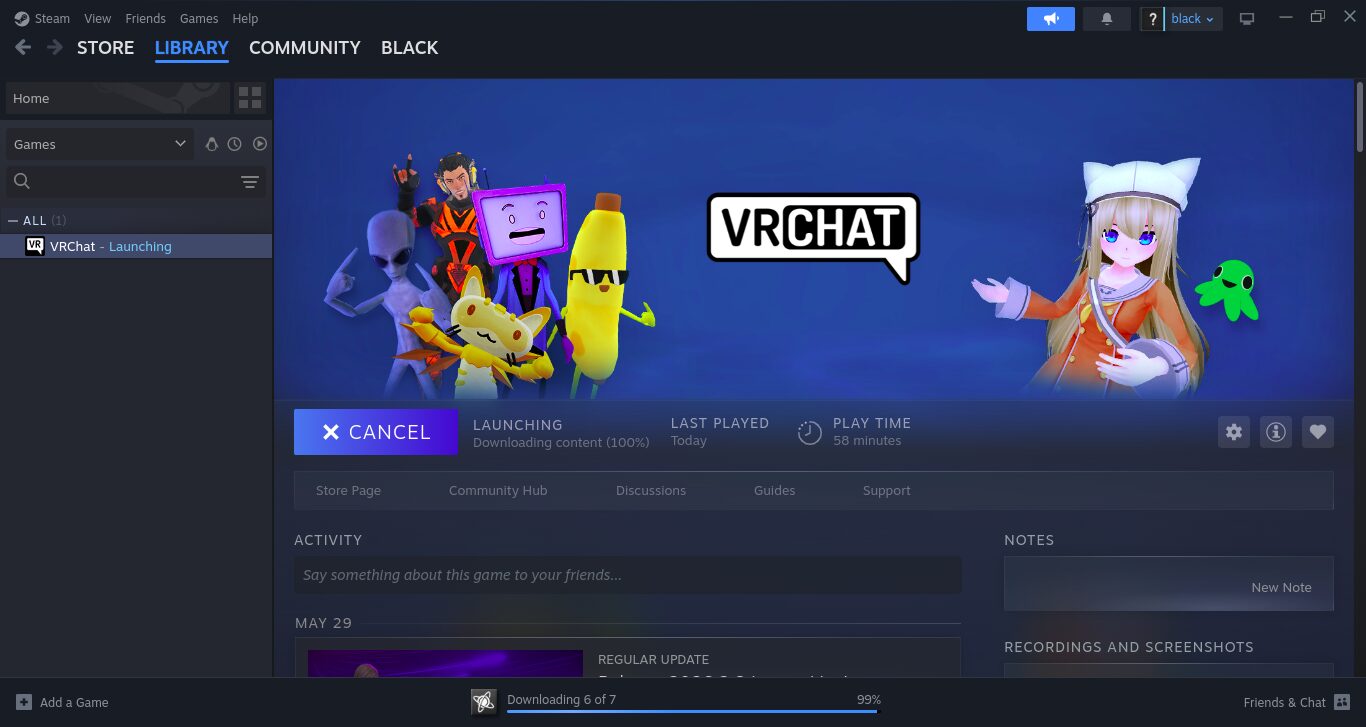
It seems you’ll have a hard time playing games unless your PC meets certain specifications.
When you actually try to play a game, an .exe file is often downloaded, and you’ll usually need Wine or Bottle.
Even after installing Steam via Bottle, Steam did not work.
It’s quite difficult to run Windows executables.
However, there are probably some games that work on Linux.
That concludes our introduction to these 15 software programs.
I realize many of them are rather run-of-the-mill.
I’m sure there are other interesting programs out there if you look around.
よろしければ応援お願いします


