- HOME >
- 春雨
春雨
都内に住んでいる中高年のおじさんです。古いPCにLinuxを入れたりして遊ぶのが好きです。PCをいじるのは好きですが、勉強は苦手です。
In Zorin OS 18.1 Core, a tile pattern drops down from the top when you move a window, but you can turn this feature off in Zorin Appearance.
To use a printer in Zorin OS 18.1, download and install the necessary files, such as drivers, from the manufacturer’s website.
Add your printer in the Printers tab of Settings.
2026/5/27 apache, Database, File Shareing, Hobby, Linux, Mail, PC, Printer, samba, Software, Wordpress, Zorin OS
Zorin OS 18 was released to coincide with the end of support for Windows 10. I have compiled articles on how to upgrade from 17.3, how to perform a clean install, how to use printers, how to share files, how to install WordPress, and how to migrate the Thunderbird email client.
If you use Thunderbird on Windows or another platform, you can transfer your email account settings to Thunderbird on Zorin OS 18.1.
I think the Zorin OS version of Thunderbird is the best.
However, since email passwords cannot be transferred, please enter them manually.
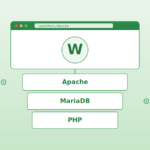
To set up a local WordPress environment on Zorin OS 18.1 Core, install Apache, MariaDB, and PHP, configure Apache, and create a database in MariaDB. If you encounter issues during the WordPress installation process, editing the wp-config.php file may resolve the problem.
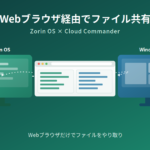
To share files on Zorin OS 18.1, check if the file manager has a sharing feature; if not, install it.
This allows you to share folders without editing the Samba configuration file, provided you set the Samba password, configure folder permissions, start Samba, and configure the firewall.
Here are 14 pieces of software I recommend installing after performing a clean install of Zorin OS 18.1. While many of them are fairly standard choices, I hope you find this list helpful.
You can find plenty of other options by searching through the “Software” section—represented by the blue briefcase icon on the taskbar.
To perform a clean installation of Zorin OS 18.1, first download the ISO image from the official website and create a bootable USB drive using a tool such as balenaEtcher. Before installation, make sure to complete the necessary preparations, such as connecting to the network and disabling suspend mode. After installation, update the software and enable the firewall to ensure a secure start.
Upgrading from Zorin OS 17.3 to Zorin OS 18.1 can now be completed entirely via the GUI from the “System Tools” menu in the Start Menu. Be sure to update your software before upgrading. We also recommend backing up your important data for peace of mind. We have confirmed that major apps and services continue to function properly. Enjoy using Zorin OS at its latest version.