
A VPN is a technology that creates a virtual tunnel over the internet and encrypts your data to make browsing safer. It’s now essential when connecting to public Wi-Fi on the go, such as on a smartphone.
In this article, I’ll walk you through everything from signing up for Surfshark—one of the paid VPN providers—to how to use it, complete with illustrations.
Surfshark Features
- Japanese language support is expanding
- Unlimited simultaneous VPN connections (the whole family can use it)
- All apps support Japanese
- Minimal impact on connection speeds
- Money-back guarantee within the first 30 days
- Guaranteed no-logs policy (verified through independent audits)
- 1-year and 2-year plans are more affordable than other major VPN providers
About Surfshark
Surfshark is a service provided by Surfshark B.V., a company currently based in the Netherlands. It is a relatively new company founded in 2018. It merged with Nord Security in 2022 and operates as a standalone business. The company primarily focuses on internet security services, including VPNs and antivirus software.
As of December 3, 2022, it has over 3,200 servers in 100 countries.
Unlike ExpressVPN and NordVPN, Surfshark is notable for having no limit on the number of devices you can connect. Additionally, its 2-year and 1-year plans are significantly cheaper than those of ExpressVPN and NordVPN. Since there is no device limit, the whole family can use it.
Like other providers, it offers a 30-day money-back guarantee, so I recommend giving it a try.
How to Sign Up for Surfshark
Go to the Surfshark website.
[SurfShark] ⇐Click here
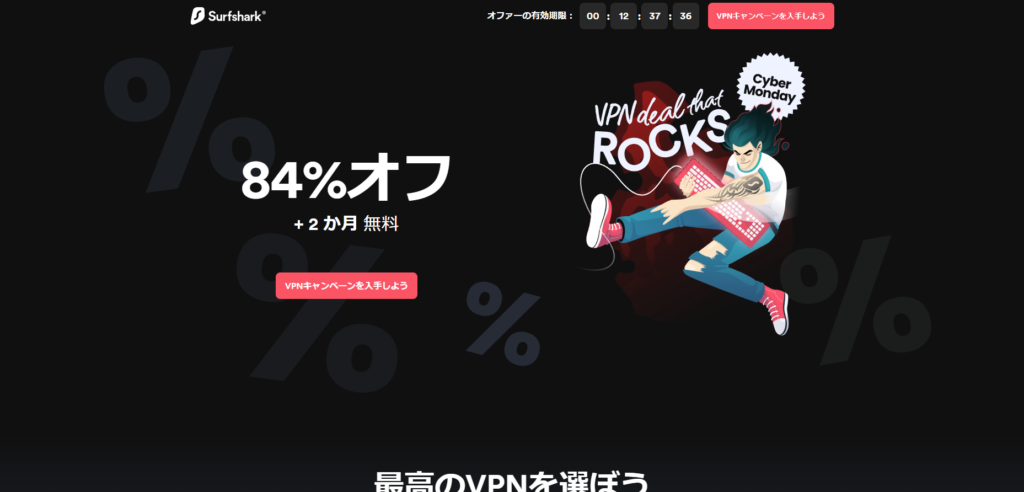
Click the "Get the VPN Deal" button.
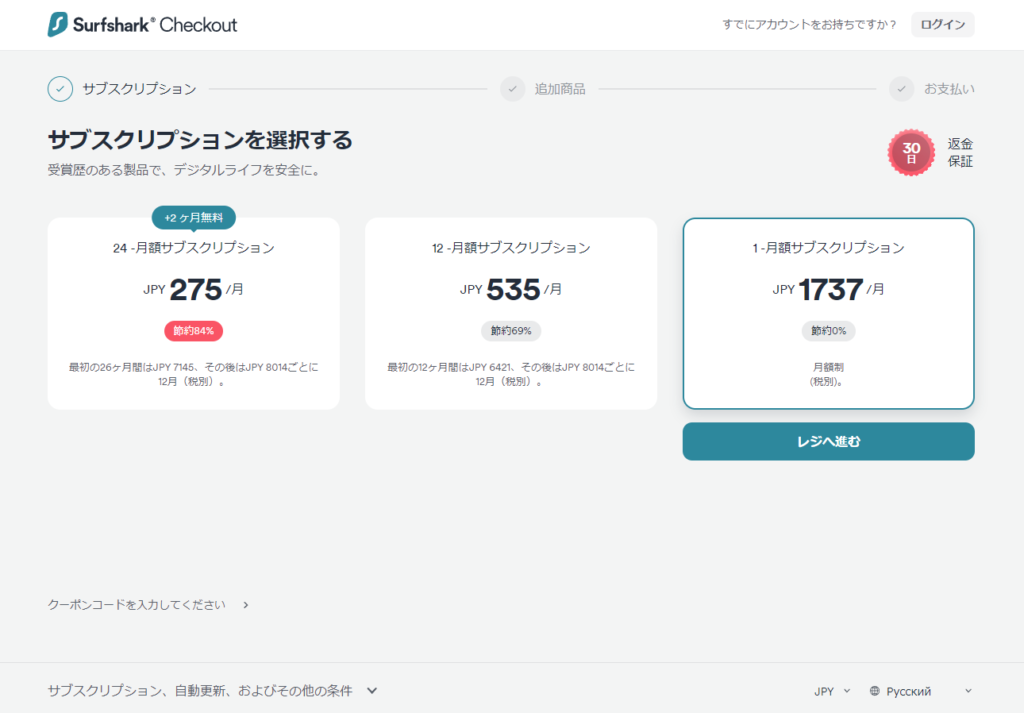
Select a plan. In this example, we’ll sign up for the 1-month plan.
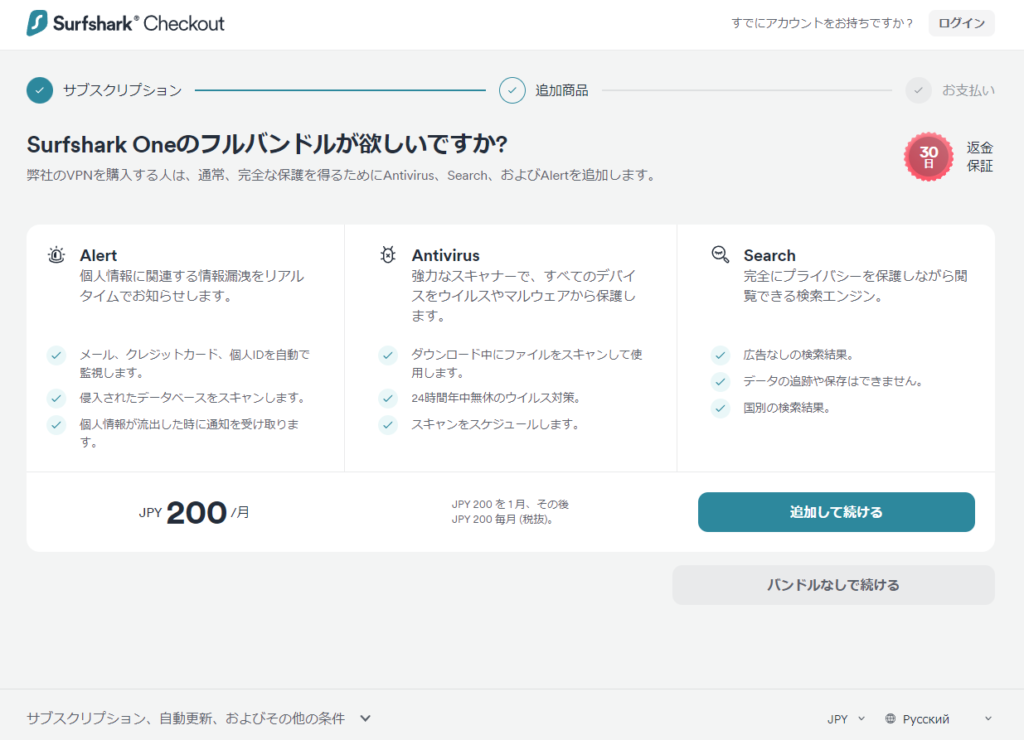
You can add features like data privacy protection and antivirus software. However, if you just want to use the basic VPN functions, these aren’t necessary.
Click the “Continue without bundle” button.
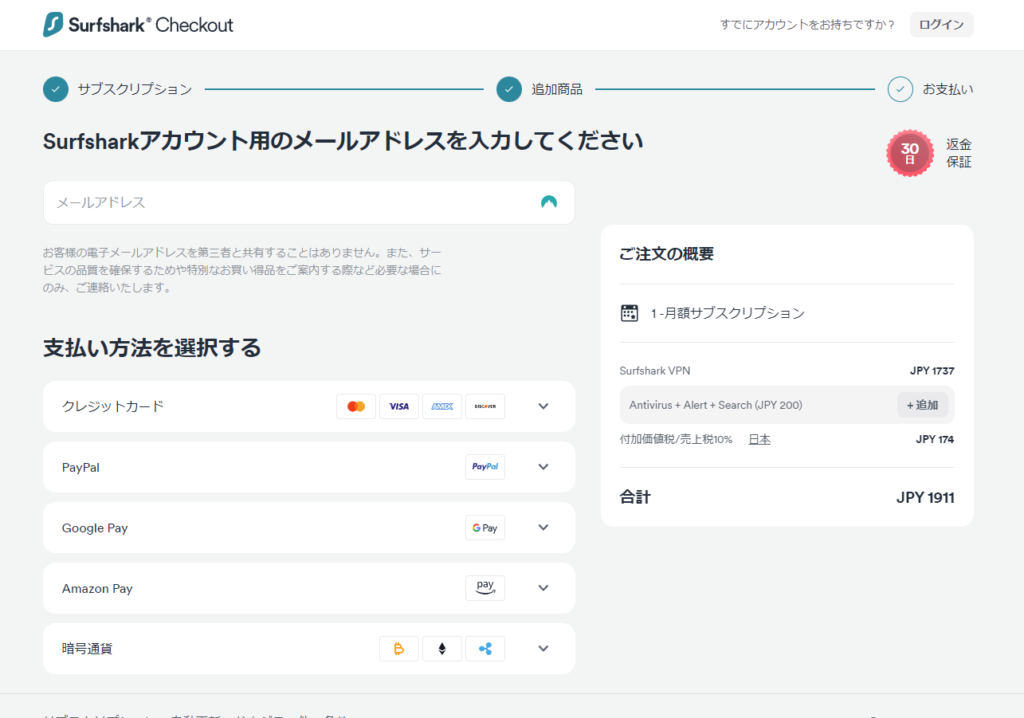
Enter an email address for your account and select a payment method. I paid via PayPal.
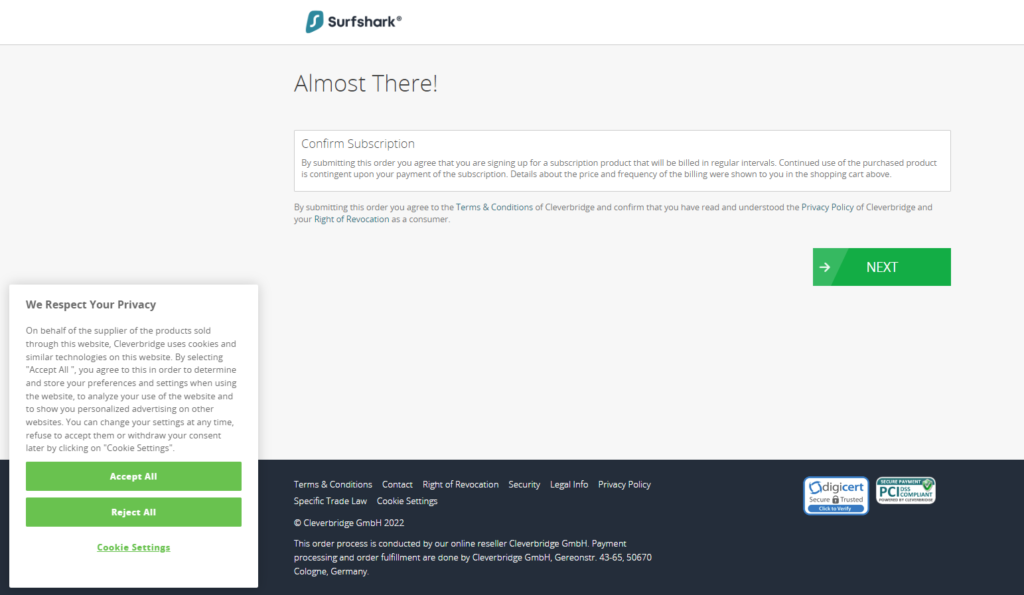
Accept the cookies and click the "NEXT" button.
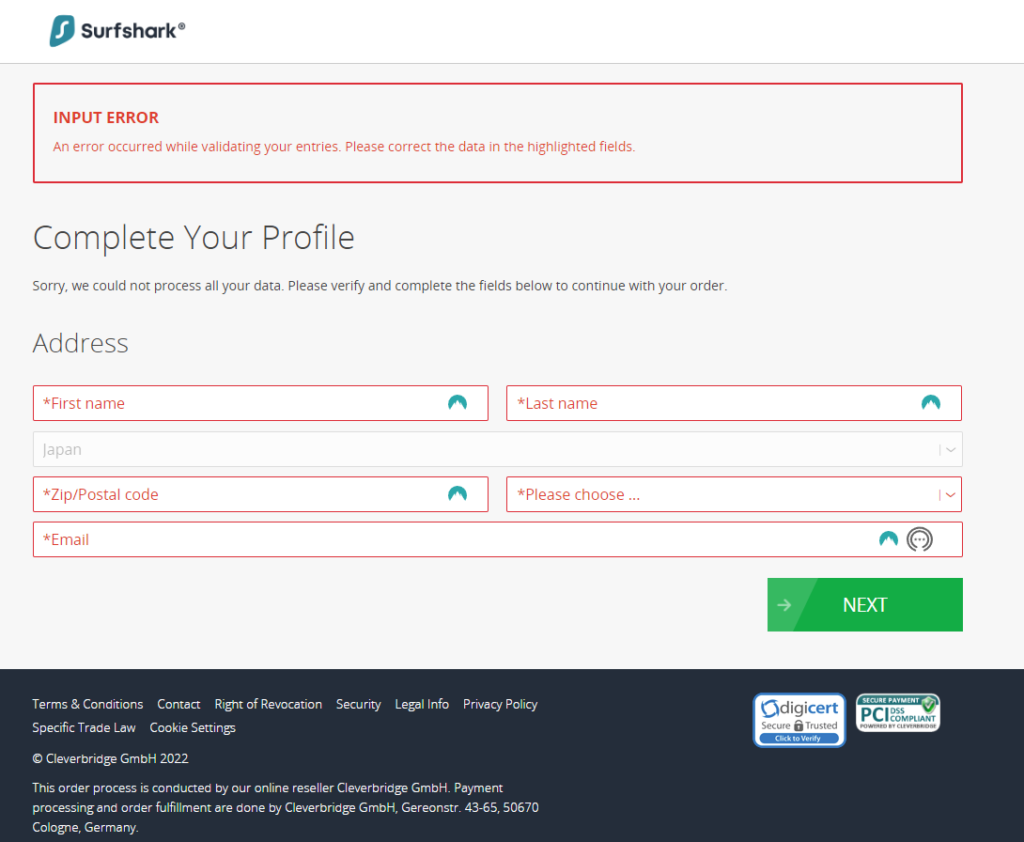
Enter your name and address, then proceed to the next step.
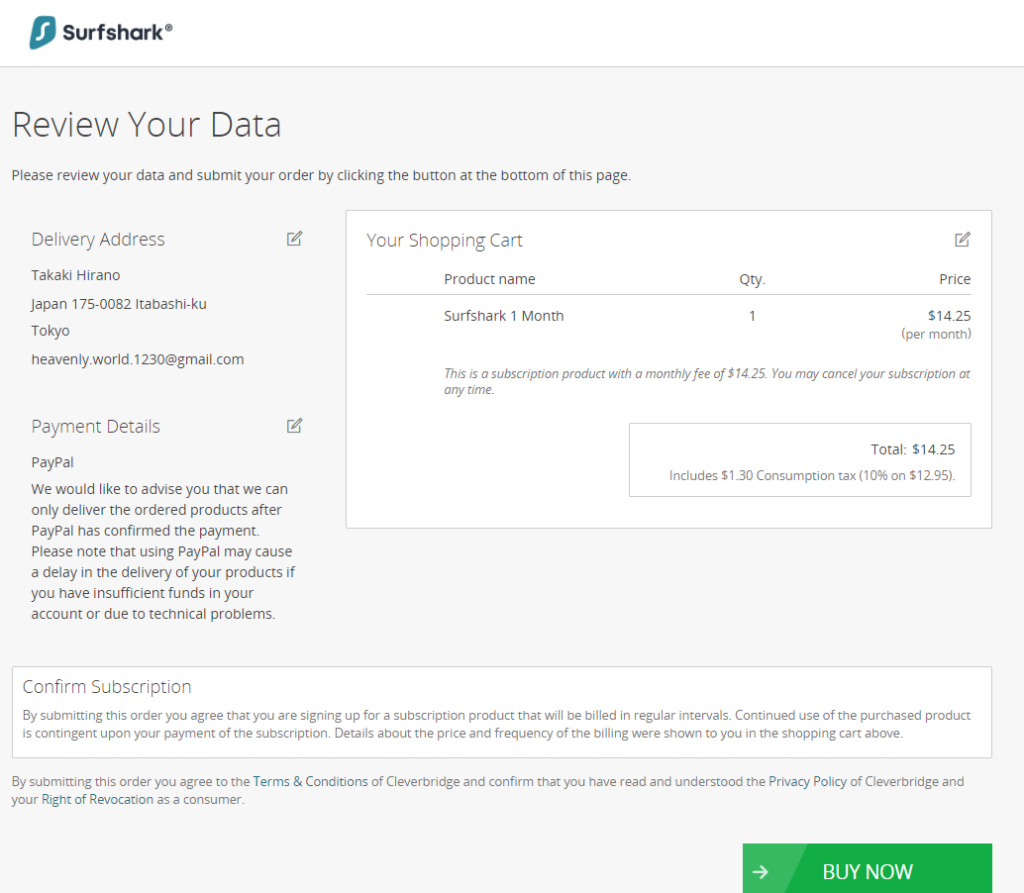
Review your subscription details and click "BUY NOW."
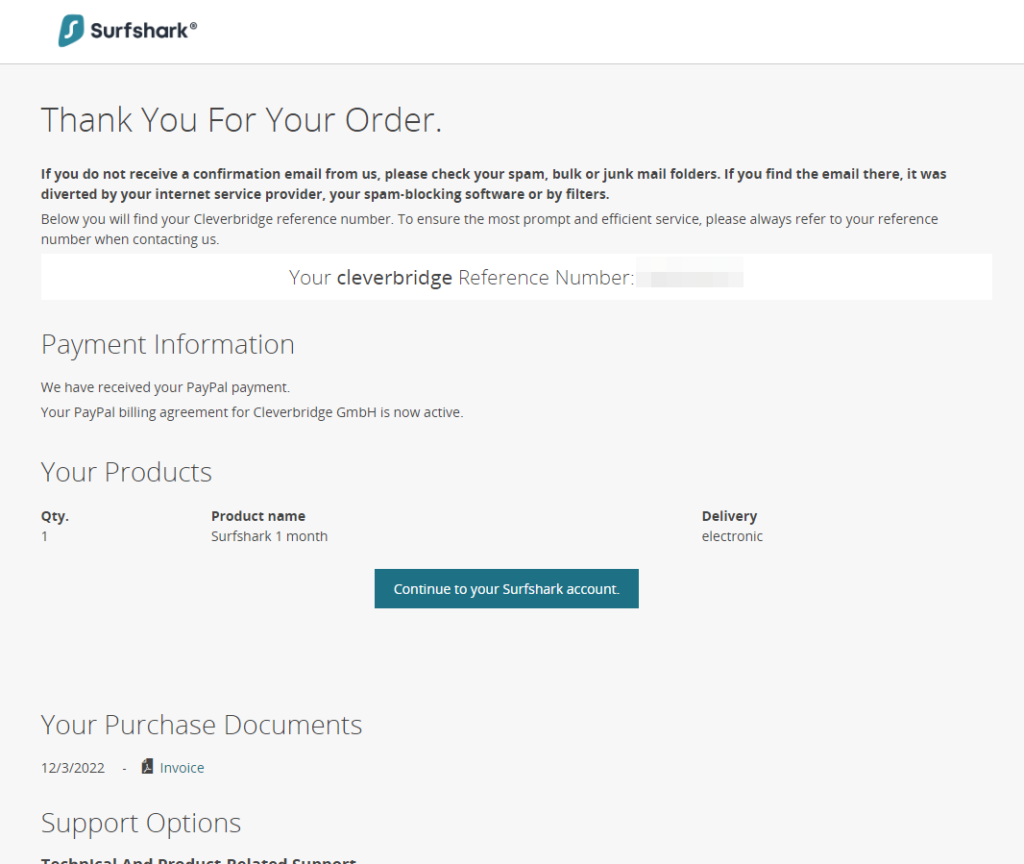
Since payment is complete, click "Continue to your Surfshark account."

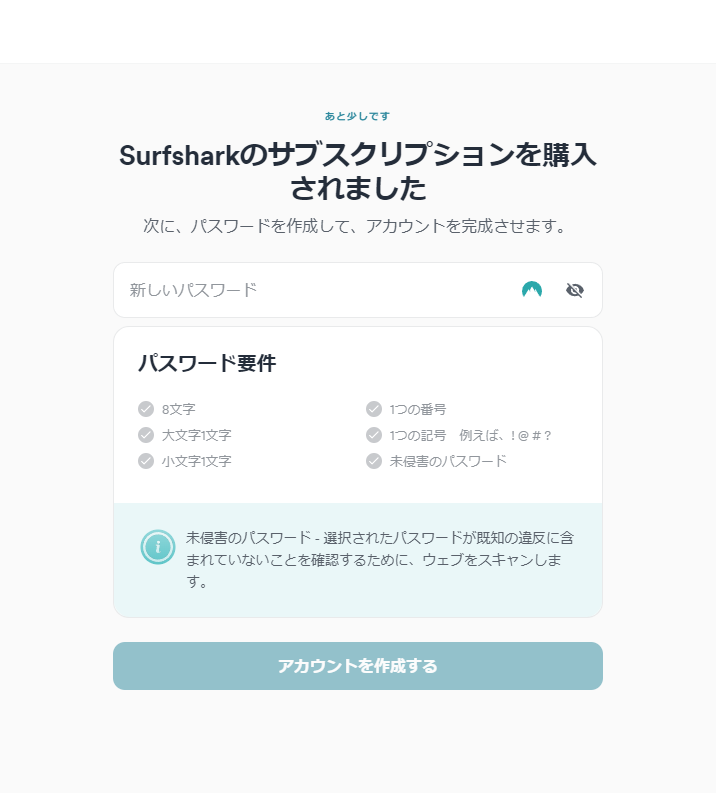
You will be taken to the screen to set your account password. Set a strong password that is at least 8 characters long and combines lowercase and uppercase letters, numbers, and symbols.
Points
To use the internet more securely with a VPN, set a strong password for your VPN account by combining uppercase and lowercase letters, numbers, and symbols.
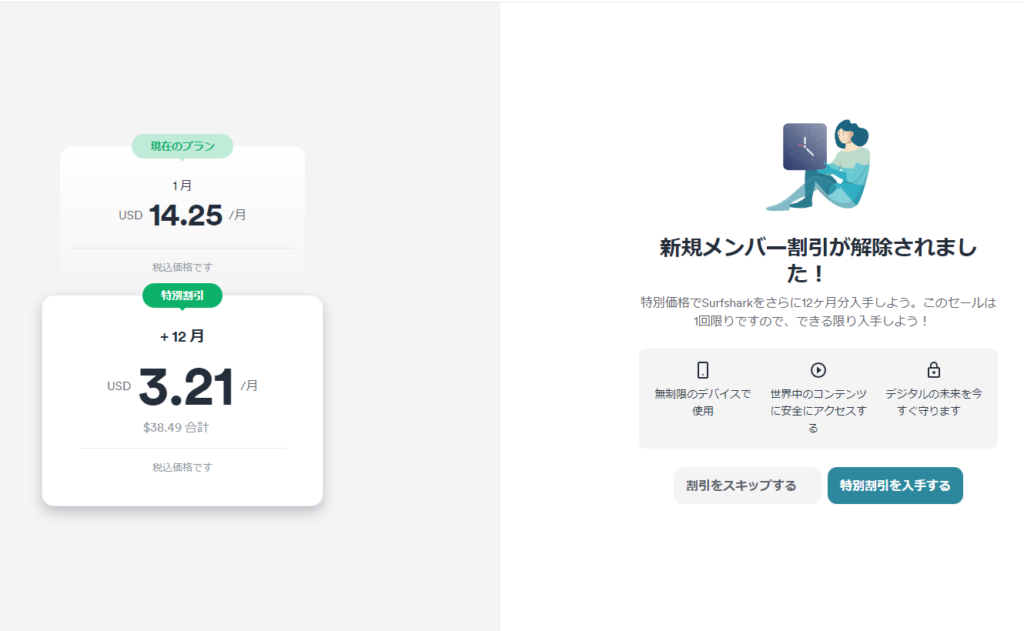
Once your account is created, you’ll be offered a 12-month discount plan, but let’s skip that for now.
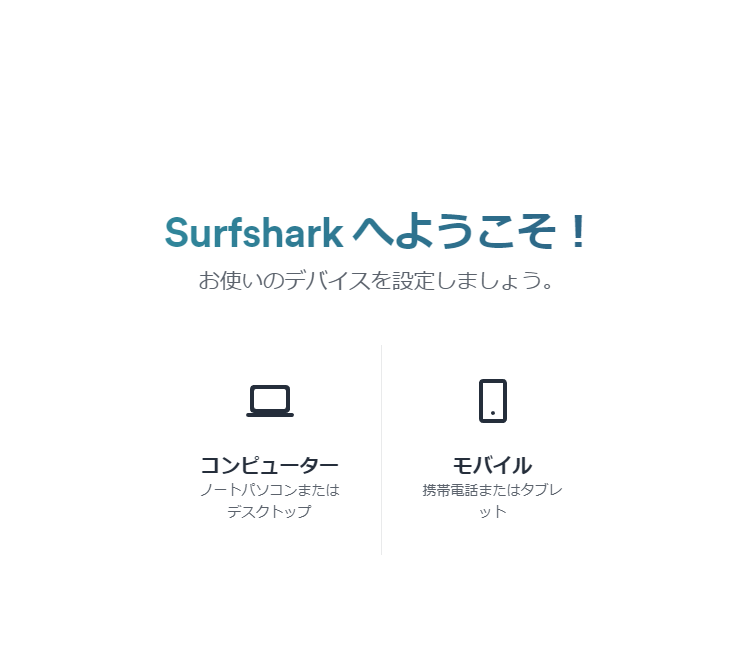
You’ll be taken to a screen to install Surfshark on your computer and mobile devices. Click “Mobile” to display a QR code.
First, select "Computer."
How to Use Surfshark
Installing the Surfshark App
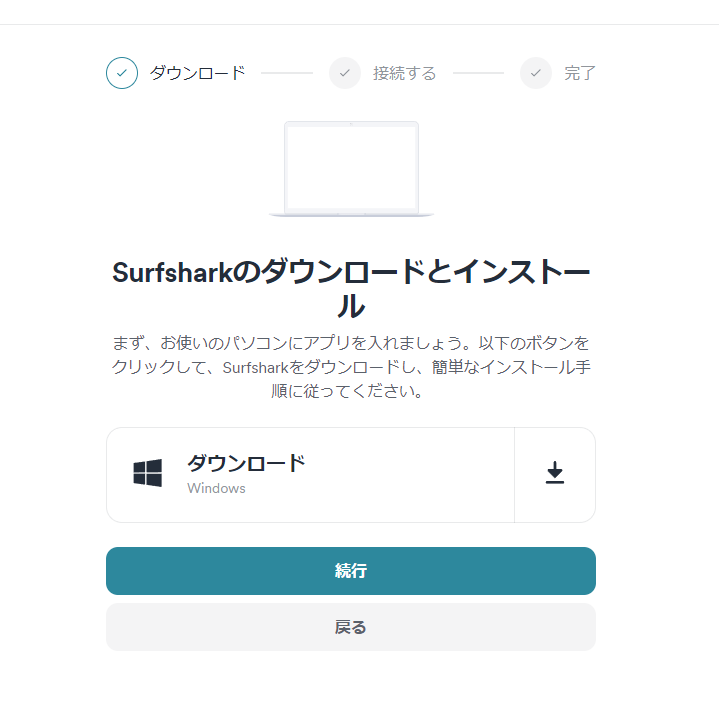
A button to download the desktop application will appear.
Download it.
Open the downloaded file and install it.
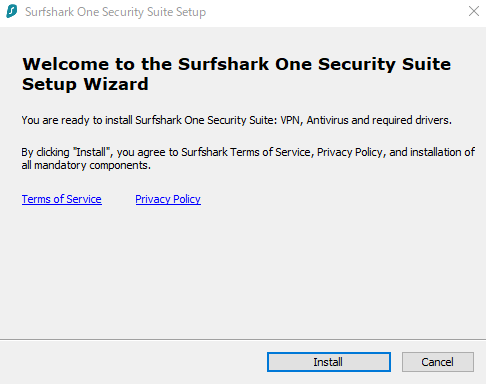
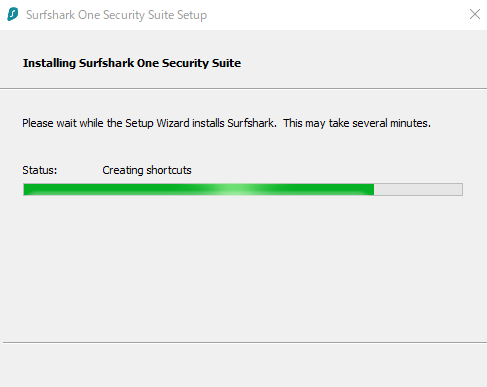
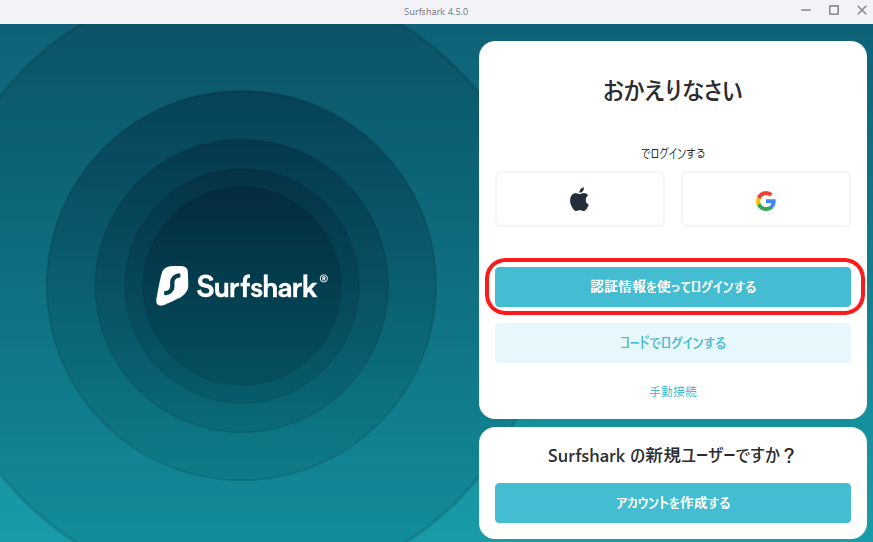
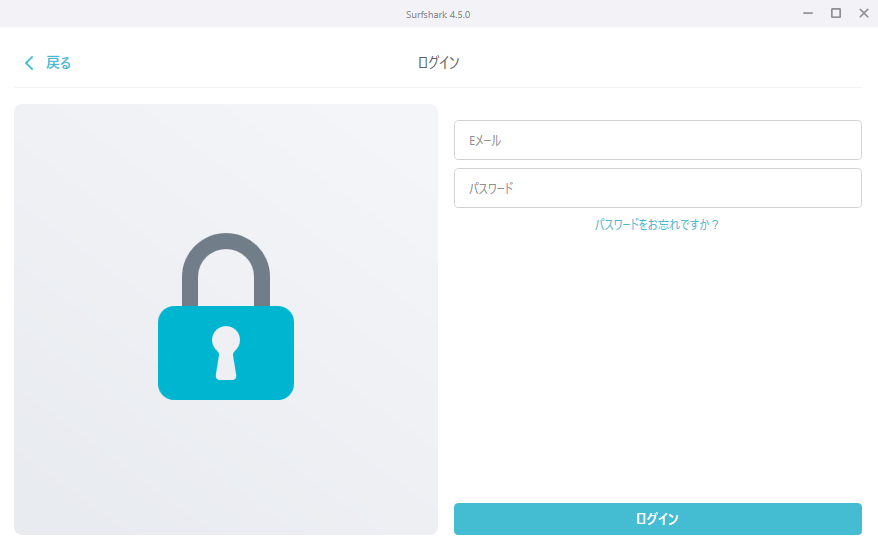
Once the installation is complete, you will be taken to the login screen. Click the "Log in with credentials" button, then enter the email address and password you set up earlier to log in.
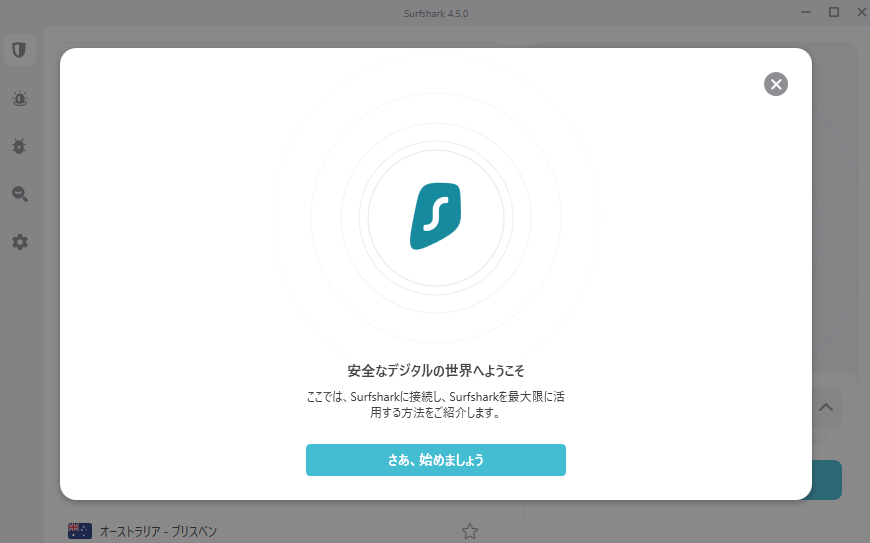
Once logged in, you will be taken to the settings screen. If you want to connect automatically, enable "Auto-connect."
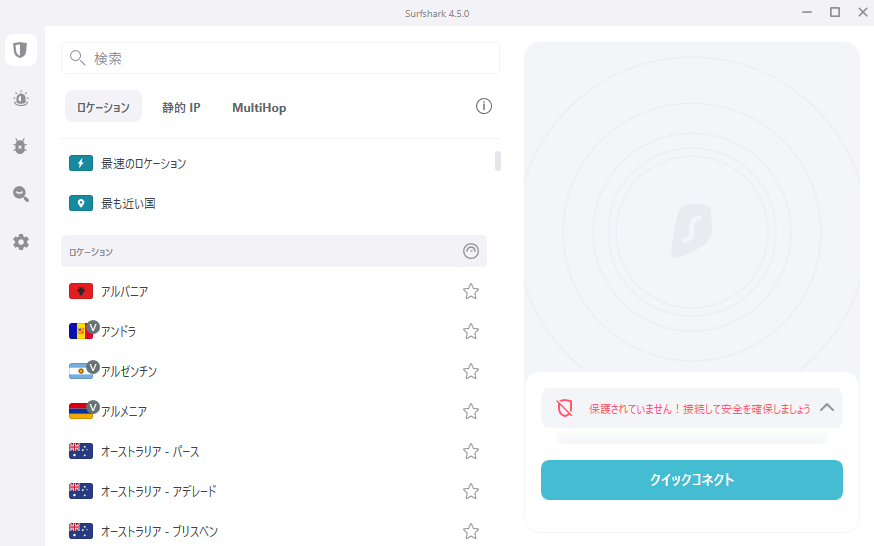
This is the screen for manually connecting to the VPN. Enter the country you want to connect to in the search bar, or click "Fastest Location" to connect to the fastest server.


off right now!

Even if you type "Japan" in kanji in the search bar, a list of Japanese servers will appear, so you can select a server and connect. For the U.S., you need to enter the name in English (e.g., "us") rather than katakana.
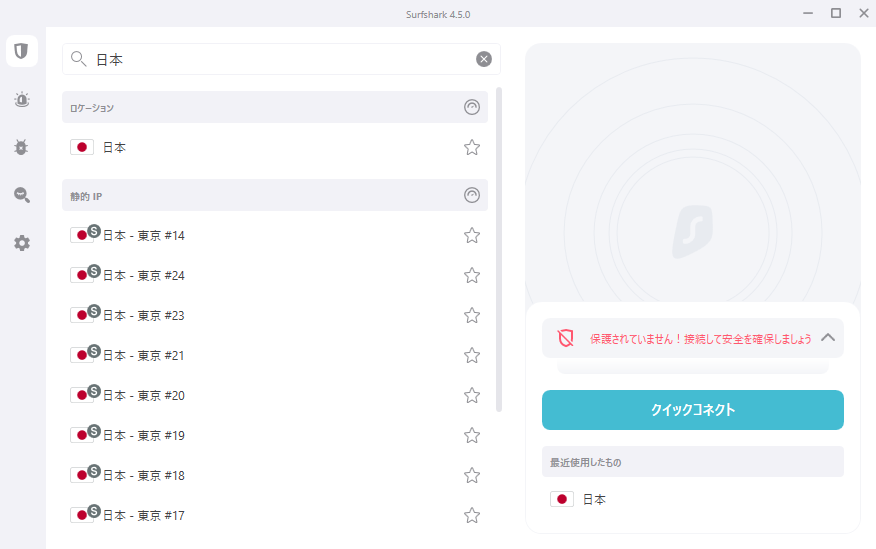
Key Points
You can select a server from the list of servers by country and connect to it.
If you check your IP address using a browser tool, you'll see that it has changed from your original IP address.
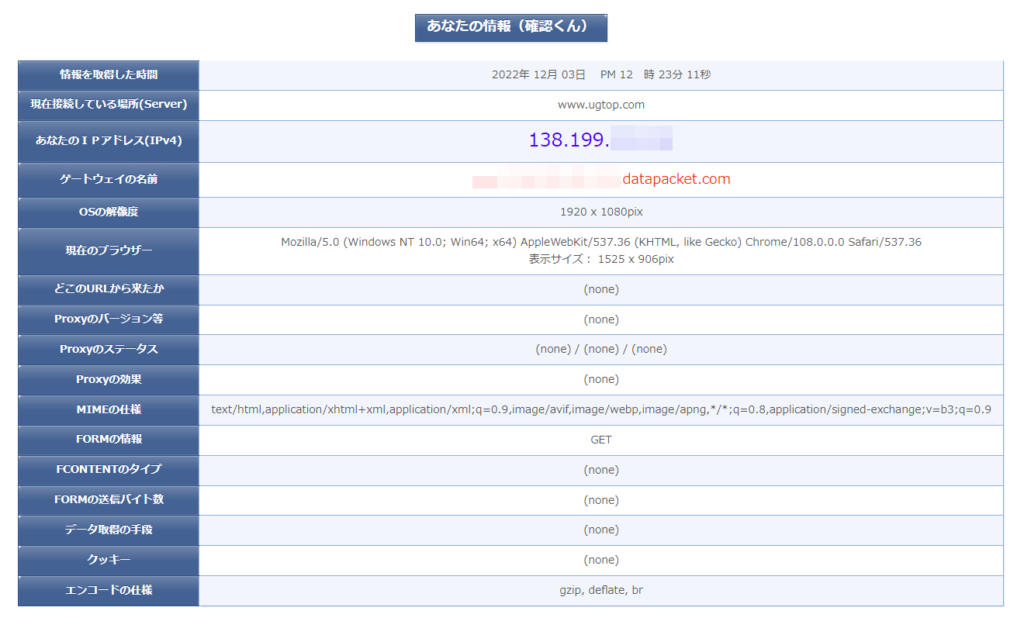
Please note that clicking the link below will immediately display information such as your IP address.
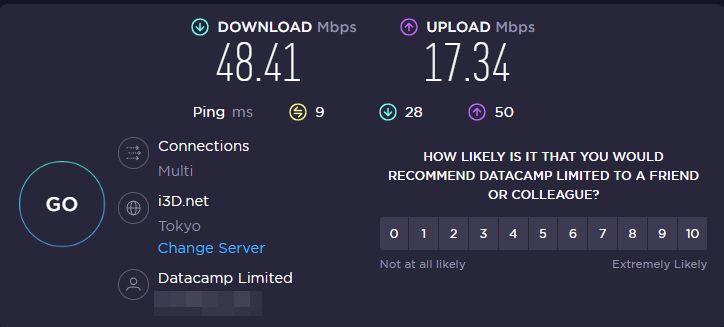
I tested the connection speed.
When connecting to a Japanese server via the app
When connecting to a US server via the app
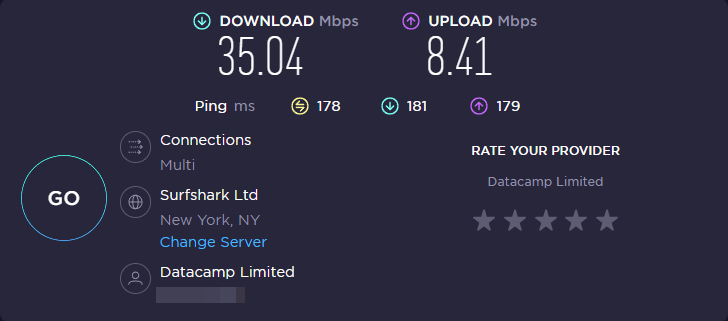
In my home environment, even without a VPN, my maximum speeds are around 50 Mbps download and 20 Mbps upload, so my connection speed hardly dropped when connecting to a Japanese server.
There was a slight drop in speed when connecting to a US server, but it wasn’t enough to cause any issues with streaming videos or similar activities.
Since connection speeds drop with any VPN, I think this is within an acceptable range.
Key Points
While speed drops are common with any VPN, Surfshark delivers sufficient speeds.
Click the gear icon on the left to access various settings.
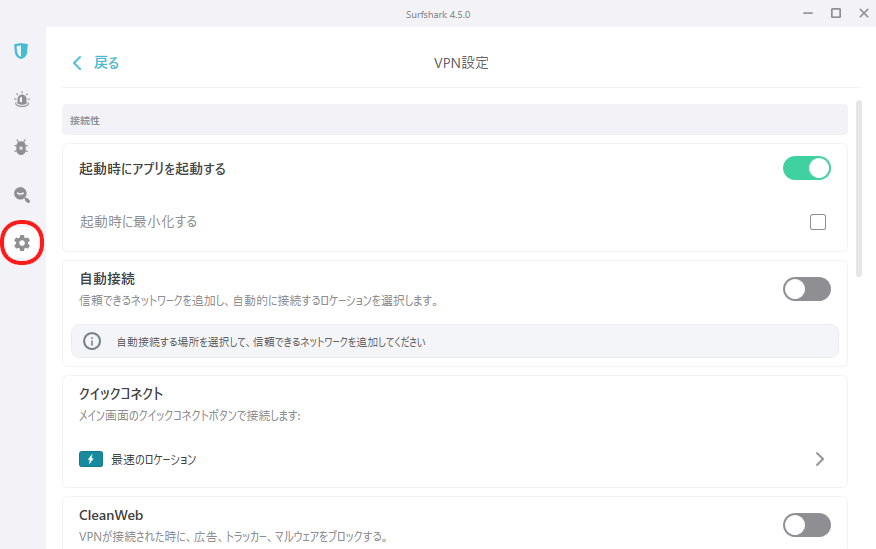
In the VPN settings, you can choose to automatically launch the app at startup and automatically connect. For the protocol, you can select OpenVPN, a reliable connection method, or WireGuard, which offers faster connections. Normally, the default settings should be fine. If you feel the connection is slow, switch to WireGuard. The Kill Switch is a feature that automatically disconnects your internet connection when you are not connected to the VPN.
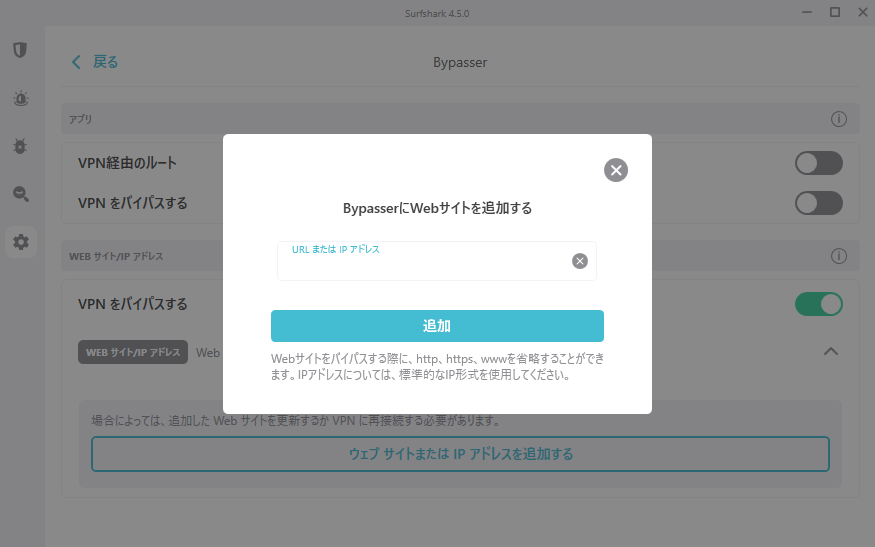
In Bypasser, you can select applications and websites that you want to bypass the VPN.
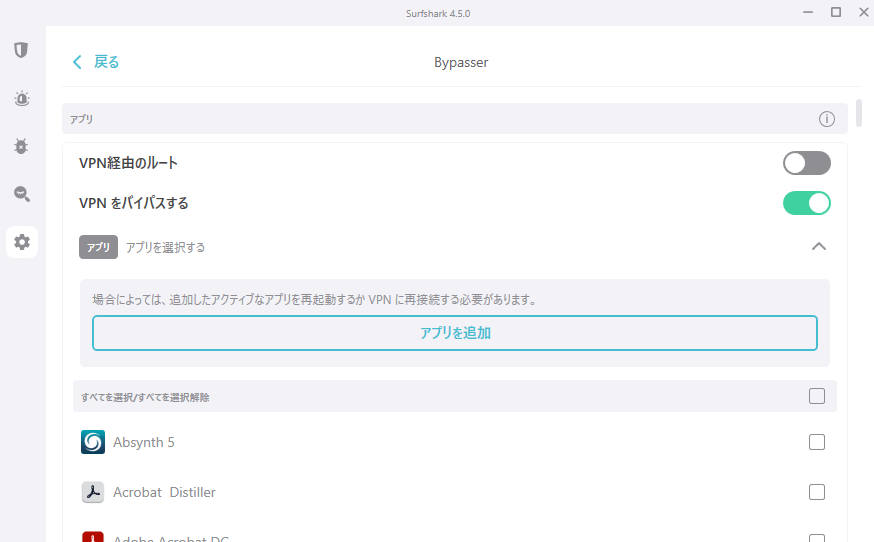
When you turn on "Bypass VPN," a list of applications will appear; by checking the boxes next to the applications you want, you can allow them to connect to the internet without going through the VPN.
If you turn on "Bypass VPN" for websites, you can bypass the VPN by adding the URLs or IP addresses of websites you don’t want to route through the VPN.
Key Points
You can configure applications and websites that bypass the VPN connection using Bypasser.
Like NordVPN, the desktop app connects your entire system to the VPN.
Installing the browser extension
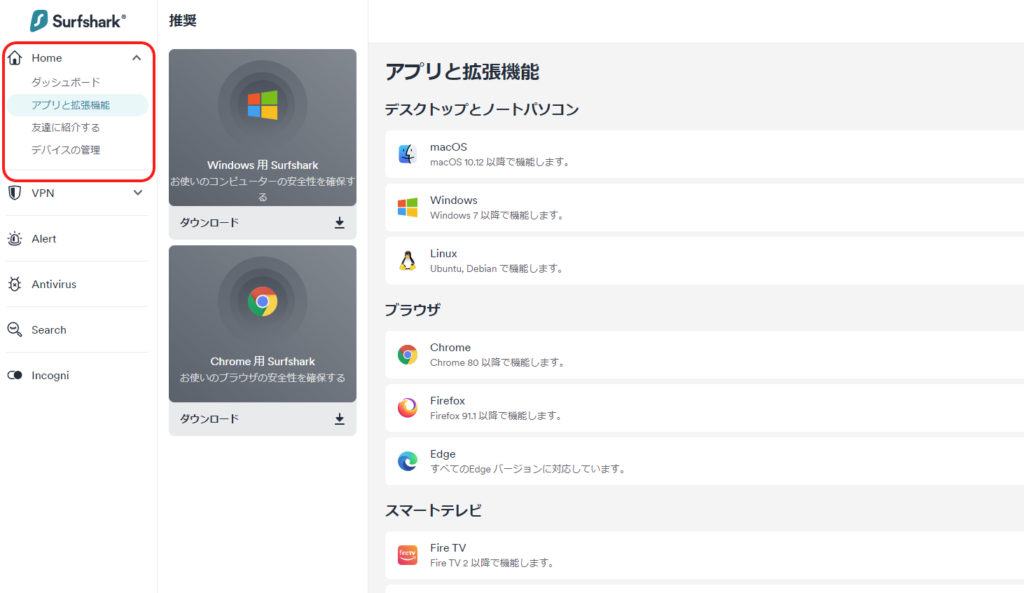
Select "Apps & Extensions" from the Home menu on the left side of the Surfshark website to install browser extensions and other tools. Please install the extension for your browser.
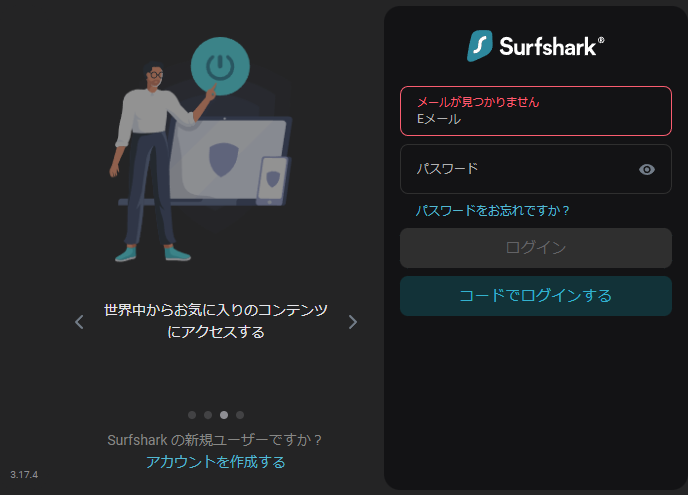
Clicking the browser extension icon will bring up a login dialog. Enter your account email address and password to log in.
Once logged in, you will be taken to the dashboard.
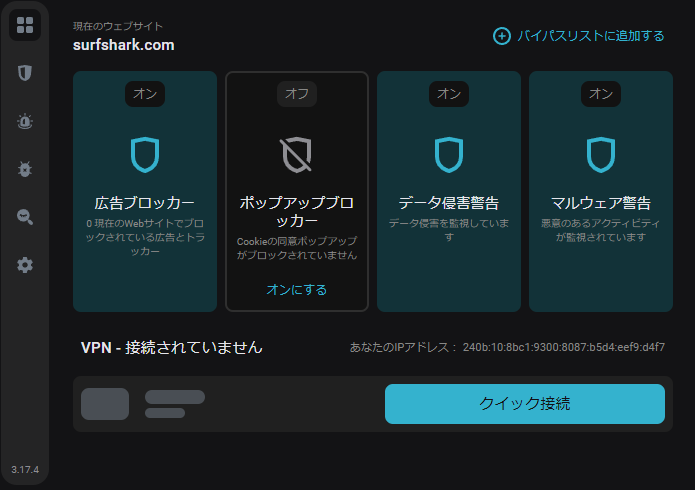
From here, you can connect using "Quick Connect."
Hover your mouse over the left side to display the menu.
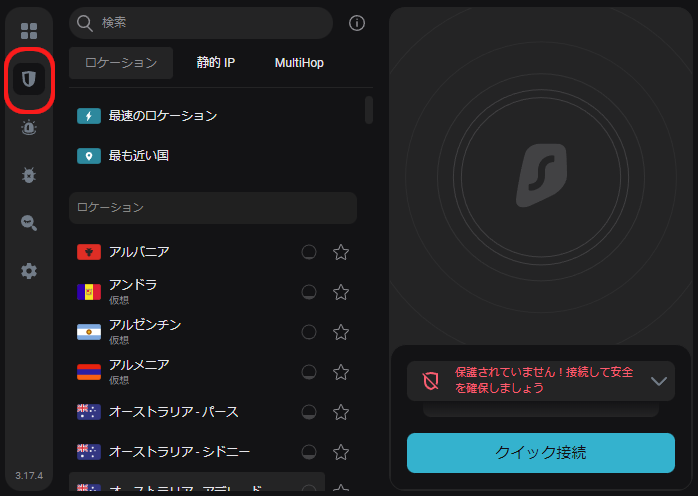
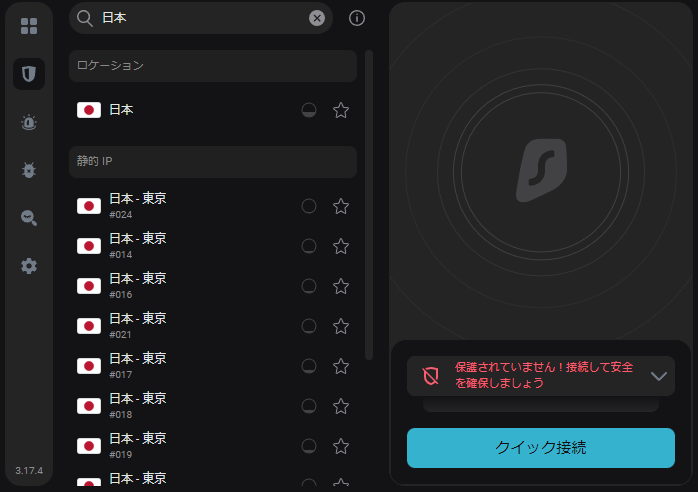
In the VPN menu, just like in the app, you can select a country to connect to, or enter "Japan" in the search bar to view a list of servers and choose one.
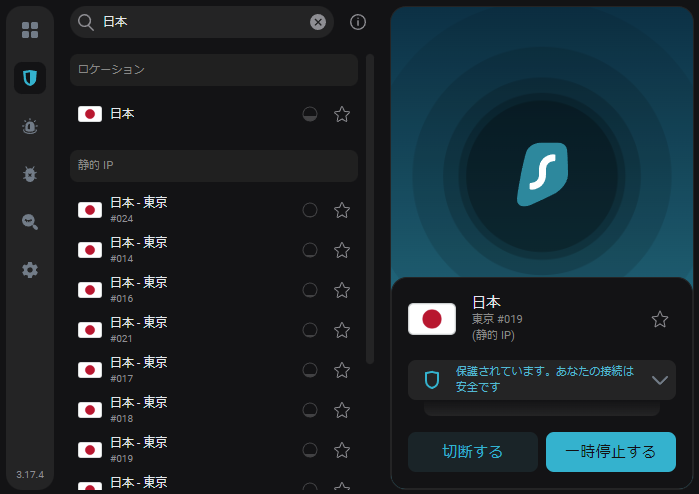
Once connected, the screen will look like the image below.
Click the gear icon in the lower-left corner to open the settings screen.
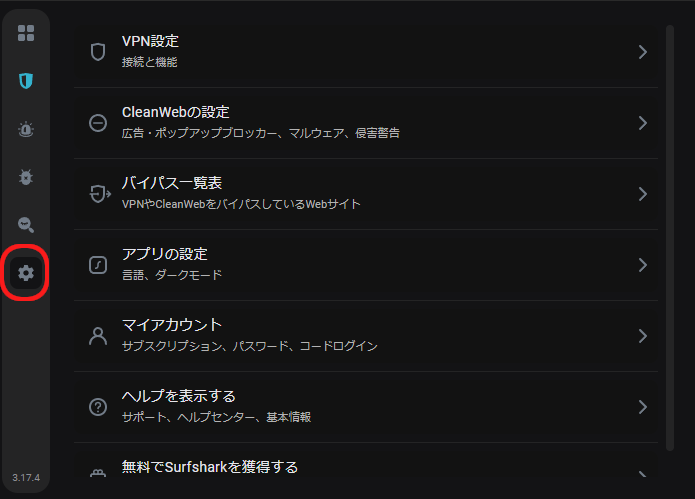
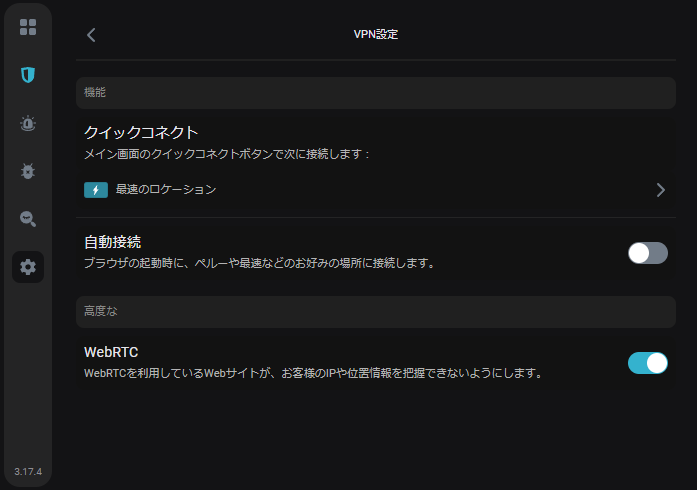
In "VPN Settings," you can configure connection settings for Quick Connect, as well as options such as whether to connect automatically when you launch your browser.
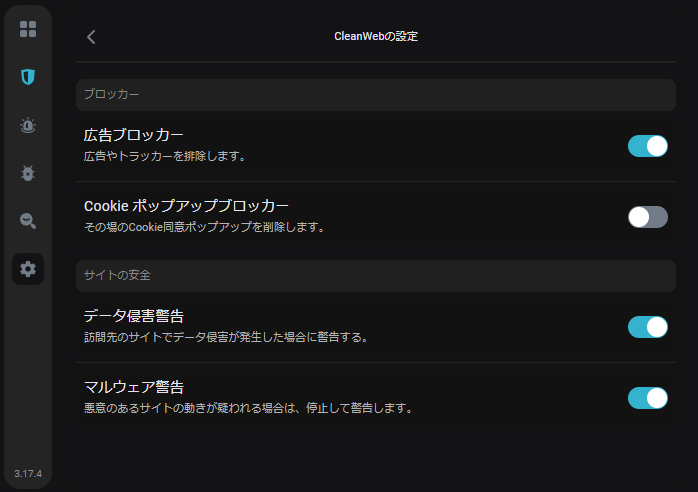
In "CleanWeb Settings," you can configure the ad blocker, cookie pop-up blocker, data breach alerts, and malware alerts. I think leaving most of these at their default settings is fine.
The "Bypass List" displays a list of websites to exclude from the VPN connection.
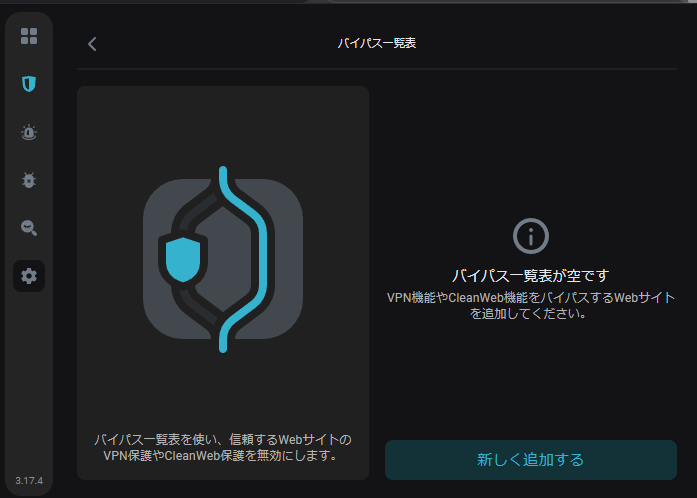
When you visit a website you want to exclude, click the "Add New" button to enter its URL, configure the details, and exclude that site from the VPN.
I tested the connection speed.
When connecting to a Japanese server via the browser extension
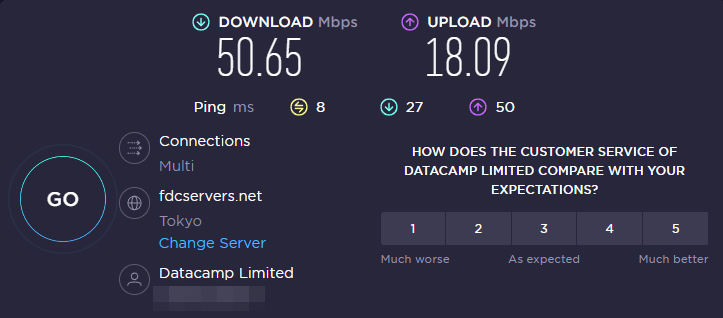
When connecting to a US server via the browser extension
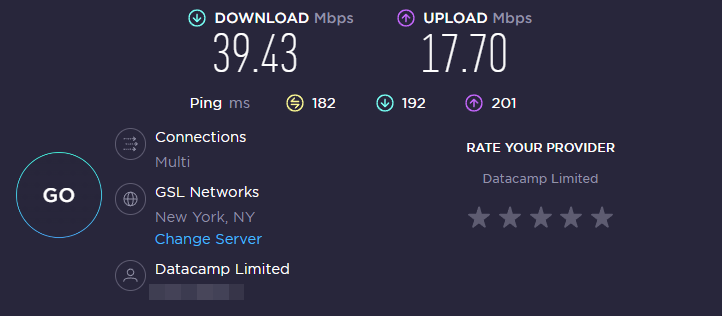
When connecting to a server in Japan, there was almost no noticeable drop in speed. When connecting to a server in the U.S., if I connected to a server with low traffic, I achieved speeds fast enough for activities like watching videos. However, on busy servers, there were times when the speed dropped significantly. As with other VPN providers, server performance can vary. Be sure to choose a server with low traffic.
As with NordVPN, the browser extension only establishes a VPN connection within the browser.
If you’re using both the app and the browser extension simultaneously, you may experience significant connection issues.
Important Note
If you are using both a VPN connection via a PC app and a VPN connection via a browser extension, you may experience connection issues.

Install on Your Mobile Device
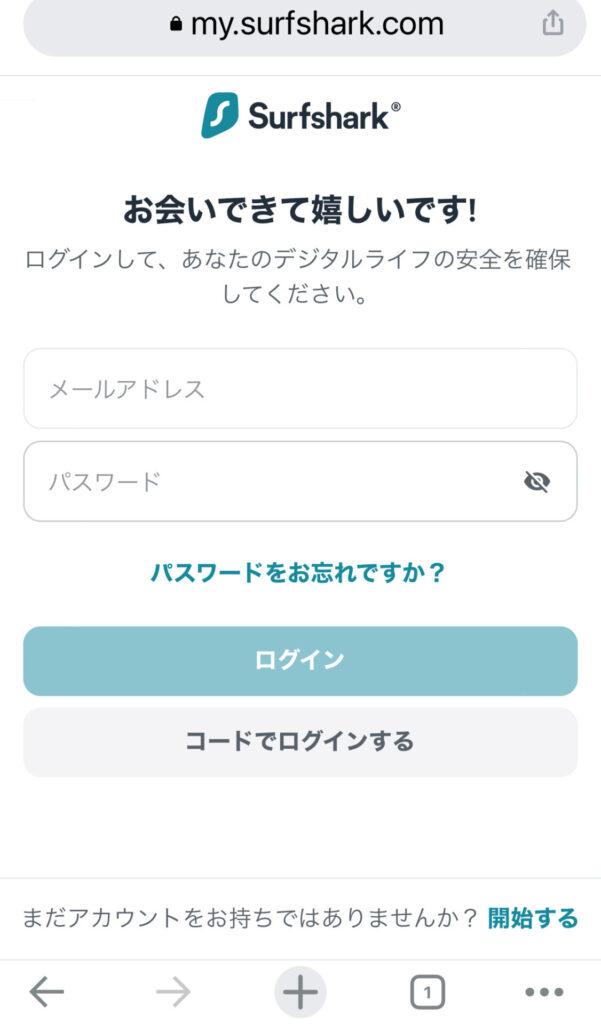
On the Surfshark login page, go to "Home" > "Apps & Extensions" or "VPN" > "Setup Guide" to find the QR code for installing the app on your mobile device. Scan this code with your mobile device to install the app.
If you signed up on a mobile device, use the URL below
https://my.surfshark.com/auth/login
.
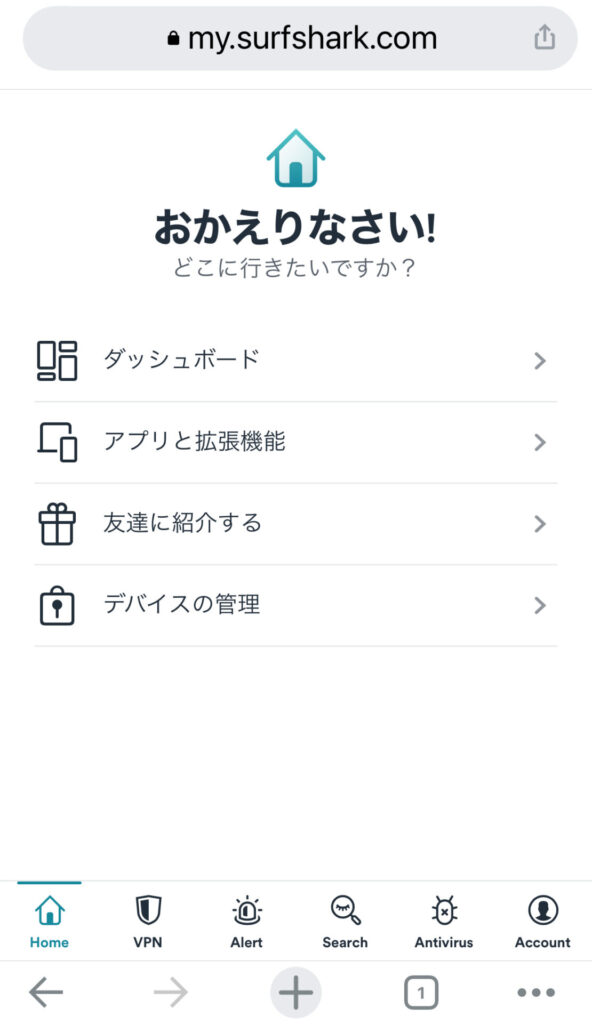
Tap "Apps & Extensions" and download and install the app from the store.
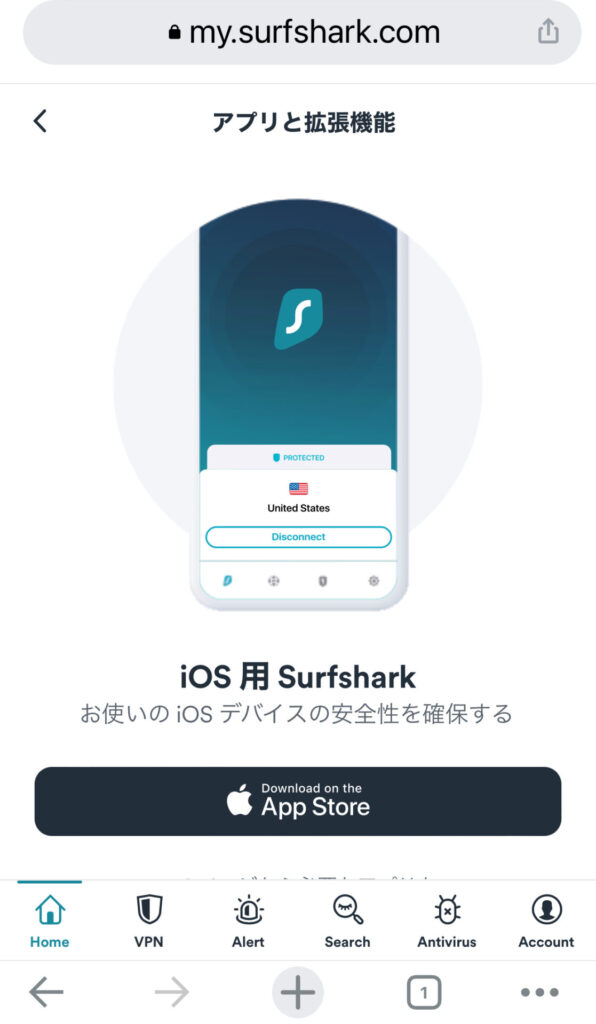
Once the app launches, tap the "Already a user? Log in" button to log in.
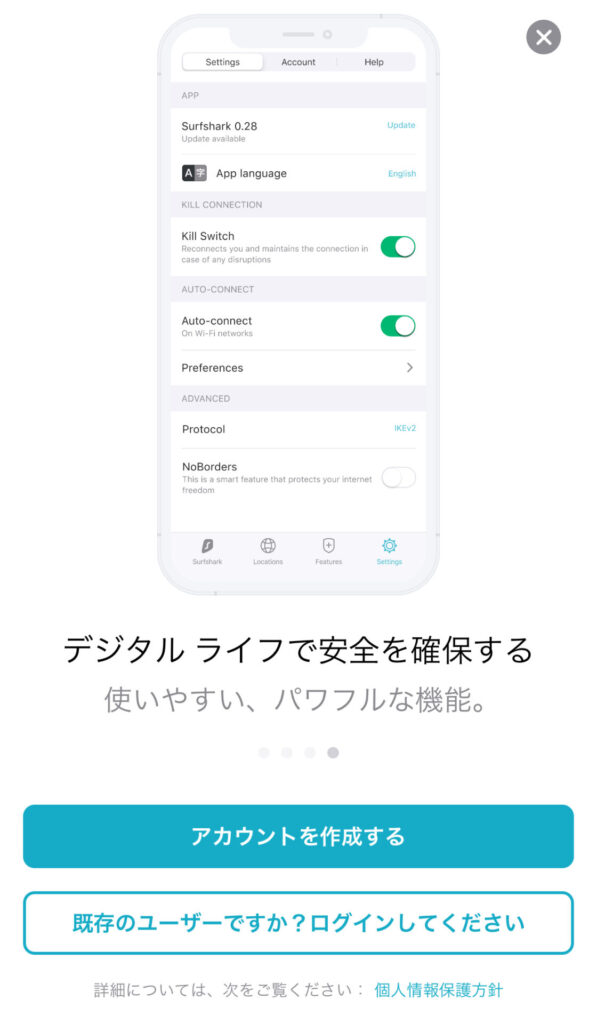
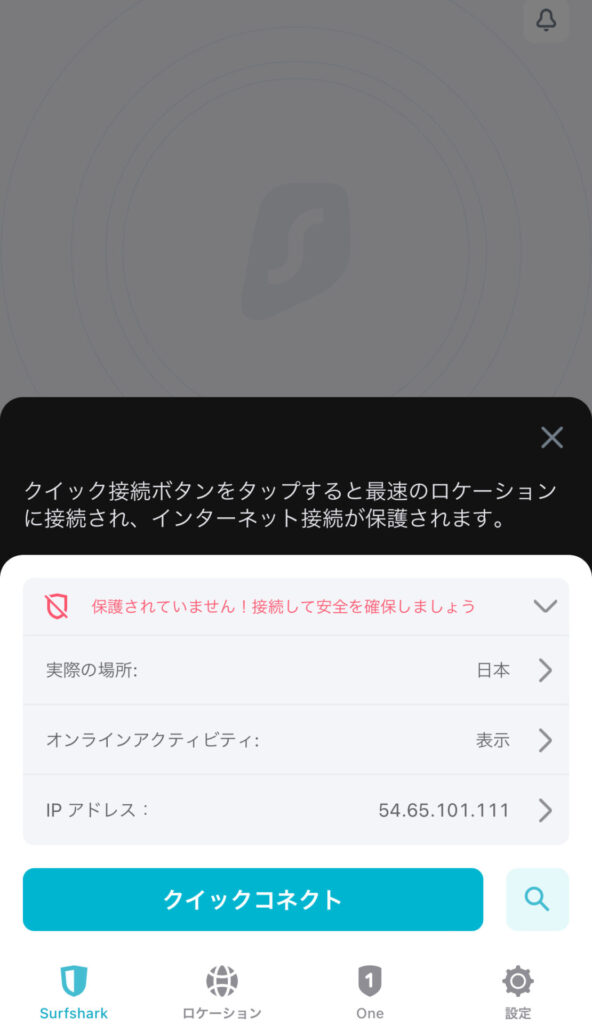
Once logged in, start by using Quick Connect.
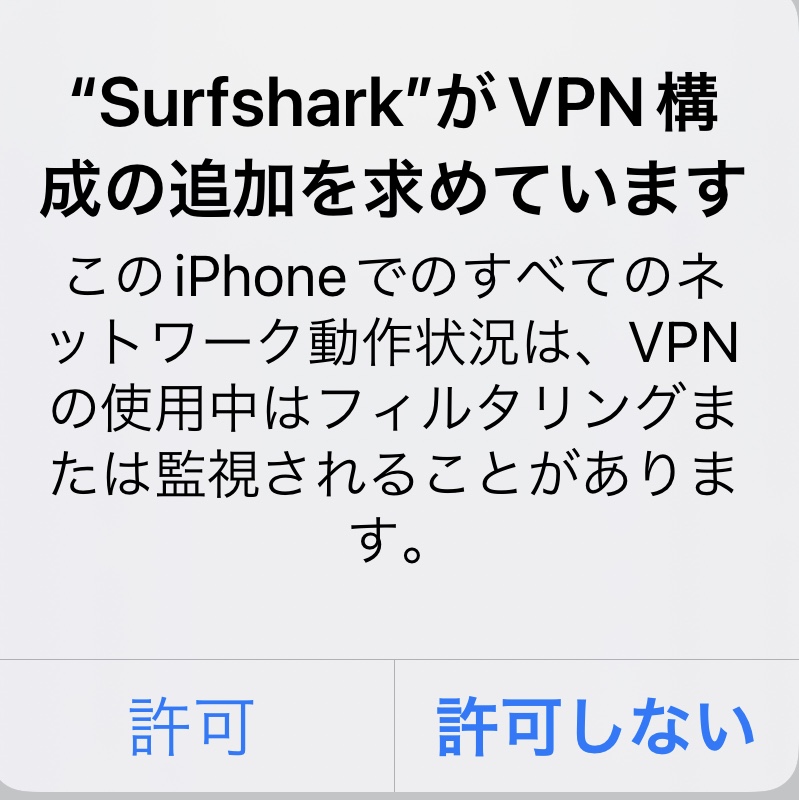
You’ll see a message saying “Surfshark is requesting to add a VPN configuration,” so tap “Allow.”
You should now be able to connect.
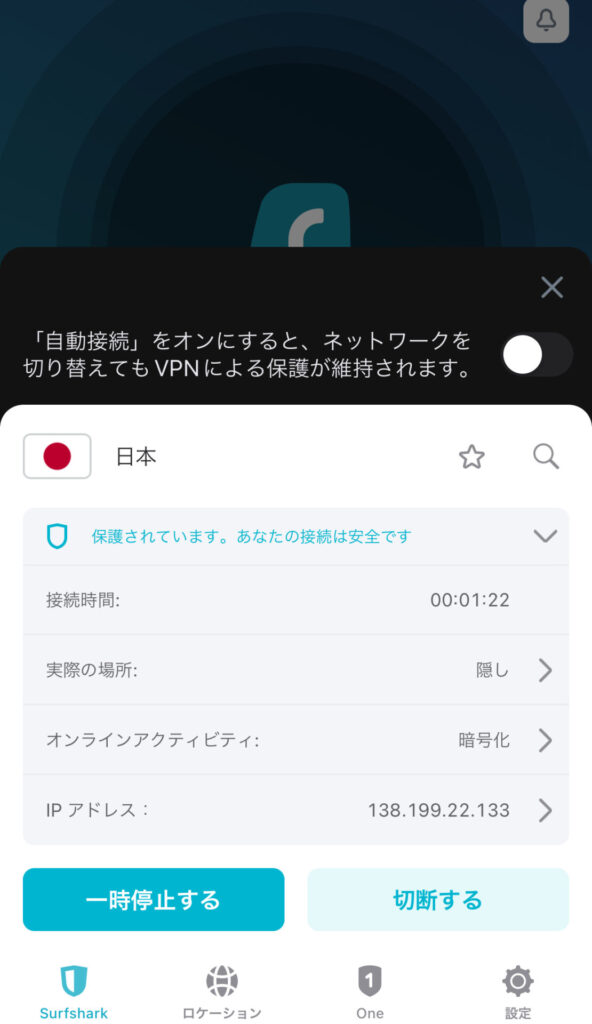
There is a menu at the bottom where you can select the country and server you want to connect to under "Location."
Tap the gear icon on the far right to access various settings, such as Auto-Connect, CleanWeb, and the Kill Switch.
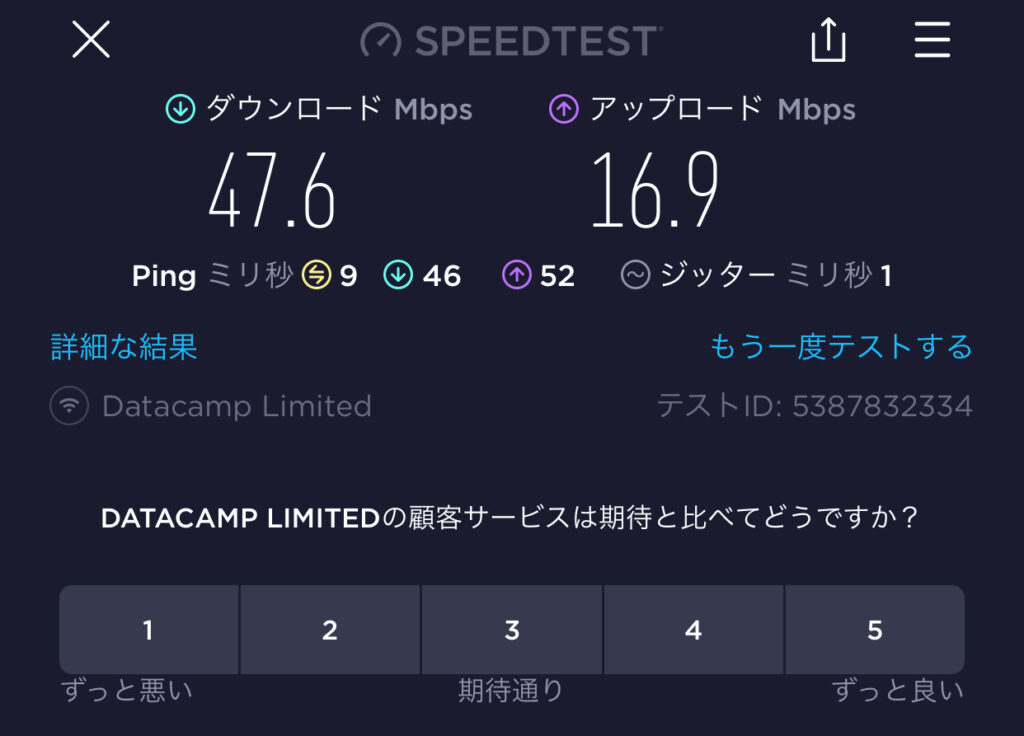
I ran a speed test.
When connected to a server in Japan
When connected to a server in the US
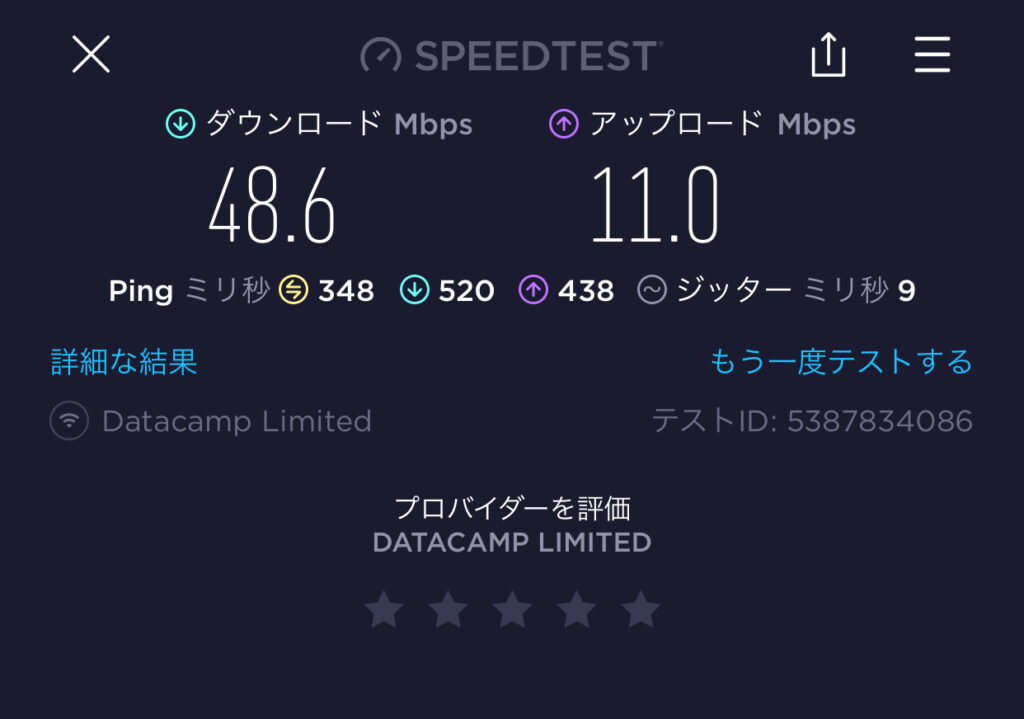
Both showed satisfactory connection speeds.
Key Points
VPN connections on mobile devices are also simple and fast. You can configure the settings just like on a computer.
Summary
Surfshark is more affordable than other major VPN providers on its 1-year and 2-year plans. Additionally, the account page, app, and browser extensions are available in Japanese, making it easy for Japanese users to navigate. It offers all the basic features you’d expect from a VPN, and connection speeds are fast enough for streaming videos. Unlike other major VPN providers, there’s no limit on the number of devices you can connect, so you can use it on as many devices as you like without worrying.
That concludes our guide on everything from signing up for Surfshark to how to use it.


off right now!

よろしければ応援お願いします


