In this post, I’d like to share some recommended apps that’s worth installing after setting up Manjaro.
Here are 11 recommended software you should install after setting up Manjaro.
Since DEB files and the like cannot be installed directly, you’ll need to install them via “Add/Remove Software.”
These are mainly applications for desktop use.
Arch Linux-based operating systems like Manjaro cannot install .deb files directly.
While there are tools available to convert them, they may not work properly due to dependency issues.
Generally, you should install them through “Add/Remove Software.”

You can choose Firefox as the default browser, Thunderbird as the email client, and an office suite during installation.
Key Points
Since DEB and RPM files and the like cannot be installed directly, you will generally need to install and uninstall applications via "Add/Remove Programs."
Click here for the Manjaro Overview page

1. ArcMenu
This is more of an extension rather than a software package; it adds a menu.
If you selected GNOME when installing Manjaro, a dock appears at the bottom for navigation, but it’s convenient to add a menu to the top taskbar as well.
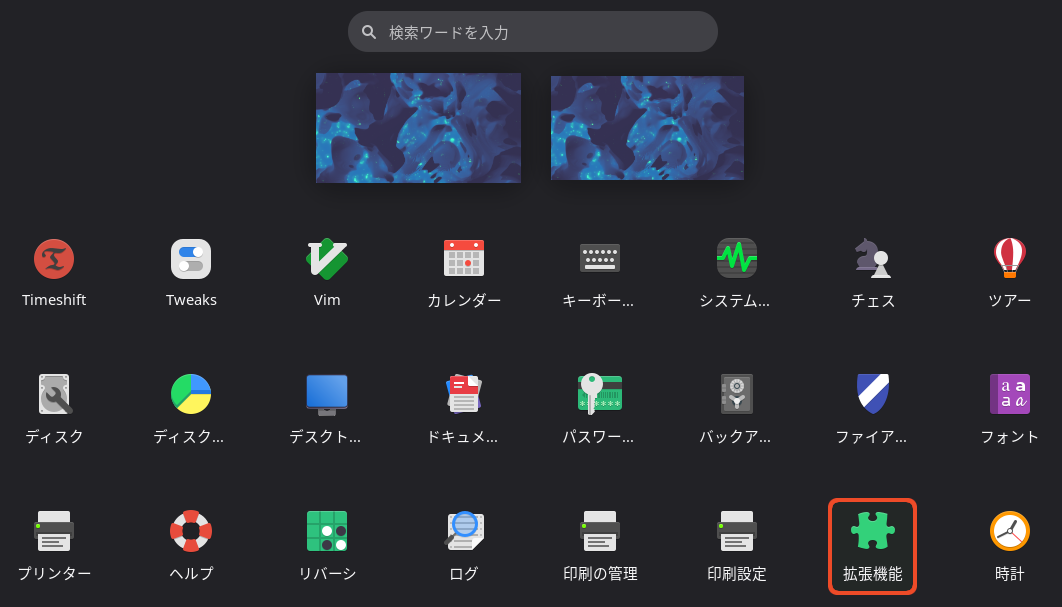
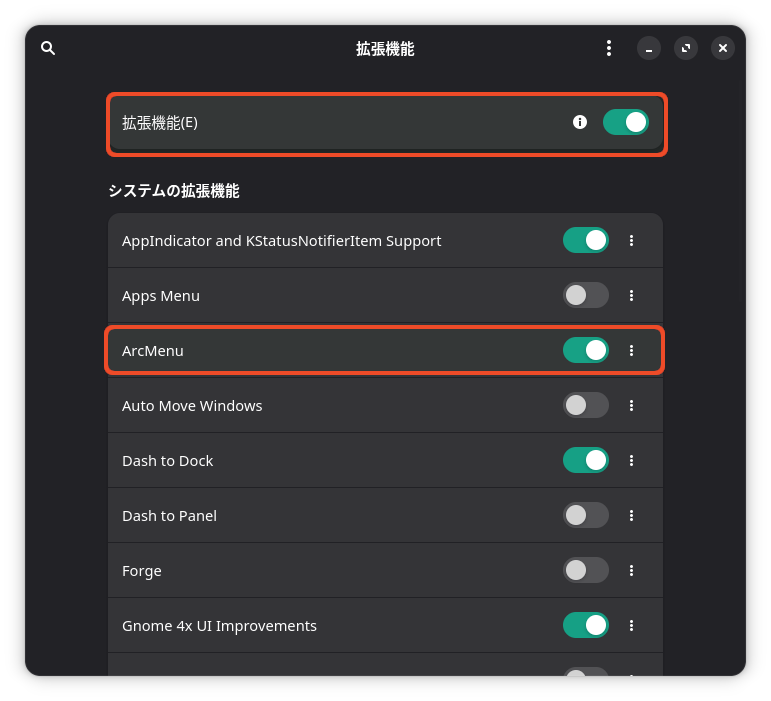
Click "Extensions" under "Show apps" to the left of the dock, enable "Extensions," and then enable "ArcMenu."

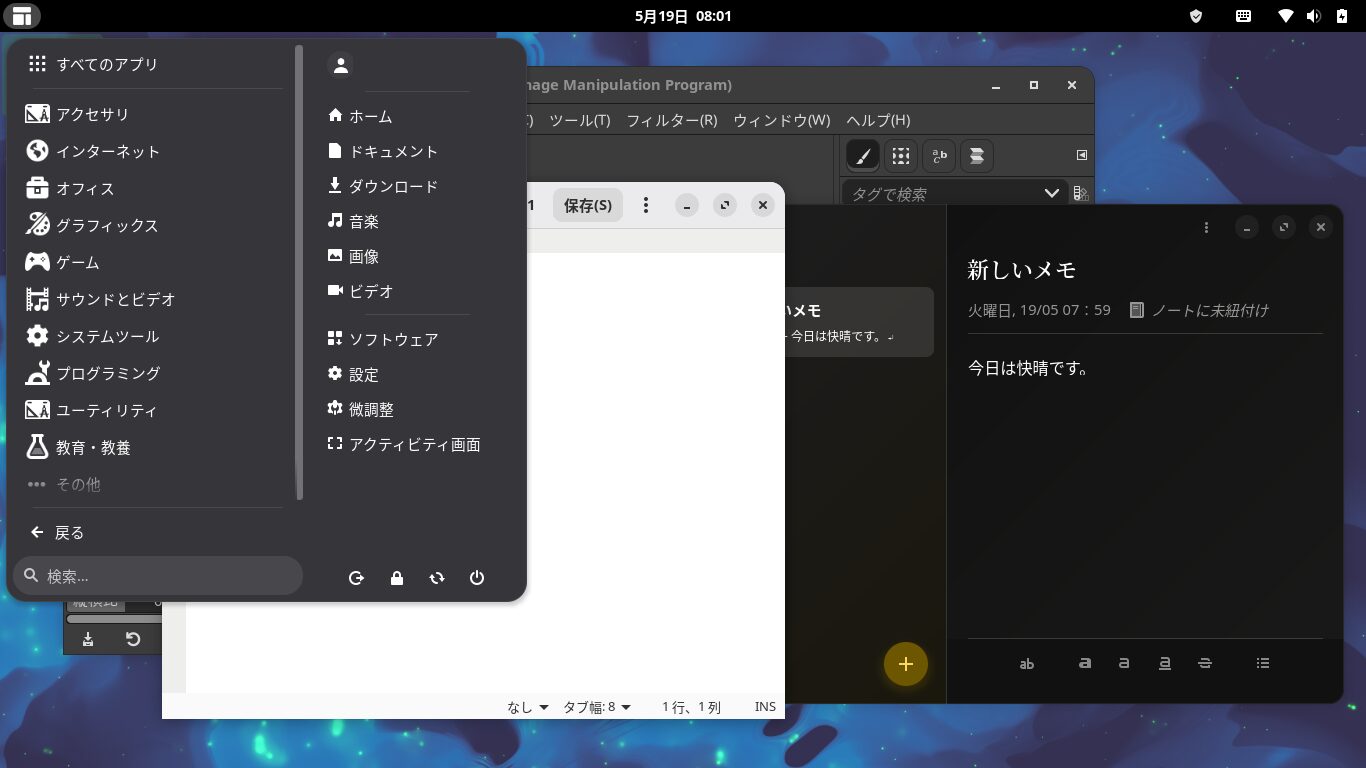
You can open the menu from the left side of the top taskbar.
Even if the dock is hidden because an app is running, you can still open files from the menu.
You can customize your desktop layout in various ways using extensions.
You can even make it look like Windows.
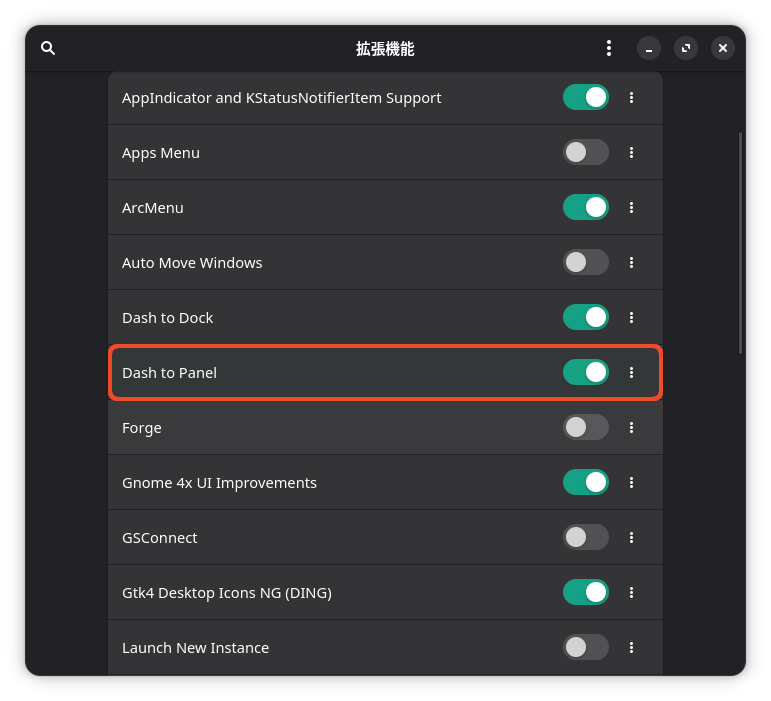
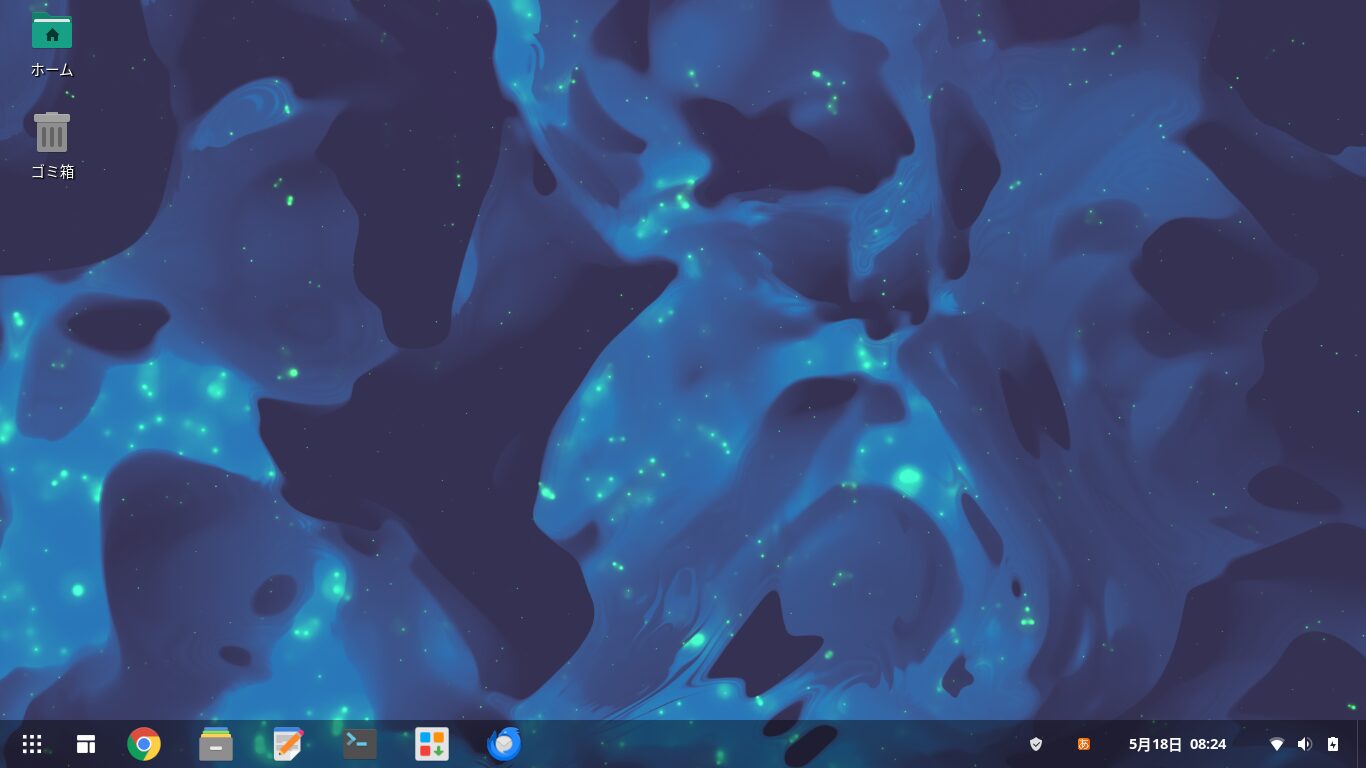
You can also use this extension to display icons for your home directory and Recycle Bin on the desktop.


2. Installing and Enabling the Snap Plugin
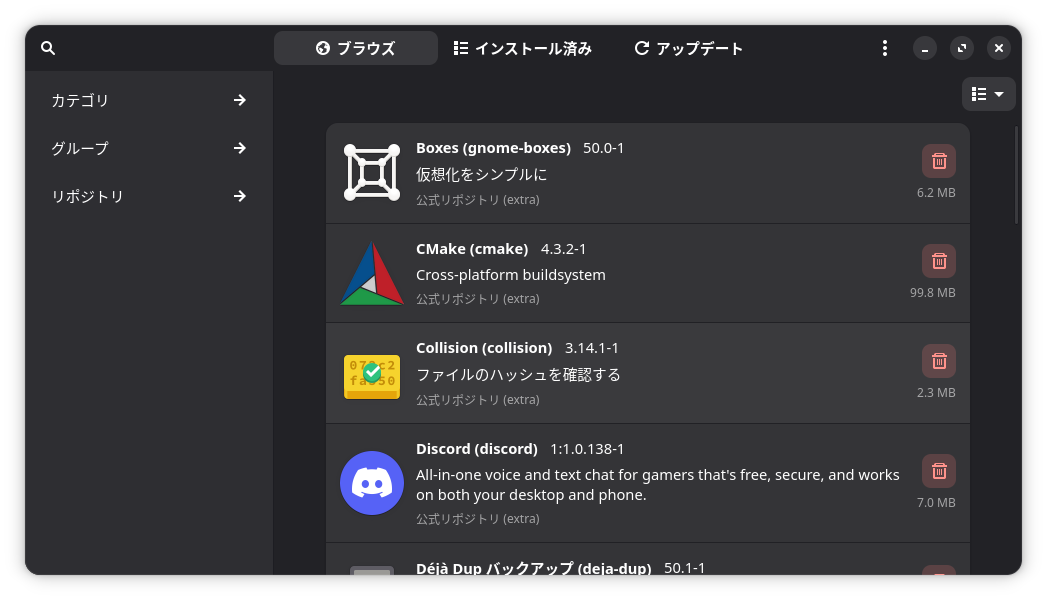
Click "Add/Remove Software" on the right side of the dock at the bottom to launch it, then click the hamburger menu in the top right and select "Settings."

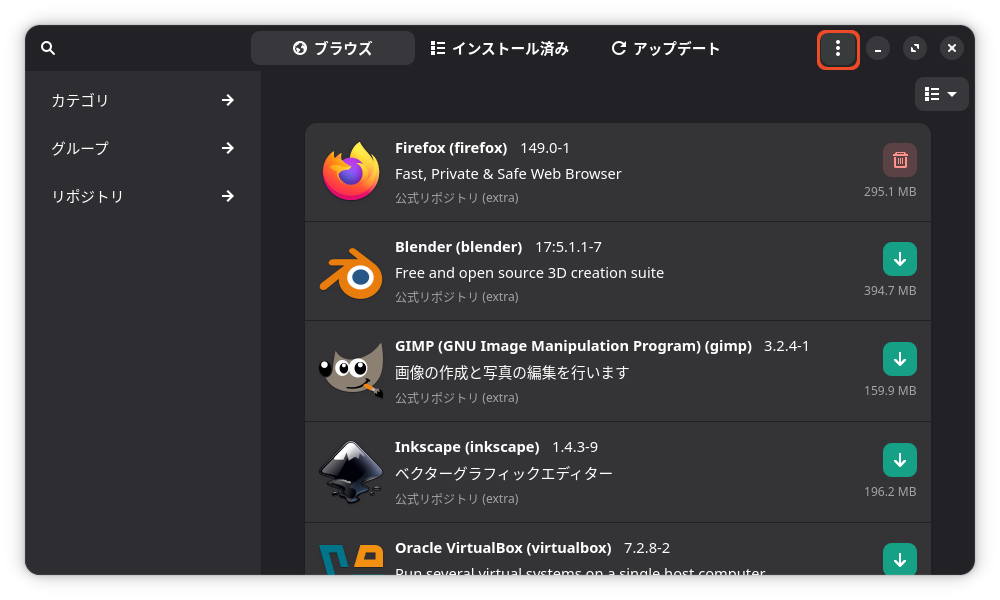
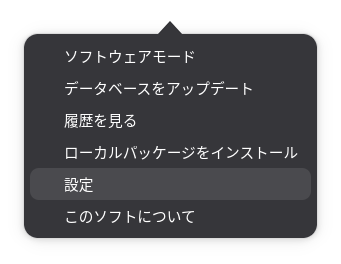
On the "Third-party" tab, enable "Enable AUR support."
AUR stands for Arch User Repository, a massive software database created and maintained by volunteer users worldwide for Arch Linux and Manjaro.
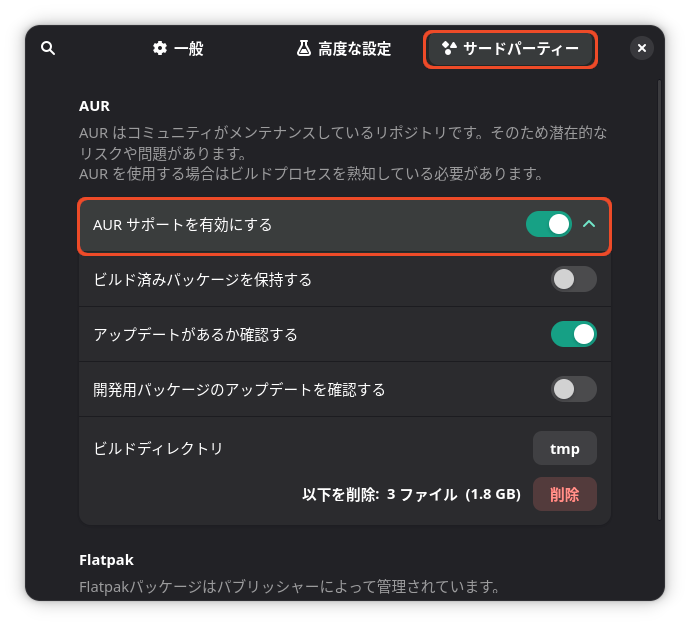
When installing Manjaro, I was able to add Flatpak to “Add/Remove Software.”
However, Snap packages were not added.
Snap is promoted by Canonical, the developer of Ubuntu, and integrates well with Ubuntu; it features automatic updates, but it is slow to launch and uses a lot of disk space.
Since Manjaro is based on Arch Linux, Flatpak is more compatible with the desktop environment, so it’s better to prioritize Flatpak.
That said, I don’t think it’s a bad idea to keep Snap enabled as an option.
To add Snap to “Add/Remove Software” and start using it, open a terminal and run the command below.
sudo pacman -S libpamac-snap-plugin
After that, open "Add/Remove Software."
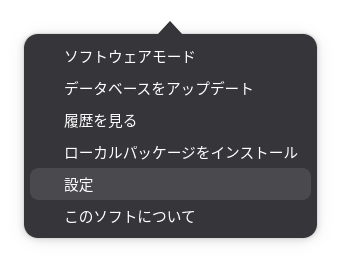
Select "Settings" from the hamburger menu in the top right corner.
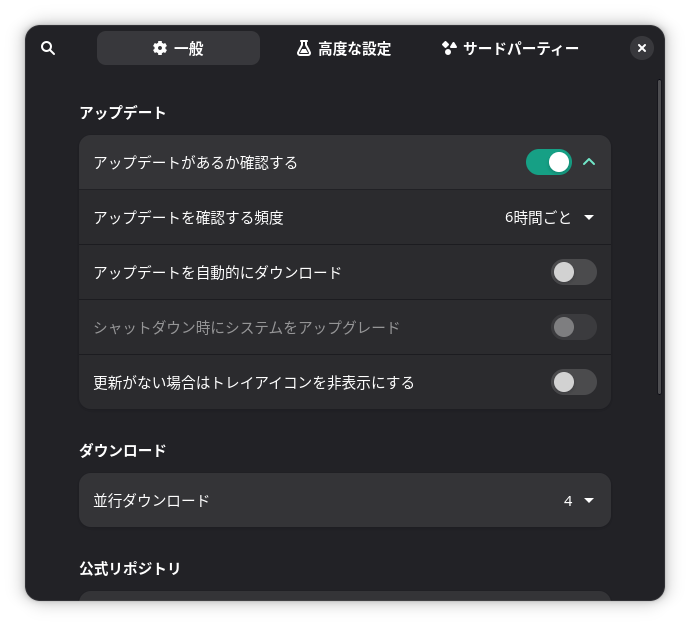
Click "Third-Party" in the top-right corner.
Check the box for "Enable Snap support" at the bottom.
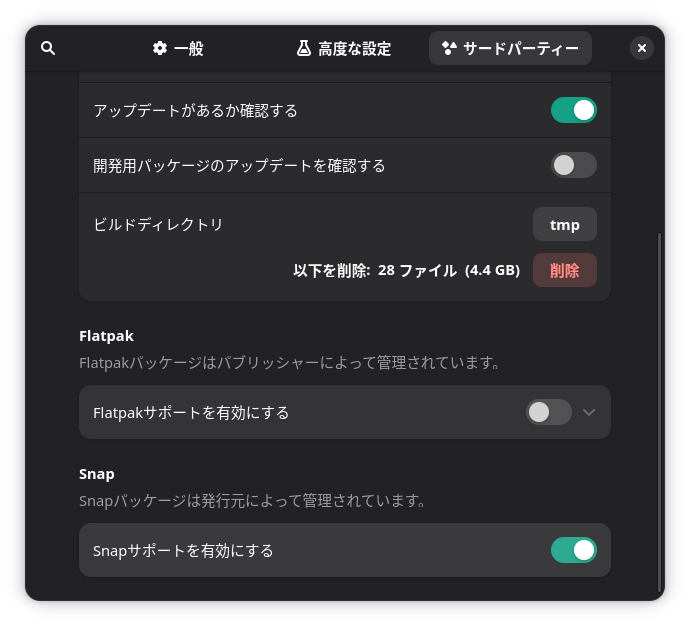
Since Manjaro cannot natively handle standard Linux package formats like DEB or RPM, installing software through "Add/Remove Software" is the standard method, but we have now been able to add Snap to it.
3. Google Chrome
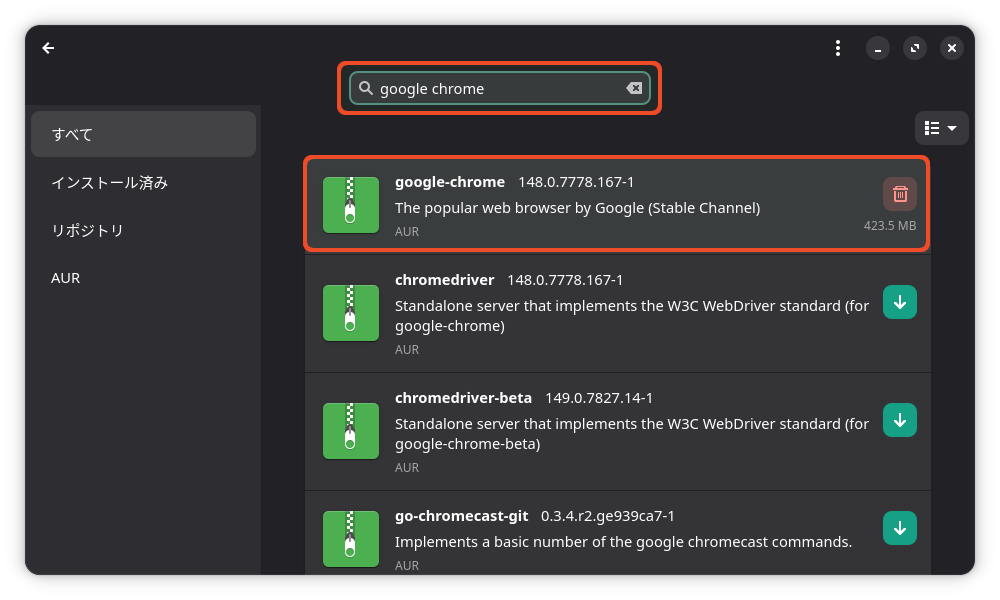
The default browser is Firefox, but if you use Chrome on Windows, it’s convenient because you can log in and sync your bookmarks and other data.
Search for it in "Add/Remove Software" and install it. You can also install it from the AUR.
4. GIMP
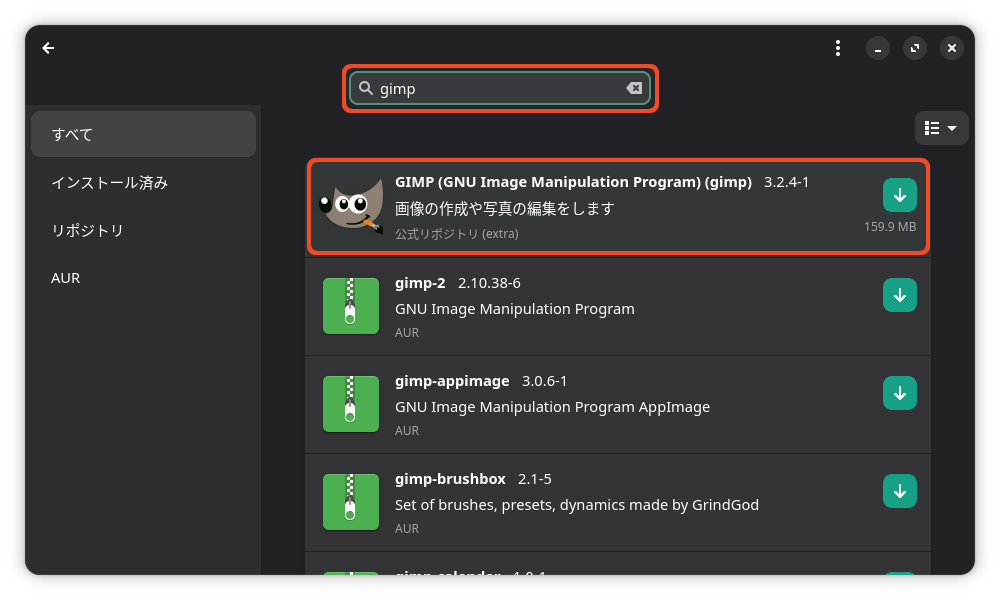
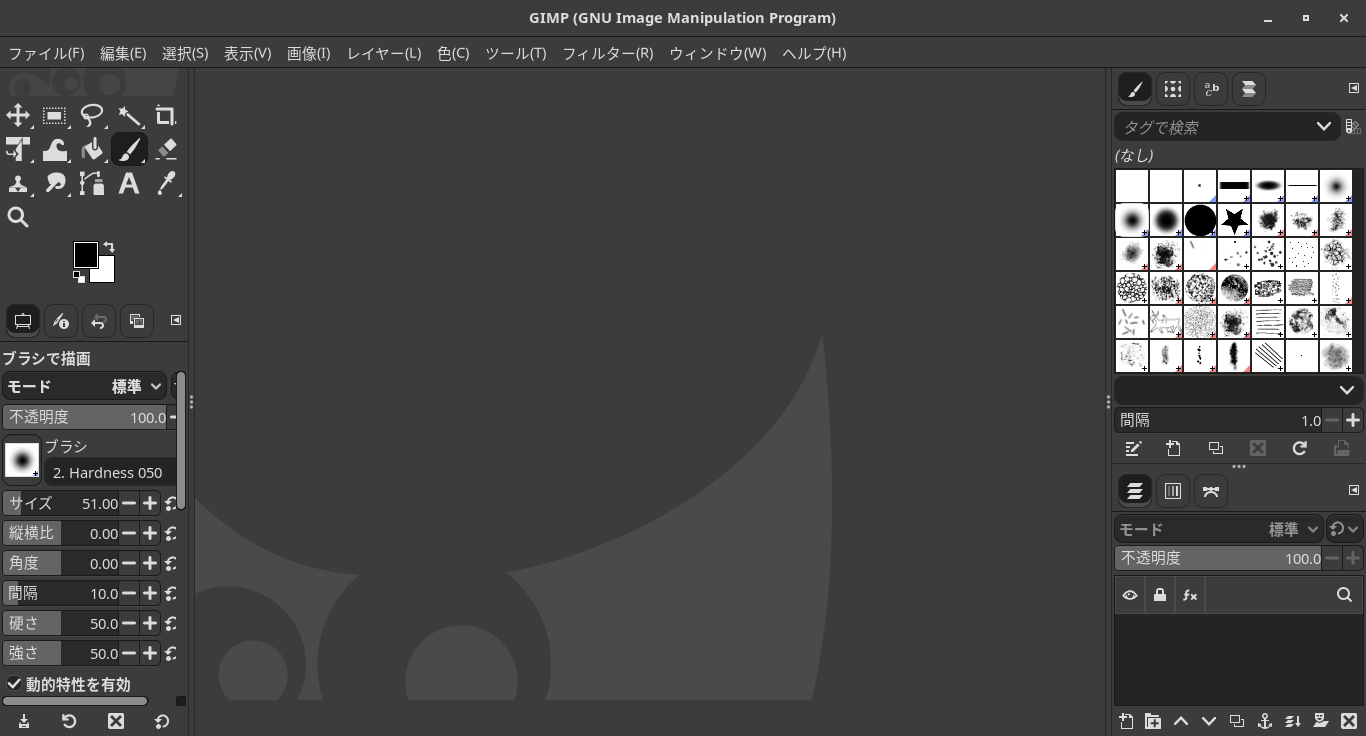
This is a standard image editing program.
Search for it in "Add/Remove Software" and install it.
I checked both optional dependencies and installed it.
For any application, check the optional dependencies and click the "Apply" button to install.
You can install it from the official repository.


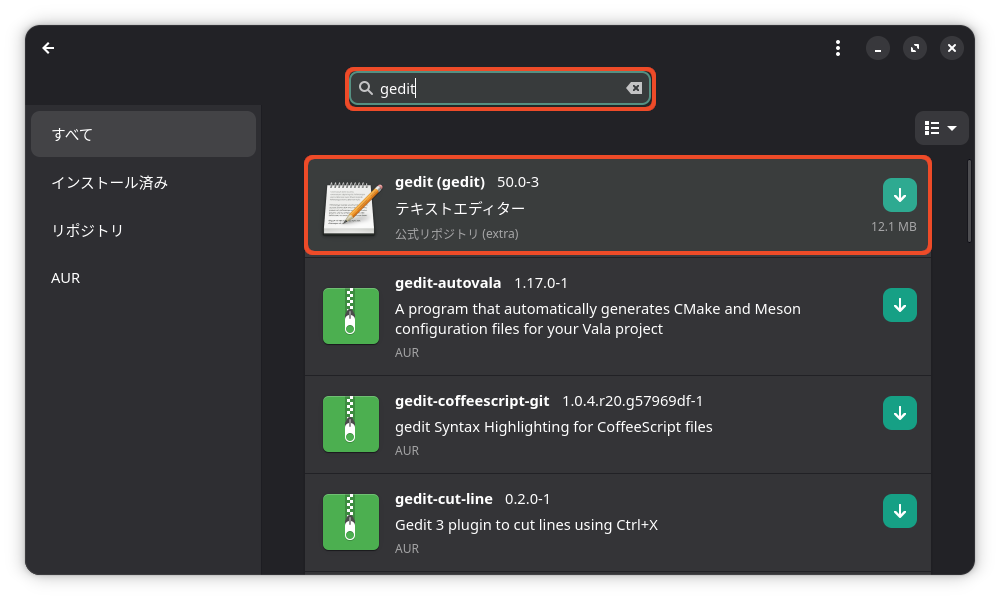
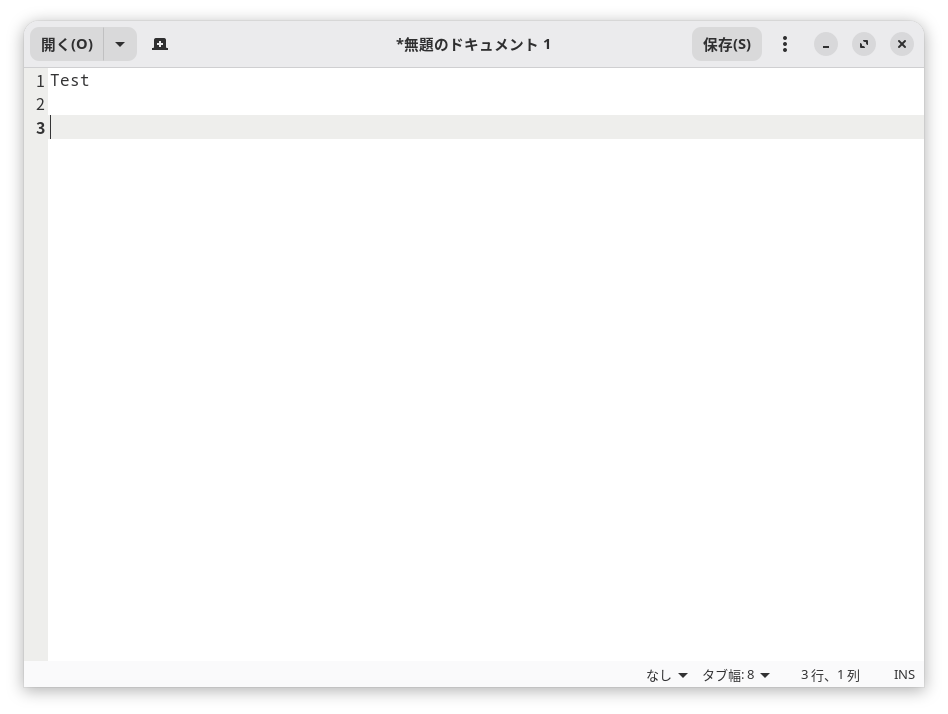
5. Gedit
The default text editor for the GNOME version of Manjaro is `gnome-text-editor`, but Gedit is also easy to use.
It can be installed from the official repository.
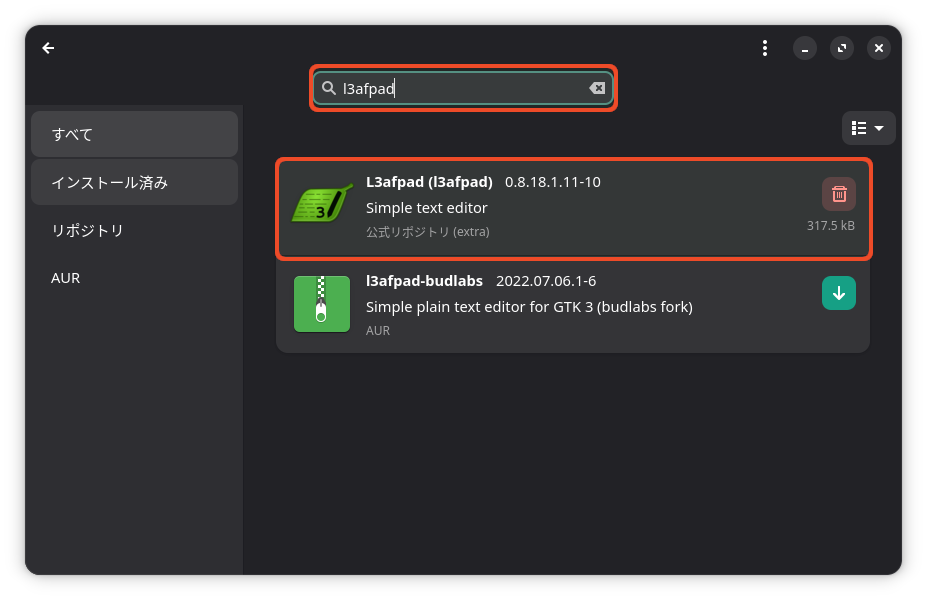
6. L3afpad
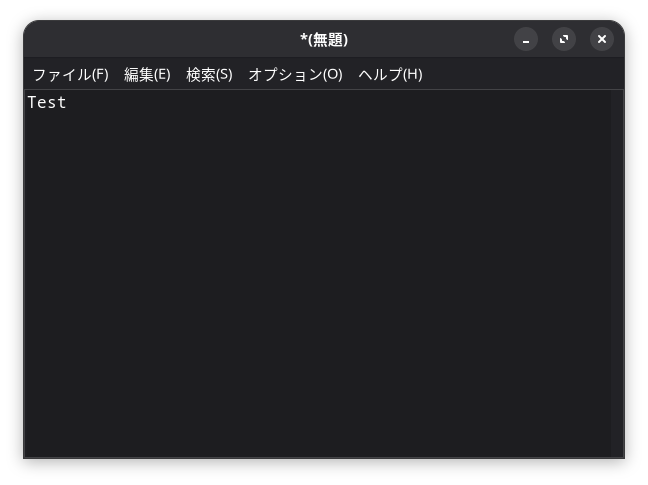
This is a lightweight text editor with minimal features.
It can be installed from the official repository.


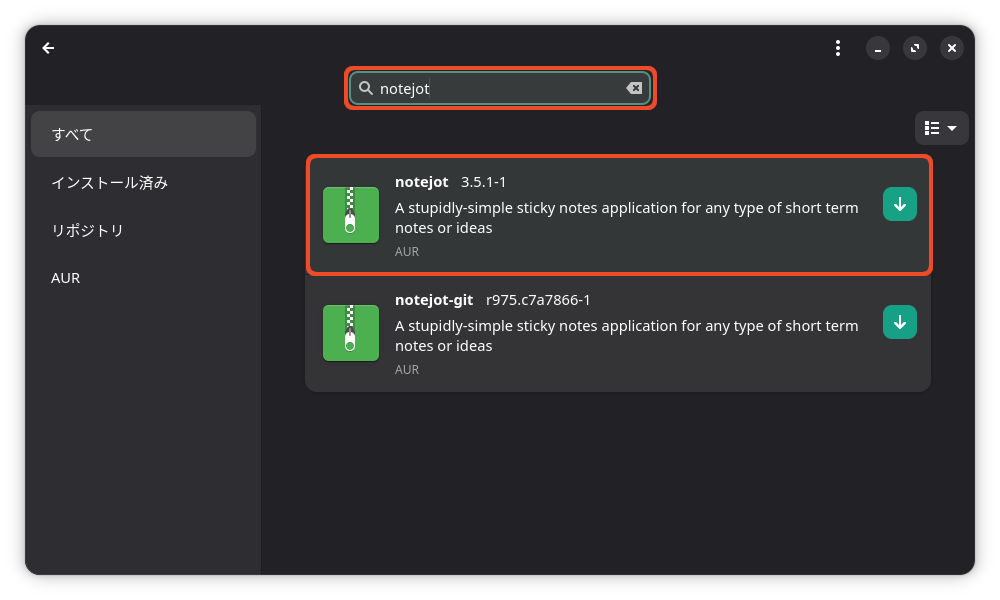
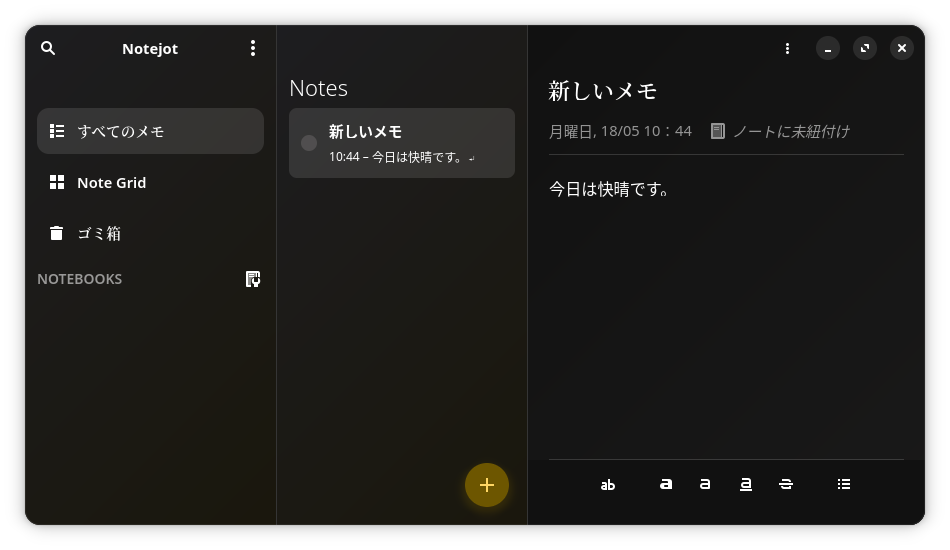
7. Notejot
When you create a note, the date and time are automatically inserted, making it useful for various notes or as a diary.
This app is similar to iPhone Notes or Microsoft OneNote.
8. Discord
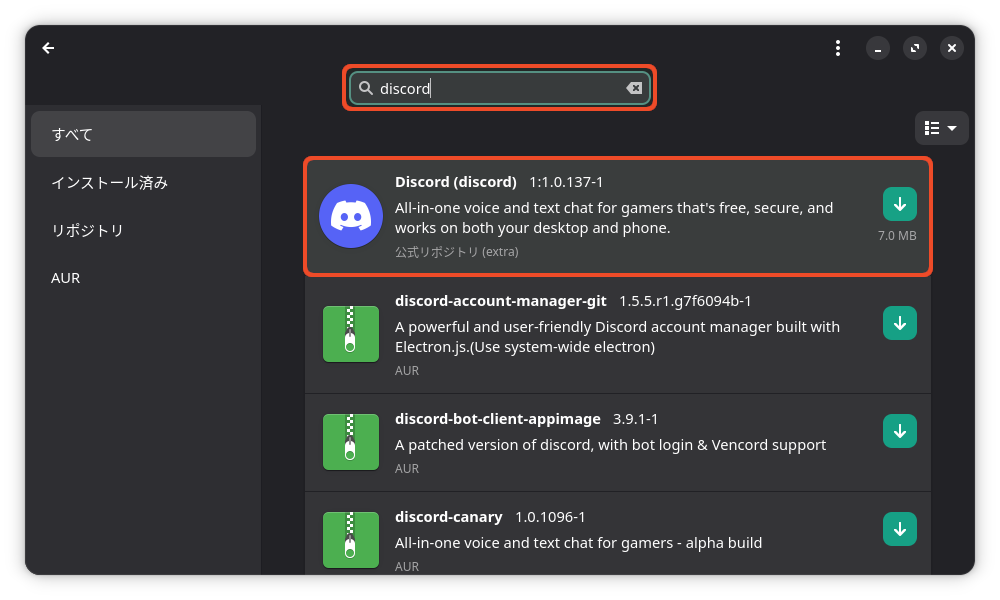
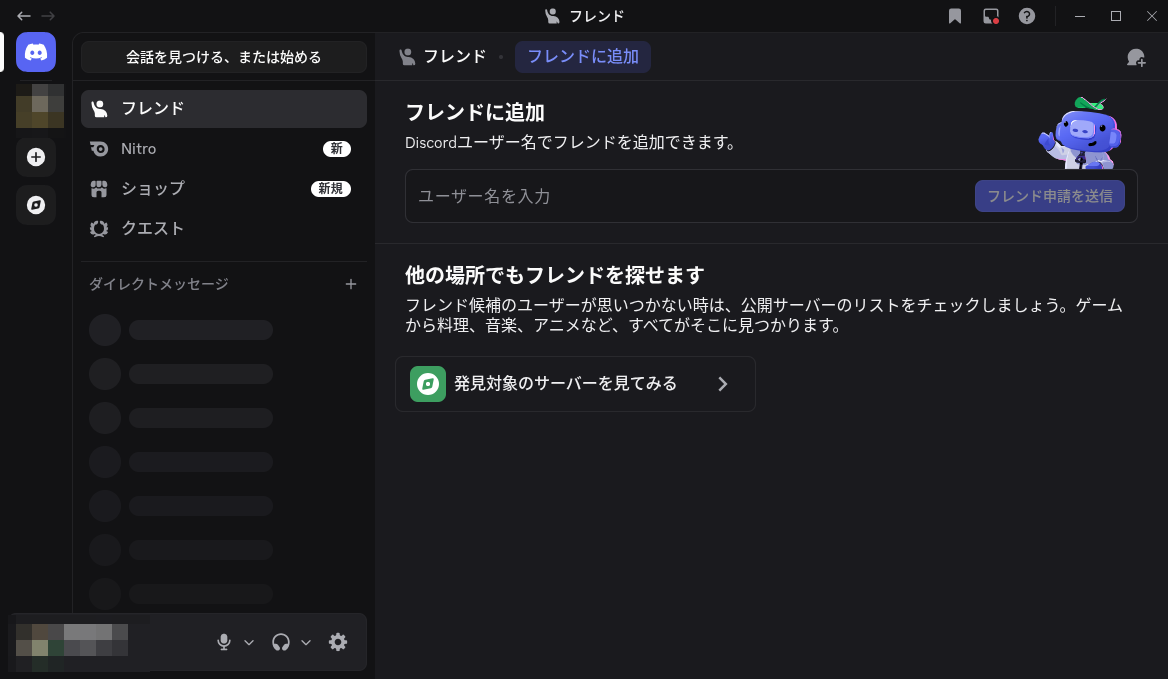
A feature-rich chat, voice call, and communication app.
It can be installed from the official repository.

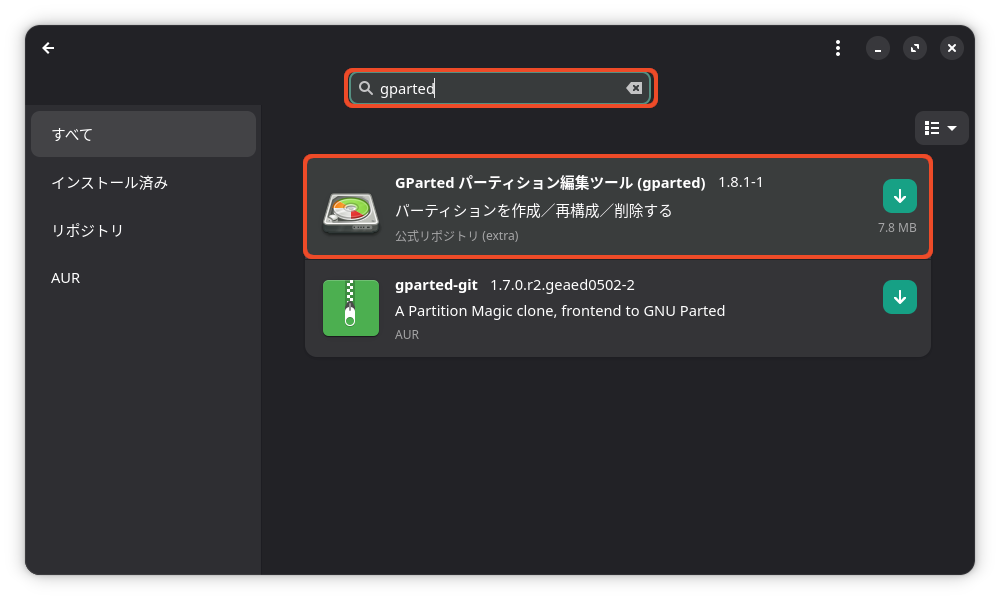
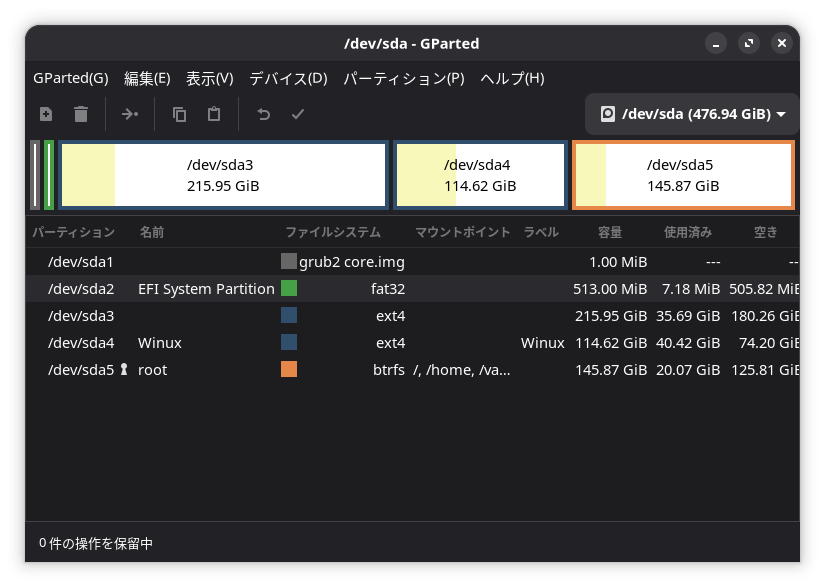
9. GParted
An application for managing partitions. It can be installed from the official repository.
After installation, you will be prompted to restart.
10. Obsidian
Obsidian is a glassy rock commonly used in the Flint Age; when struck, it shatters into sharp flints.
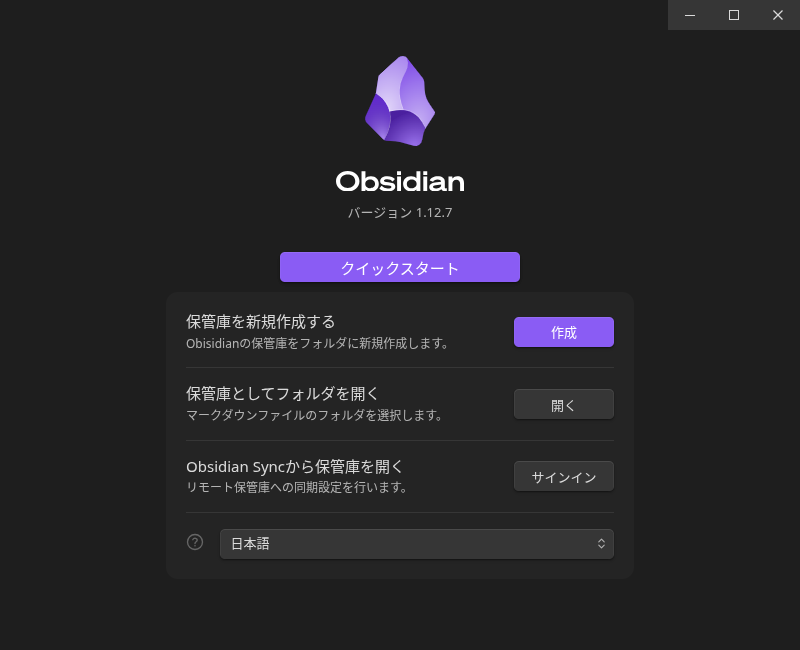
Obsidian is said to help sharpen and refine your thinking by allowing you to jot down numerous short notes and link them together.
Additionally, by installing community plugins like Dataviewjs and Chartsjs, you can create tables, graphs, calendars, and more.
You generally write in Markdown.
Writing in Markdown makes it easy to create links between notes.
It’s an app that can be used for a variety of purposes.
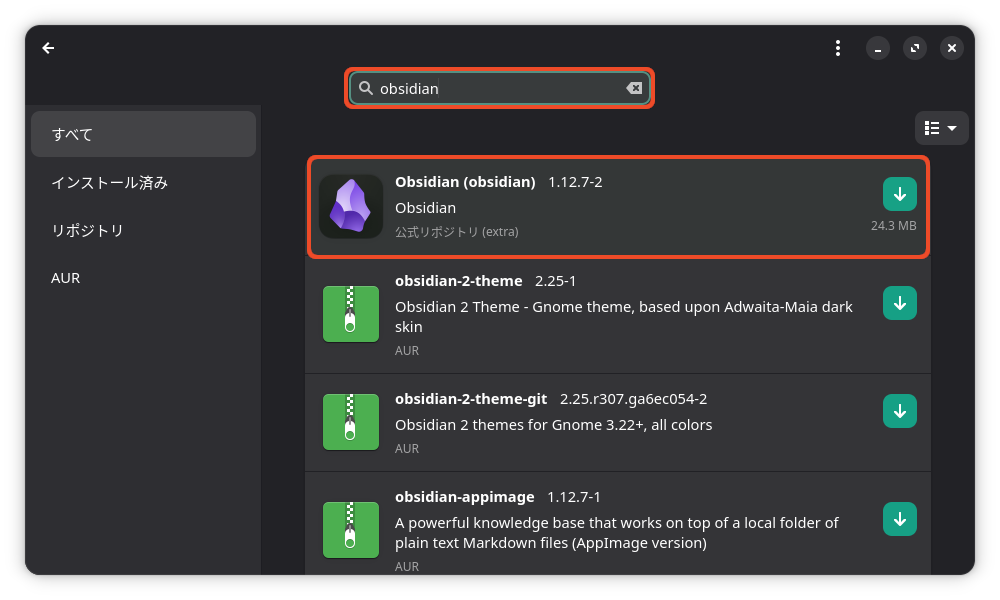
You can install the official repository from "Add or Remove Programs."
11. TeamViewer
This is a remote control app.
You can connect using an ID and password to remotely control another person’s device or receive support.
You can install it from the AUR.
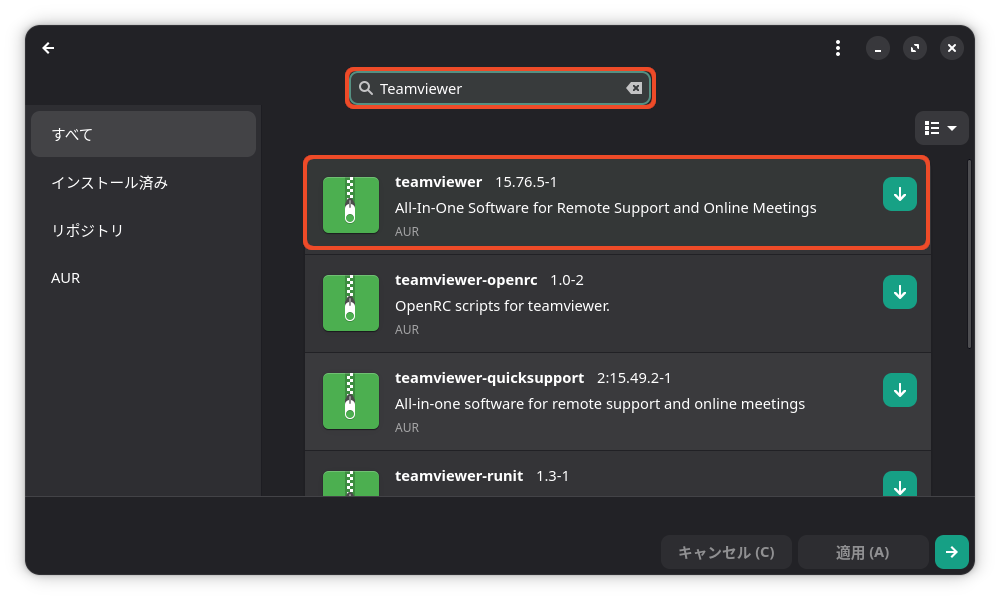
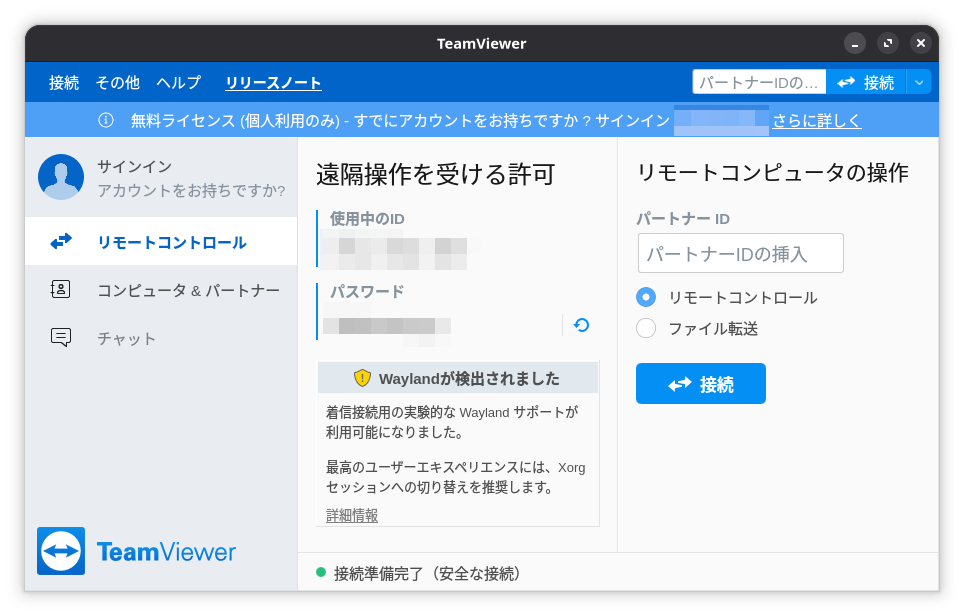
However, when you launch it for the first time, you’ll see a message saying the TeamViewer daemon isn’t running, so run
sudo systemctl start teamviewerd.service
to start it.
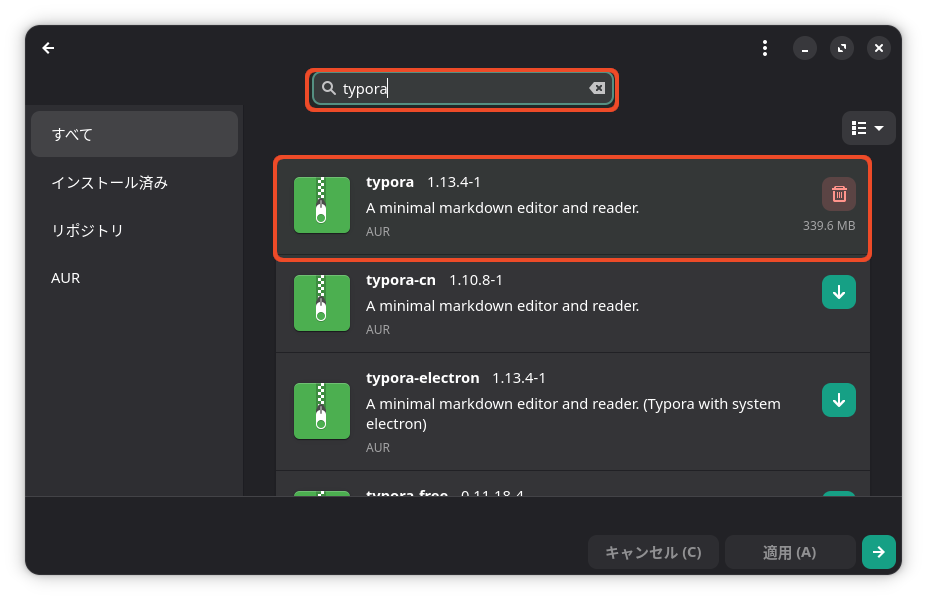
12. Typora
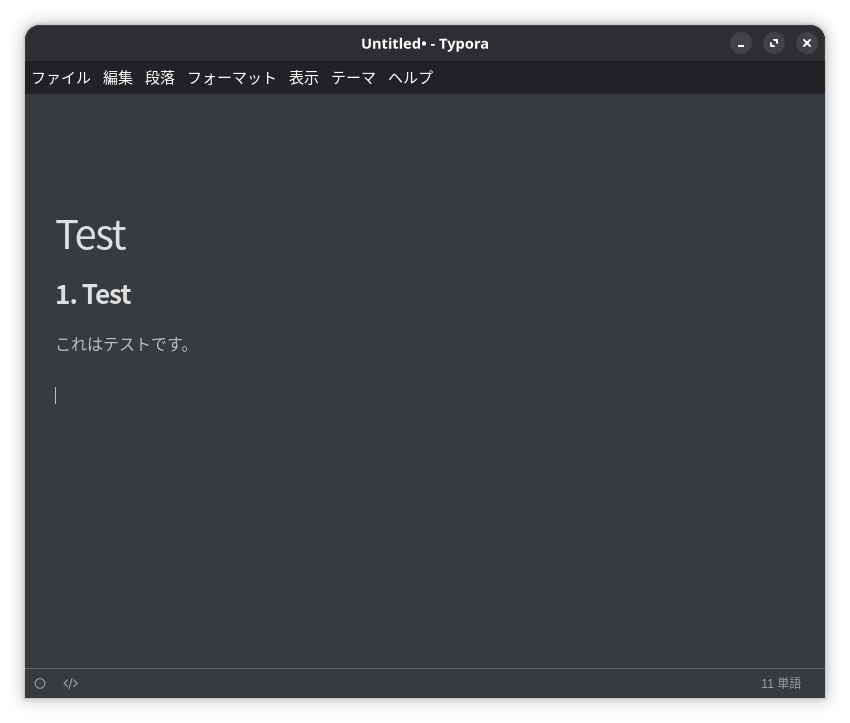
A simple Markdown editor.
I use it for drafting blog posts and the like.
If you paste directly into Gutenberg, line breaks and such won’t be copied exactly.
However, I use it because it’s intuitive and lets me see the layout immediately.
You can install it from AUR.
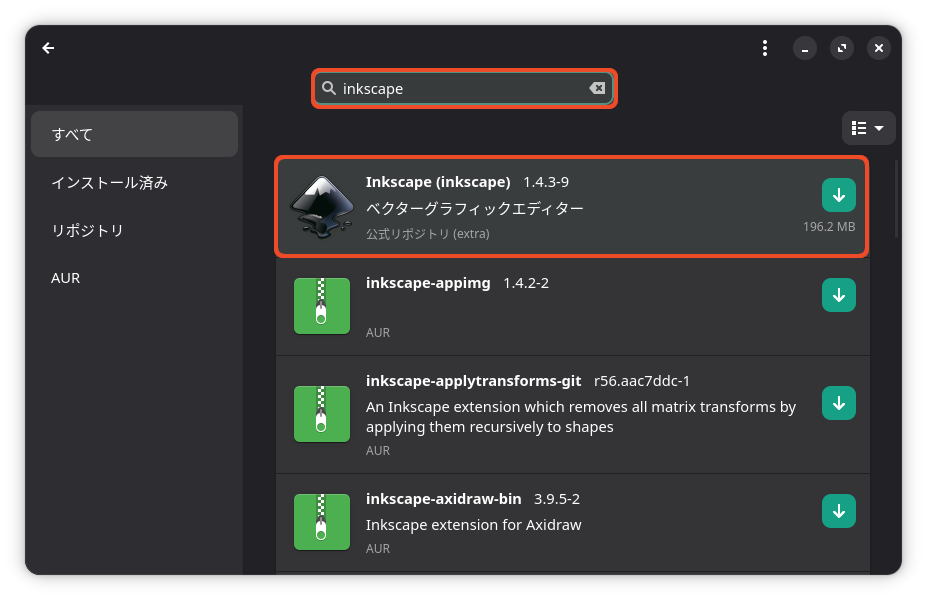
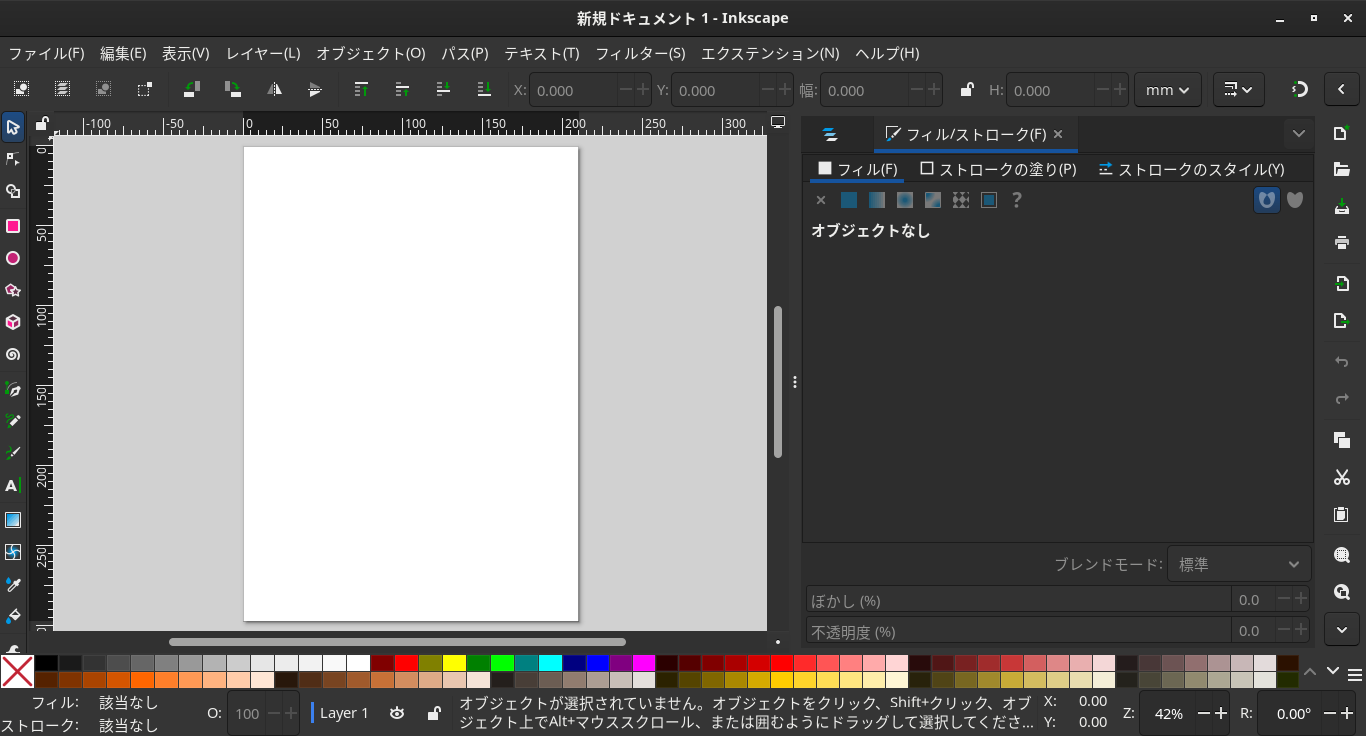
13. Inkscape
While GIMP handles raster images like JPGs and PNGs, Inkscape handles vector graphics.
Vector graphics do not become pixelated when zoomed in.
They are based on the coordinates of points and lines.
It is well-suited for drawing buildings and illustrations.
It can be installed from the official repository.
14. Spotify
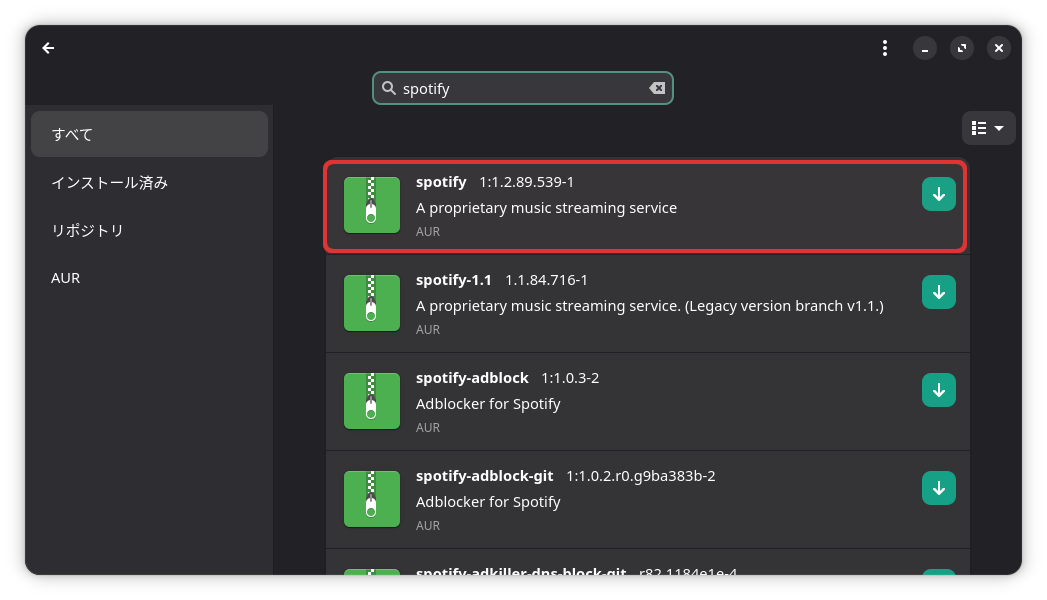
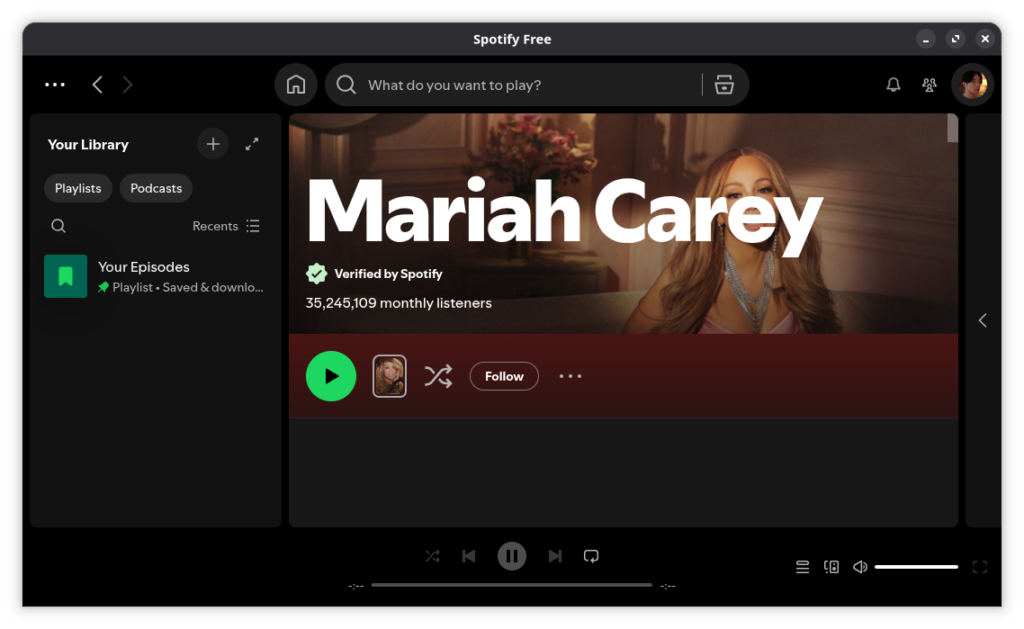
You can install it from "Add/Remove Software."
That concludes my list of 12 software programs—it may be a bit standard, but I hope you found it helpful.
Since you can install a variety of software through "Add/Remove Software," please explore and find something convenient and easy to use.
If you found this helpful, please consider supporting me.


