

Thunderbird works on both Windows and Linux.
You can transfer your Windows email settings to Thunderbird on Linux. I’d like to write about that today.
However, I was unable to transfer email account passwords using this method.
Also, when installing the software, please install the “Zorin OS” version rather than the “Flat” or “Snap” versions.
I’ll be writing this assuming you’re using the “Zorin OS” version.
Click here for an Overview of Zorin OS 18.1 Core


1. Steps on the source PC
Launch the version of Thunderbird you normally use, and open the Troubleshooting Information from the Help menu.
Click the “Open Folder” button next to “Profile Folder.”
Go up one level in the directory structure and copy the entire (random letters).default-release folder to a USB drive or similar storage device.
2. Steps on the Destination PC
Insert the USB drive you just prepared into the destination PC.
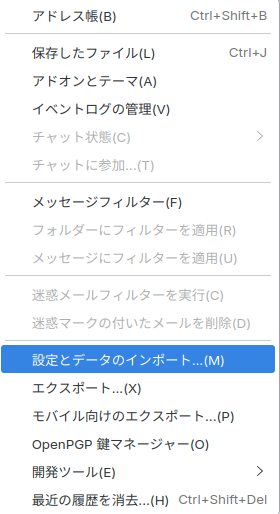
Launch Thunderbird, then click Tools > Import Settings and Data to open the dialog.
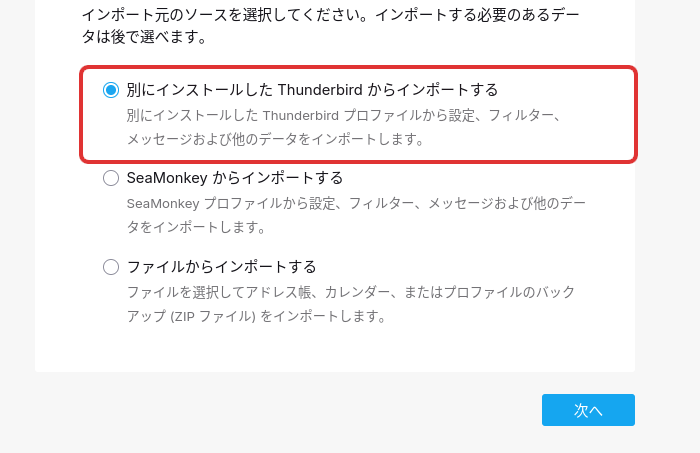
Check the box next to “Import from a separate Thunderbird installation” and click the “Next” button.
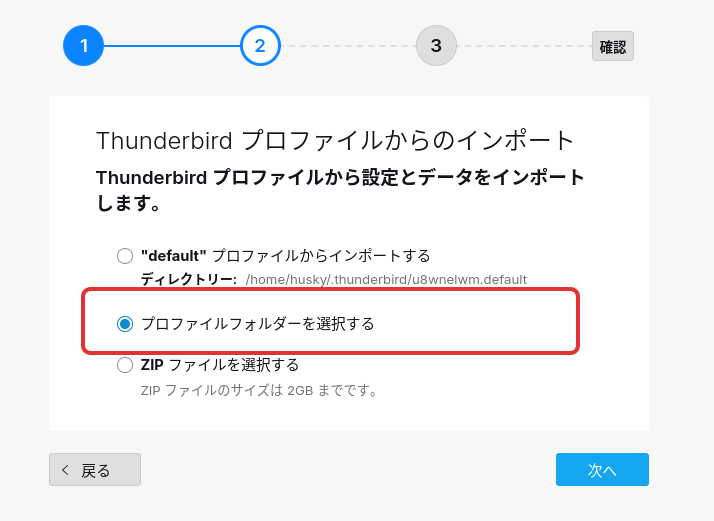
Check the box next to “Select a profile folder” and click the “Next” button.
A “Select Profile Folder” pop-up will open. Select the (random letters).default-release folder on the USB drive where you transferred the data, then click the “Select” button in the upper-right corner.
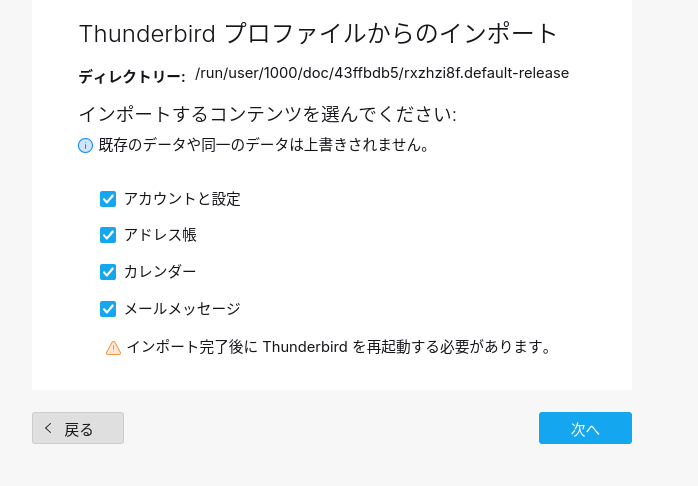
Check the boxes for the items you need: Accounts and Settings, Address Book, Calendar, and Email Messages.
You will likely need at least Accounts and Settings. Click the “Next” button.
Click the “Start Import” button.
Thunderbird may appear to freeze during the process, but if you click “Wait for Response,” it will complete.
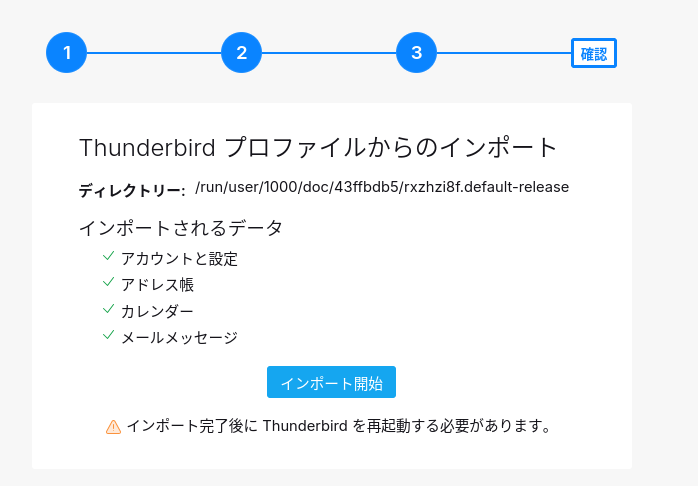
Once the import is finished, click “Finish” and restart Thunderbird.
3. Enter your email password
At this point, you’ve successfully transferred your email address settings (such as IMAP and SMTP), but the email password was not transferred.
Therefore, you’ll need to enter the password manually.
If you have only a few email accounts, it might be faster to simply configure the IMAP and SMTP settings manually.
Summary
If you’re using Thunderbird on Windows, you can import your email account information into Thunderbird on Zorin OS (Zorin OS version).
Open Help > Troubleshooting Information in Thunderbird on Windows or another platform, and transfer the entire profile folder to a USB drive or similar storage device.
In Zorin OS’s Thunderbird, go to Tools > Import Settings and Data, select the folder on the USB drive, and the import will begin.
However, since email passwords are not imported, if you have only a few email accounts, it might be faster to simply set up new accounts from scratch.
よろしければ応援お願いします


