
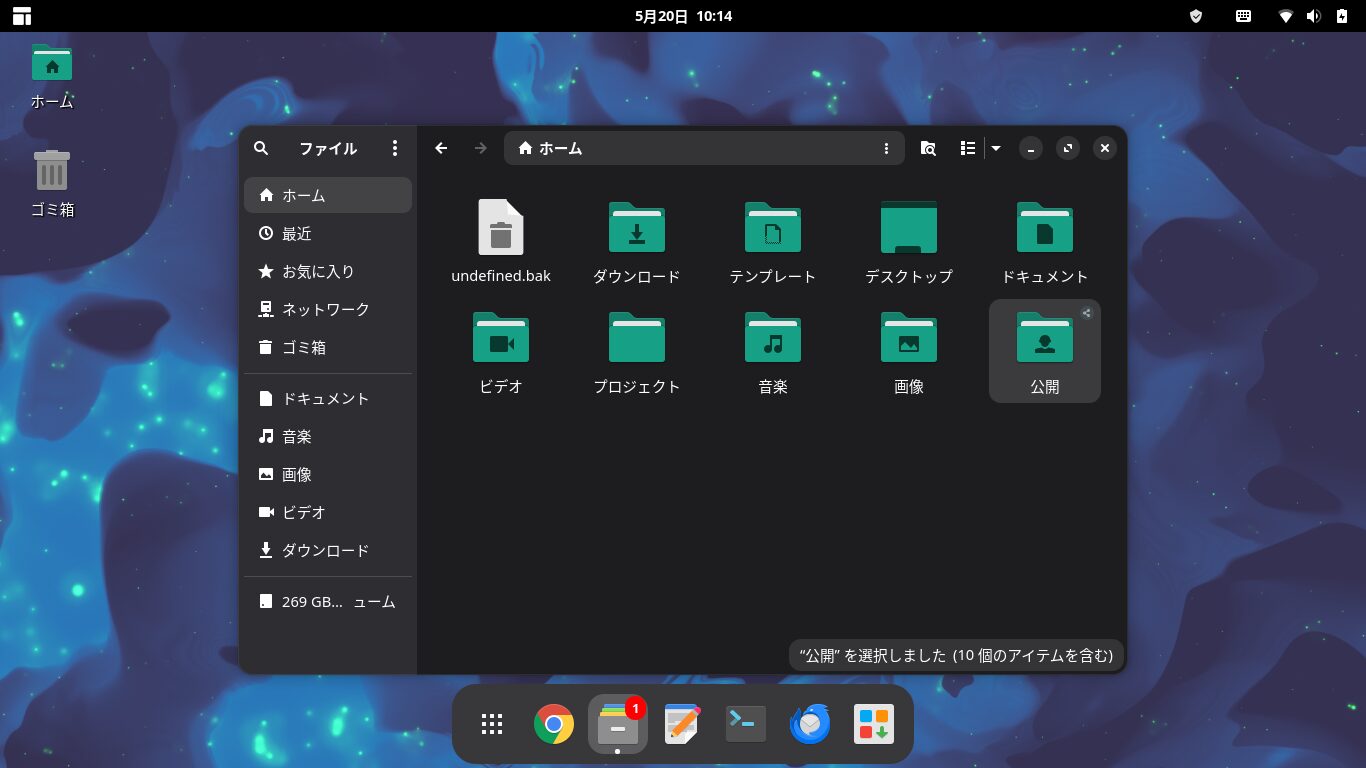
In this post, I’d like to explain how to share files between Manjaro and other PCs on a local network.
Samba, which is required for file sharing, is installed by default, and we’ll use the features of Manjaro’s file manager, Nautilus, to share files.
If you configure Samba and user settings correctly, it can also function as a file server.
To set up file sharing on Manjaro, first install "nautilus-share" using the Software Center, then open a terminal to enable and start Samba.
Open the Samba ports in your firewall. If you're accessing the shared folder from Windows, open File Explorer and enter a path like "\192.168.xxx.xxx" in the address bar.
Click here for the Manjaro Overview page

1. Installing nautilus-share
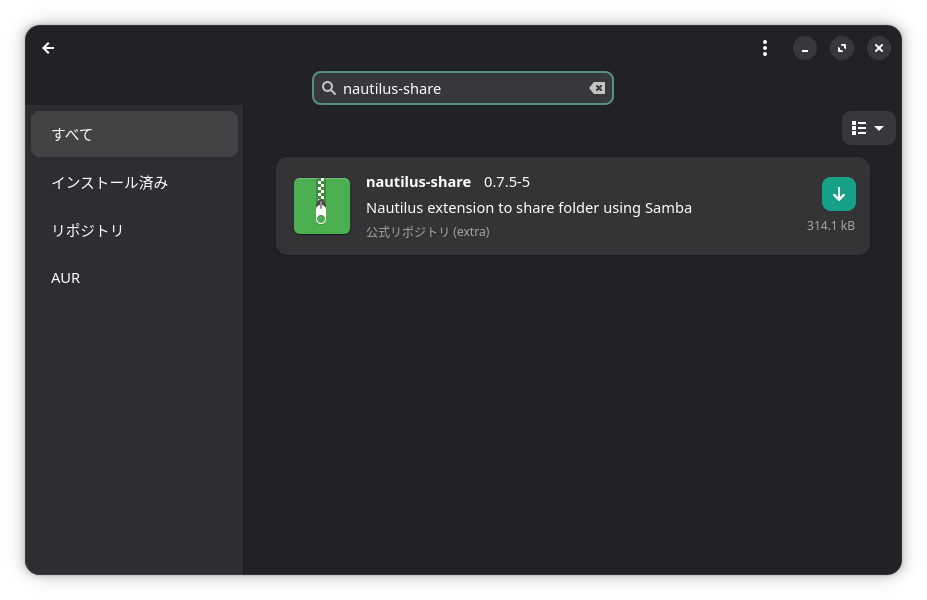
Search for "nautilus-share" in "Add/Remove Software" and install it.


2. Starting Samba
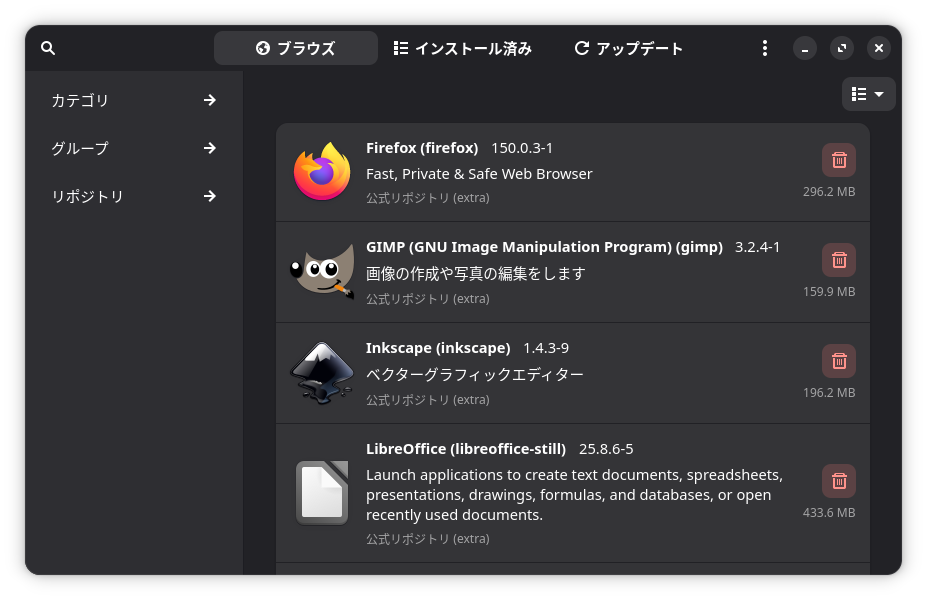
Samba is installed by default on Manjaro.
However, this is where I ran into a snag.
In Ubuntu-based systems, Samba is "smbd", but in Arch Linux-based systems, it’s apparently "smb".
Open a terminal and run the following command to ensure Samba starts when Manjaro boots.
sudo systemctl enable smb
Also, run the following command.
sudo systemctl enable nmb
Next, start Samba.
sudo systemctl start smb nmb
Set the Samba password.
sudo smbpasswd -a 'Group Name'
Replace 'Group Name' with the group to which your username belongs.
When you run the command, you will be prompted to enter a password.
This password is the one used when accessing Samba from other PCs on your local network.
Next, add the user to a Samba group.
sudo gpasswd -a $USER sambashare
Restart Samba
sudo systemctl restart smb nmb
3. Configure the public folder for sharing
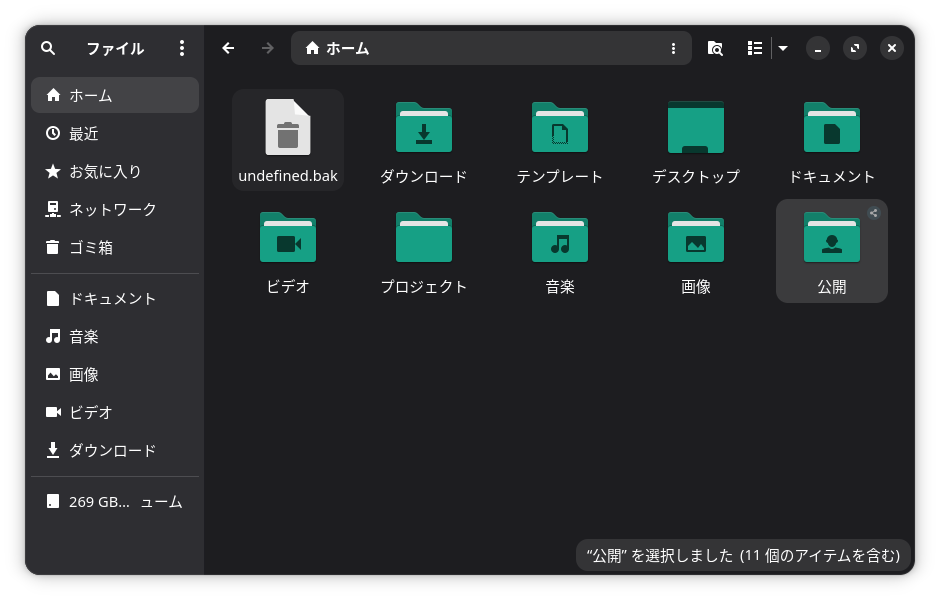
In this example, we will set up the "Public" folder in your Home folder as a shared folder.
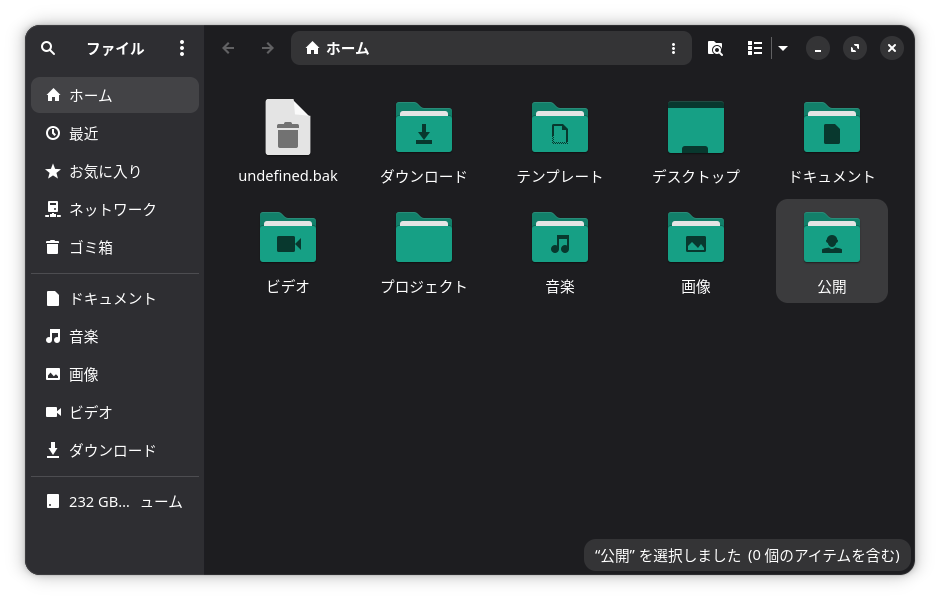
Right-click the public folder and select "Share Options."
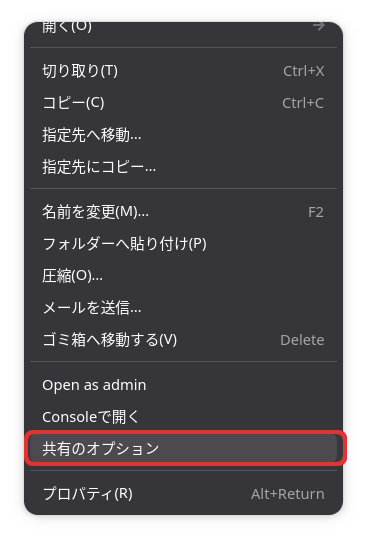
Check the boxes for "Share this folder" and "Allow others to create and delete files in this folder."
If you don't plan to send files from another PC , checking only "Share this folder" should suffice.
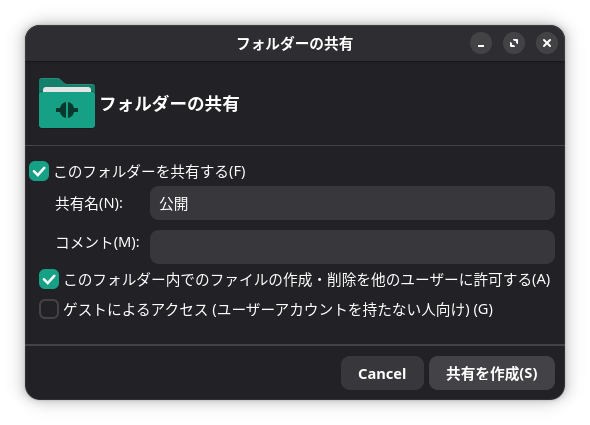
Click "Apply permissions automatically."
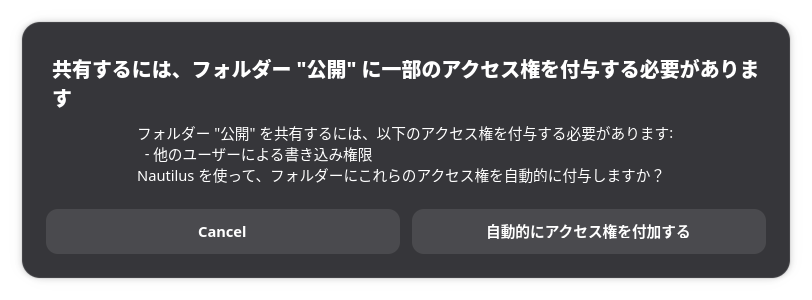
A shared icon will appear on the Public folder.
4. Firewall Settings
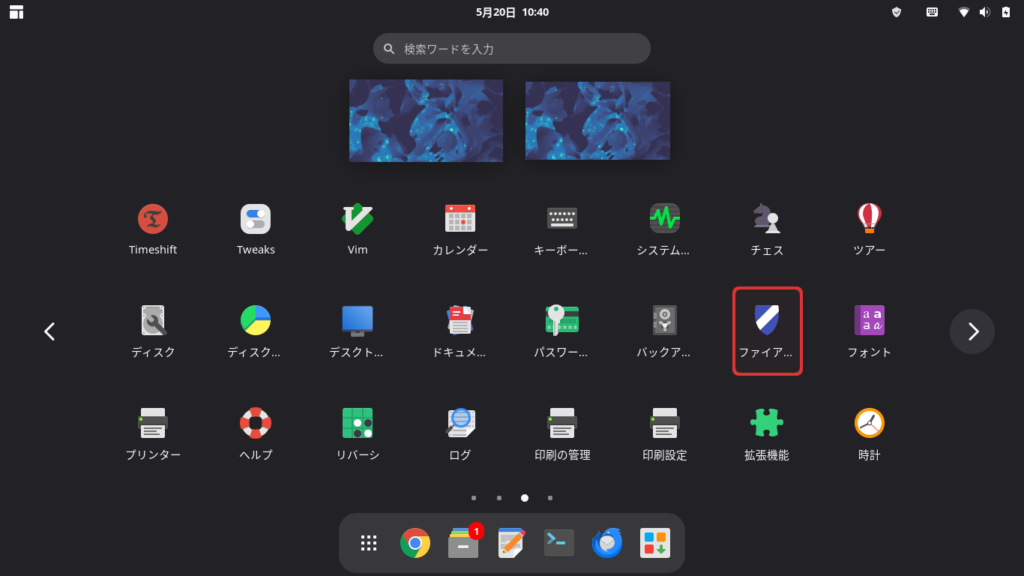
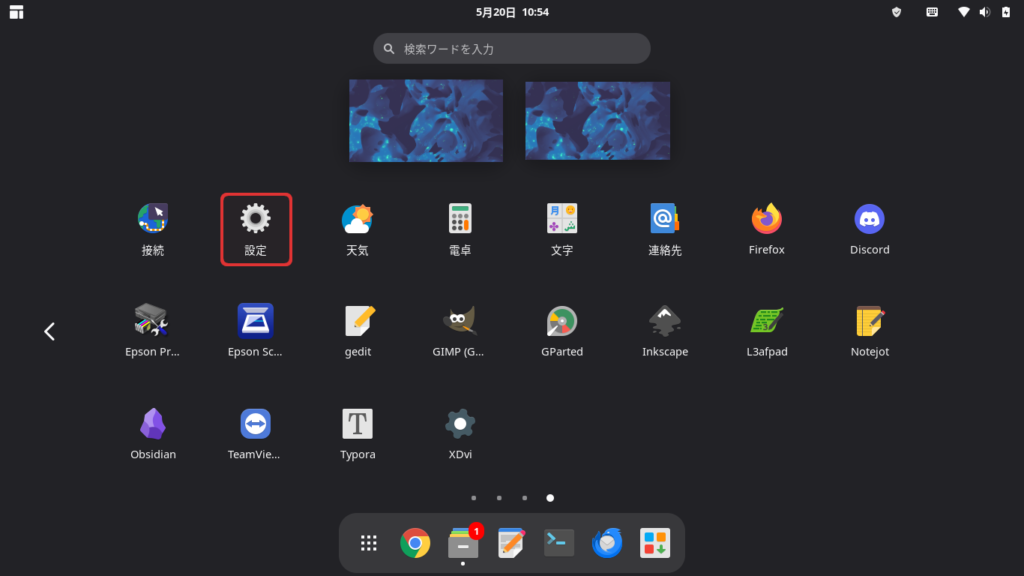
Launch "Firewall" from "View apps."

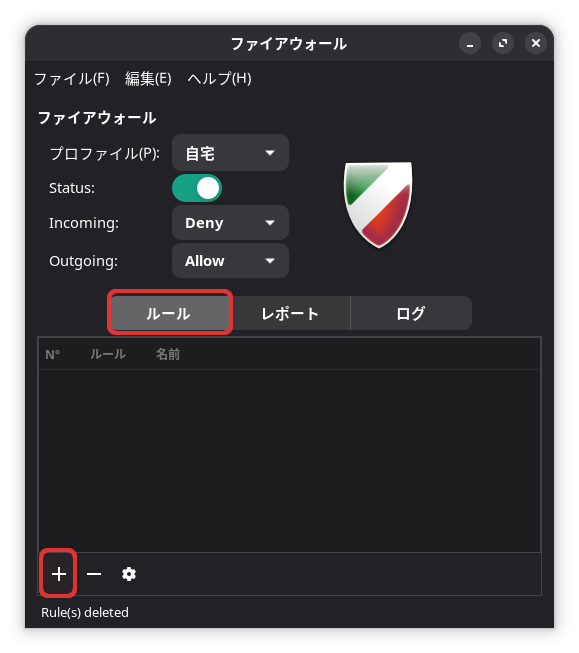
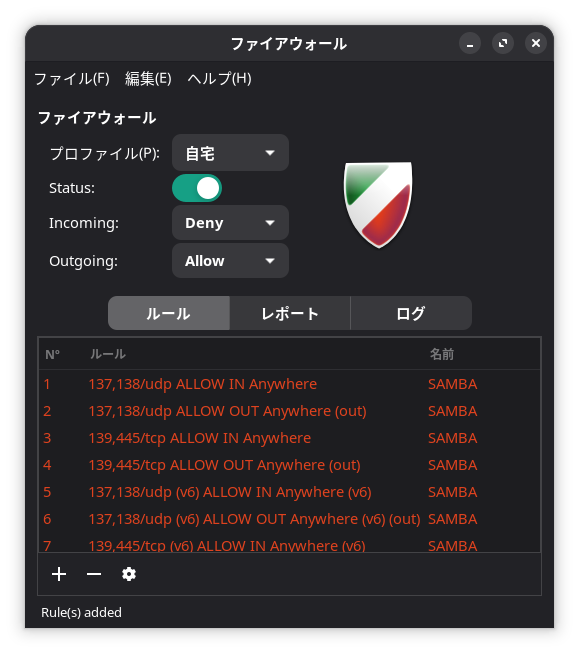
Click "Rules" in the middle section, then click the " + " icon in the lower-left corner.
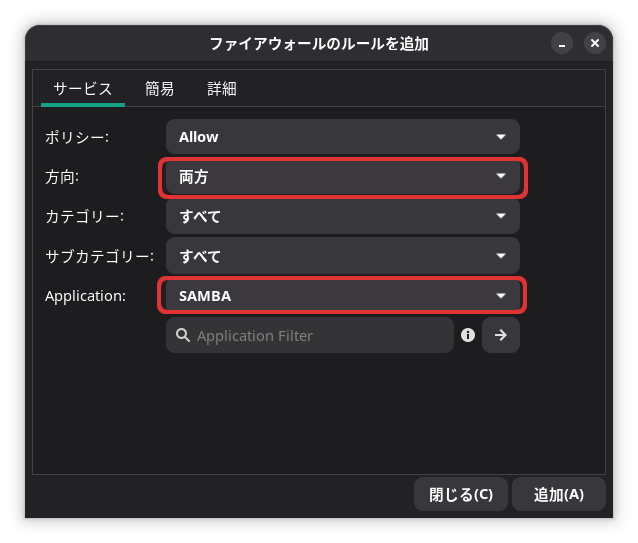
Set the direction to "Both" (if transferring files to Manjaro), select "Samba" as the application, then click the Add button and close the window.

5. Accessing from Another PC
If you're using Windows, open File Explorer and enter,
\\192.168.xxx.xxx
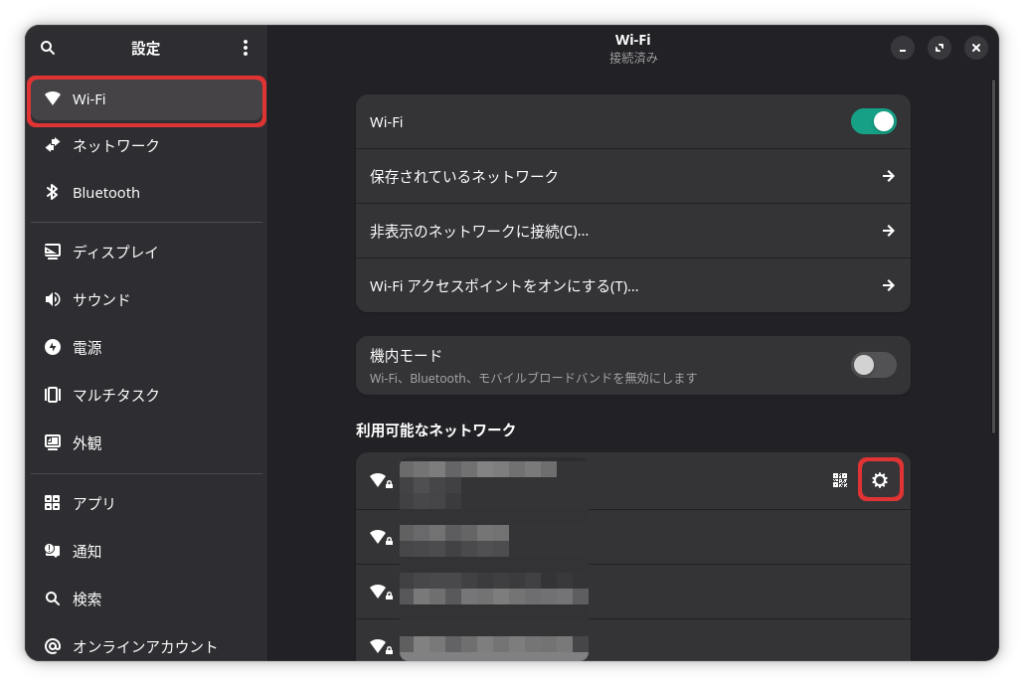
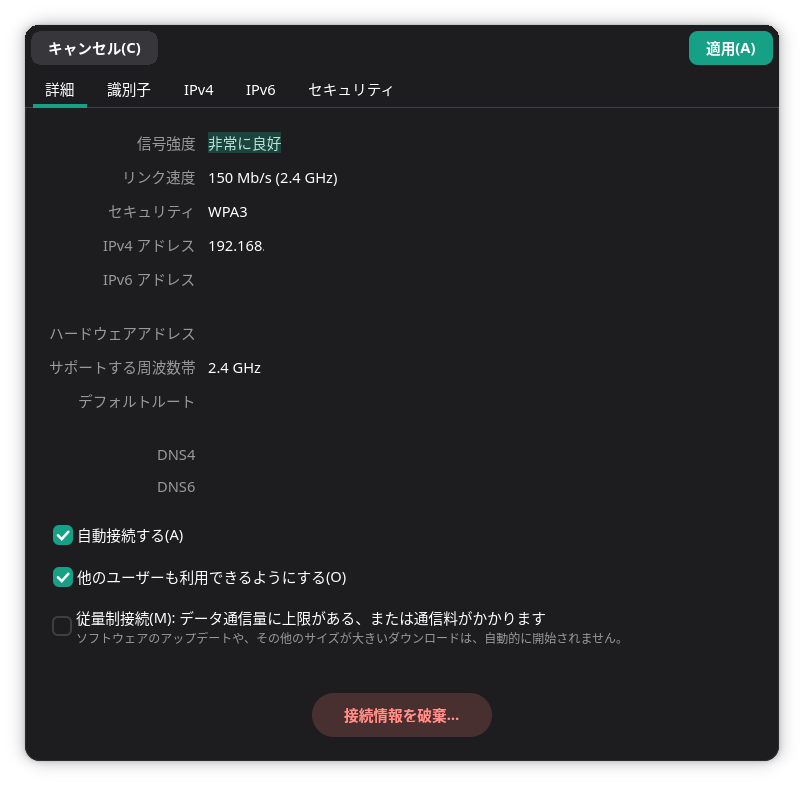
Replace "xxx" with the private IP address found in Manjaro's settings.
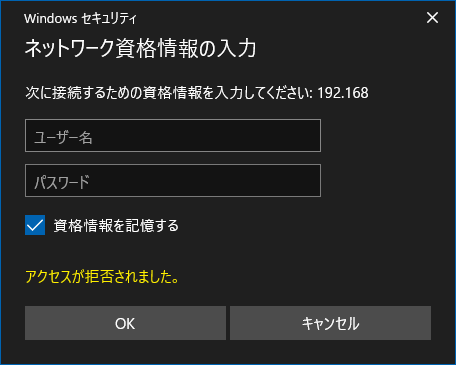
The “Enter Network Credentials” window will open; please enter the Samba username and password you just set up.
If you check the “Remember credentials” box, you won't have to enter your username and password every time you open the Manjaro folder.
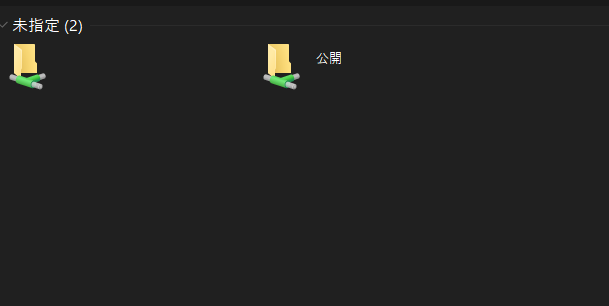
The fact that the Home folder appears is my mistake.
In the Shared Folder, you can move files to the PC you’re accessing from, or transfer files from that PC to the Manjaro PC (if you’ve enabled write permissions for the Shared Folder).
It may take a little while to connect.
If it doesn’t work, try restarting Samba or rebooting both PCs.
If you still can't connect, the issue may be caused by old credentials stored in Windows.
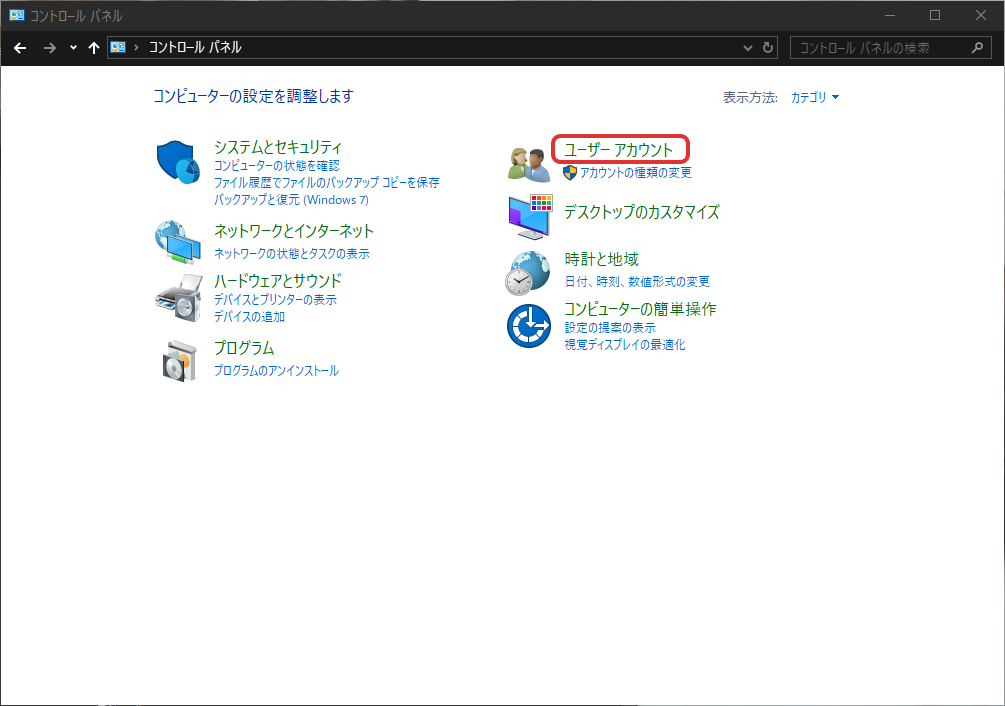
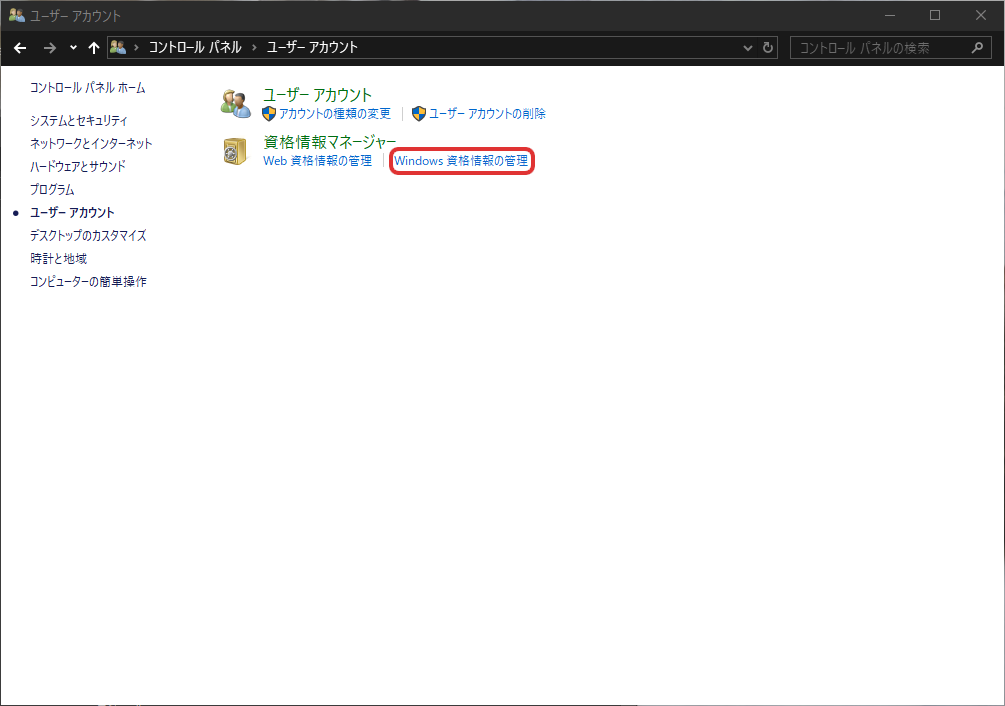
Open the Windows Control Panel, go to User Accounts > Manage Windows Credentials, and try deleting the old credentials.
Once you've deleted them, restart Windows.
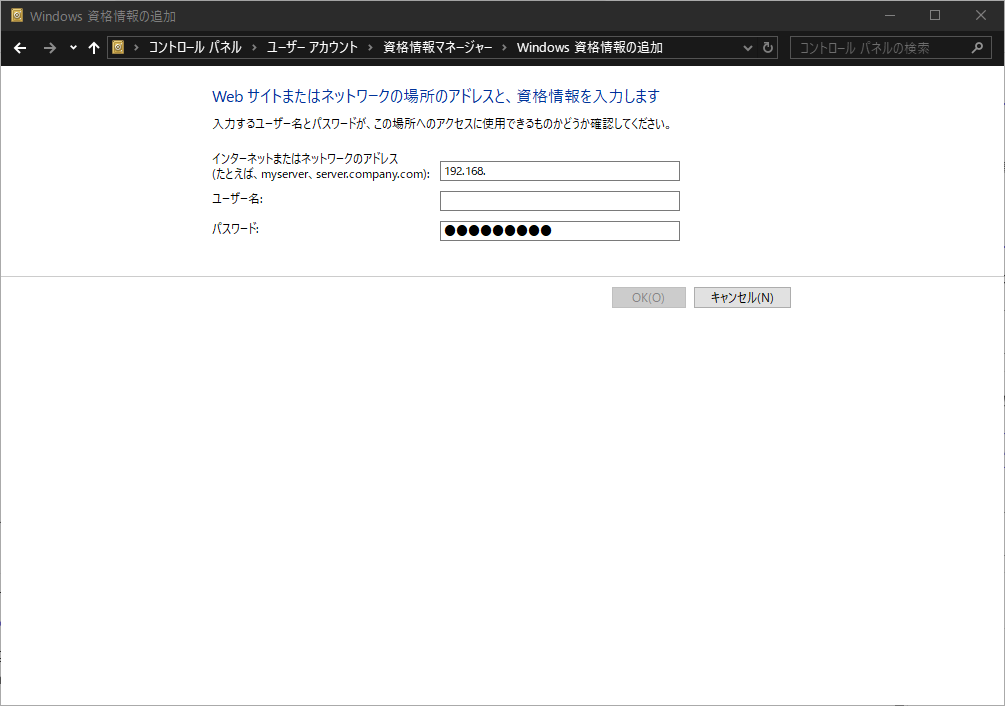
Alternatively, creating Windows credentials in advance can sometimes make the connection process go more smoothly.
Go to Control Panel > User Accounts > Credentials Manager > Add Windows Credentials, enter the private IP address of your Manjaro PC, and enter the Samba username and password.
Key Point
When accessing from Windows, enter the Manjaro PC’s private IP address in the address bar of File Explorer.
This will bring up the “Enter Network Credentials” dialog.
Enter the Samba password you used when setting up folder sharing.
It may take some time to connect.
Also, creating Windows credentials in advance can sometimes make the connection process smoother.
If you still can't share files, edit the Samba configuration file to add the sharing settings.
sudo gedit /etc/samba/smb.conf
[public]
   path = /home/your user mame/public
   browseable = yes
   read only = no
   create mask = 0777
   directory mask = 0777
Key Point
It may take some time for the shared folder to appear.
Please try restarting both computers or waiting a while before attempting to access it.
If you are still unable to share the folder, edit the Samba configuration file to update the sharing settings.
To share files between Linux machines, click “Network” or “Other Locations” in the file manager, and
smb://192.168.xxx.xxx
enter the local network address of the Linux machine you want to connect to after “smb://”.
However, Samba must be installed on both machines, and the folders must be set up for sharing.
If you configure the Samba configuration files and user management properly, it will function as a file server.
Summary
To set up file sharing on Manjaro, first install "nautilus-share" via Software & Updates, then open a terminal to enable and start Samba.
Launch "Firewall" from "Show Applications", add the Samba port, and open it.
If accessing from Windows, open File Explorer and enter "\\192.168.xxx.xxx" in the address bar.
If you're having trouble sharing the folder, edit the Samba configuration file to add the sharing settings.
If you configure the Samba configuration files and user management properly, it will function as a file server.
If you found this helpful, please consider supporting us.


