
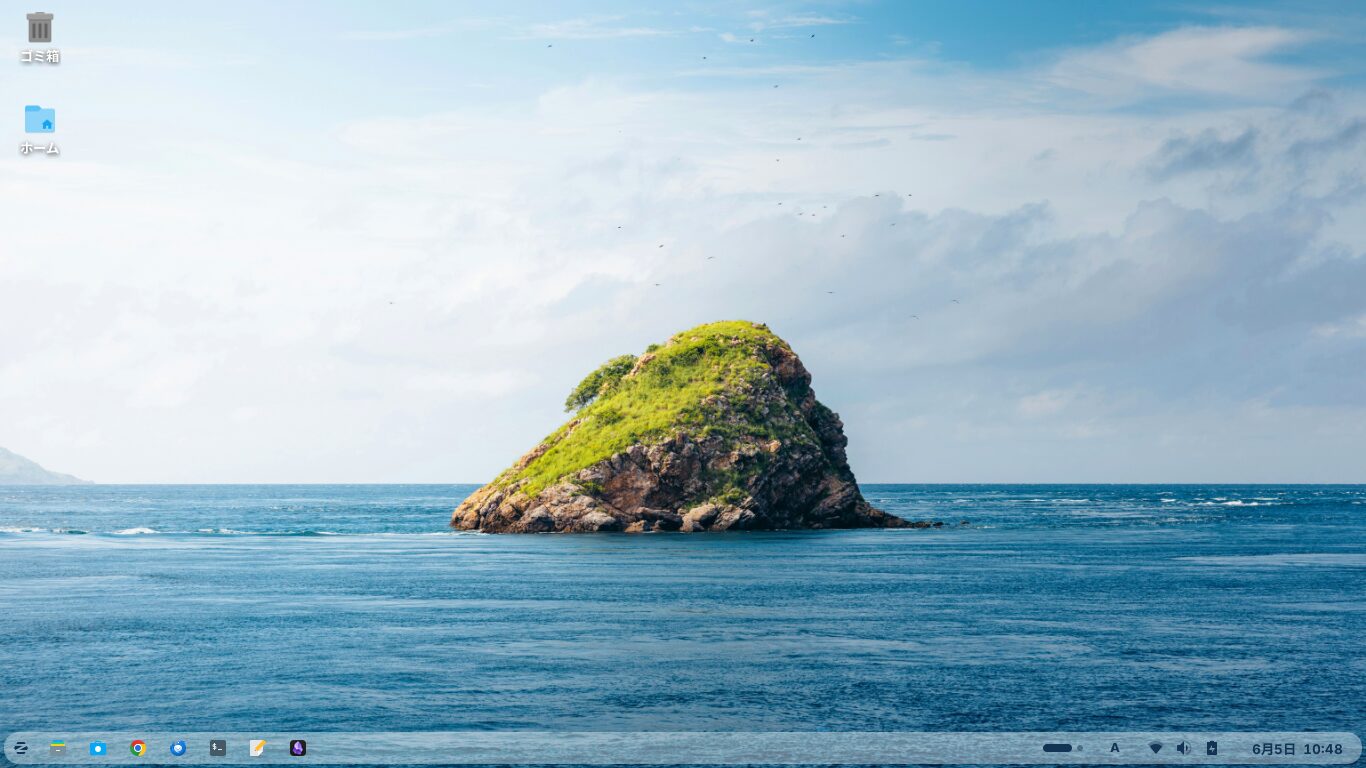
When using Zorin OS on a laptop or similar device, if your screen is small, a tall taskbar can make the display feel cramped, right?
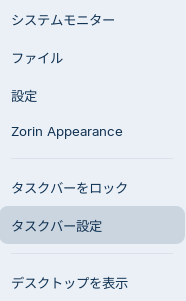
In Zorin OS, right-click on an empty area of the taskbar and click “Taskbar Settings.”
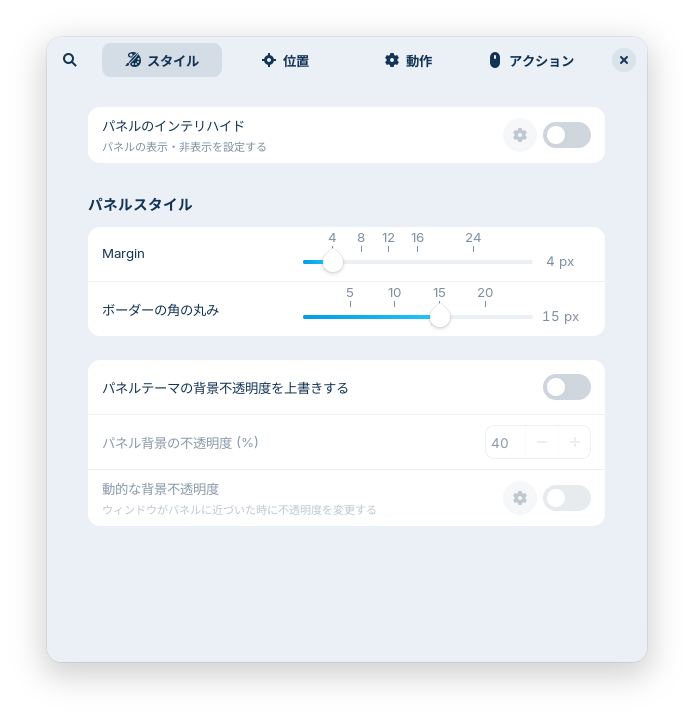
In the window that appears, go to the "Position" tab and move the "Panel Thickness" slider to a smaller value to lower the taskbar's height.
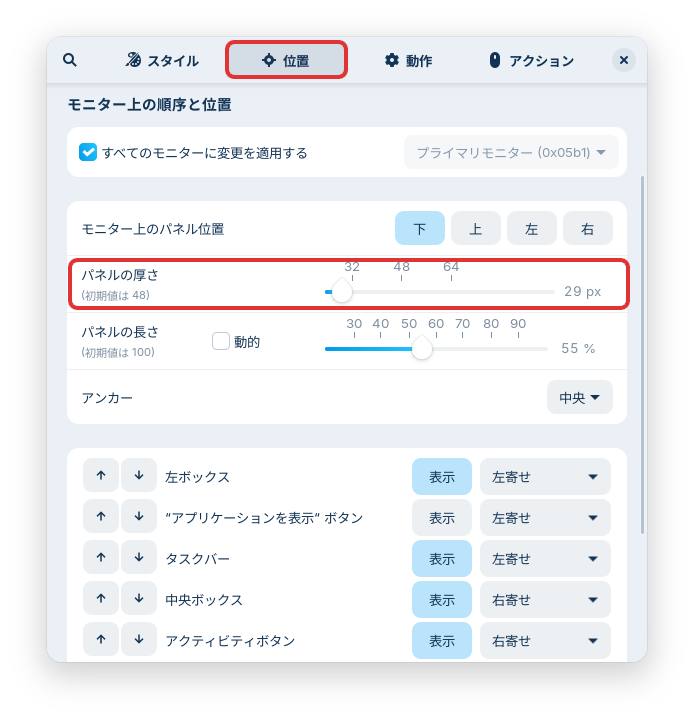
Reducing the "Panel Length" will shrink the taskbar toward the center. This narrows the taskbar’s width and gives it a slightly dock-like appearance.
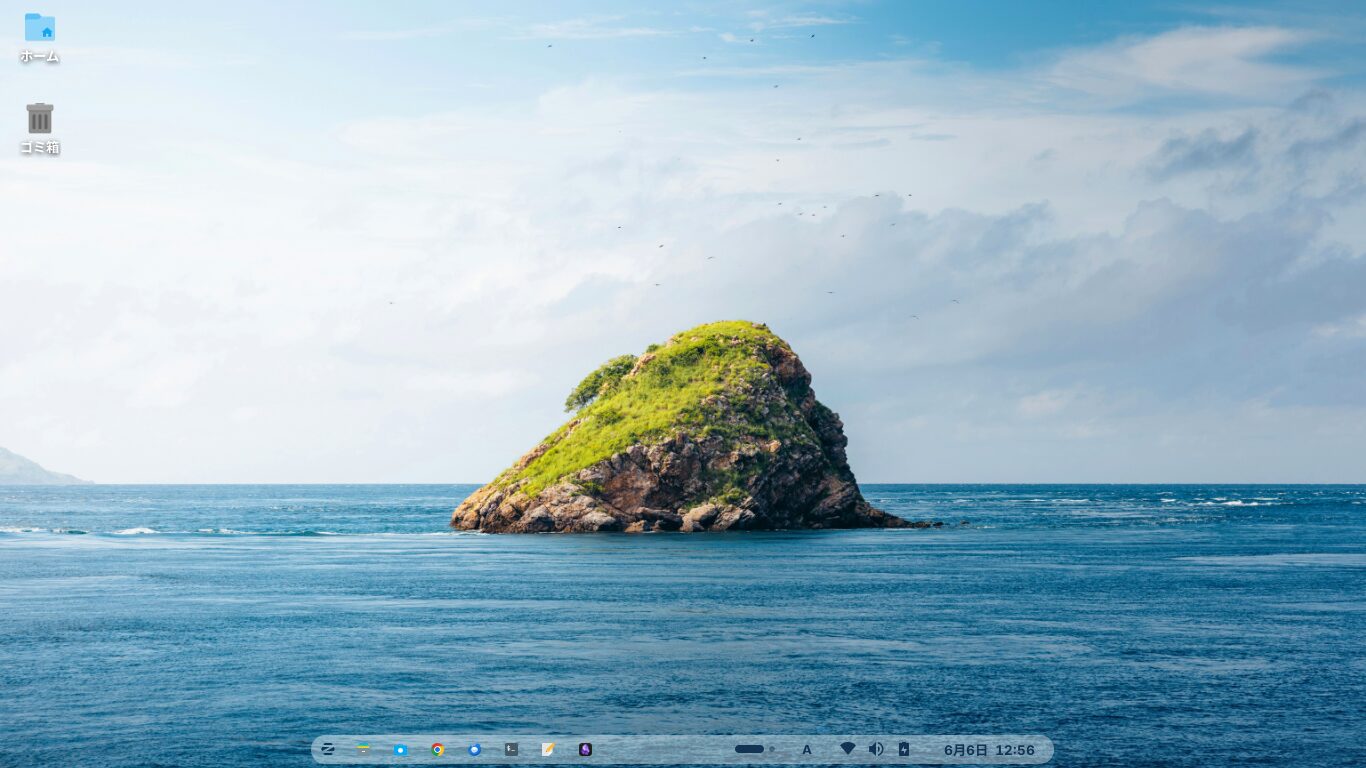
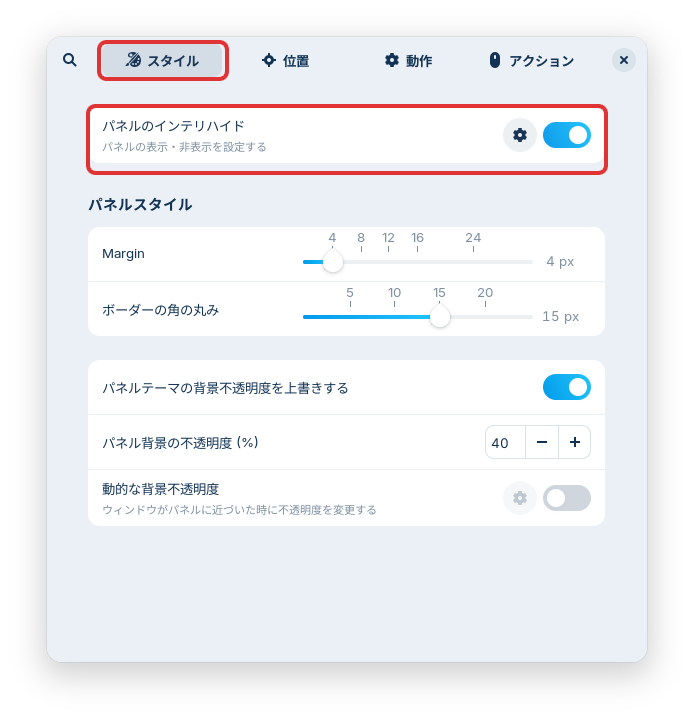
To hide the taskbar automatically when you maximize a window or lower the window, enable “Panel Hide” under the “Style” tab and click the gear icon.
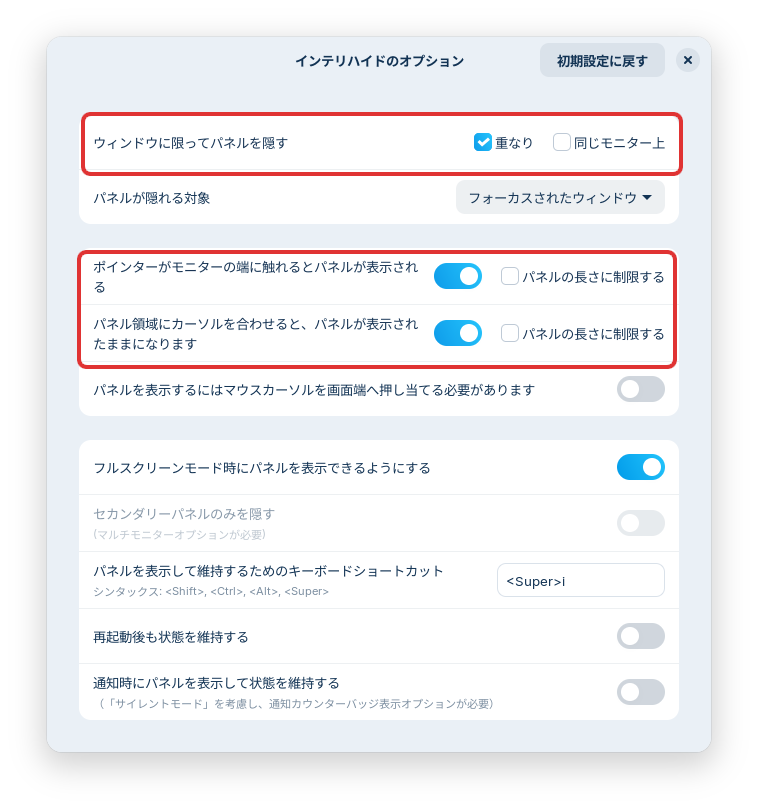
If you check "Overlap" under "Hide panel only for windows" and enable "Show panel when pointer hovers at the bottom of the screen," the taskbar will automatically hide at the bottom when you maximize a window or lower the window, and it will appear when you hover the mouse cursor over the bottom of the screen.
This allows you to make effective use of a small display.
If you found this helpful, please show your support!


