
In this post, I’d like to explain how to install an application called Cloud Commander and share files via a web browser.
You can share files over a local network using a web browser.
While you can also share files using Samba, it’s sometimes easier to use Cloud Commander via a web browser when sending a large number of files at once.
1. Install Node.js and npm
You’ll need Node.js and npm to run Cloud Commander. Search for Node.js in “Add or Remove Programs” and install it.
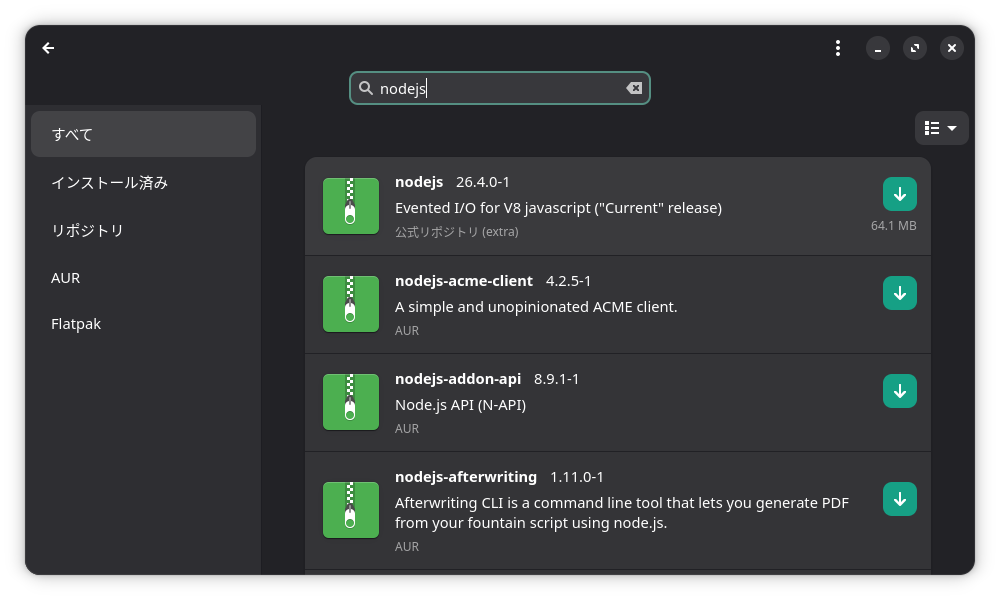
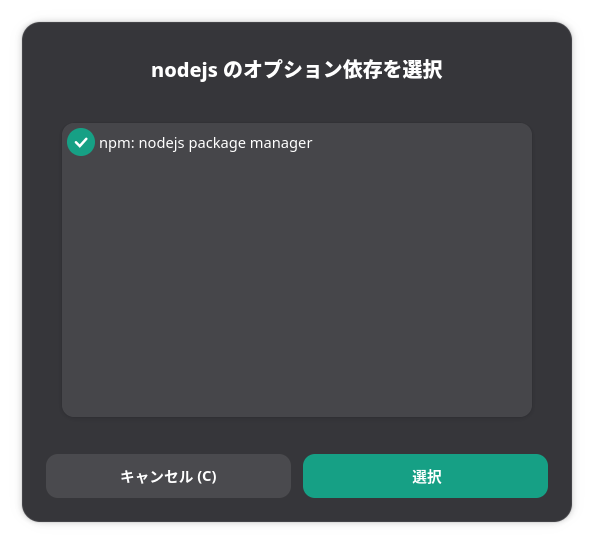
When you install Node.js, you can also install npm (the application that manages Node.js) at the same time.
2. Install Cloud Commander
Now, let’s perform a global installation of Cloud Commander. A
global installation means installing Cloud Commander so that it can be called from anywhere on the system, not just from its installation folder.
To do this, add `-g` to the end of the command.
sudo npm i cloudcmd -g
3. Launching Cloud Commander
To launch Cloud Commander, run the command below.
cloudcmd
This will launch Cloud Commander, and you’ll be able to view your folders in a web browser.
Try opening the following address in your web browser:
If you’ve followed the steps correctly so far, a list of folders will appear on the right and left sides of your web browser.
To access it from other PCs on your local network, you’ll need to open port 8000/tcp in your firewall.
Open the Firewall Settings tool from the App menu.
Click “Rules,” then click the “ ” button in the lower-left corner, enter the information shown in the image on the “Simple” tab, and click the “Add” button.
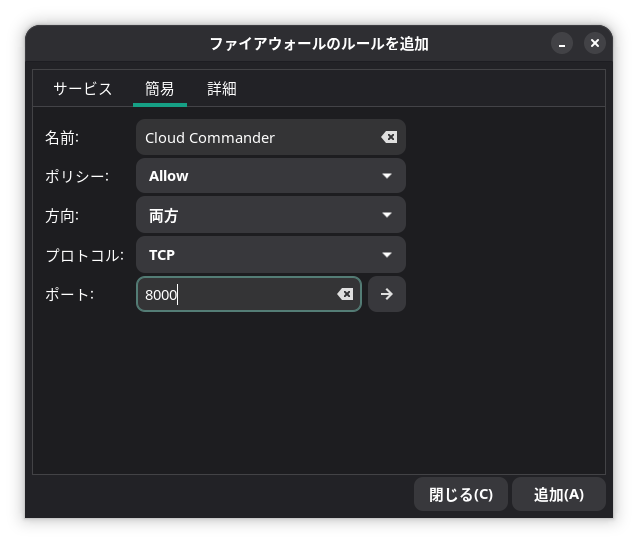
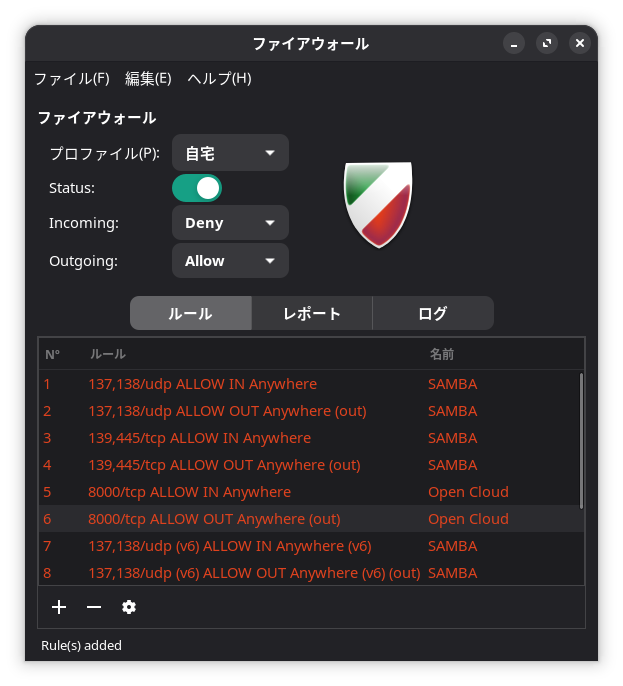
Once the port is open, open the following URL in a web browser on another PC on your local network:
http://192.168.xxx.xxx:8000
in a web browser on another PC on your local network. (Replace “xxx” with your Manjaro local network address.)
If you’ve followed the steps correctly, a list of folders will appear on the left and right sides of the web browser.
Note that only the contents of Manjaro are displayed in the web browser here.
From either the left or right side of the screen—whichever is visible—you can transfer files to Manjaro by dragging and dropping them from another PC on the local network into the Manjaro folder displayed in the web browser.
You can download Manjaro files to another PC on your local network by right-clicking on a Manjaro file in the web browser and selecting “Download.”
However, modern browsers often block file downloads from unsecured connections, such as http://~. In Chrome, you can download the file by clicking the download icon in the upper-right corner and then clicking “Save.”
4. Set Cloud Commander to start automatically when your PC boots
Create a configuration file for `systemctl` to set Cloud Commander to start automatically when your PC boots.
sudo gedit /etc/systemd/system/cloudcmd.service
In this file,
[Unit]
Description=Cloud Commander
After=network.target

[Service]
Type=simple
User=〇〇〇〇
ExecStart=/usr/bin/cloudcmd
Restart=always

[Install]
WantedBy=multi-user.target
Copy and paste this into the file, then save it. (Replace “User=〇〇〇〇” with your username.)
Next, run the command below.
sudo systemctl daemon-reload
sudo systemctl enable --now cloudcmd
This completes the installation and configuration of Cloud Commander.
I think people’s preferences will vary between sharing files via Samba and sharing them through a web browser using Cloud Commander.
Basically, using Cloud Commander is more like downloading and uploading files via the web. It might be a good idea to use Cloud Commander when transferring a large number of files at once.


 ポチップ
ポチップ

