
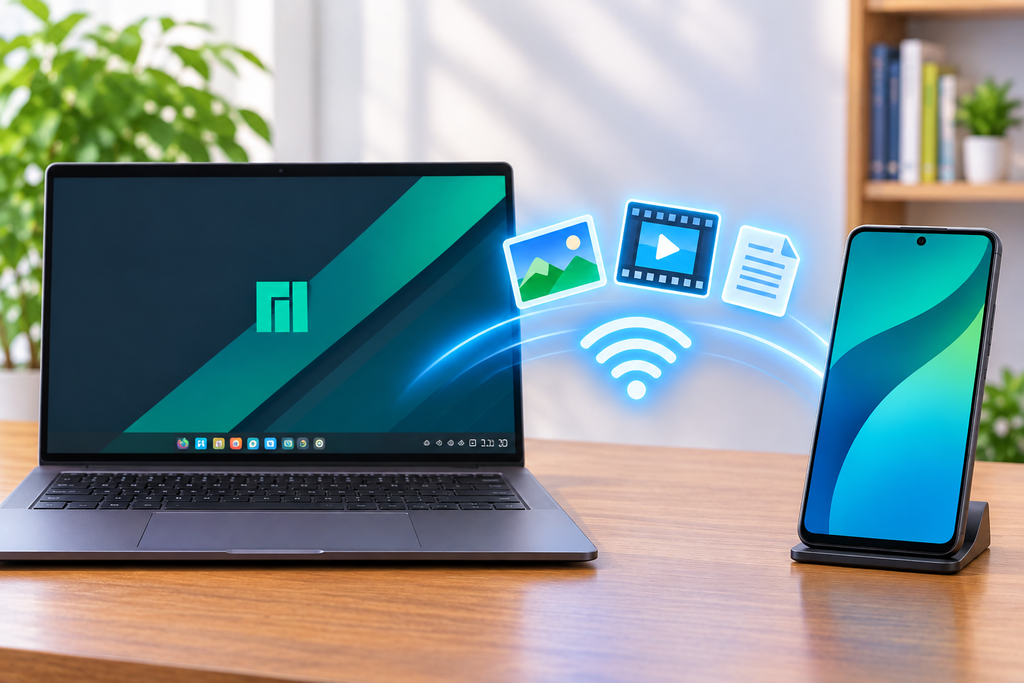
Once you install KDE Connect on Manjaro and pair it, you can connect to your smartphone and easily send photos and videos.
1. Install the app on your smartphone
First, install “KDE Connect” on your smartphone.

Make sure both devices are on the same local network.
2. Install KDE Connect on Manjaro
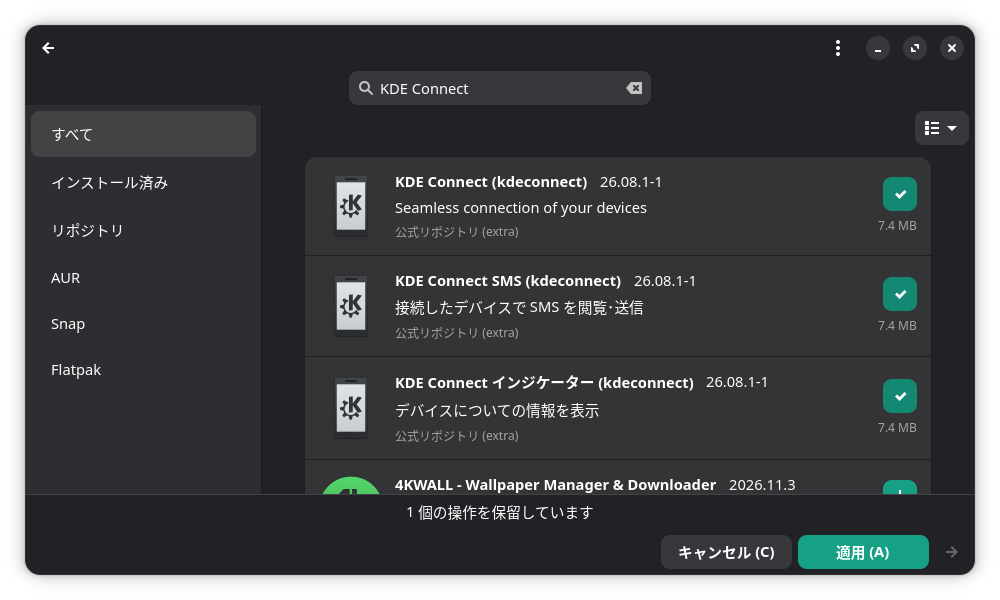
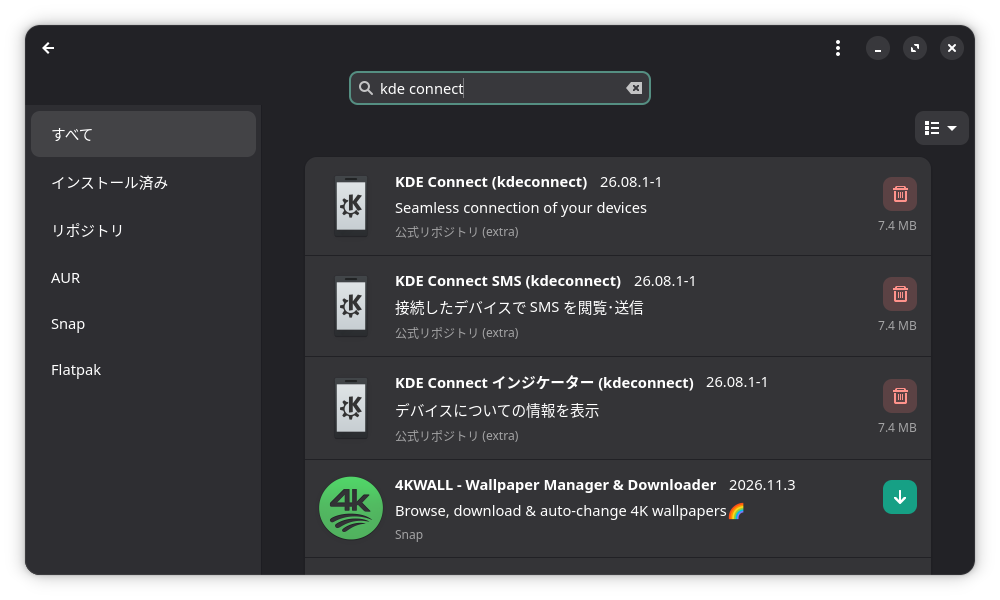
Install KDE Connect from Manjaro’s “Add/Remove Software.”
3. Open the KDE Connect ports in the firewall
Open a console and launch the firewall.
sudo gufw
Click the “ ” icon in the lower-left corner.
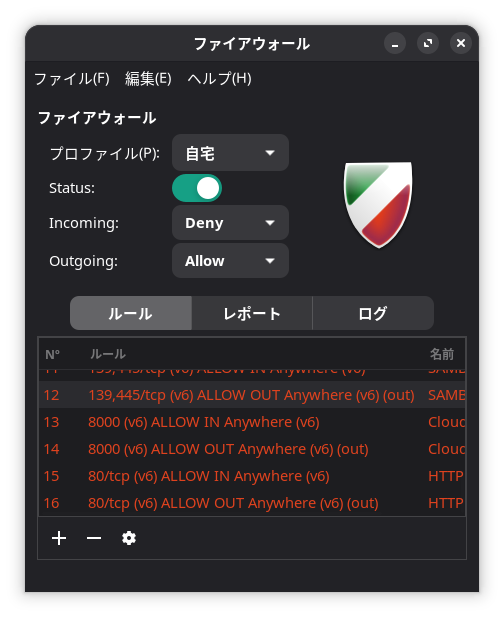
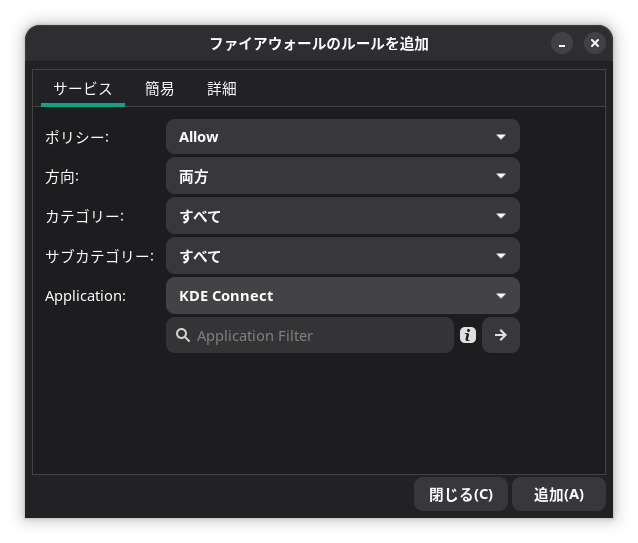
On the Add Firewall Rule screen, select KDE Connect from the “Application” field and click the “Add” button.
4. Open KDE Connect and pair it with your smartphone
Open KDE Connect from the app.
Make sure both devices are on the same local network.
Also, make sure to disconnect from any VPNs.
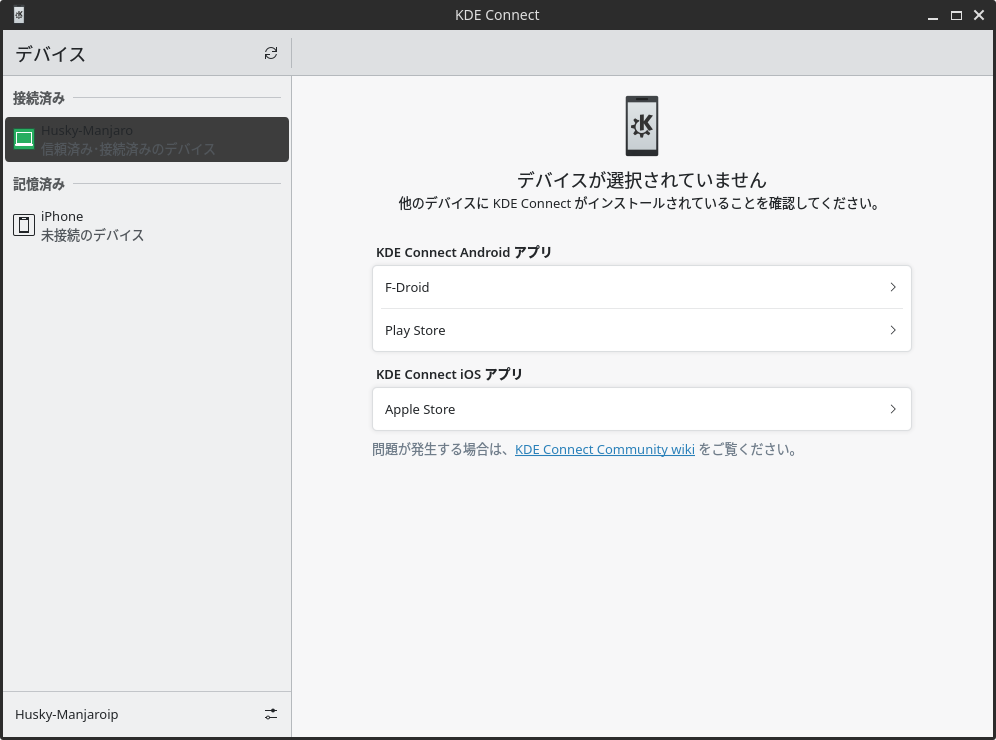
Once pairing is complete on both devices, the screen will look like the image below.
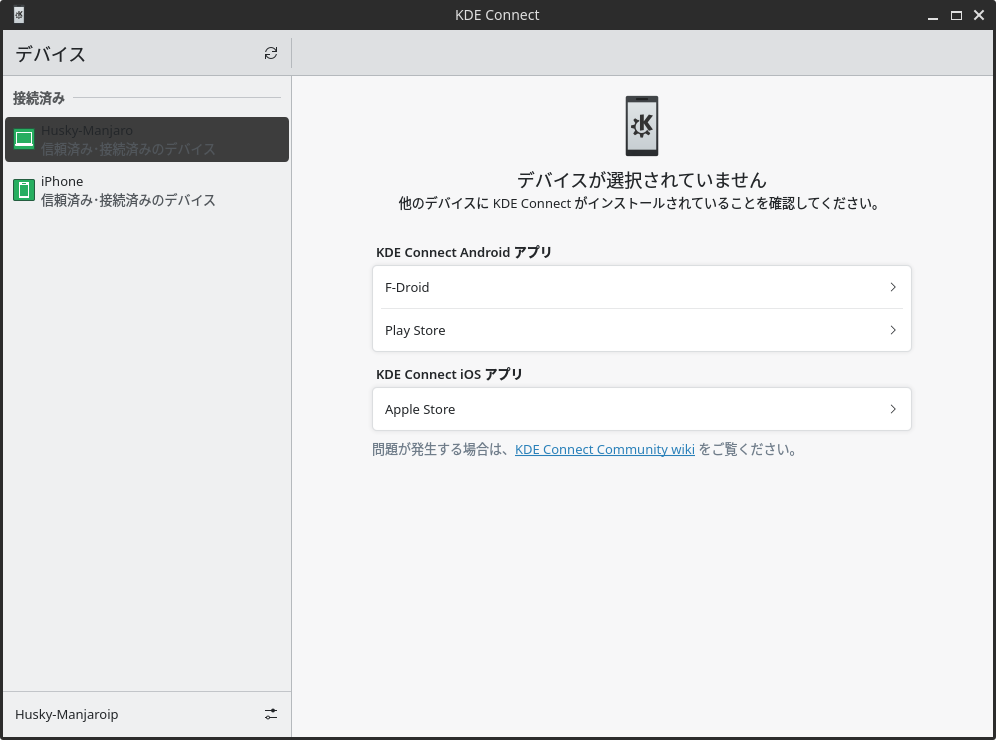
You can send images, videos, and files from your smartphone quickly and easily. You’ll hear a “whoosh” sound when sending
photos.
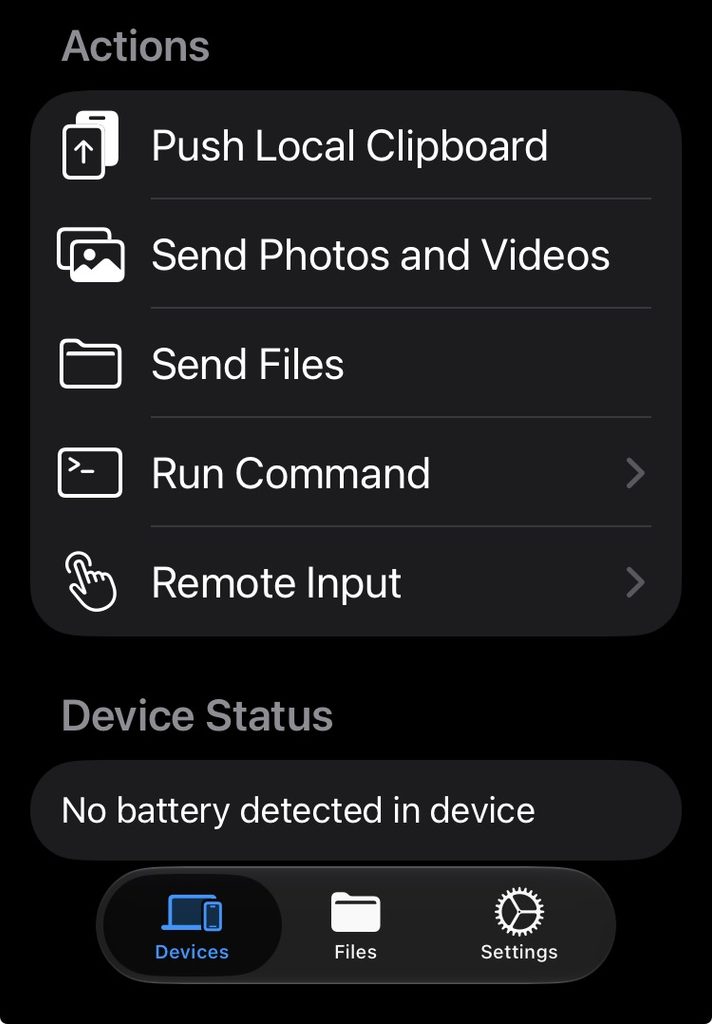
You can also lock the device, log out, or shut it down.
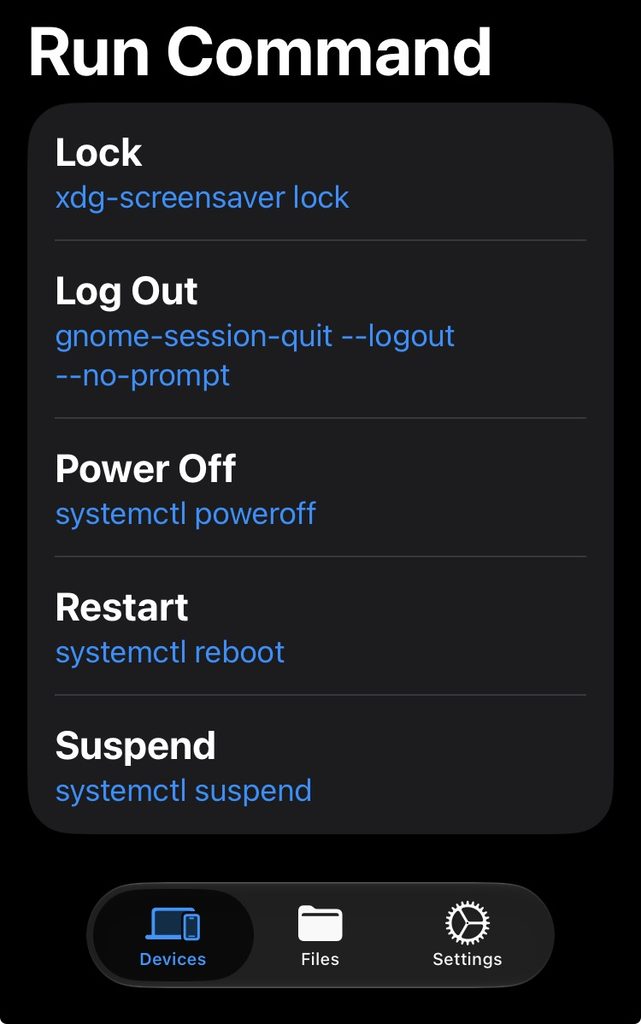
You can also control the mouse using the “Remote Input” feature.
よろしければ応援お願いします


