
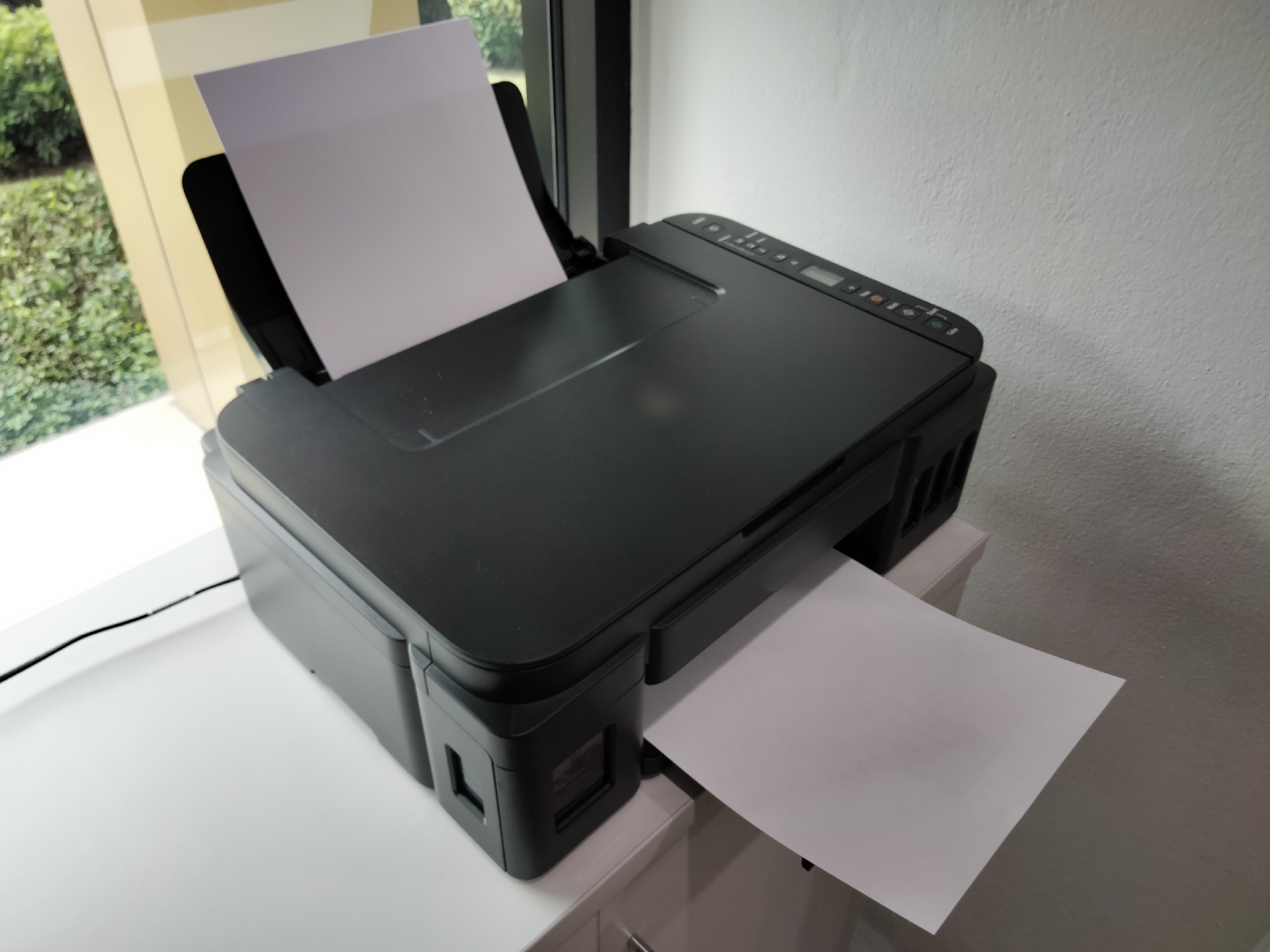
In this post, I’d like to share the steps for setting up an EPSON printer on Manjaro.
Click here for the Manjaro Overview page

1. Start CUPS
In the console,
sudo systemctl enable --now cups.service
sudo systemctl enable --now cups.socket
sudo systemctl enable --now cups.path
CUPS is an application required for using printers on Linux.
2. Install the driver
In "Add/Remove Software," search for "epson-inkjet-printer-escpr."

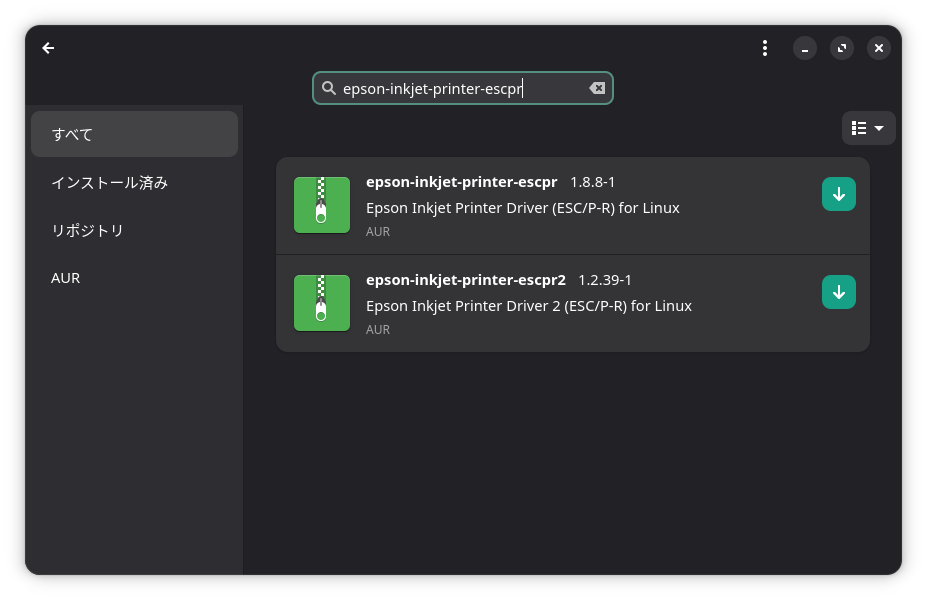
Once found, install it.
I installed both.


3. Registering the Printer
Click "Printing" under "Show Apps."

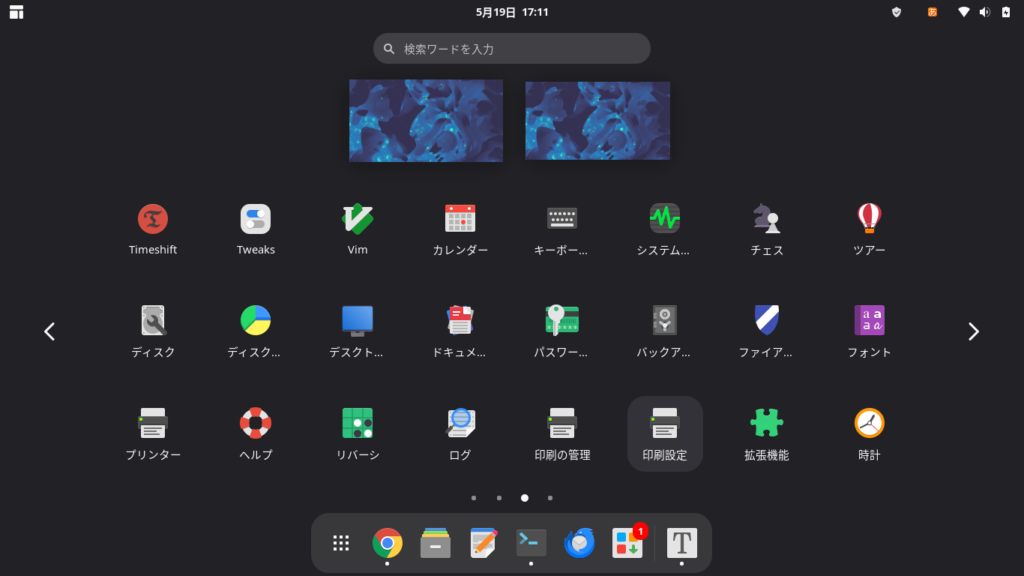
Click "Unlock" in the upper-right corner and enter the administrator password.
Click "Add."
For network printers, look up the URI and enter it in the format "ipp://192.168.xxx.xxx" to start the search.
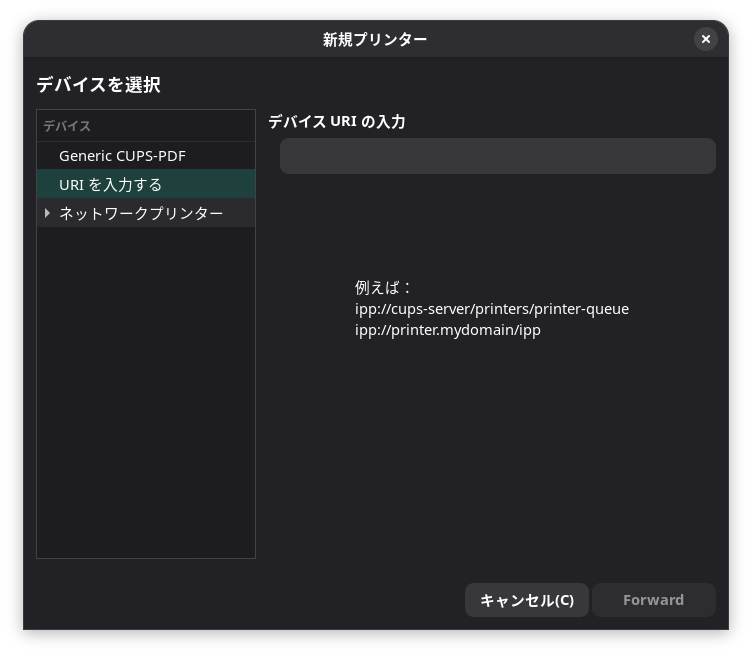
Once the search is complete, you will be prompted to select a printer model.
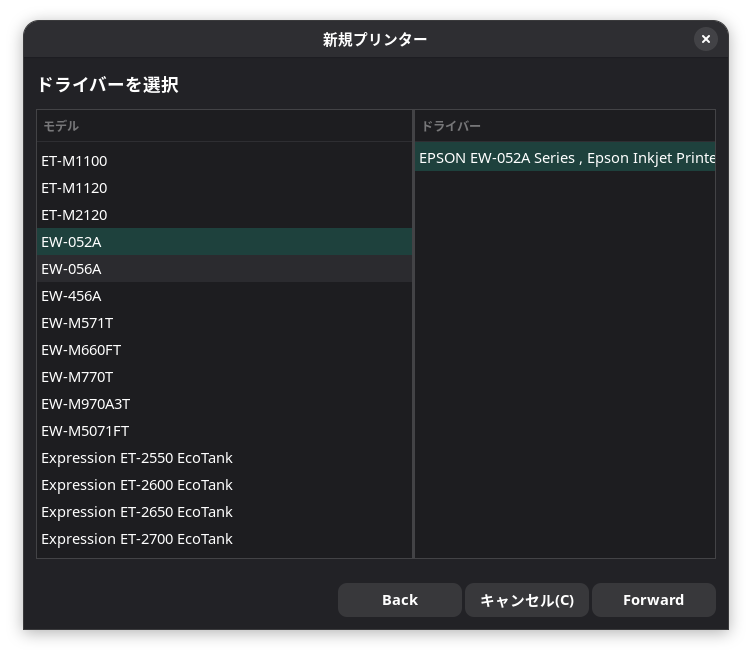
Once selected, click "Apply."
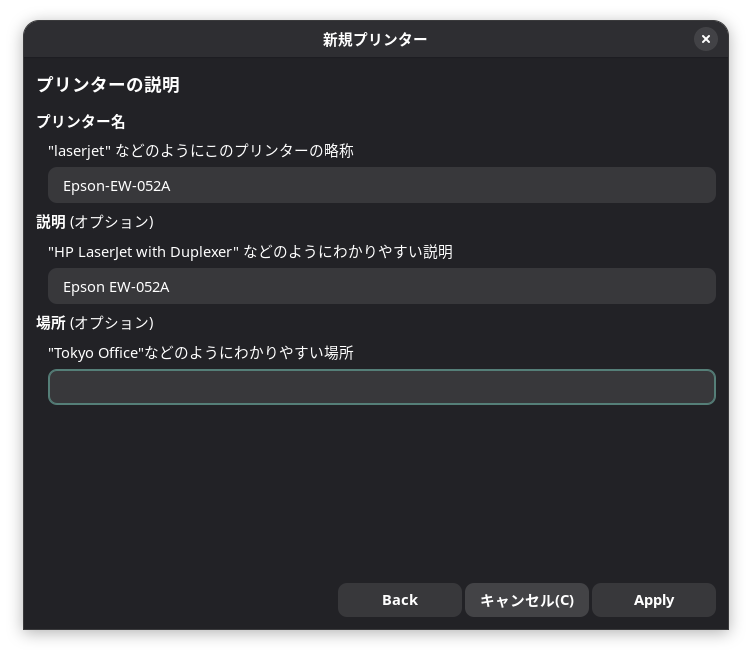
Try printing a "Test Page."
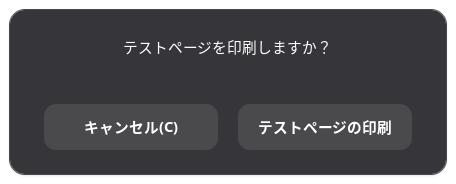
If it doesn't get recognized right away, open "Print Settings" from "Show Apps."
Unlock the printer and double-click the installed printer.
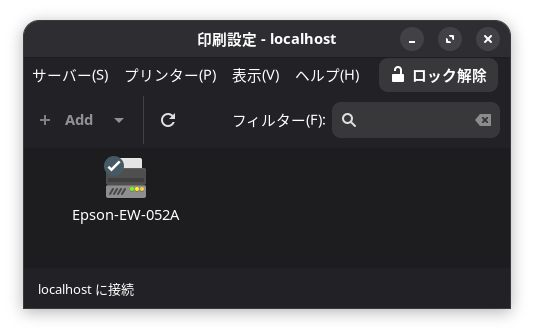
Try clicking "Print Test Page."
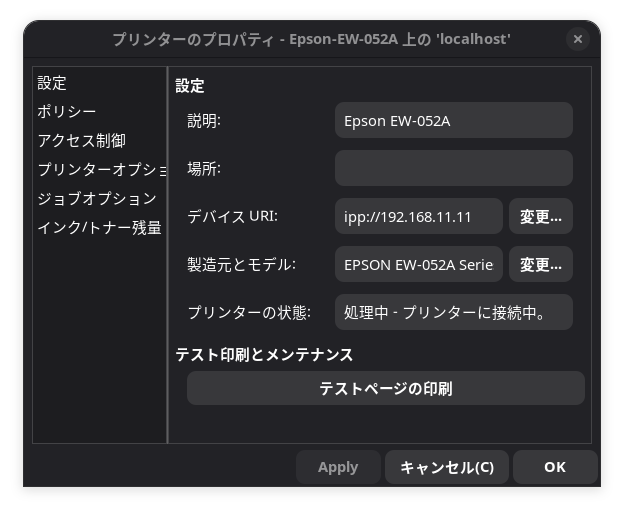
A message such as "Processing... - The printer does not currently exist or appears to be unavailable" appears.
After deleting the printer and searching for it again in "Print Settings".
I was able to print the test page.


4. Installing the Scanner and Printer Utility
I searched for "epsonscan2" in "Add or Remove Programs," found it, and installed it.
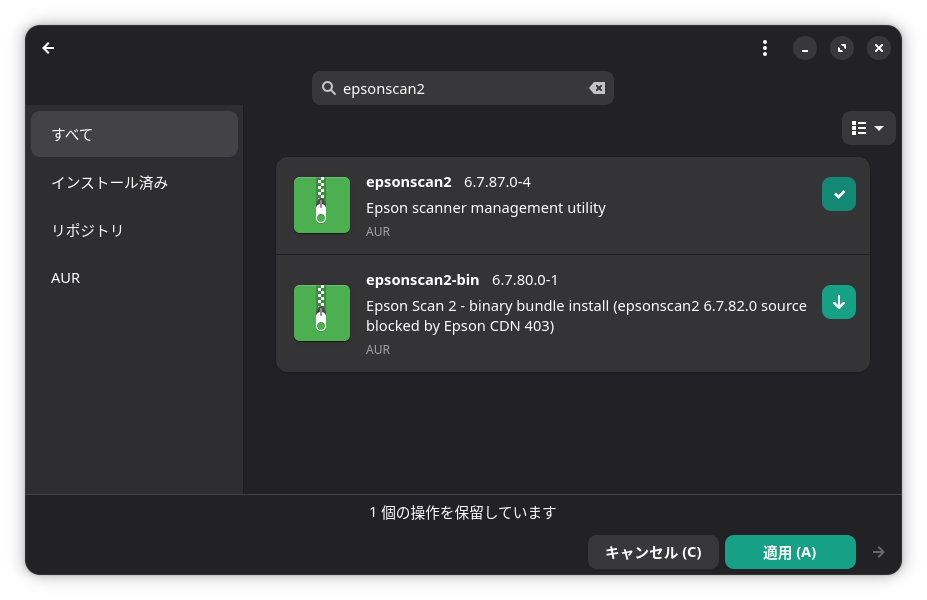
It took quite a while to build and install epsonscan2.
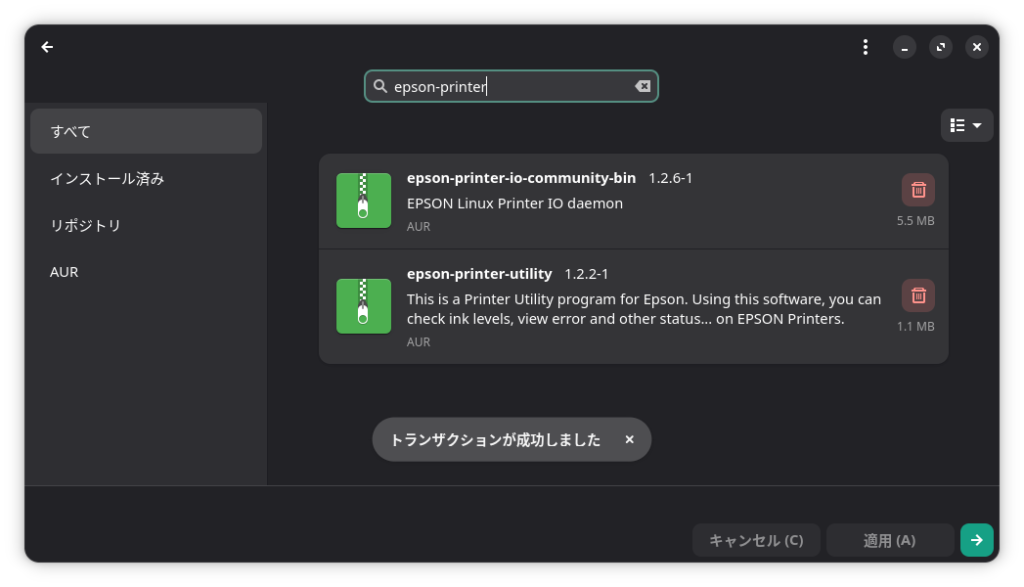
I also searched for "epson-printer-utility" in "Add or Remove Programs" and installed it.
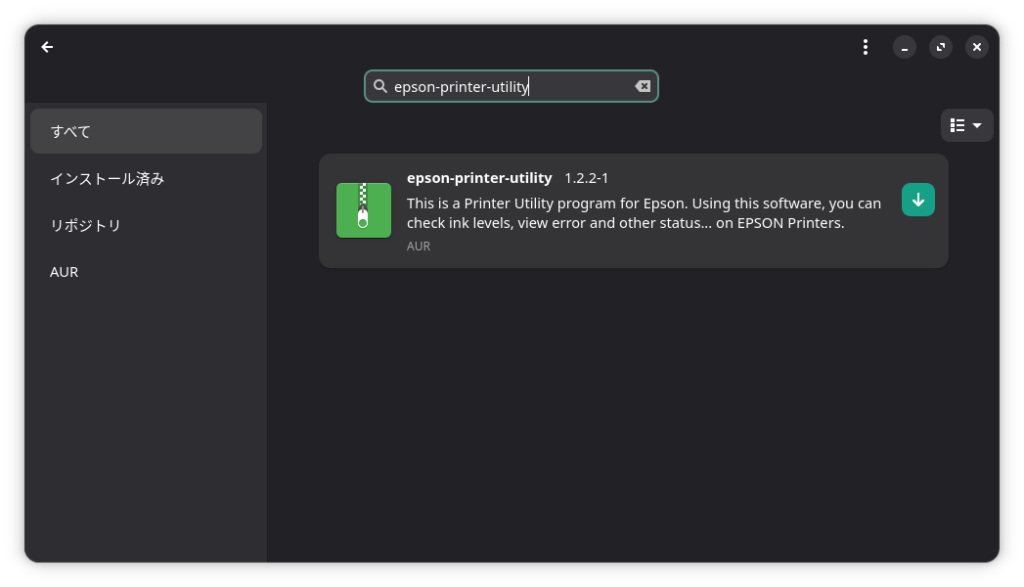
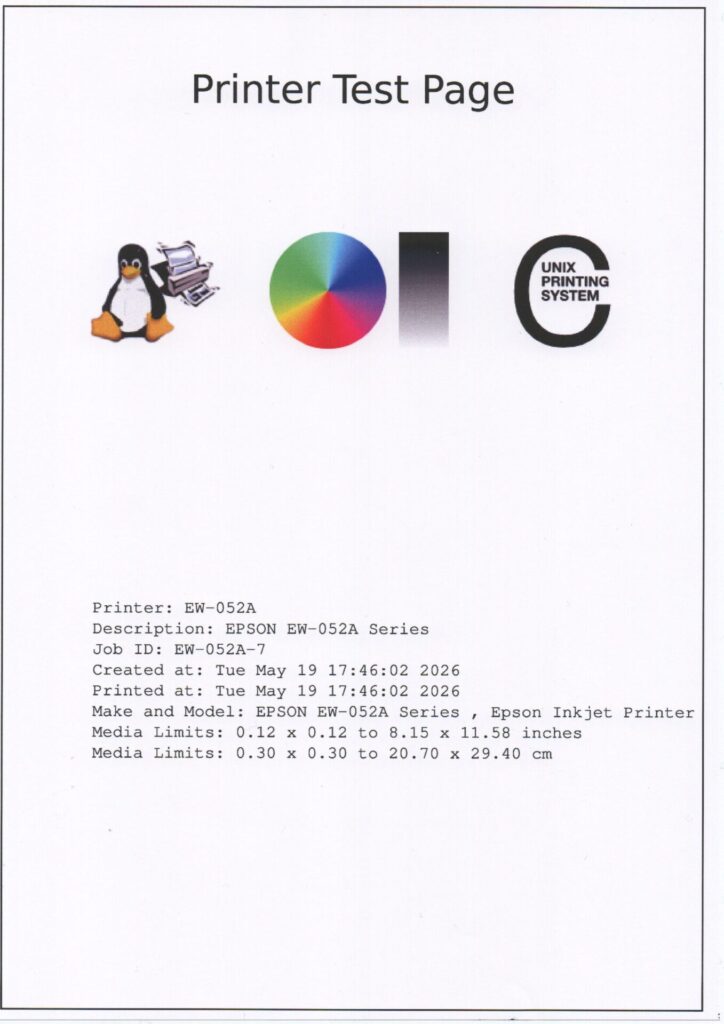
I printed out the test page and scanned it as a PNG file.
In the end, Epson-Printer-Utility wouldn’t launch even when I clicked on it.
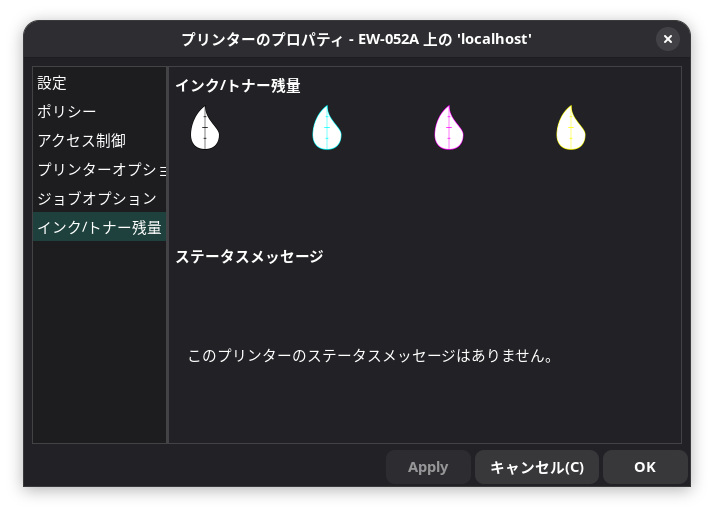
I’m not sure about the ink levels.
I couldn’t check the ink levels from “Print Settings” either.
It’s a shame that the DEB and RPM files available for download from the manufacturer can’t be used.
Summary
To use a printer on Manjaro, first start CUPS.
Then install the driver via “Add/Remove Software.”
Sometimes the printer is hard to find, but if you remove the printer from the print settings and then add it again, it may connect.
Scanner software and utilities are also installed via “Add/Remove Software.”
It’s a bit of a shame that the DEB and RPM files available for download from the manufacturer’s website can’t be used.
If you like this, please show your support!


