
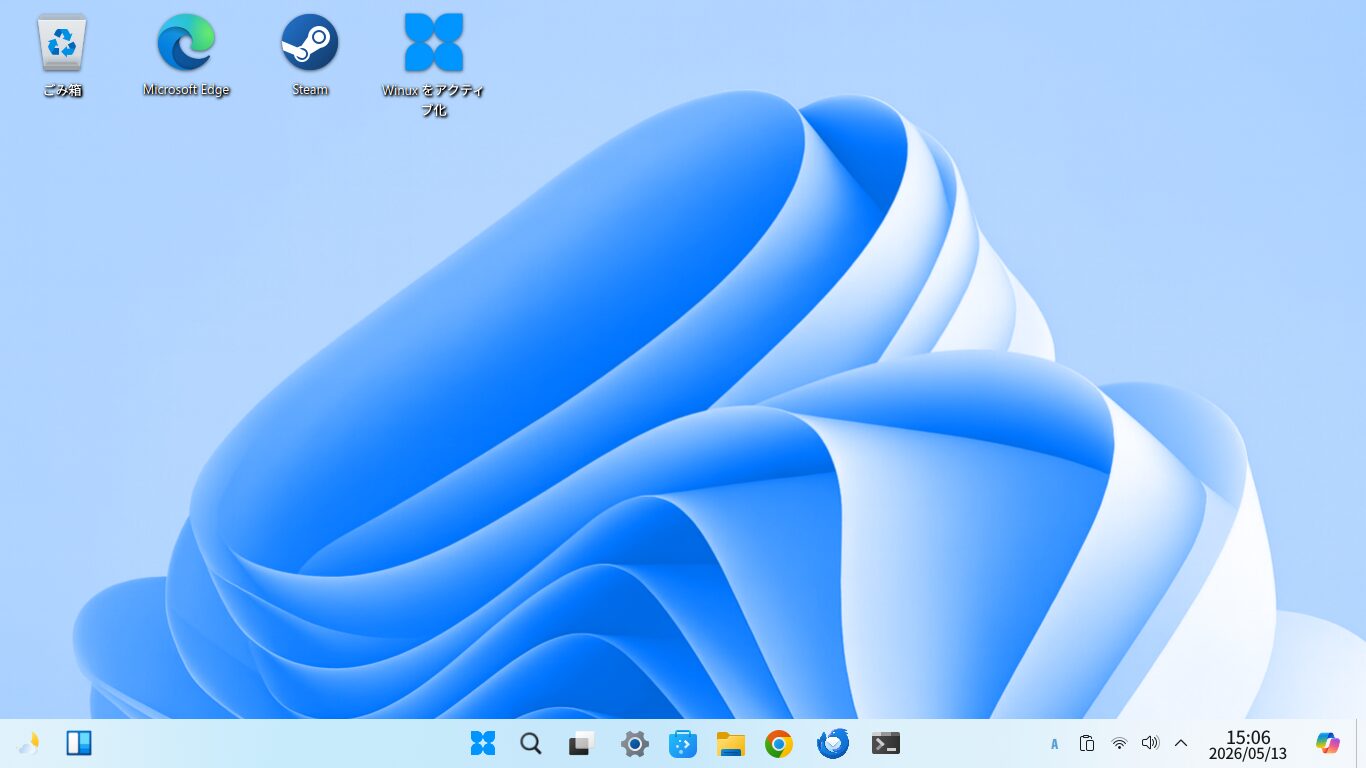
Winux uses the KDE desktop environment.
By default, it uses Microsoft Edge (Linux Version) as the browser, Thunderbird as the email client, and Only Office for office software.
If you look at the menu, you'll see items like Microsoft Excel - Online, but this is the cloud-based version of Excel.
Various other apps are installed by default.
In this post, I’d like to focus mainly on desktop applications.
Click here for the Winux (formerly Windowsfx, Linuxfx, and Wubuntu) Overview page

When installing Flatpak apps
Winux does not support Flatpak by default.

Open Konsole from the Start button
sudo apt install flatpak
to add Flatpak,
sudo apt install gnome-software-plugin-flatpak
then install the Flatpak plugin,
flatpak remote-add --if-not-exists flathub https://dl.flathub.org/repo/flathub.flatpakrepo
and add the Flathub repository.
After restarting, you can install the Flatpak version from "Discover."
Microsoft Edge(Linux Virsion)
is now the default browser. Signing in with a Microsoft account will sync your bookmarks, passwords, and more. If you use Edge on Windows, this method should work for you.
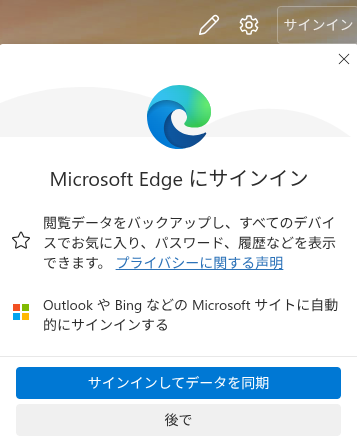
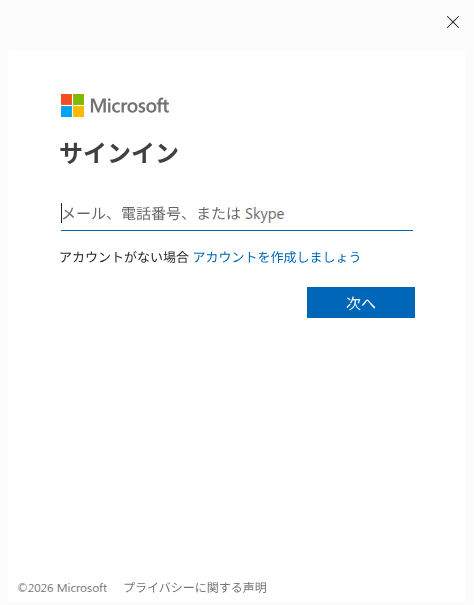
I don’t think it’s really the same as Microsoft’s Edge.
1. Google Chrome
If you use Chrome on Windows, signing in will sync your bookmarks and passwords, which is convenient.

Please download and install it from here.
When downloading, please select the .deb version.
2. Thunderbird
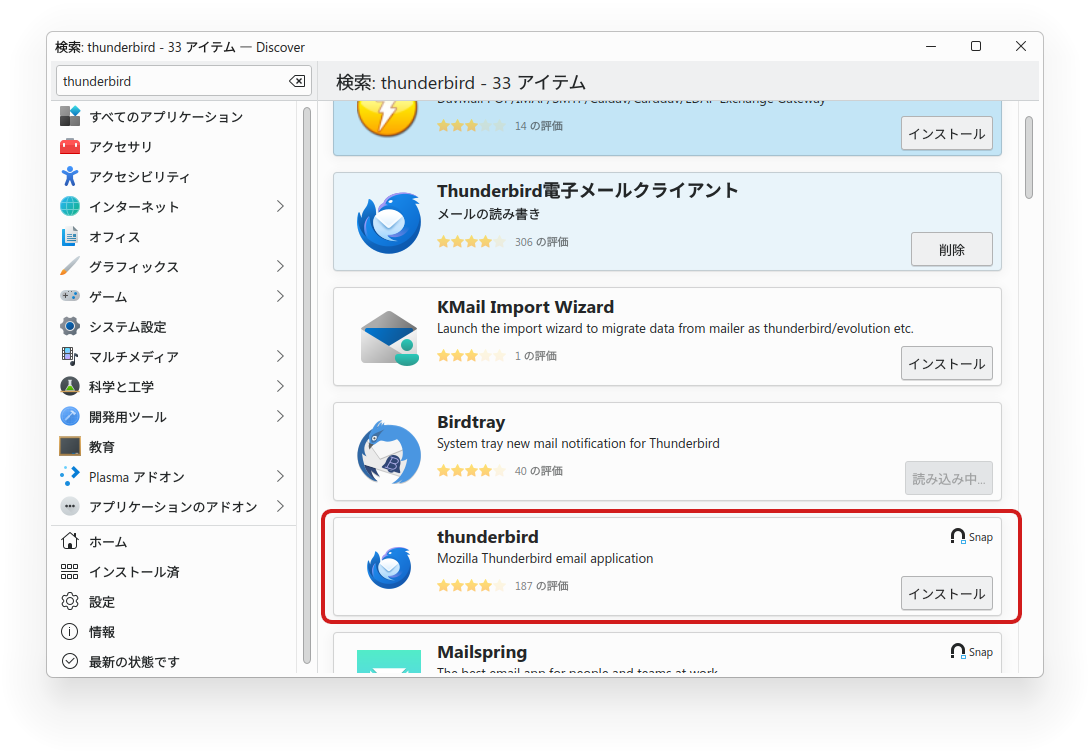
It comes pre-installed as the default email client, but it’s the English version and the menus are in English.
So, I uninstalled the default version and installed the Snap version instead.
3. Gedit
The default text editor in Ubuntu is Kate.
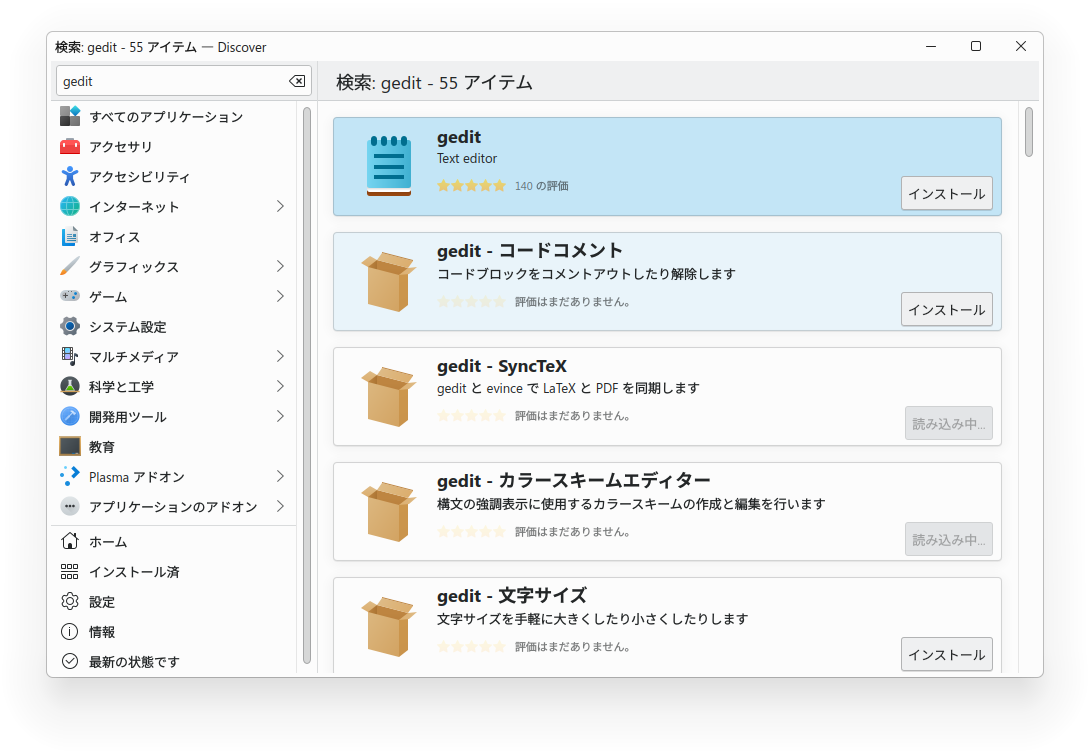
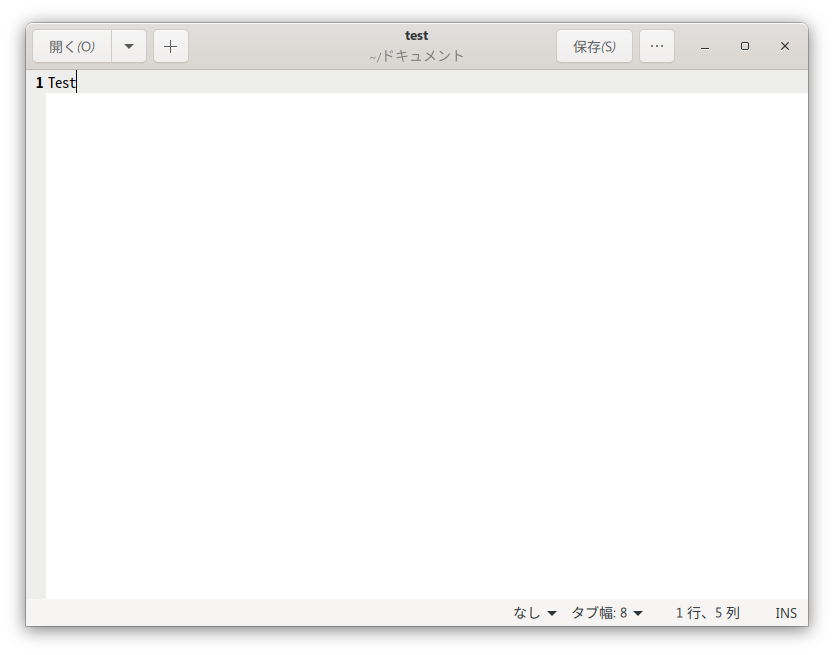
Kate is easy to use once you get used to it, but if you want a simple text editor, I recommend installing Gedit.
You can install it from "Discover."
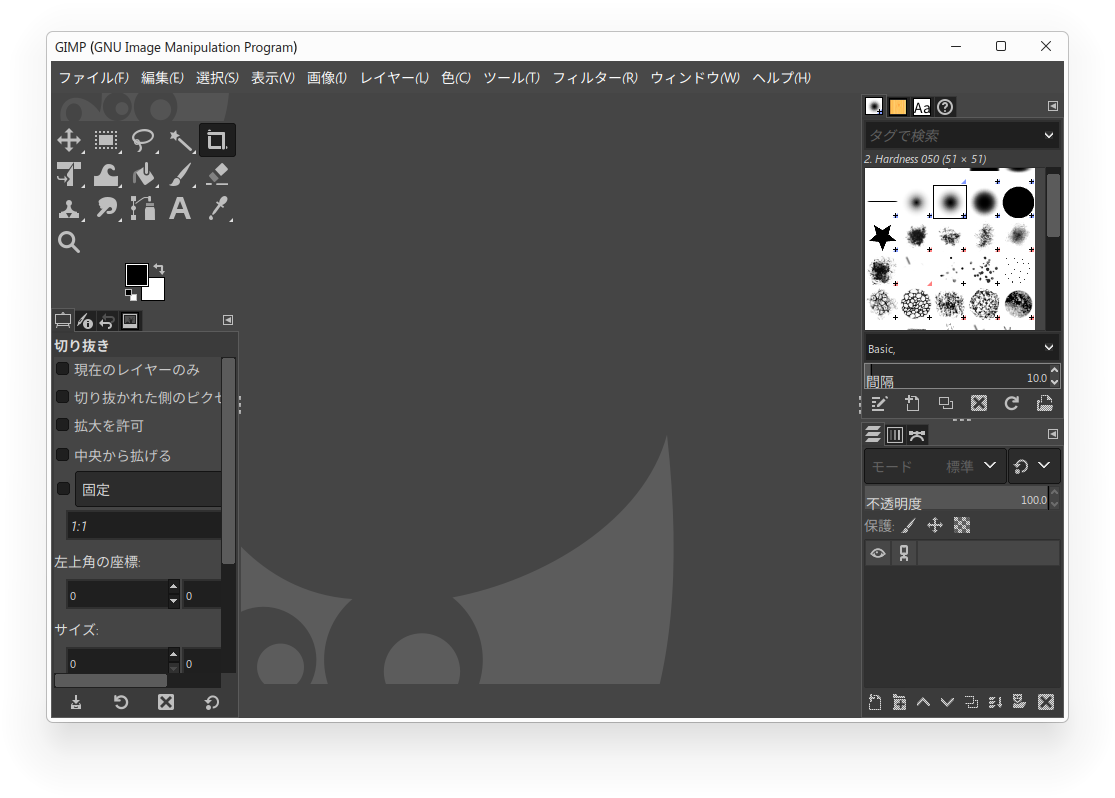
4. GIMP
This is a feature-rich image editing program.
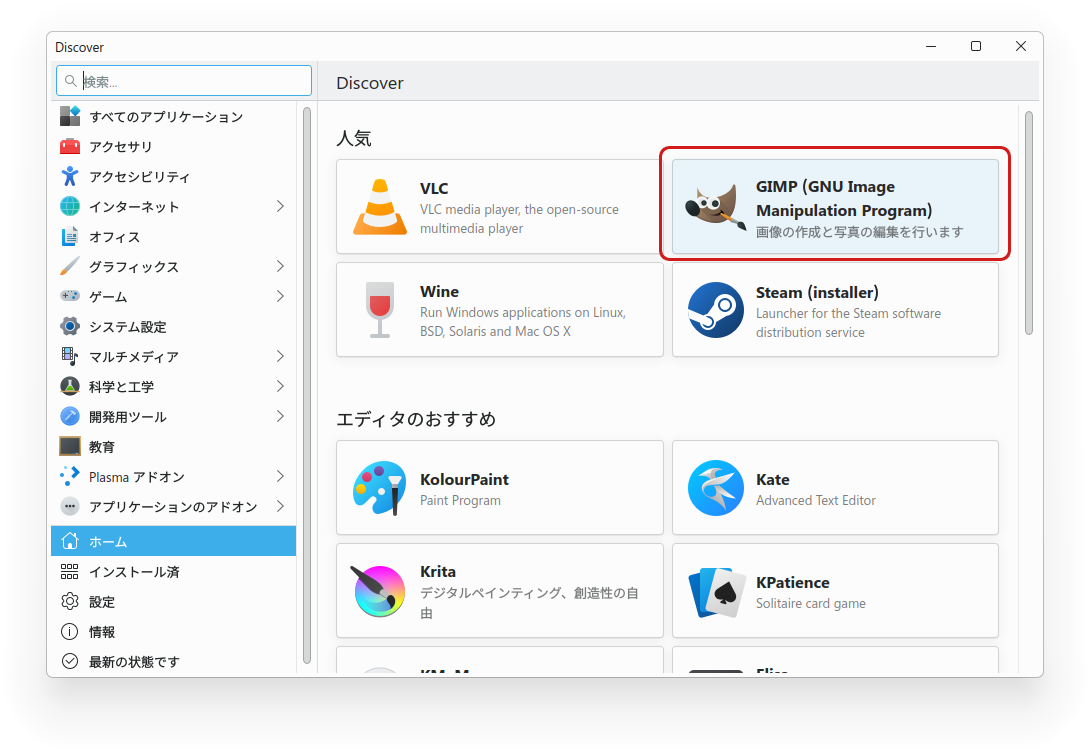
Open "Discover" from the taskbar, find GIMP, and install it from there.
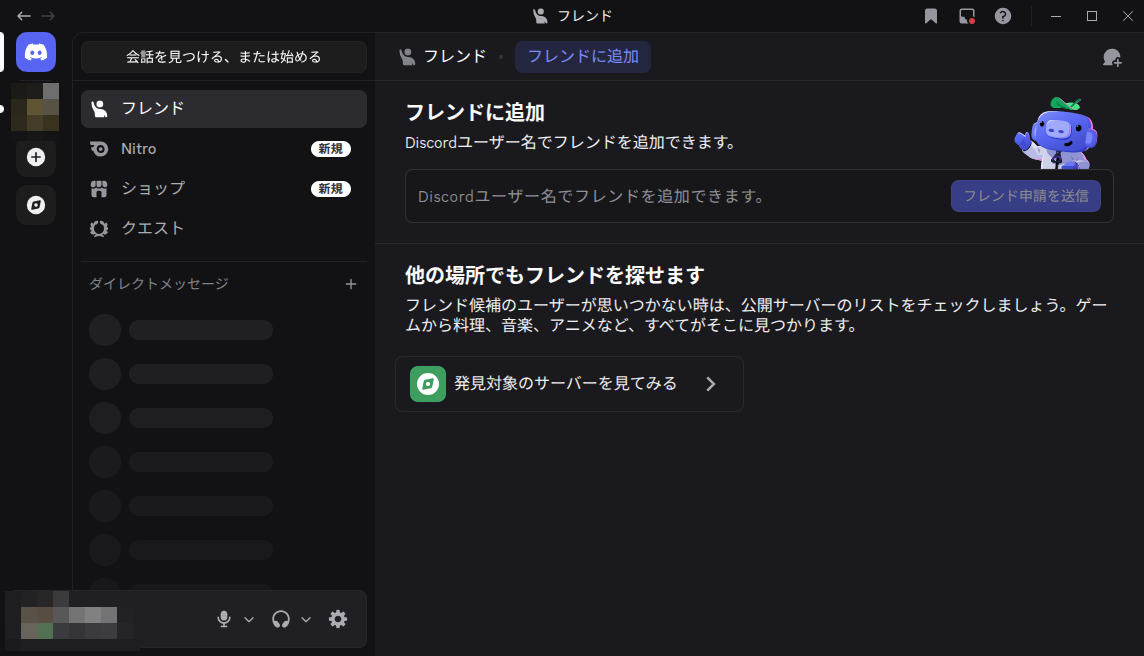
5. Discord
A versatile communication tool.
You can install it from "Discover."
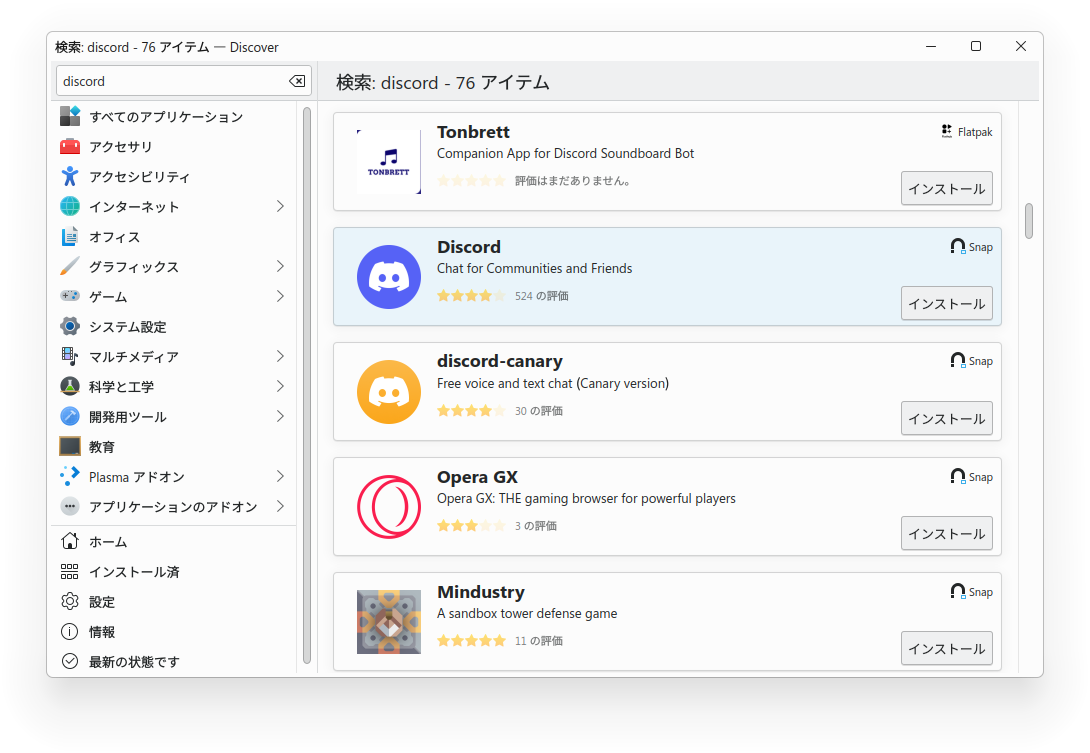
I installed the Snap version.
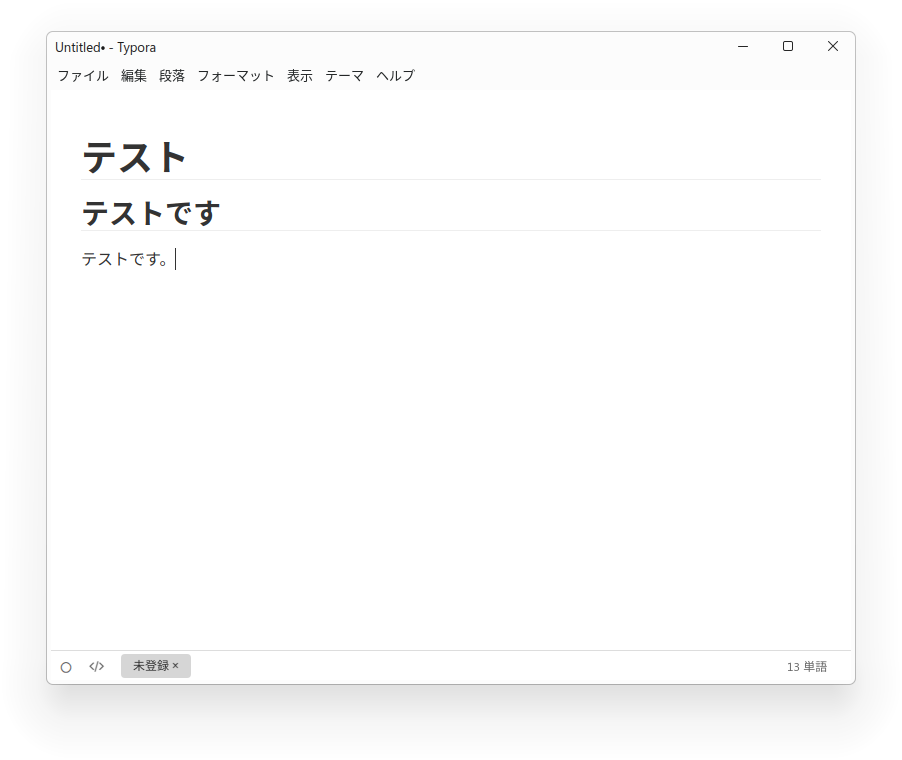
6. Typora
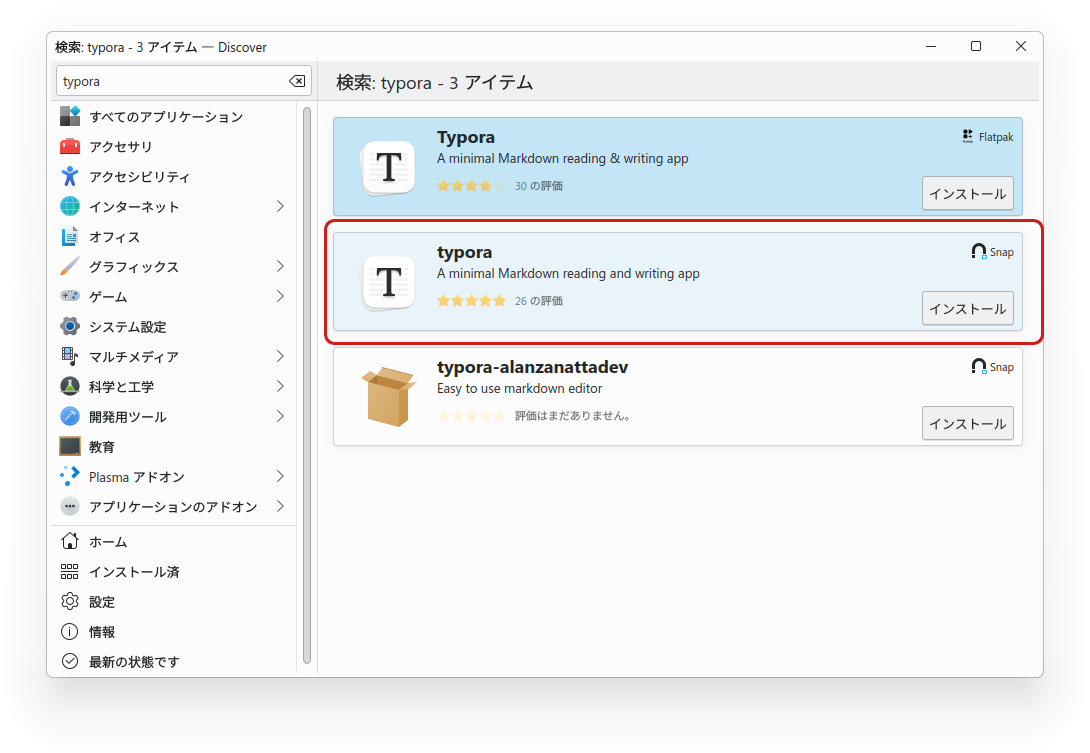
A simple and easy-to-use Markdown editor.
Even after installing the .deb file downloaded from Typora’s official website, I couldn’t save my work, so I installed the Snap version from “Discover.”
7. Obsidian
Obsidian is a type of volcanic glass.
It was commonly used during the Flint Age, and when chipped, it produces sharp flints.
It seems to mean that by writing several short notes and linking them together, you can sharpen and refine your thinking.
In addition, by installing community plugins such as Dataviewjs and Chartsjs, you can create tables, calendars, and graphs.
It’s a versatile app. Also, since it stores data locally rather than uploading it to the cloud,
Also, since the data is stored locally rather than uploaded to the cloud, I believe it offers a high level of security.
You can also make the vault you created publicly available on the internet.
You can download it here.
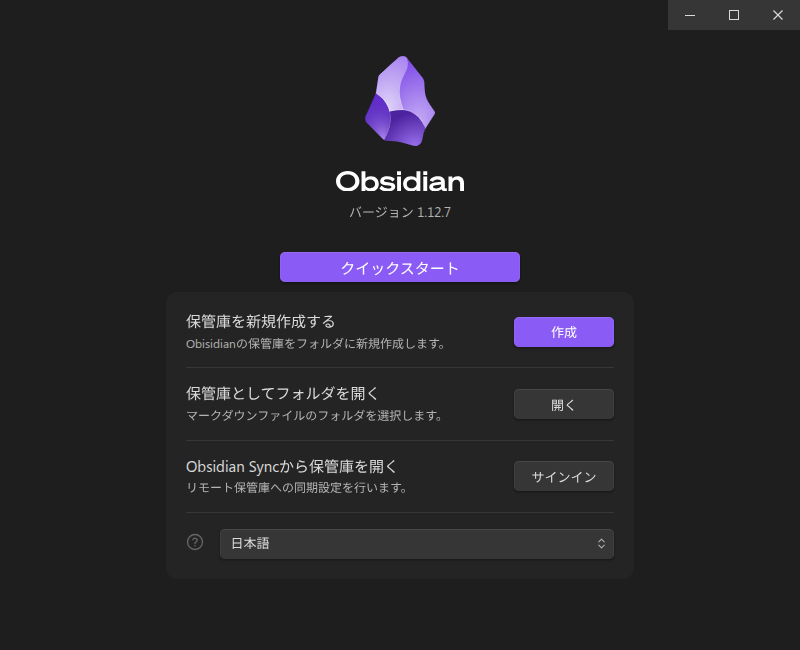
It didn’t work with AppImage, so I think the .deb version is the way to go.


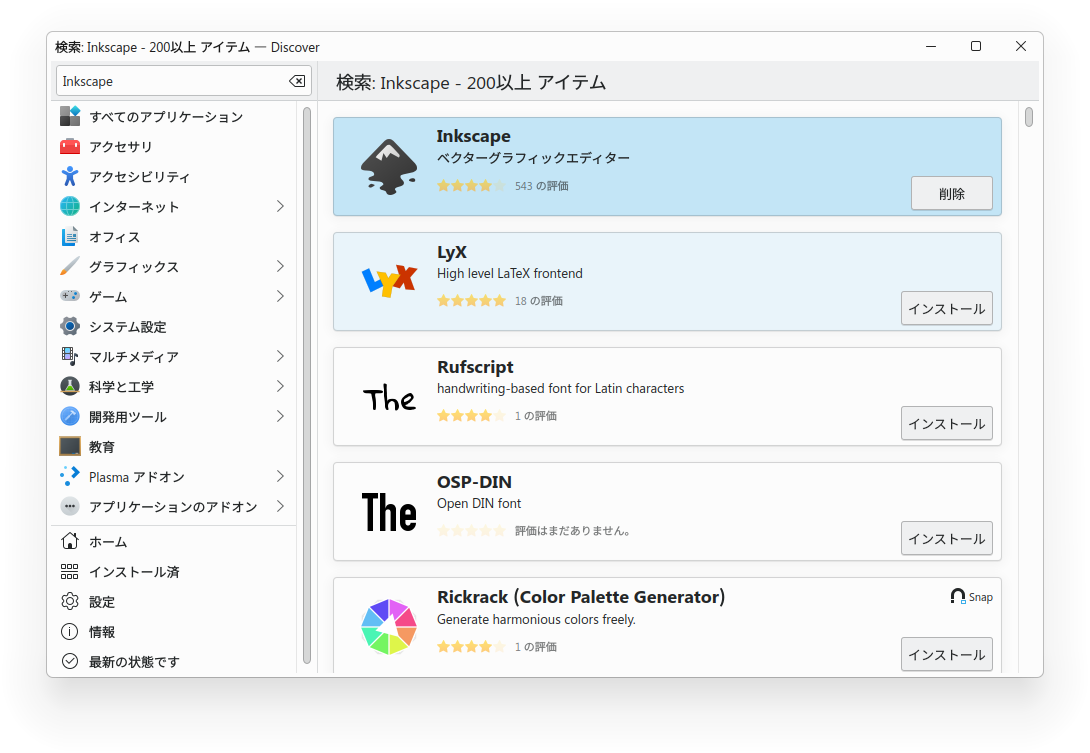
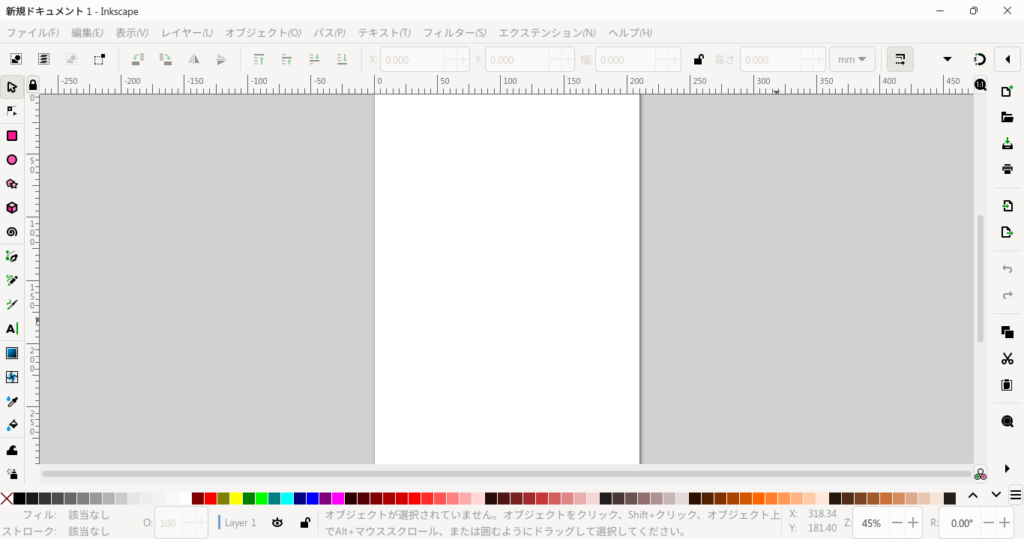
8. Inkscape
While GIMP handles raster data such as JPG and PNG, Inkscape handles vector data.
Vector images do not become pixelated when zoomed in, making them ideal for drawing buildings and illustrations.
You can install it from "Discover."

9. TeamViewer
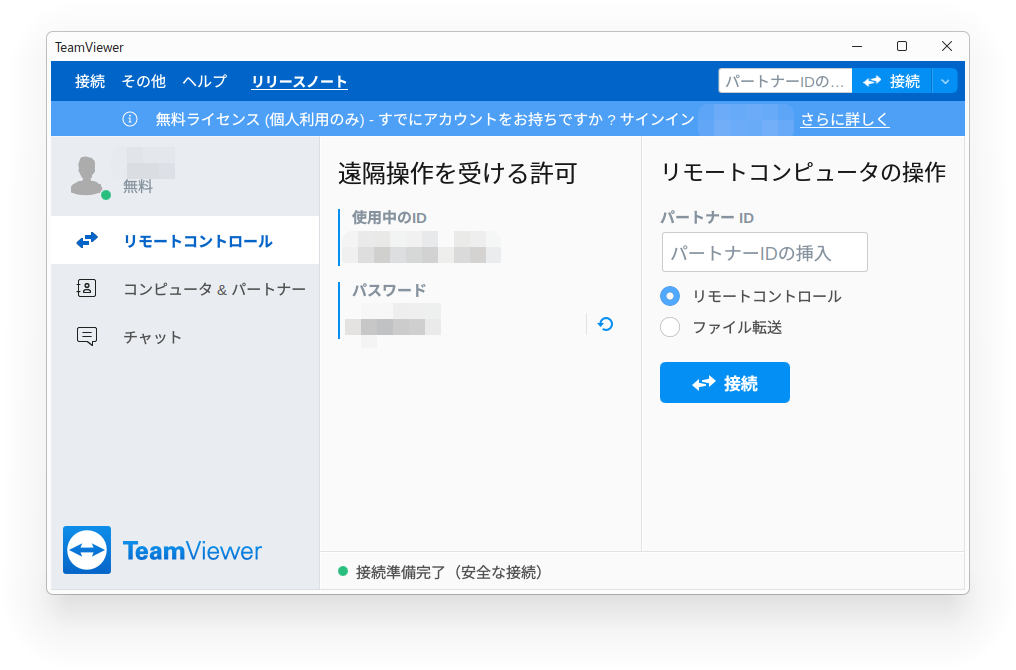
This is remote control software.
It’s an app that lets you connect remotely to other people’s devices or receive support from them.
You can download it here.


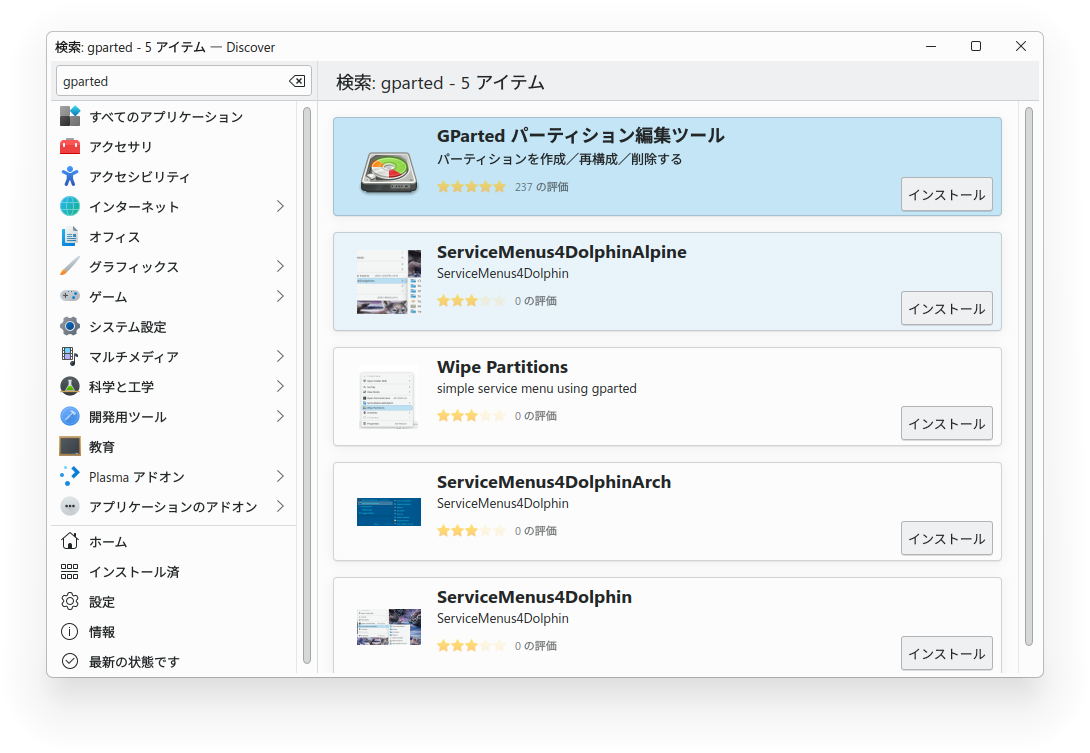
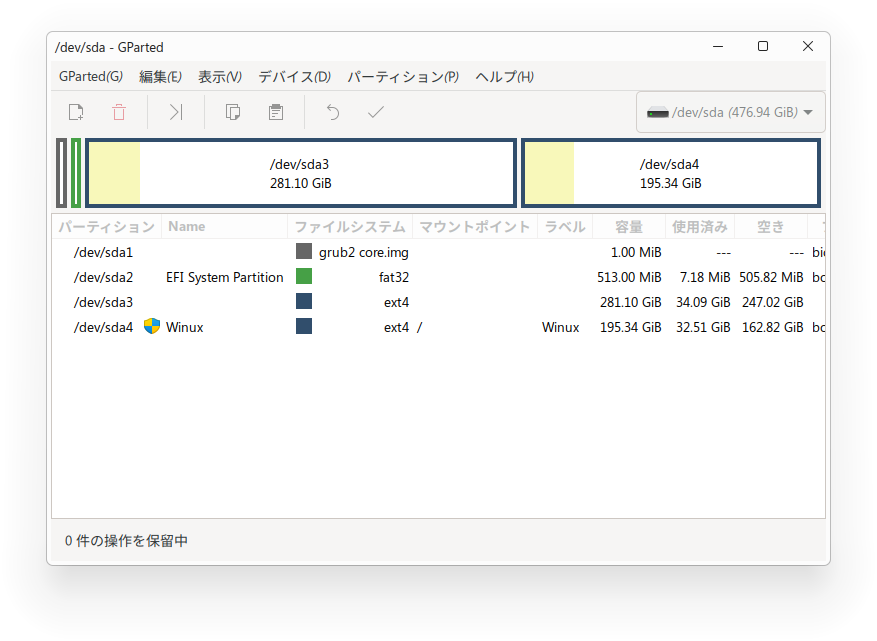
10. GParted
This is software for managing disk partitions.
You can install it from "Discover."


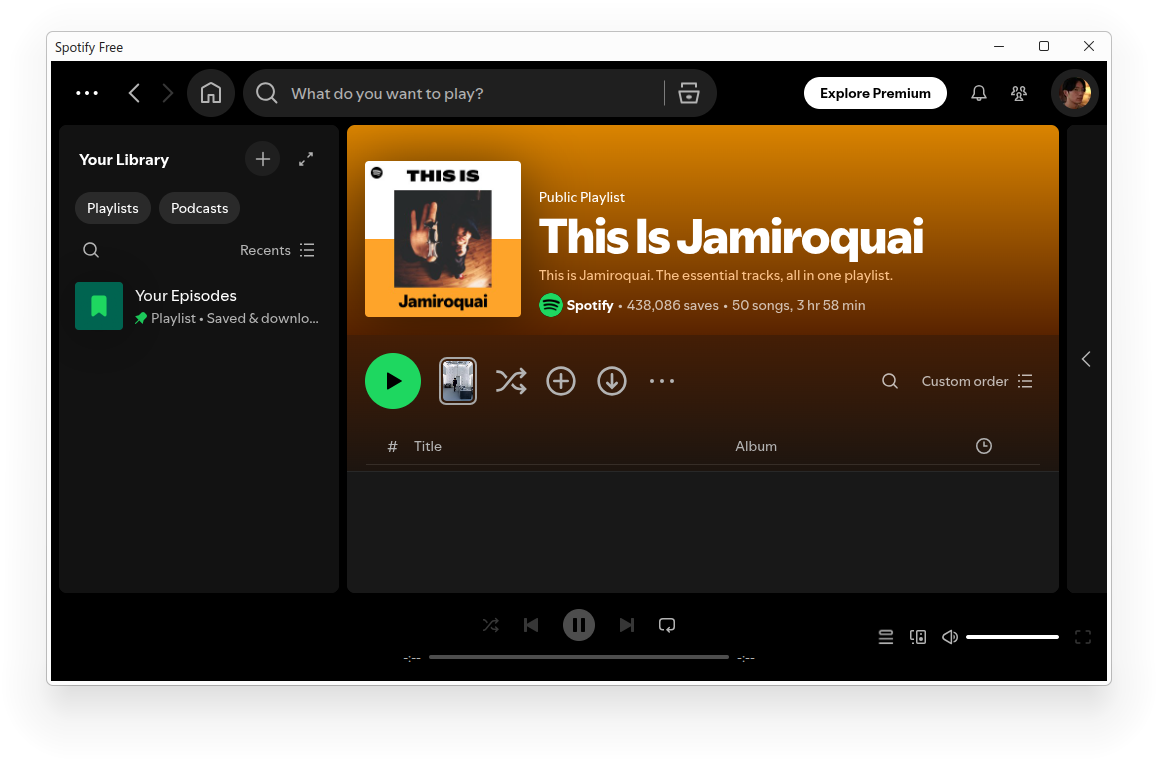
11. Spotify
You can download and install it from the link below.
Clicking the "Spotify in Ubuntu Software" link will launch Discover, where you can install it.

That concludes our introduction to these 11 software titles. While Winux comes with a variety of software pre-installed, you can install many other applications from Discover.
I think it’s a good idea to explore and try out the various options available.
If you enjoyed this, please show your support!


 uses the KDE desktop, and you can install most software from the "Di)