
I previously wrote about how to share files using Samba and Nautilus's sharing features without editing `smb.conf`.


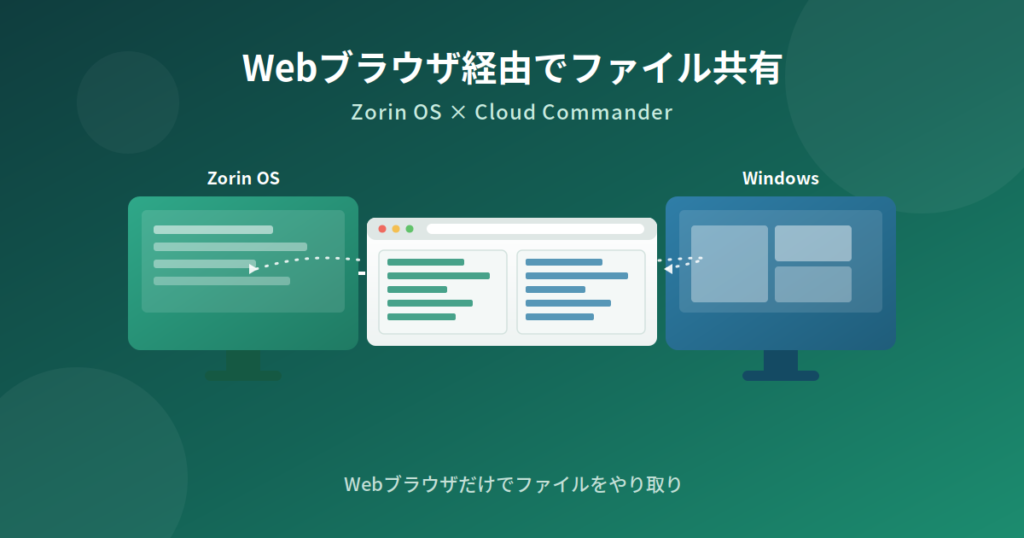
This time, I’d like to explain how to set up file sharing via a web browser by installing an application called Cloud Commander. You can share files over a local network using a web browser.
While you can also share files using nautilus-share and Samba, using Cloud Commander to transfer files via a web browser can sometimes be easier when sending a large number of files at once.
I think this will be useful when migrating a large number of files, such as after performing a clean install of Zorin OS.

1. Install Node.js
Since Cloud Commander runs on Node.js, first check to see if Node.js is installed.
node -v
If it’s not installed, install it.
However, since Cloud Commander only works with relatively new versions of Node.js, it may not run on Node.js installed via the standard apt command.
Therefore, run the following command
curl -fsSL https://deb.nodesource.com/setup_20.x | sudo -E bash -
Next, install Node.js using the command below.
sudo apt install nodejs
This will install both Node.js and npm.
Check the versions of `nodejs` and `npm`.
node -v
npm -v
Cloud Commander works with Node.js 18.20.5 or later.

2. Global Installation of Cloud Commander
Next, install Cloud Commander.
Here, we’ll perform a global installation of Cloud Commander. A global installation means installing Cloud Commander so that it can be called from anywhere on the system, not just from its installation folder.
To do this, add `-g` to the end of the command.
sudo npm i cloudcmd -g
3. Launching Cloud Commander
To launch Cloud Commander, run the command below.
cloudcmd
This will launch Cloud Commander, and you’ll be able to view your folders in a web browser.
Try opening the following address in your web browser:
If you’ve followed the steps correctly, a list of folders will appear on the right and left sides of your web browser.
To access it from other PCs on your local network, you’ll need to open port 8000/tcp in your firewall.
Open your firewall settings.
sudo gufw
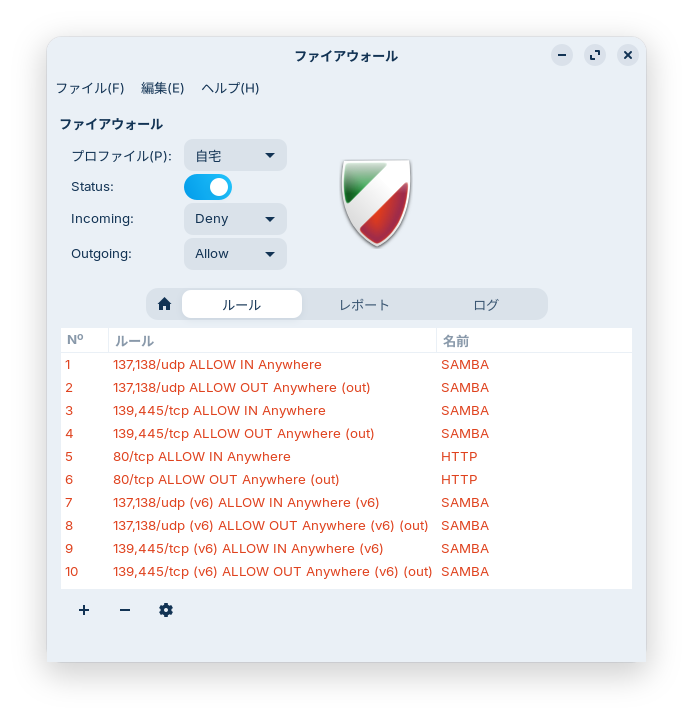
Click "Rules," then click the " " icon in the lower-left corner, enter the settings shown in the image under the "Simple" tab, and click the "Add" button.
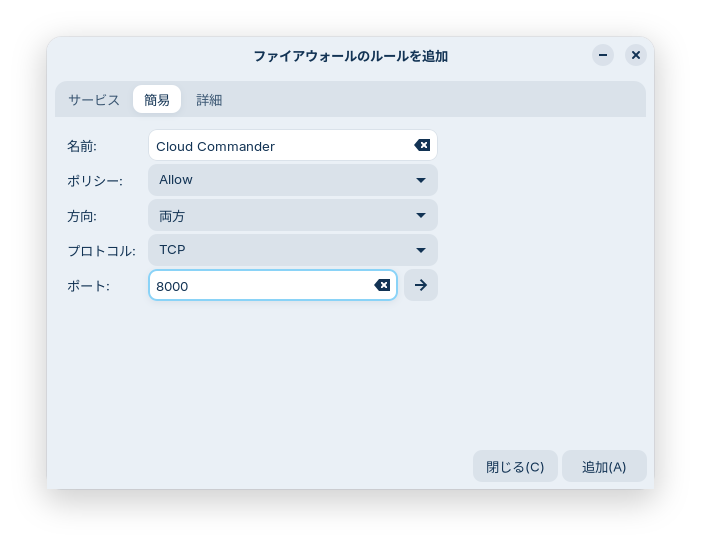
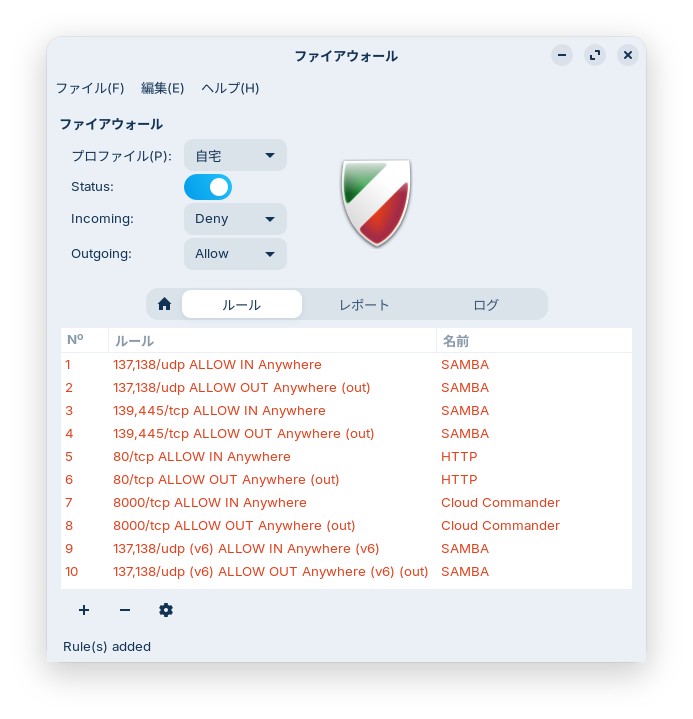
Once you’ve opened the port, open a web browser on another PC on the local network and go to
http://192.168.xxx.xxx:8000
in a web browser on another PC on the local network. (Replace "xxx" with the local network address of your Zorin OS system.)
If you’ve followed the steps correctly, a list of folders will appear on the left and right sides of the web browser window.
Note that the web browser only displays the contents of Zorin OS.
From either the left or right side of the screen, drag and drop files from another PC on your local network into the Zorin OS folder displayed in the web browser to transfer them to Zorin OS.
You can download Zorin OS files to another PC on your local network by right-clicking a Zorin OS file in your web browser and selecting “Download.”
However, modern browsers often block file downloads from unsecured connections, such as http://~.
In Chrome, you can download the file by clicking the download icon in the top-right corner and then clicking “Save.”

4. Set Cloud Commander to start automatically when your PC boots
Create a configuration file for `systemctl` to set Cloud Commander to start automatically when your PC boots.
sudo gedit /etc/systemd/system/cloudcmd.service
In this file,
[Unit]
Description=Cloud Commander
After=network.target

[Service]
Type=simple
User=〇〇〇〇
ExecStart=/usr/bin/cloudcmd
Restart=always

[Install]
WantedBy=multi-user.target
Copy and paste the following into this file, then save it. (Replace “User=〇〇〇〇” with your username.)
Next, run the command below.
sudo systemctl daemon-reload
sudo systemctl enable --now cloudcmd
This completes the installation and configuration of Cloud Commander.
Preferences may vary between using file sharing via Samba and Nautilus’s sharing features and using Cloud Commander to share files through a web browser.
Basically, using Cloud Commander feels more like downloading and uploading via the web.
It might be a good idea to use Cloud Commander when transferring a large number of files at once.

 ポチップ
ポチップ

Summary
To use Cloud Commander, first install Node.js and npm.
Next,
install Cloud Commander using the npm command. Launch Cloud Commander and access localhost:8000 in your web browser; the folders within Zorin OS will be displayed on the left and right.
Open port 8000/tcp in your firewall. To transfer files from another PC on your local network to Zorin OS, simply drag and drop files onto the Zorin OS folders displayed in your web browser or into the folders themselves.
To copy files from Zorin OS to another PC on the local network, right-click the file in Zorin OS, select “Download,” and download it to copy the file.
You can also configure Cloud Commander to start automatically when your PC boots up.
よろしければ応援お願いします


