

Winux is an Ubuntu-based Linux distribution that has changed its name several times and is designed to look exactly like Windows 11.
It was formerly known as “Windowsfx,” then ‘Linuxfx’ and “Wubuntu,” and is now called “Winux.”
It appears to be developed in Brazil.
There have also been reports of security issues.
Winux is an Ubuntu-based Linux distribution formerly known as Windowsfx.
While it is characterized by an appearance that closely resembles Windows 11, security issues have been reported.
By default, multiple system files are set to be writable by anyone, posing a risk that malicious users could install backdoors.
Security researchers and tech media have also pointed out these issues, so we recommend carefully considering its use as a primary environment for handling personal data.
https://www.xda-developers.com/winux-linux-distro-looks-feels-windows-11-not-good
https://gist.github.com/gustavo-iniguez-goya/f621068b858fa06a477dbf84d21535e4
It looks and feels just like Windows 11, and since the name has been changed several times, it does seem a bit suspicious.
Winux uses the KDE desktop environment.
By default, it comes with Microsoft Edge as the browser, Thunderbird as the email client, and OnlyOffice as the office suite.
If you look at the menu, you’ll see items like Microsoft Excel - Online, but this is the cloud-based version of Excel.
Various other apps are also installed by default.
The specifications of the machine used for installation are as follows.
A Tsukumo laptop
Hardware Model: CLEVO CO. W240EU/W250EUQ/W270EUQ
Processor: Intel® Core™ i7-3610QM CPU @ 2.30GHz × 8
Memory: 16.0 GiB
Storage (SSD): 512.1 GB
It originally had a Core i3 processor, but I replaced it with a used Core i7.
I also upgraded the memory.
Click here for the Winux (formerly Windowsfx, Linuxfx, and Wubuntu) Overview page

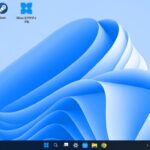
Download the ISO image
Download the Winux ISO image from the page below.
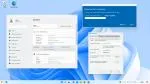
Creating a Live USB Drive
Since the ISO file is a bit large at 5.89 GB, we recommend using a 16 GB USB flash drive.

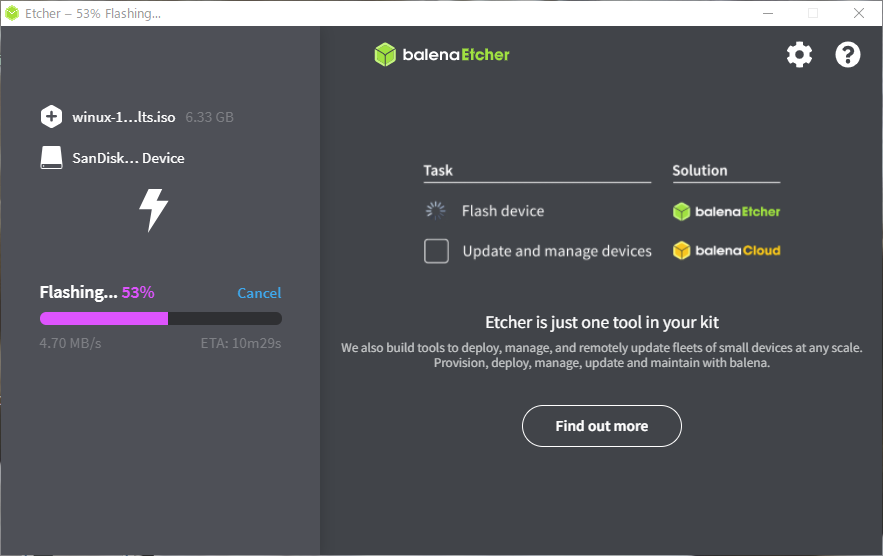
Download and install balenaEtcher from the page above.
Once launched, click “Flash from file” and select the downloaded ISO image.
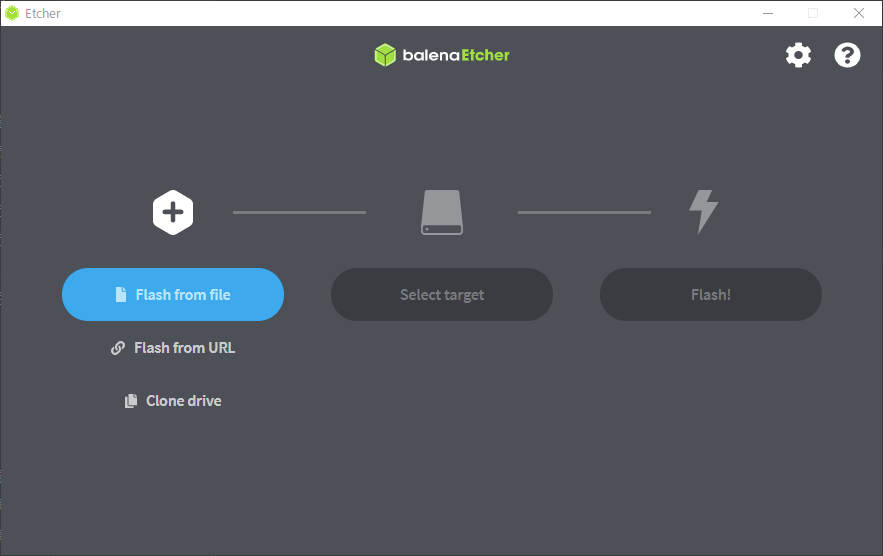
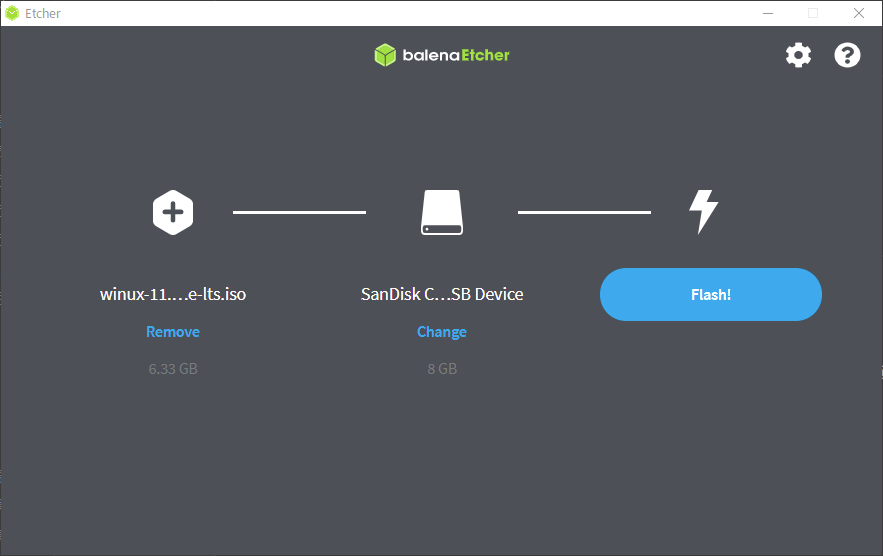
Select your USB drive and click “Flash!”.
Installation
Turn off the PC where you will install the system and insert the live USB drive.
Immediately after turning on the power, press the F2 or Delete key to enter the BIOS or UEFI settings and configure the system to boot from the USB drive.
When the “F2 to Language” prompt appears, press the F2 key and select Japanese.
Select “Windows Theme Over Linux” and press the Enter key.
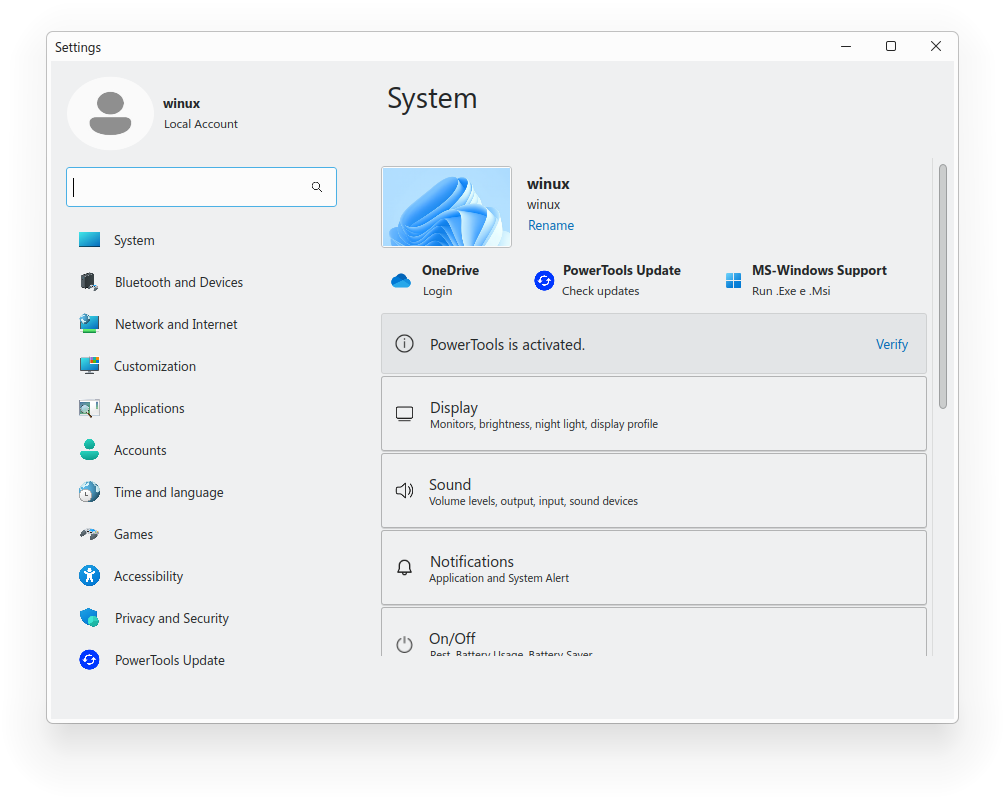
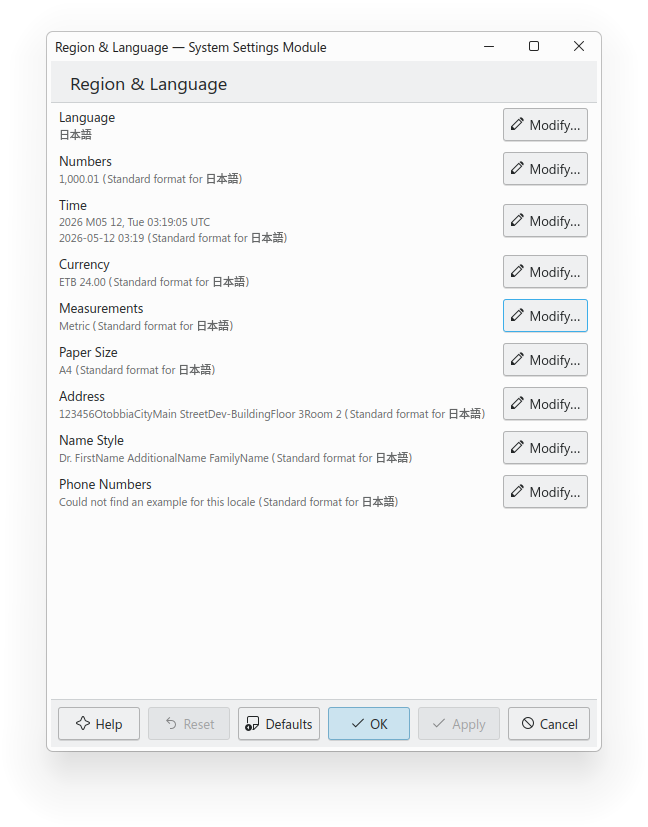
After configuring your internet connection and ensuring the system won’t suspend during installation, double-click “Install Winux 11 LTS.”
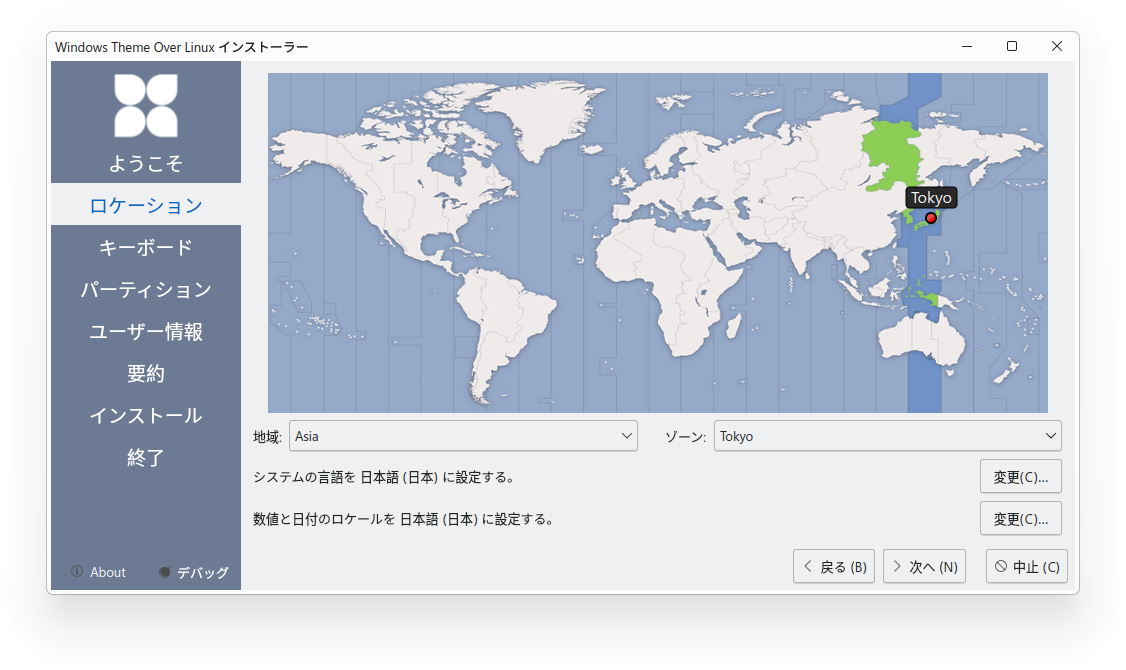
Select your language on the first screen.
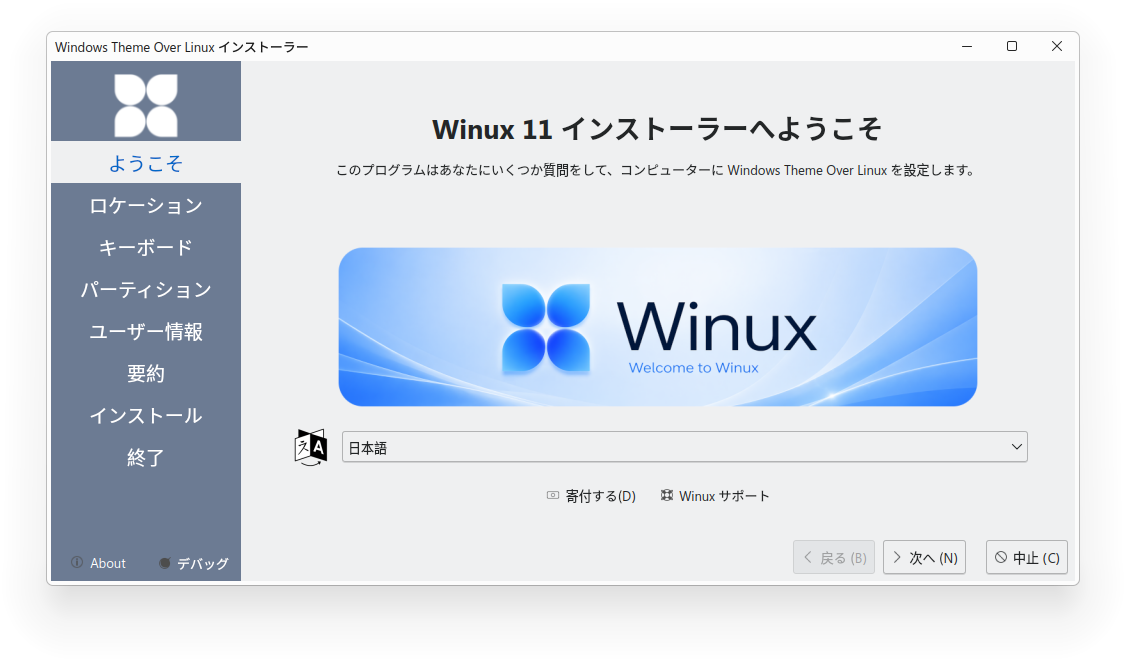
Click “Next” and select your region’s time zone.
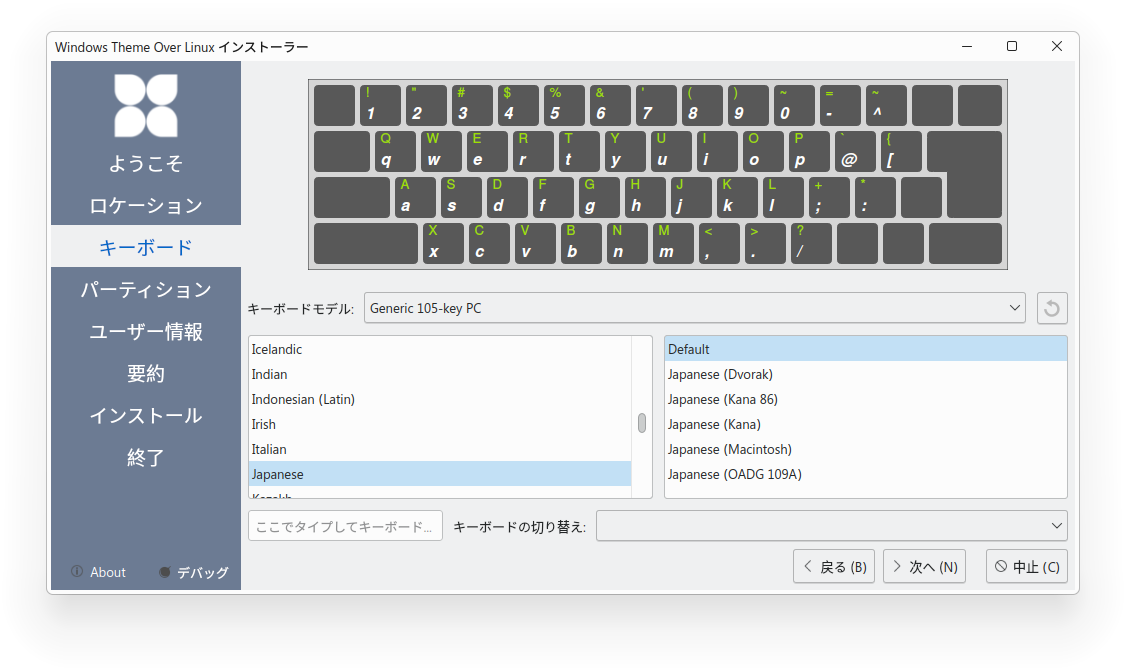
Proceed with the default keyboard settings.
After clicking “Next,” select your installation method.
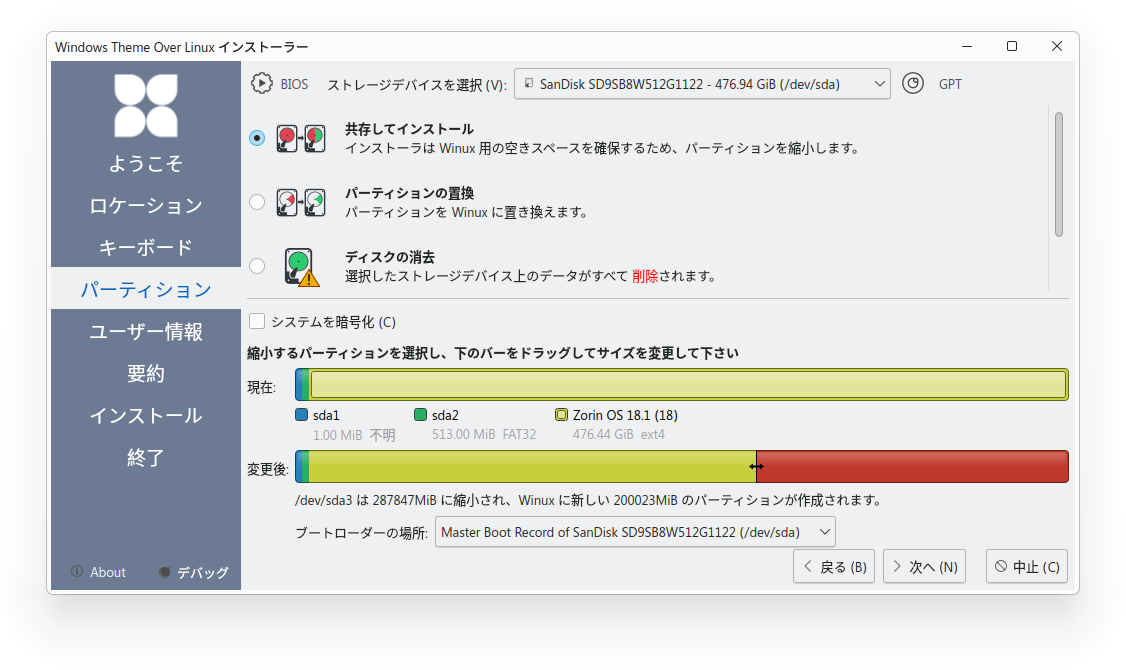
Since I want to dual-boot with Zorin OS, I made the selection shown in the image.
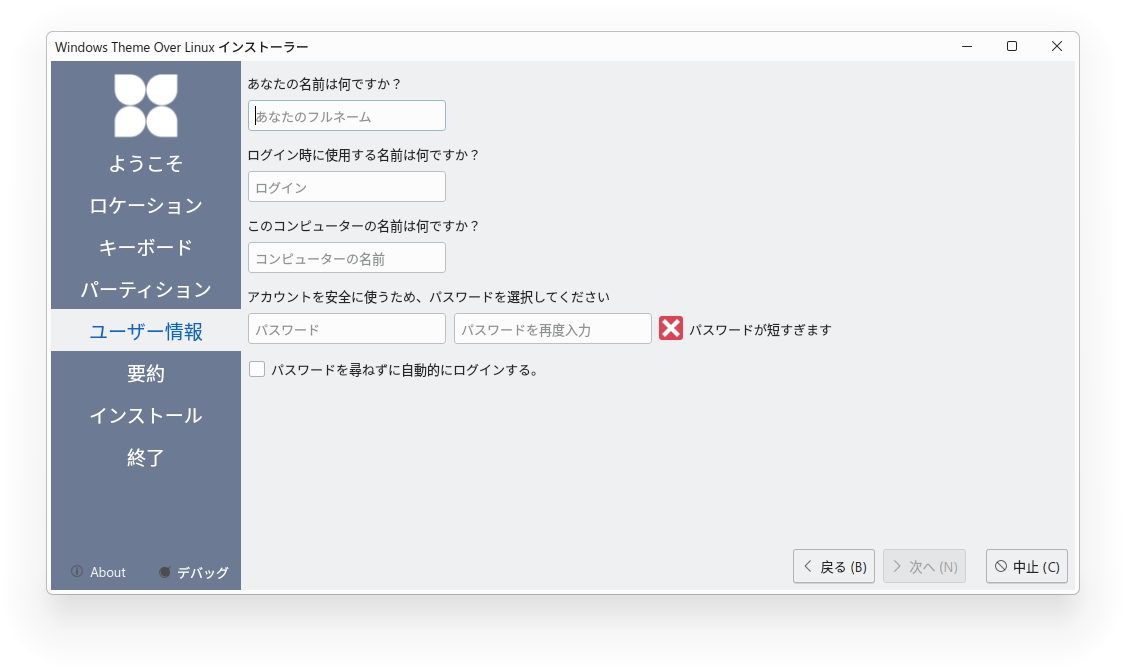
Click “Next” and enter your name, login name (the name used in the terminal), computer name, and password.
Click “Next,” review the installation details, and click the “Install” button.
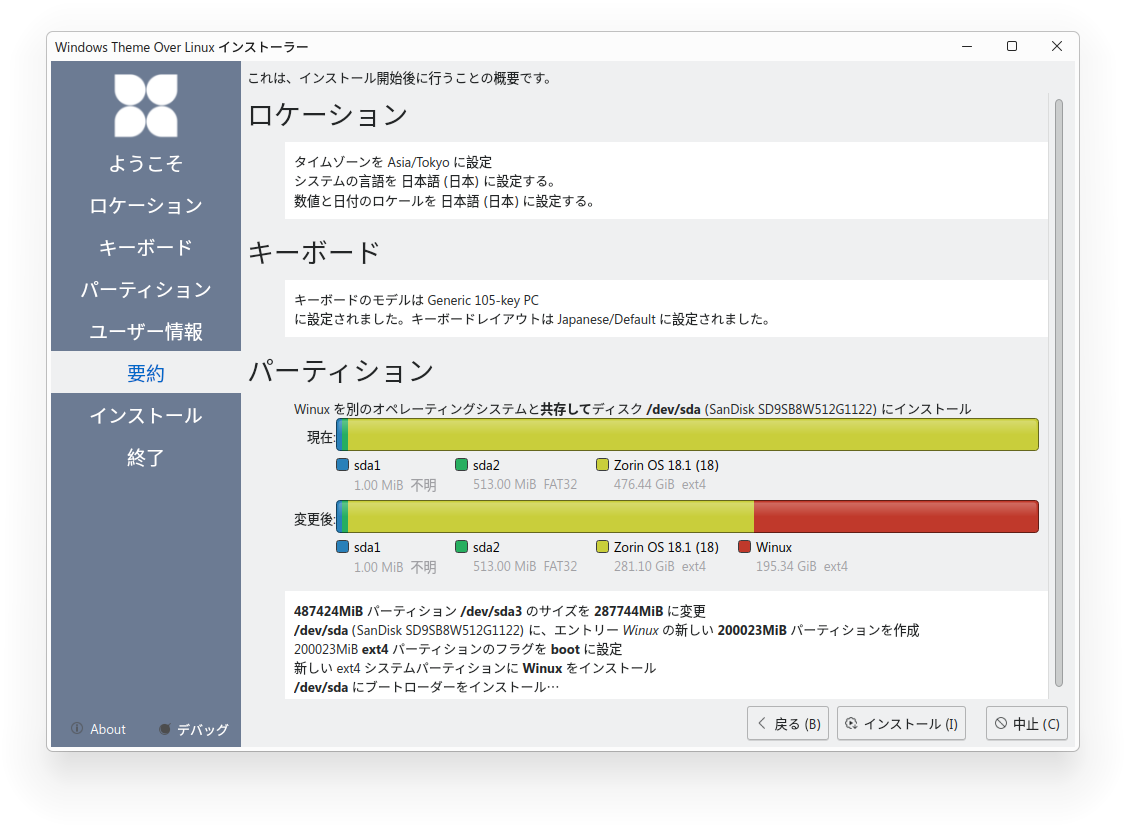
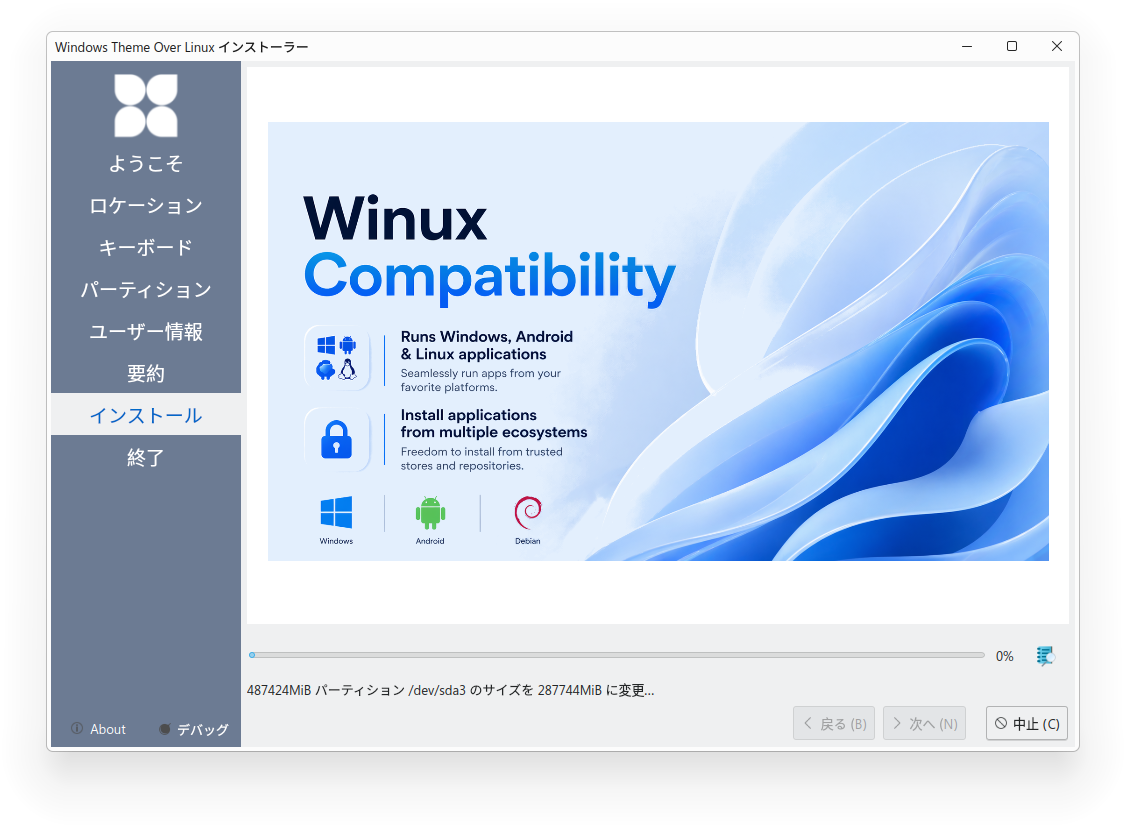
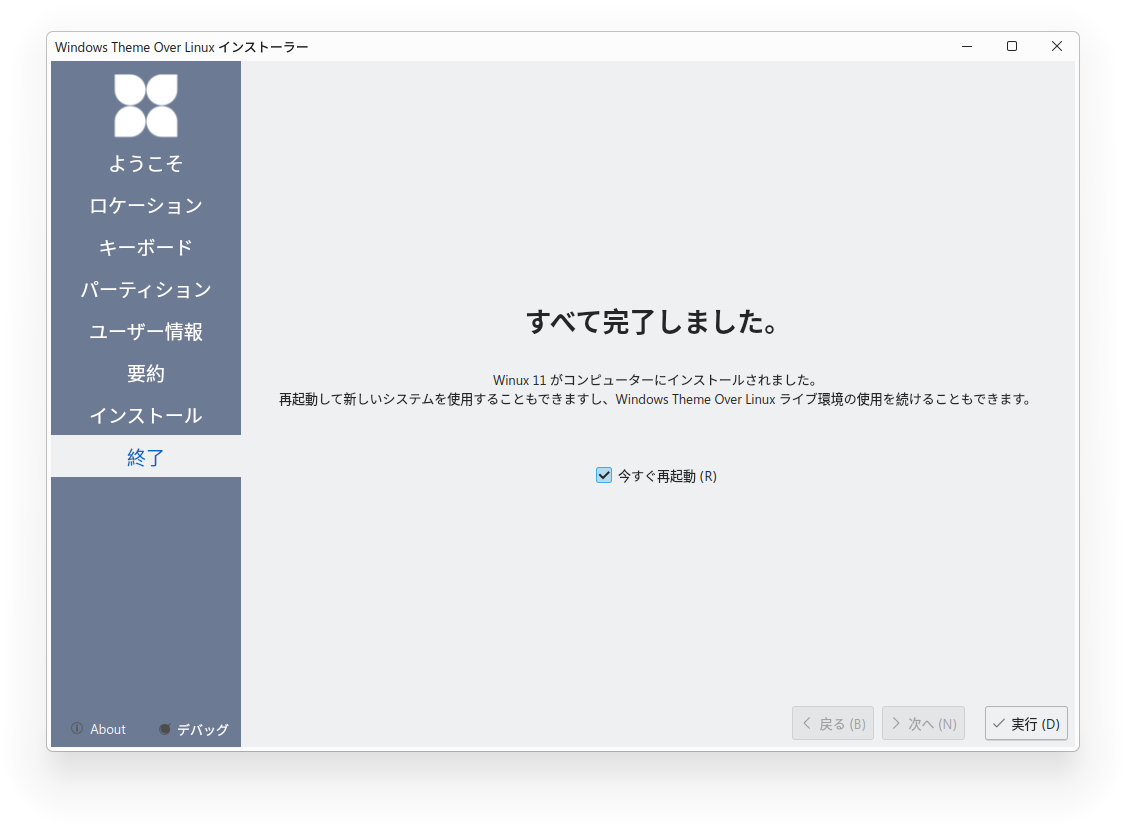
Once “All Done” appears, reboot the system.
After logging in
After restarting and logging in, you should see an “Update” icon on the right side of the taskbar (Discover Software Center). Update everything to keep the system up to date.

If there are still updates available after rebooting, click the blue icon to launch UXTerm or Konsole,

sudo apt update
sudo apt upgrade
and update to the latest version.
Once everything is up to date, reboot the system.
Point
Since the Discover Software Center alone may not always keep everything up to date, please launch the terminal and run `sudo apt update` and `sudo apt upgrade` to ensure everything is up to date.
Firewall
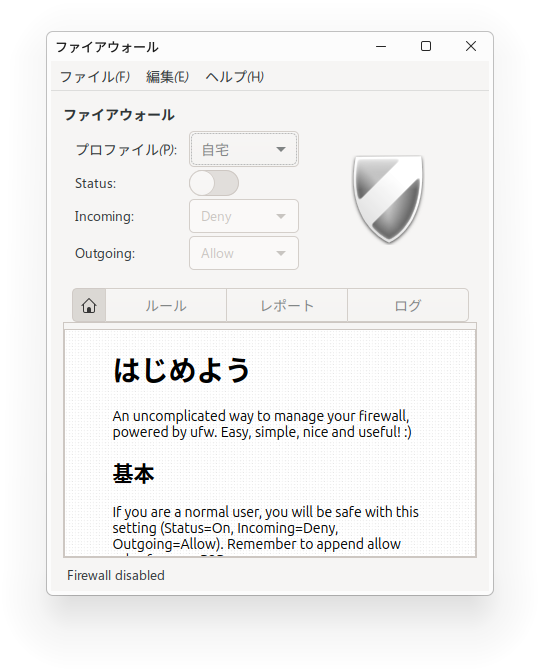
Since gufw was not installed, launch UXTerm or Konsole from the menu and
sudo apt install gufw
execute the command.
After that, launch “Firewall Configuration” from the Start button and turn on the firewall.
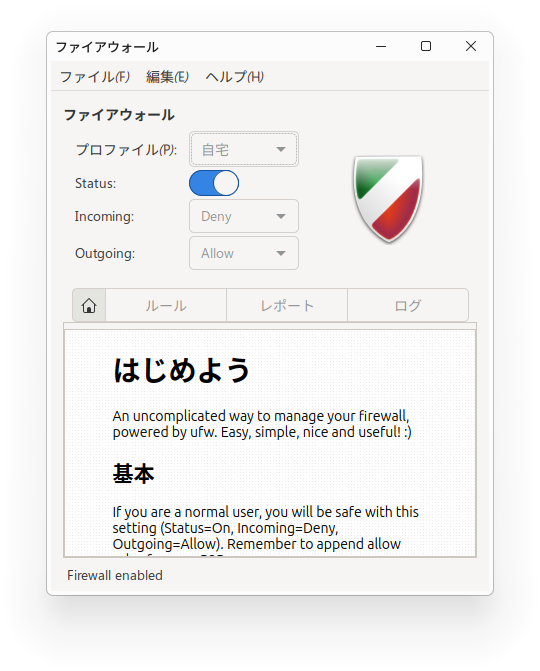
Important Notes
Once the installation is complete, restart your computer and log in. Then, update the system to the latest version via Discover and enable the firewall using gufw.
Personal Impressions
It might not be considered particularly lightweight, but I think it’s easy to use for those who prefer the look and feel of Windows 11.
It comes with a full suite of software, including a browser, email client, Office suite, and disk management tools.
Steam is also included by default, so you can play games if your PC has sufficient performance.
It’s a bit annoying that the browser opens upon startup and tries to upsell you to the Pro version.
Also, since the interface looks so much like Windows 11, with “Microsoft Edge (?)” as the default browser, and the name has changed from “Windowsfx” to “Linuxfx” to “Winux,” I’m skeptical about whether it’s something I can stick with long-term.
I don’t think there’s any need to make the default browser an app called “Edge.”
Summary
Winux is considered the successor to Windowsfx, Linuxfx, and Wubuntu, and its appearance is almost identical to Windows 11. Download the ISO image, create a live USB drive using balenaEtcher or similar software, and install it. Once installed, update via the Discover Software Center, then launch UXTerm or Konsole and run “sudo apt update” and “sudo apt upgrade” to bring the system up to date. For Japanese input, click “JA” on the right side of the taskbar and select “Japanese (Mozc).” You can then switch between full-width and half-width characters using the key, just like in Windows.
Please install gufw and enable the firewall.
よろしければ応援お願いします


, first download the Winux ISO image and create a live USB driv)