
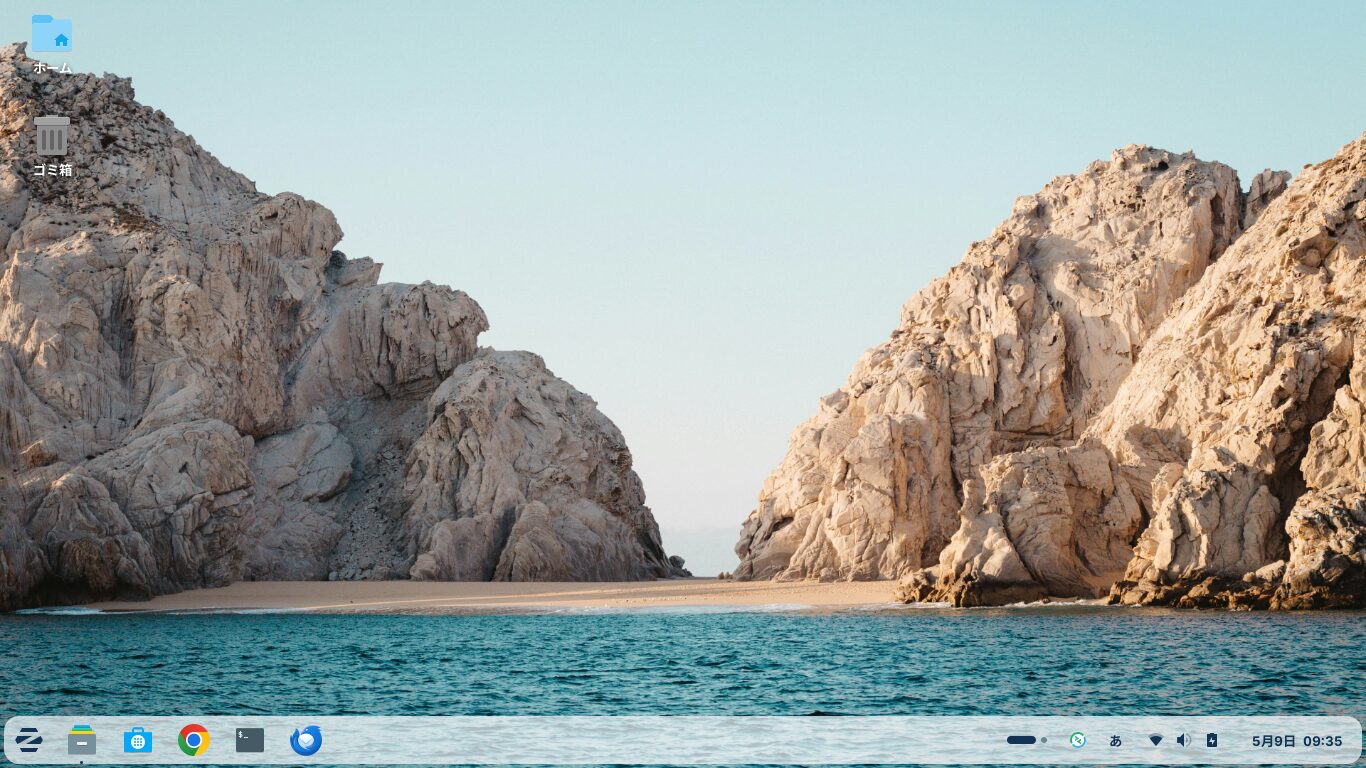
Since the interface is similar to Windows, I think it’s a great option for switching from Windows to Zorin OS or for installing it on an older Windows machine.
Zorin OS uses a file manager called Nautilus by default, and thanks to Nautilus’s features, you can create shared folders without editing the configuration files of the file-sharing software Samba.
Additionally, by writing settings to the Samba configuration files and configuring user settings appropriately, you can use it as a file server.
In this guide, I’ll explain how to share files with other PCs. Please note that this guide is based on the default desktop layout.
Click here for an Overview of Zorin OS 18.1 Core


1. Install additional Nautilus applications using the Synaptic Package Manager
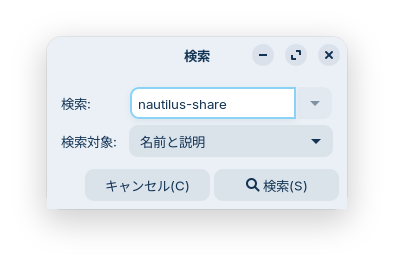
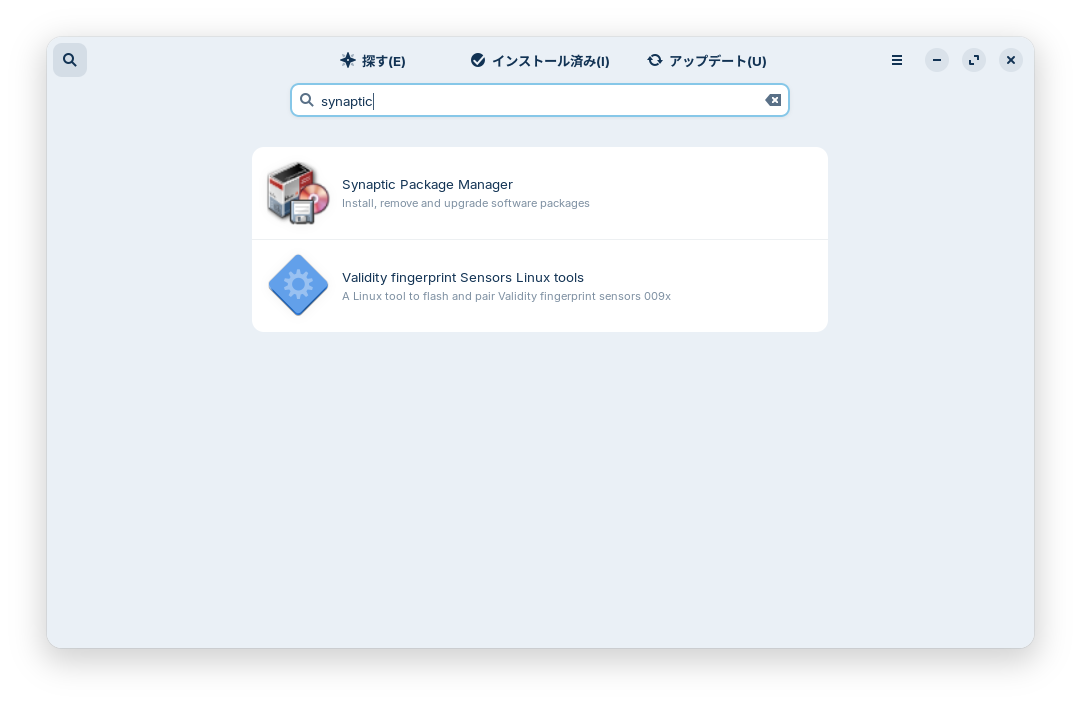
Click the Start button > System Tools > Synaptic Package Manager. Click the magnifying glass icon in the upper-right corner,
search for “nautilus-share,” check the box next to it, and click the gear icon labeled “Apply” to install it.
Samba is installed along with nautilus-share.
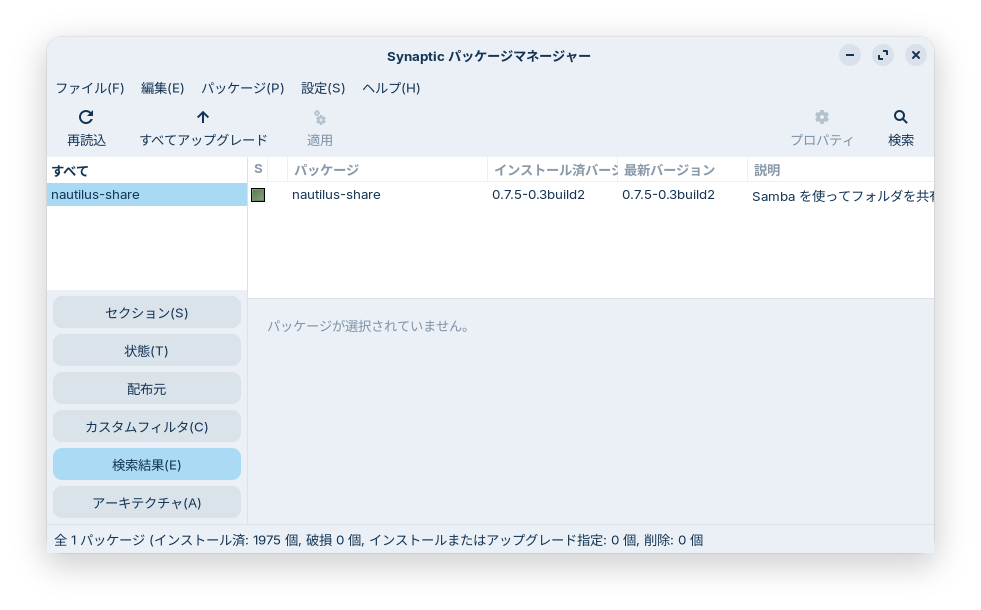
Up until Zorin OS 17.3, you could configure sharing settings by right-clicking a folder by default, but starting with version 18.1, this feature may not be installed by default.
If the sharing option does not appear when you right-click a folder after installing nautilus-share and Samba, try restarting your computer.
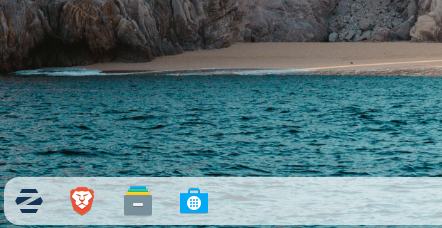
You can install the Synaptic Package Manager by clicking the blue bag icon in the lower-right corner and selecting “Software.”
Point
If Nautilus doesn't have a sharing feature, install it using the Synaptic Package Manager.
If the sharing option does not appear after installing nautilus-share and Samba, you may need to restart your computer.
2. Set up a shared folder
In this guide, we’ll turn the default “Public” folder in your Home folder into a shared folder.
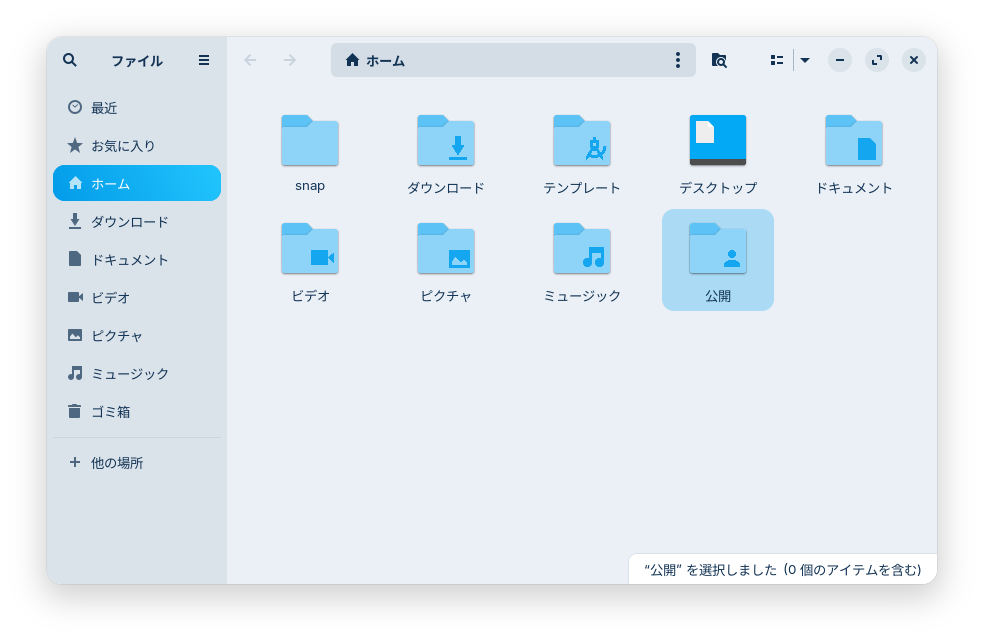
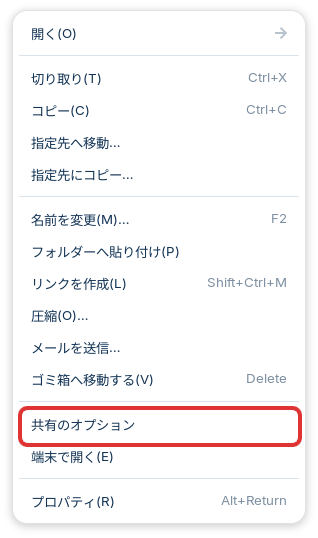
Right-click the Public folder and select “Share Options.”
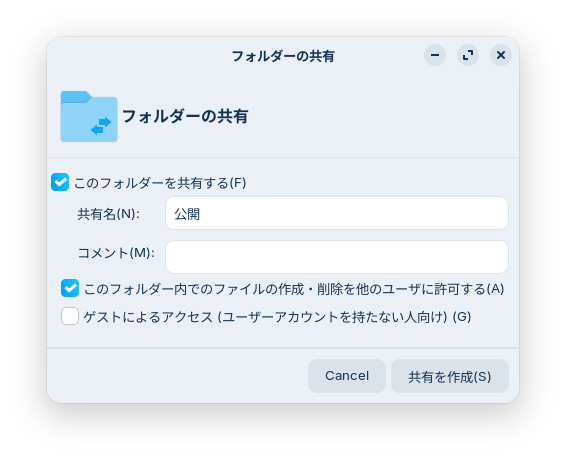
Check the boxes next to “Share this folder (F)” and “Allow others to create and delete files in this folder (A),” then click the “Create Share (S)” button. (Please adjust these settings as needed for your specific use case.)
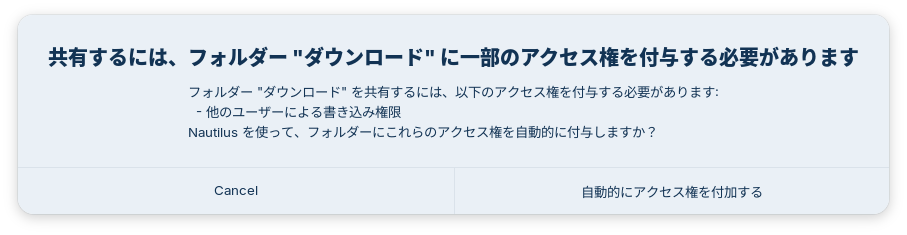
Click “Automatically assign permissions.” (In the image, it says “Downloads.”)
Users on other computers will be granted not only read access but also write permissions to this folder.
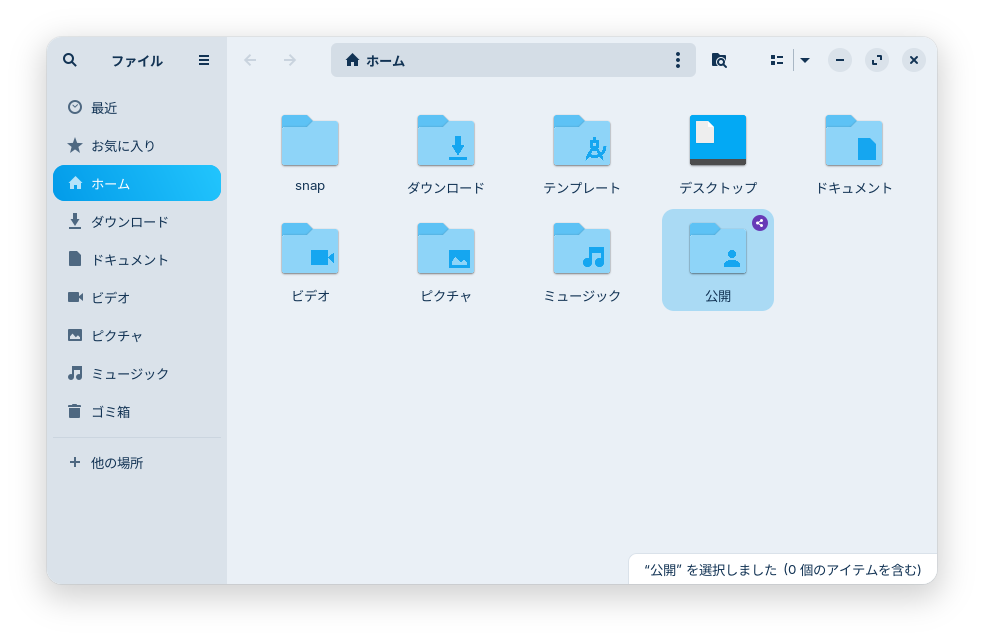
A shared icon will appear on the “Public” folder.


3. Add a user to Samba and set a password
Open a terminal by clicking the Start button > Utilities, then run the following command.
sudo smbpasswd -a $USER
You will be prompted to enter a password, so set one. This password will be used when accessing the shared folder from other computers.

4. Opening Samba Ports in the Firewall
Run on the terminal.
sudo gufw
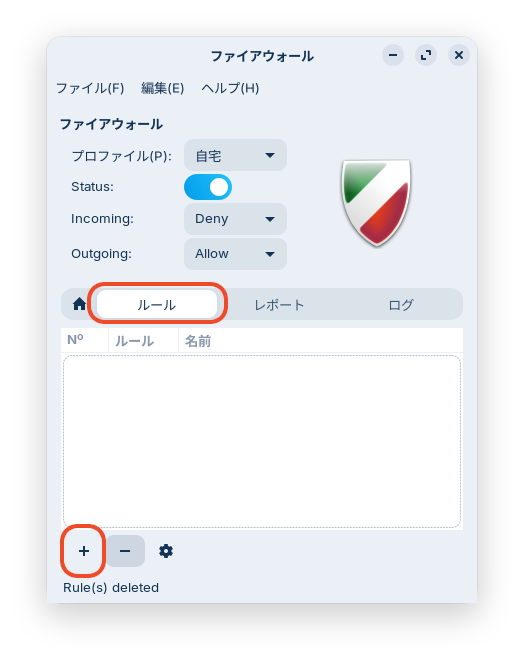
Click “Rules” in the middle section.
Click the “+” icon in the lower-left corner.
Set “Direction” to “Both.”
Select “Samba” from “Application.”
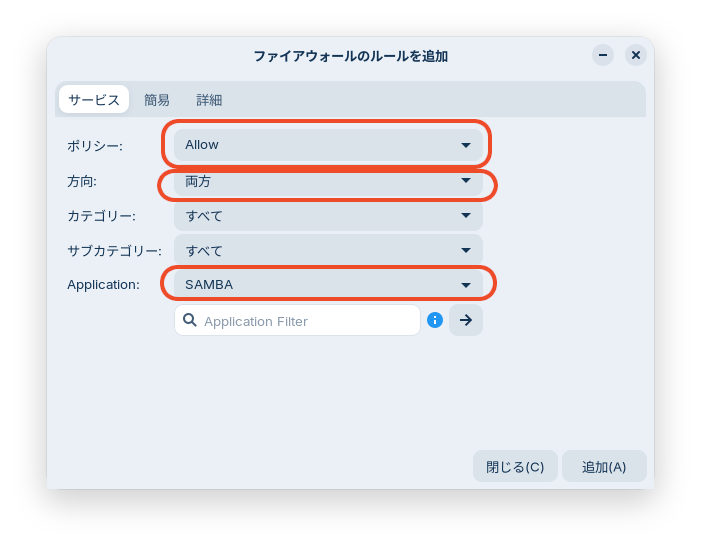
Click the “Add” button.
After clicking the “Add” button, click the “Close” button.
The window will not close simply by clicking the “Add” button.
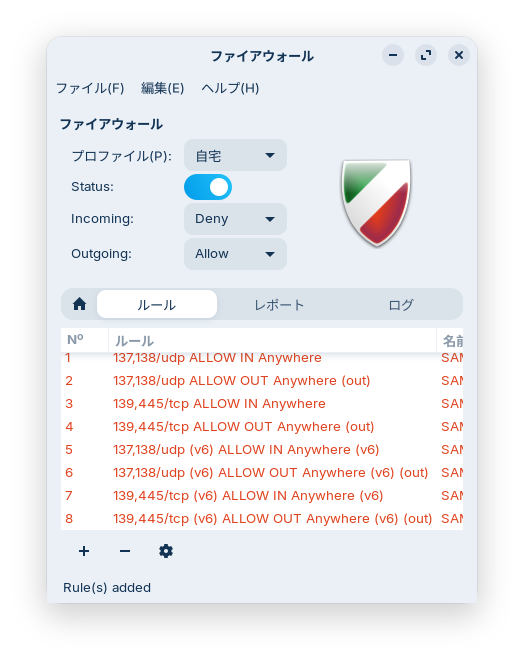
Once the Samba rule has been added to the firewall, close gufw.
Then, start Samba.
sudo service smbd start
After that, please restart your Zorin OS 18.1 PC.

5. Accessing the public folder on Zorin OS 18.1 from another PC
After restarting, check your private IP address in Zorin OS Settings.
If you're using Wi-Fi, click the gear icon under Settings > Wi-Fi > Saved Networks to open a window where your private IP address will be displayed.
This is the “IPv4 Address.”
.
To access it from Windows, open File Explorer and enter the private IP address of Zorin OS 18.1 that you just found into the address bar.
\\192.168.xxx.xxx
Please enter it as shown above. Replace “xxx” with the private IP address of your Zorin OS.
A “Enter Network Credentials” window will open; enter the user name and the Samba password you set earlier.
If you check the “Remember credentials” box, you won't have to enter your username and password every time you open a folder in Zorin OS.
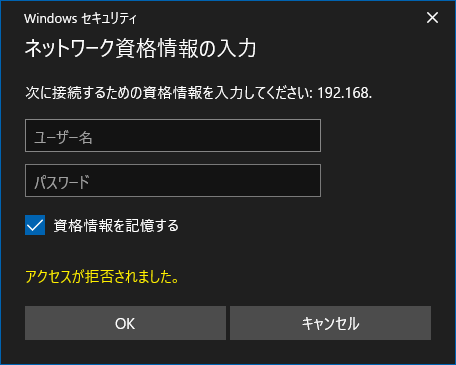
It may take a while to connect at first, so try restarting both PCs or waiting a bit.
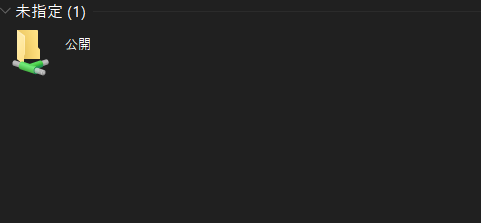
If successful, you’ll see the “Public” folder as shown in the image.
After a while, the Zorin OS 18.1 PC will appear in the Network section of File Explorer.
The next day, when I opened Network in Windows File Explorer, the icon appeared as shown in the image below.
I can now access it without entering the private IP address.
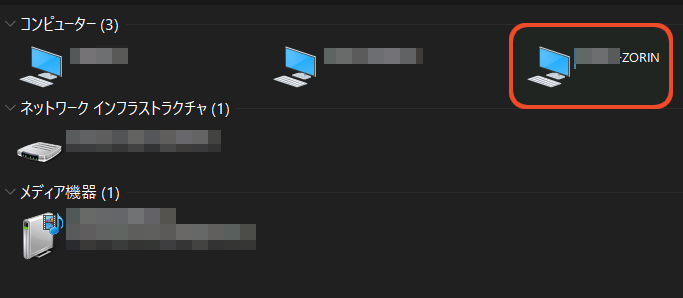
This allows you to exchange files between both PCs via the shared folder.
Although I used a few commands, I was able to set up the share without editing the Samba configuration file.
If you still can't connect, the issue may be caused by old credentials stored in Windows.
Open the Windows Control Panel, go to User Accounts > Manage Windows Credentials, and try deleting the old credentials.
Once you've deleted them, restart Windows.
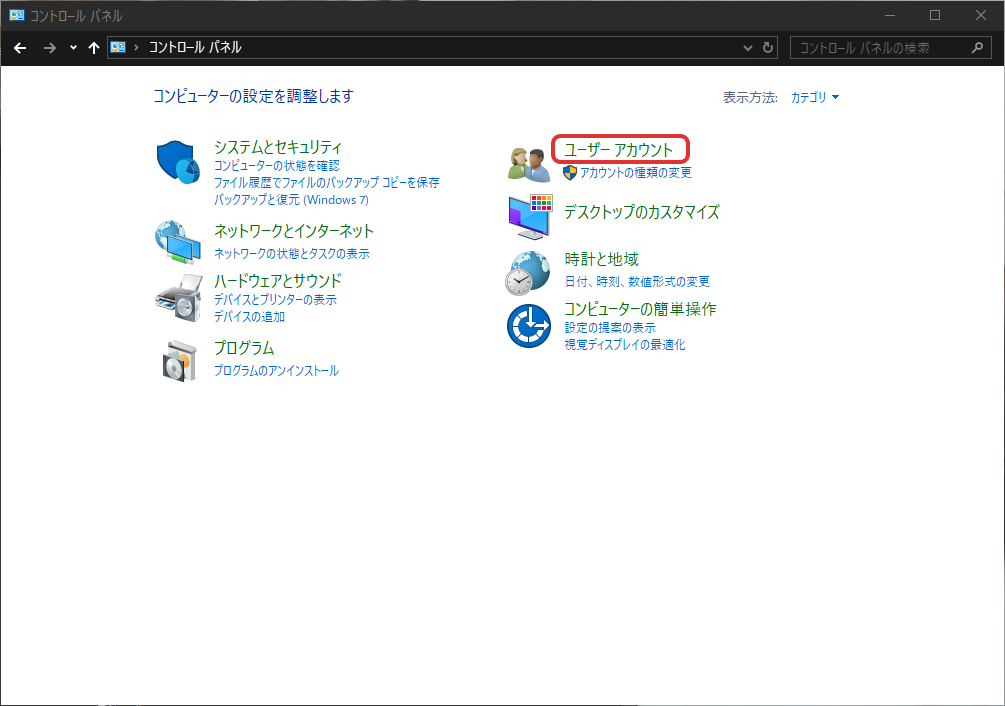
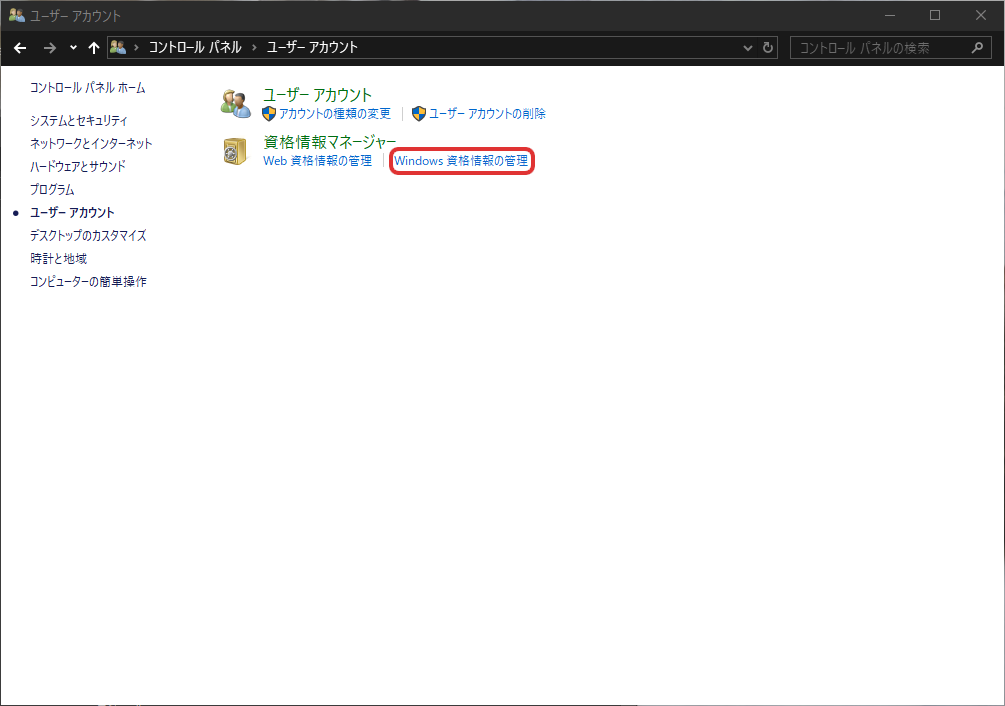
Alternatively, creating Windows credentials in advance can sometimes make the connection process go more smoothly.
Go to Control Panel > User Accounts > Credentials Manager > Add Windows Credentials, enter the private IP address of your Zorin OS PC, and enter the Samba username and password.
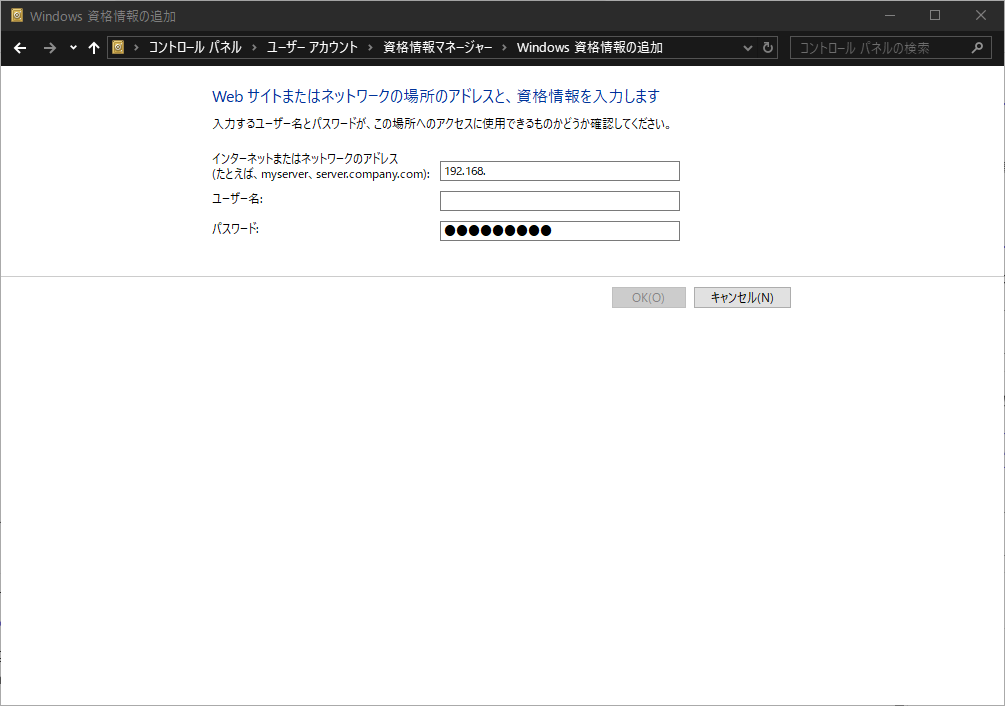
To share files between Linux machines, click “Network” or “Other Locations” in the file manager, and
smb://192.168.xxx.xxx
enter the local network address of the Linux machine you want to connect to after “smb://”.
However, Samba must be installed on both machines, and the folders must be set up for sharing.
Key Point
It may take some time for the shared folder to appear.
Try restarting both PCs or waiting a while before attempting to access it.
If you still can't connect, it may be because Windows has old credentials on file.
Also, creating credentials in Windows beforehand can sometimes make the connection process go more smoothly.
If you configure the Samba configuration files and user management properly, it will function as a file server.
Summary
If you configure the Samba configuration files and user management properly, it will function as a file server.
To share files between Zorin OS 18.1 and another PC, first right-click the folder on your Zorin OS 18.1 system to see if the sharing options appear. If the sharing options do not appear, install the Nautilus sharing feature via the terminal.
Select or create the folder you want to share, then right-click to configure the sharing settings.
Next, use the terminal to add your user to the Samba users and set a password.
Next, configure the folder’s access permissions and open the Samba port in your firewall settings.
To access the shared folder from another PC, first find the IPv4 address of the Zorin OS 18.1 PC. If using Windows, enter the address (e.g., 192.168.xxx.xxx) in the address bar of File Explorer and enter the password you set in the “Enter network credentials” prompt.
It may take a little while to connect.
Restarting both PCs or waiting a while may help establish the connection.
Over time, Zorin OS 18.1 will become visible in the Windows File Explorer network.
If you configure the Samba configuration files and user management properly, it will function as a file server.
よろしければ応援お願いします


