

With Zorin Connect, you can pair your smartphone with a Zorin OS PC to quickly send photos and other files from your smartphone.
This way, you don’t have to attach them to an email.
1. Install the app on your smartphone
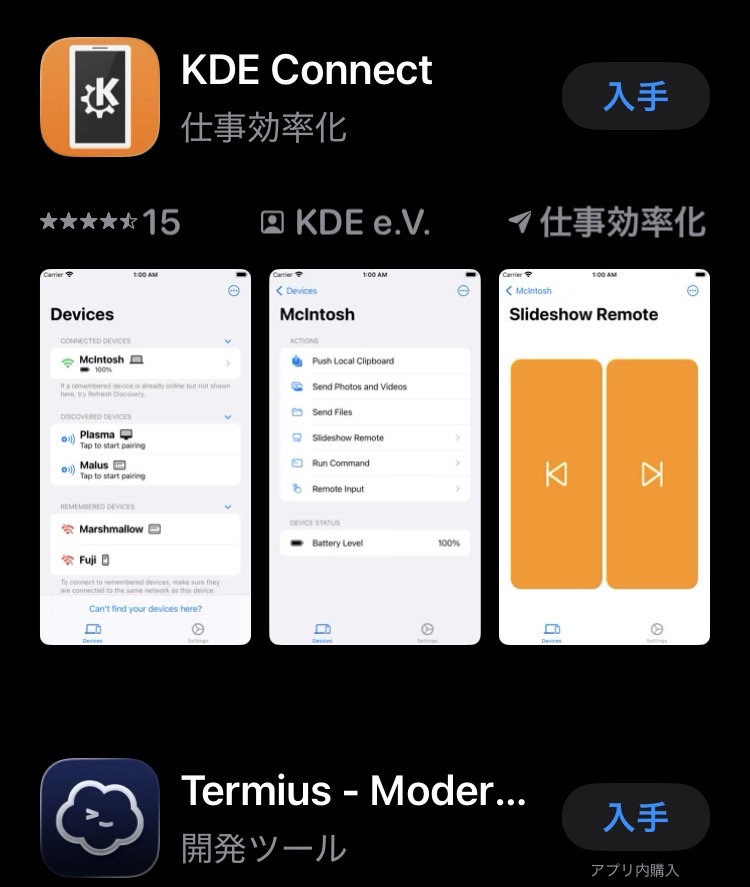
First, install “Zorin Connect” from Google Play on Android, or “KDE Connect” on iPhone.
Zorin Connect
KDE Connect

Make sure both devices are on the same local network.
2. Launch Zorin Connect and pair the devices
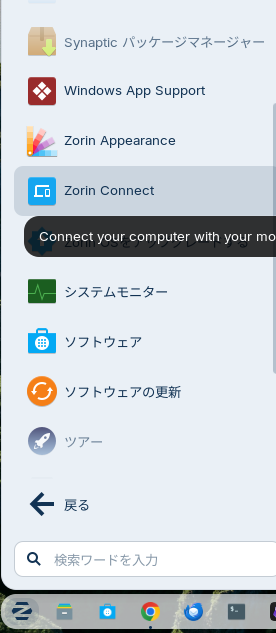
Open “Start” > “System Tools” > “Zorin Connect”.
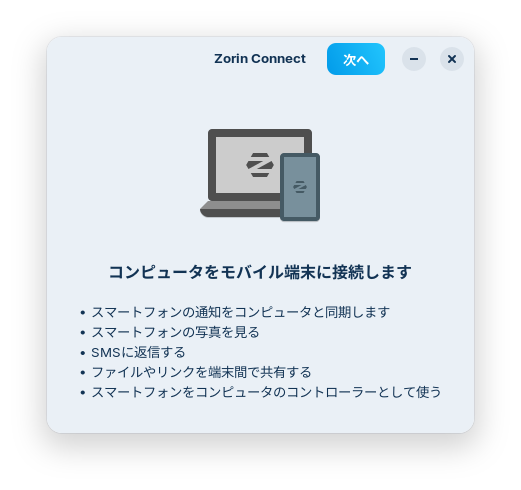
Click “Next” to bring up a window like the one shown below.
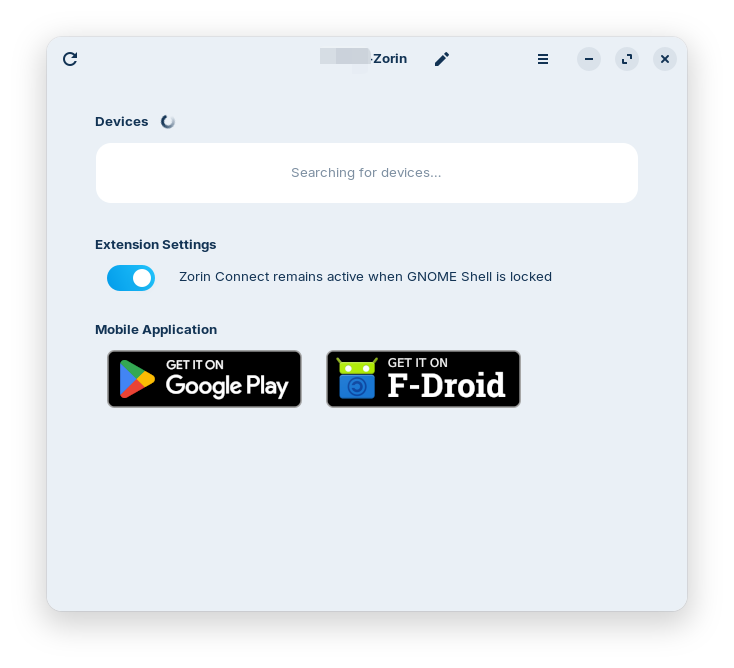
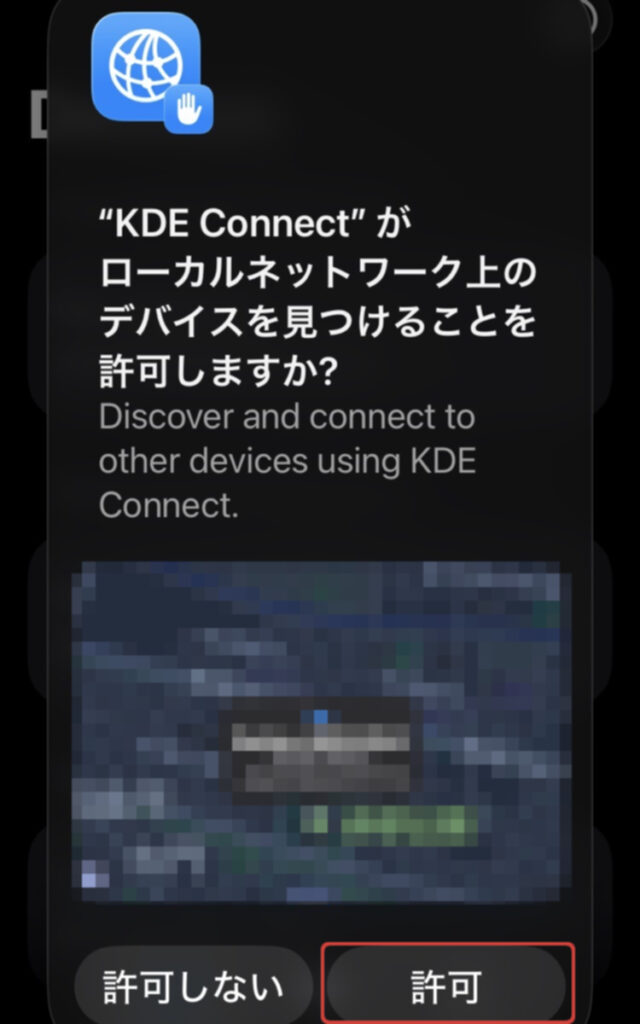
On your smartphone, grant permission so that Zorin OS can discover your device.
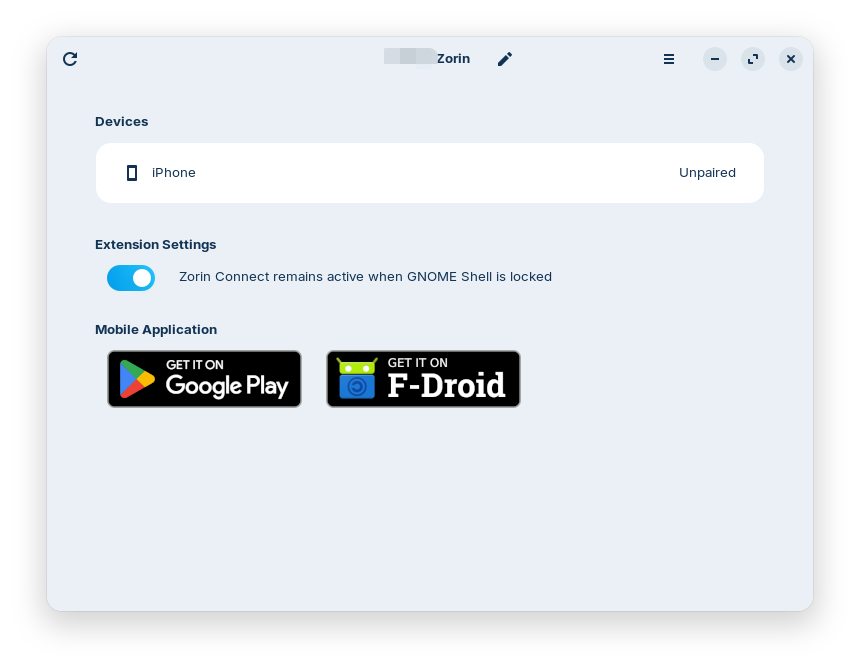
After a moment, your smartphone will be detected.
Click on the detected smartphone.
Click the “Pair” button.
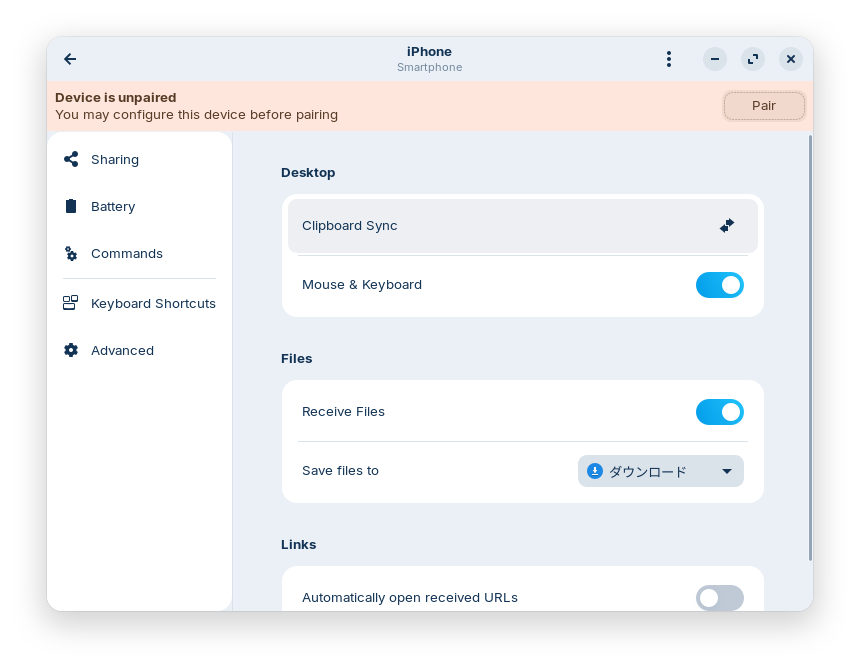
Tap “Pair” on your smartphone as well.
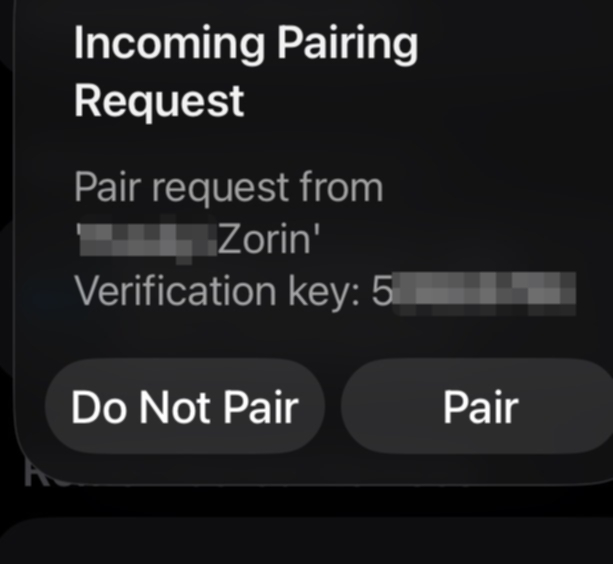
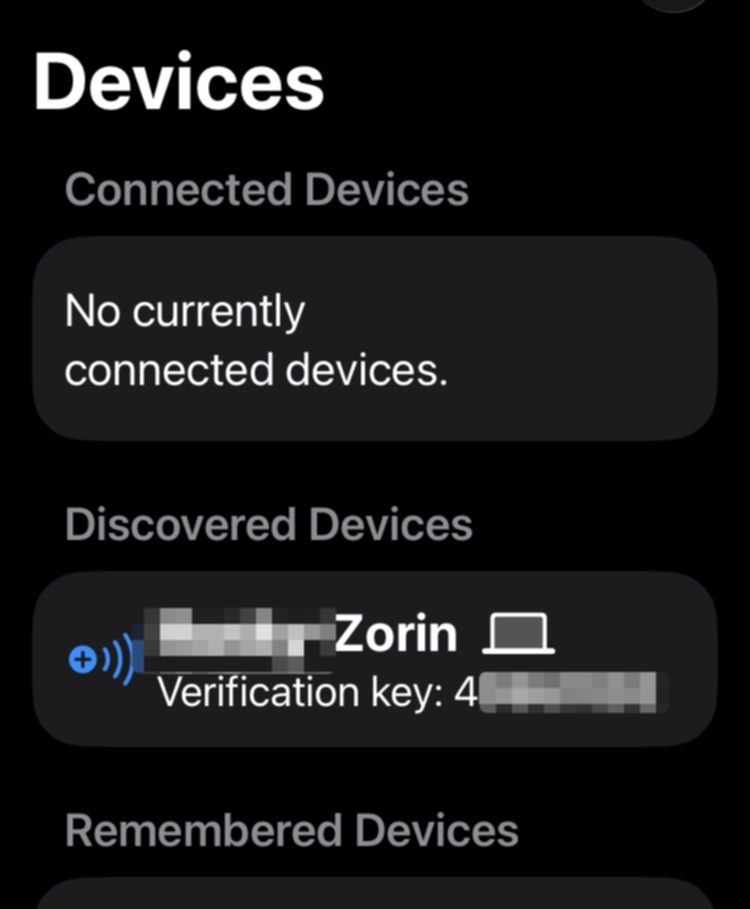
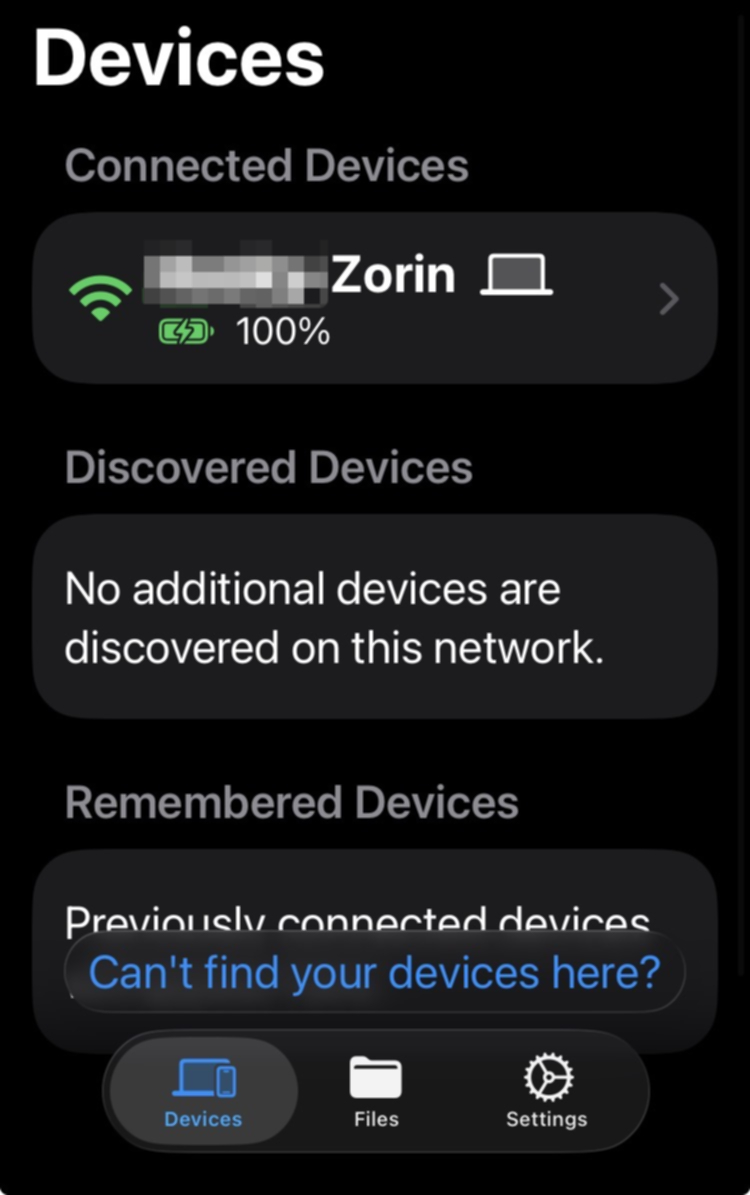
Once both devices are paired, you can quickly and easily send photos and other files from your smartphone to Zorin OS.
You can choose where to save the received files, such as photos, from the menu.
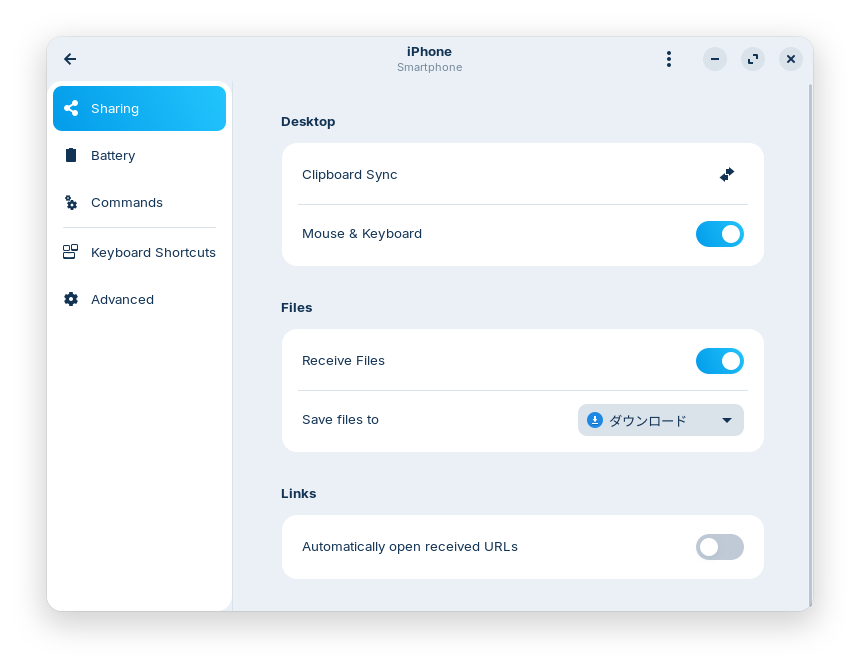
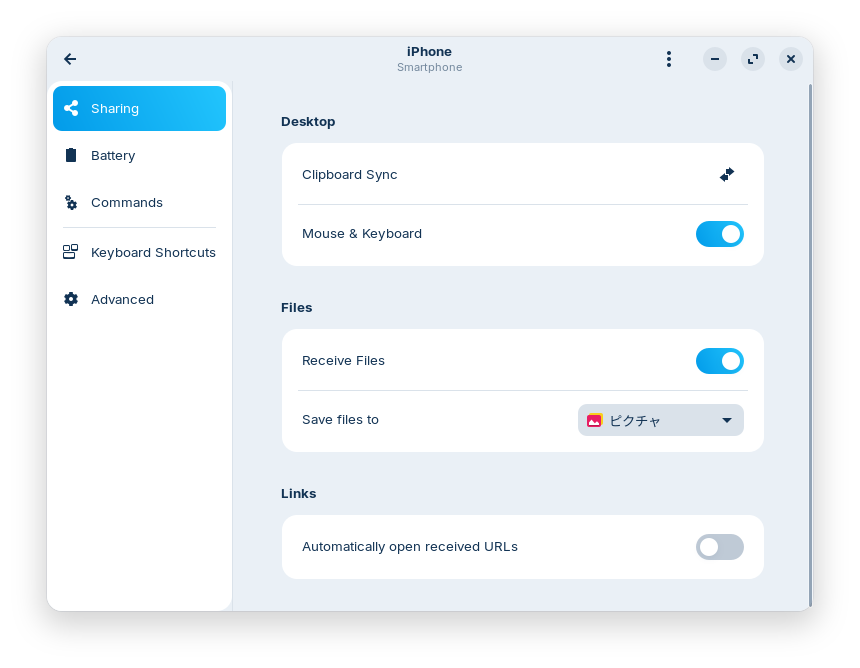
When sending a photo from the smartphone, you’ll hear a “whoosh” sound, and the photo will be sent to Zorin OS immediately.
You can also control the mouse using your iPhone.
Although the Zorin OS screen isn’t displayed on the iPhone, touching the iPhone screen with your finger moves the mouse cursor.
よろしければ応援お願いします


