
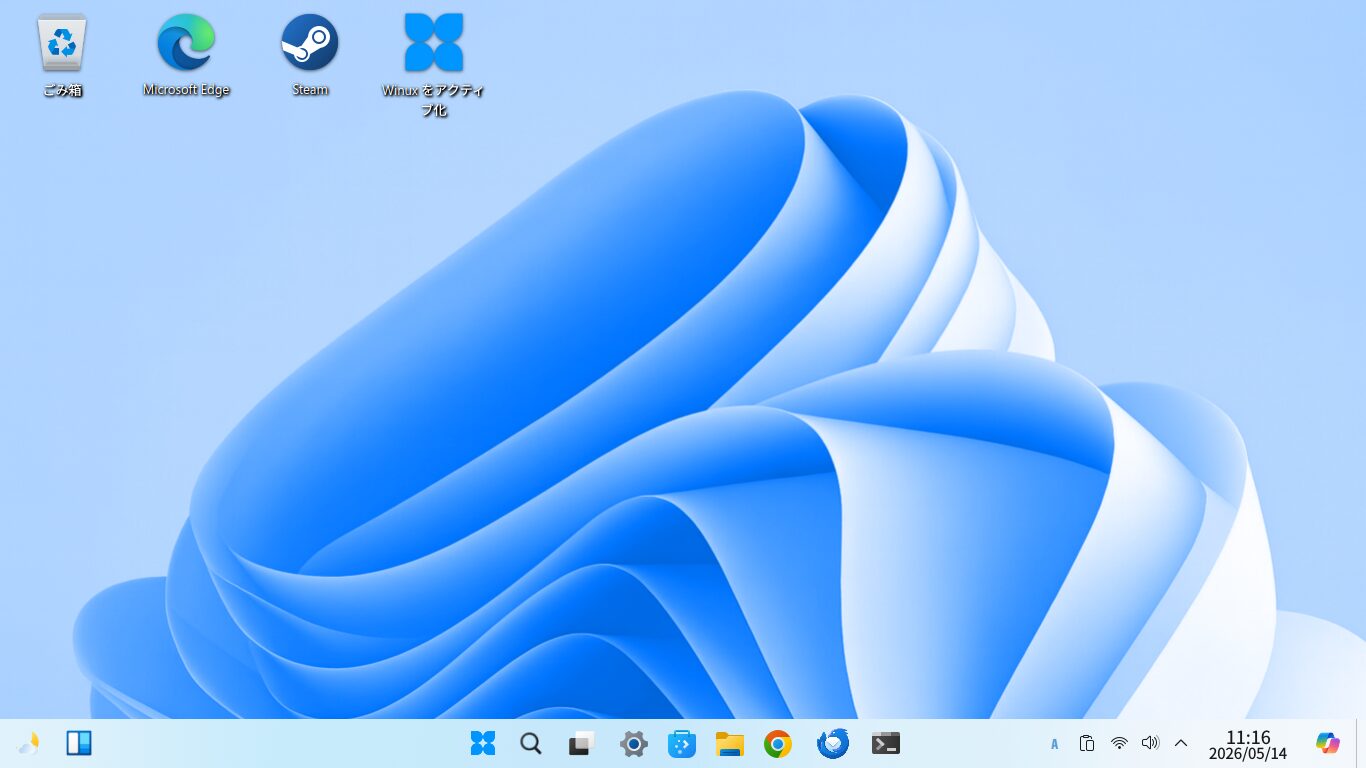
Winux has changed its name several times; it is an Ubuntu-based Linux distribution designed to look exactly like Windows 11.
It used to be called "Windowsfx," then "Linuxfx" and "Wubuntu," and is now known as "Winux."
Winux uses a file manager called Dolphin.
In addition, the file-sharing software Samba is installed by default, allowing you to easily share files via GUI.
Click here for the Winux (formerly Windowsfx, Linuxfx, and Wubuntu) Overview page

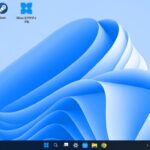
1. Select the folder to share
In this example, we’ll use the “Public” folder located in the home directory by default as the shared folder.
You can also create a new one if you prefer.

2. Configure sharing
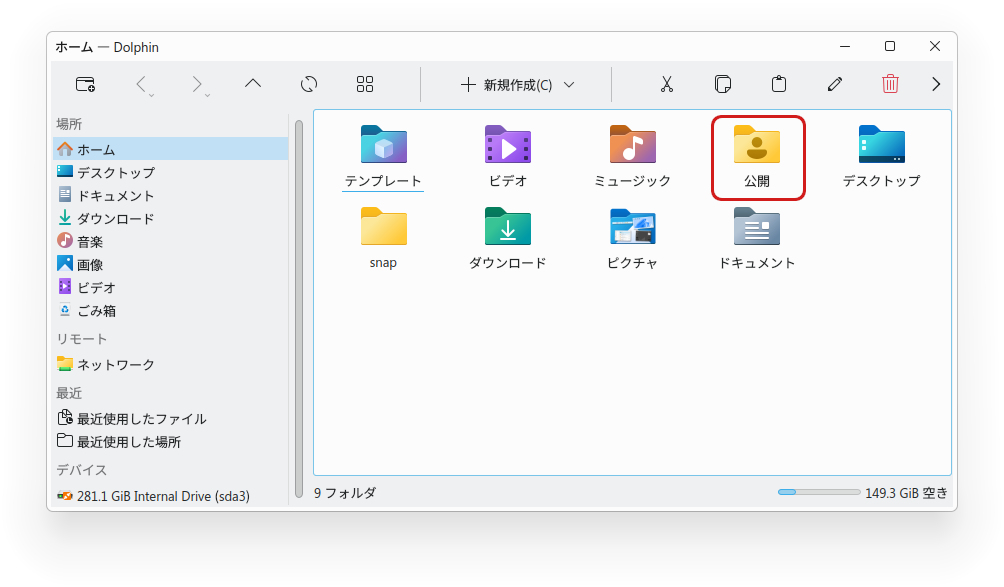
Right-click the "Public" folder and select "Properties."
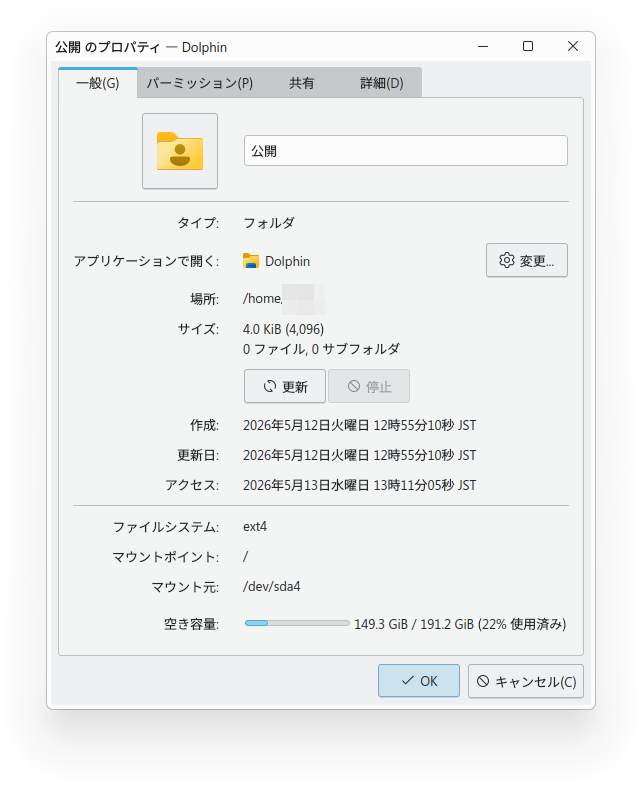
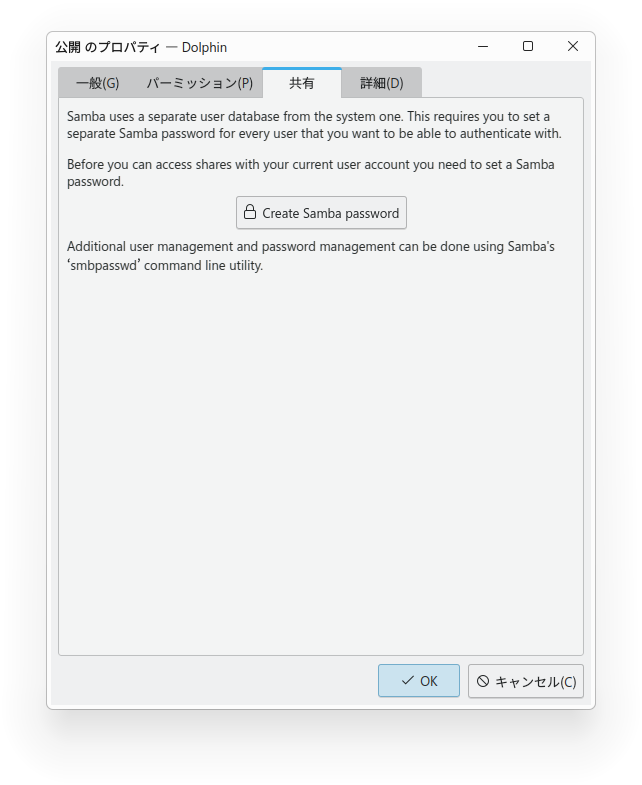
On the "Sharing" tab, click "Create Samba password."
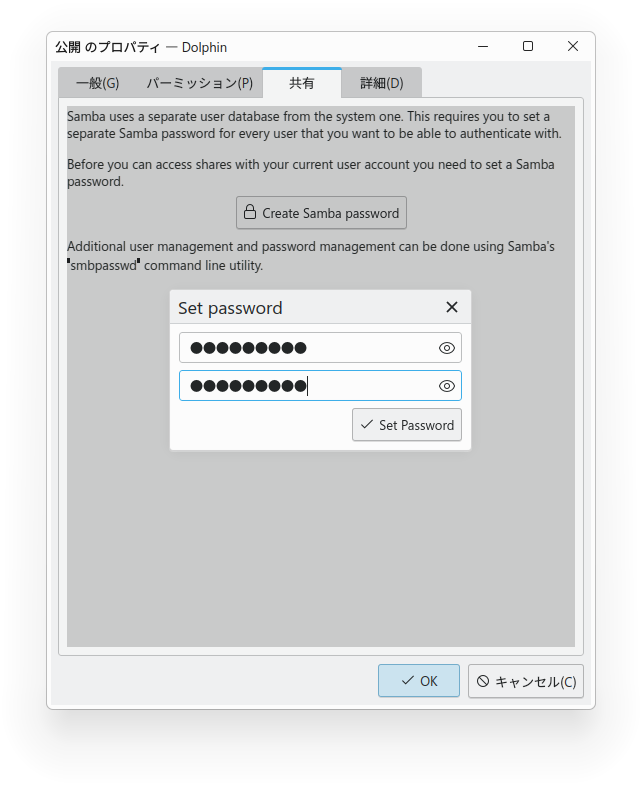
Click "Set Password" to set a password.
This is the Samba password, which you will use when accessing the folder from other computers on the same local network.

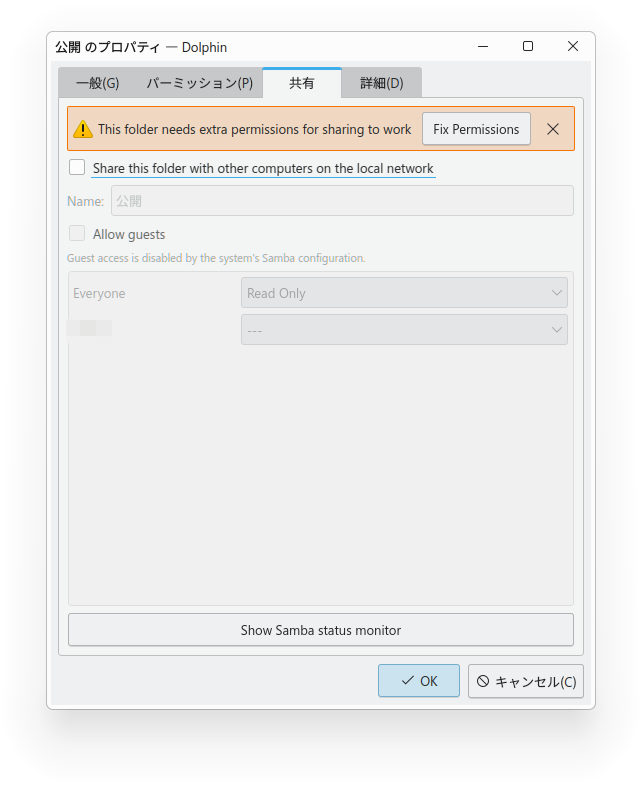
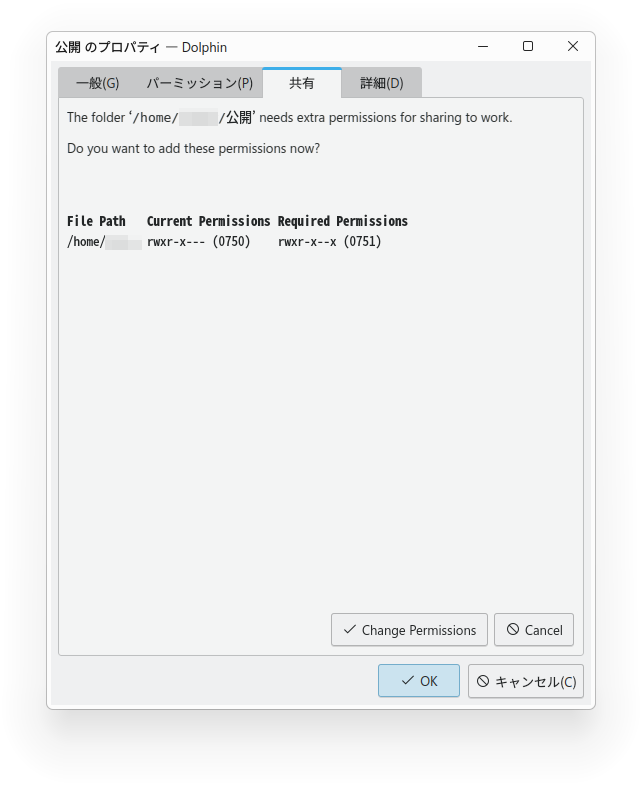
Check the box for "Share this folder with other computers on the local network," check the box for "Allow guests," and select the permissions appropriate for your intended use.
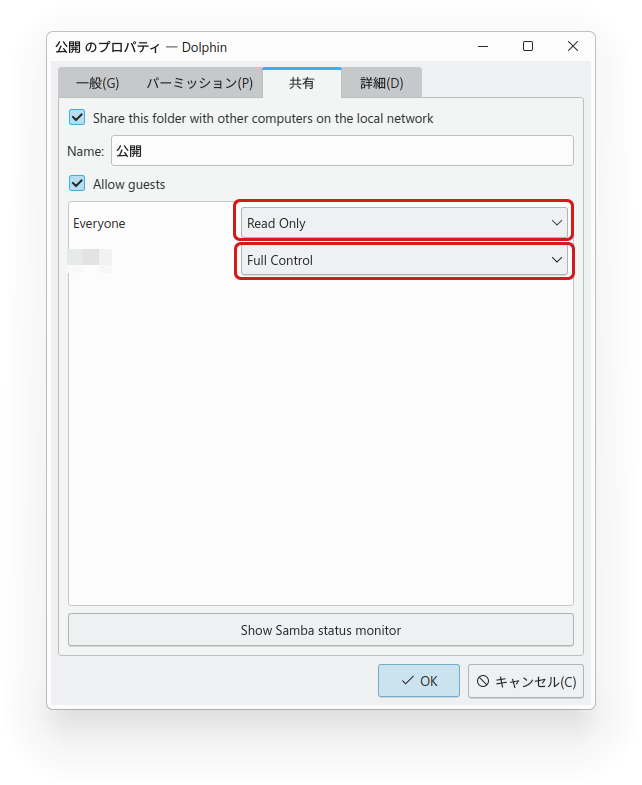
Since I want to exchange files with other computers via this "Public" folder, I set "Everyone" to "Read Only" and "Groups" to "Full Control."
Once you’ve finished configuring the settings, restart your computer.
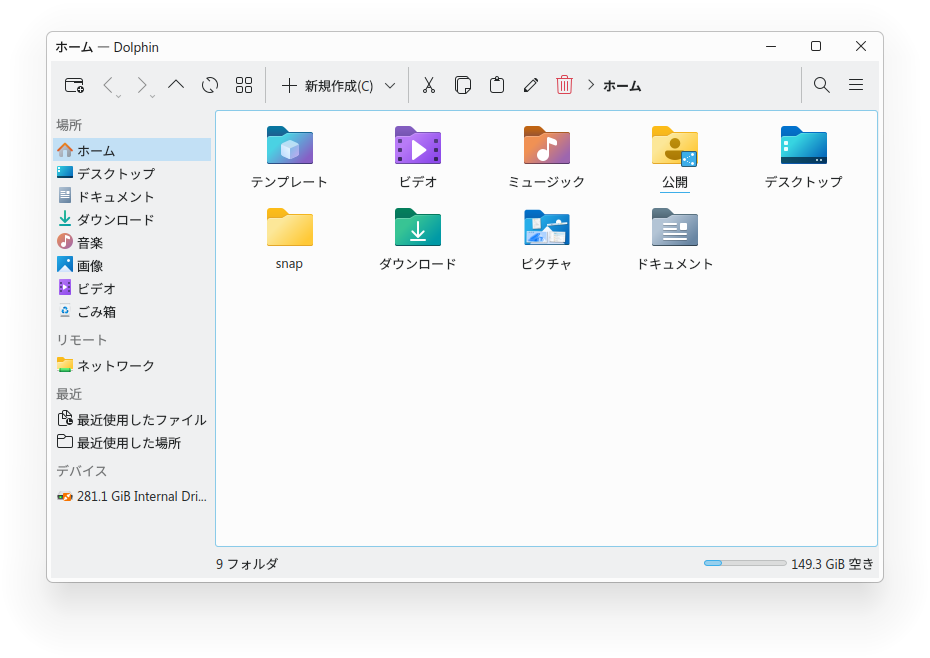
After restarting and opening your Home folder, you’ll see a share icon on the Public folder.
3. Firewall Settings
Open "Firewall Configuration" from the Start button.
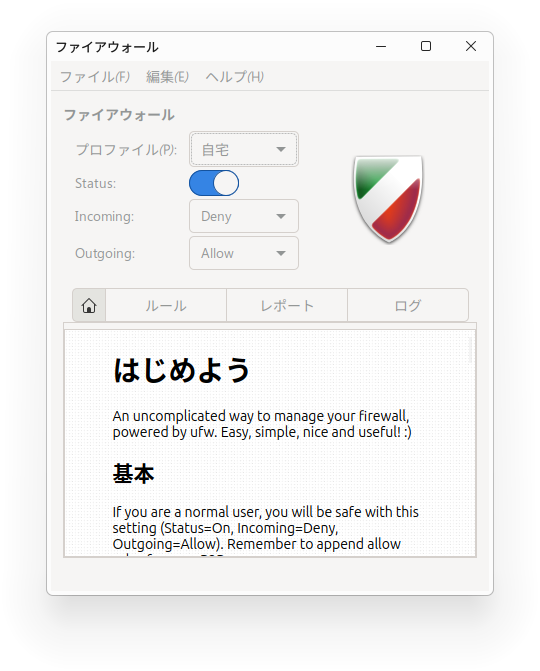
If you can't find it, use Konsole to
sudo apt install gufw
to install the firewall GUI.
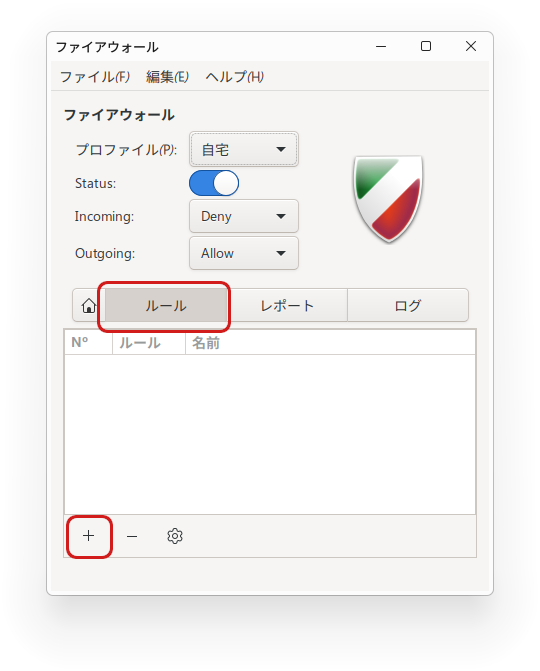
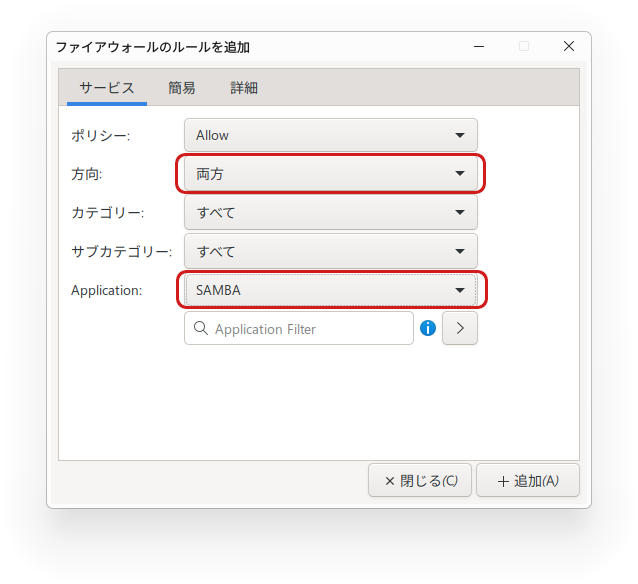
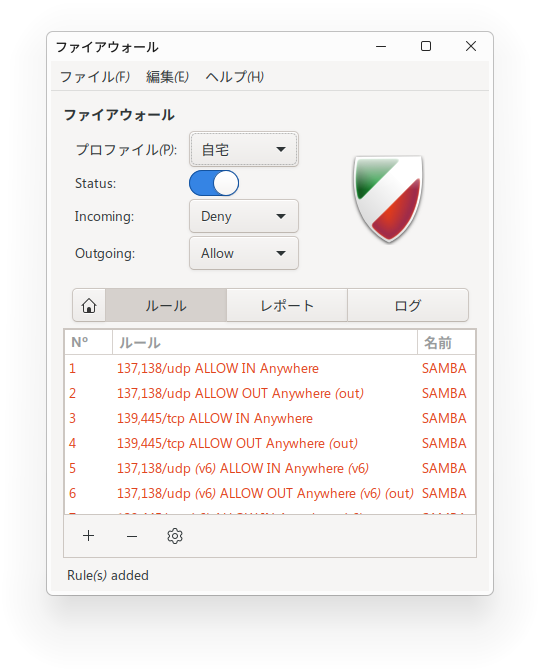
Click "Rules" in the middle section, then click the " + " icon in the lower left.
Set the Policy to "Allow," the Direction to "Both" (change this depending on your needs), set the Application to "Samba," click the Add button, and then close the window.
4. Accessing from another computer
To access this shared folder from Windows, open File Explorer, enter the private IP address of the Winux PC in the address bar
\\192.168.xxx.xxx
Enter the private IP address of the Winux PC, for example.
To find the private IP address, open Konsole and
ifconfig -a
and check there.
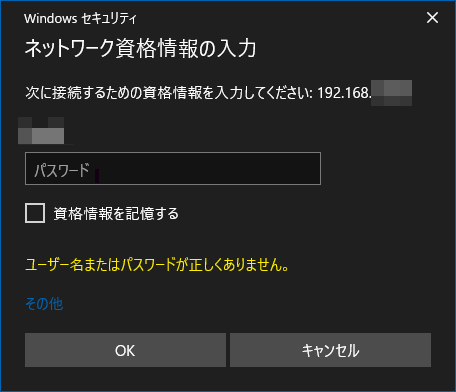
The "Enter Network Credentials" dialog will appear, prompting you to enter a password. Please enter the Samba password you set earlier.
It may take a while to connect the first time.
Restarting a few times or waiting a while should allow you to connect.
Tip
When accessing from Windows, enter Winux's private IP address in the address bar of File Explorer.
This will bring up the “Enter Network Credentials” dialog.
Enter the Samba password you used when setting up folder sharing.
It may take some time to connect.
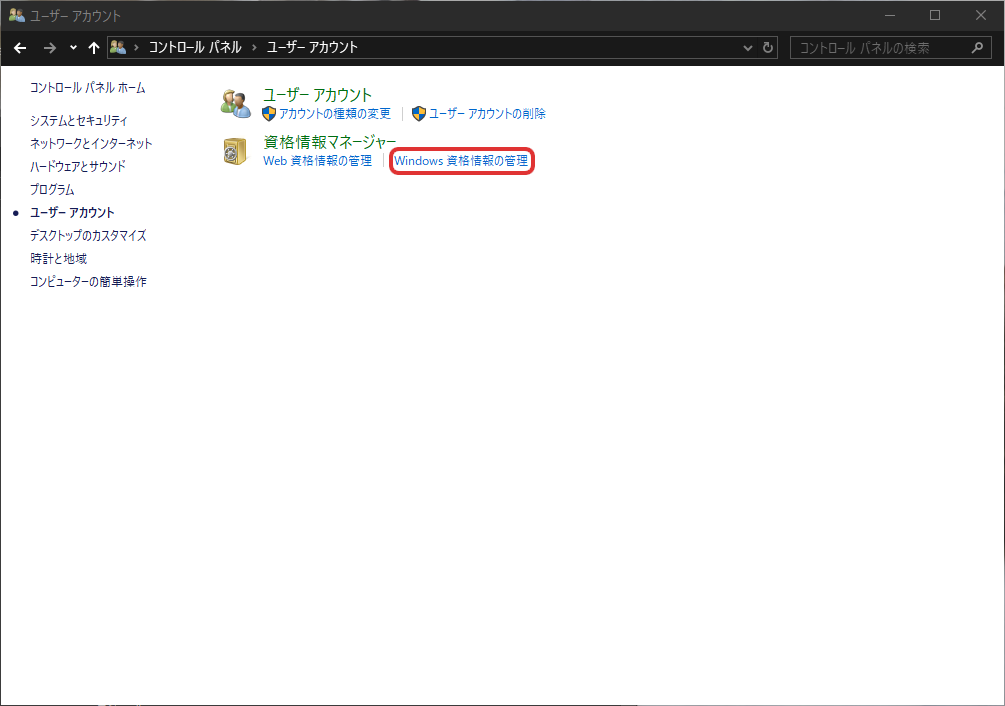
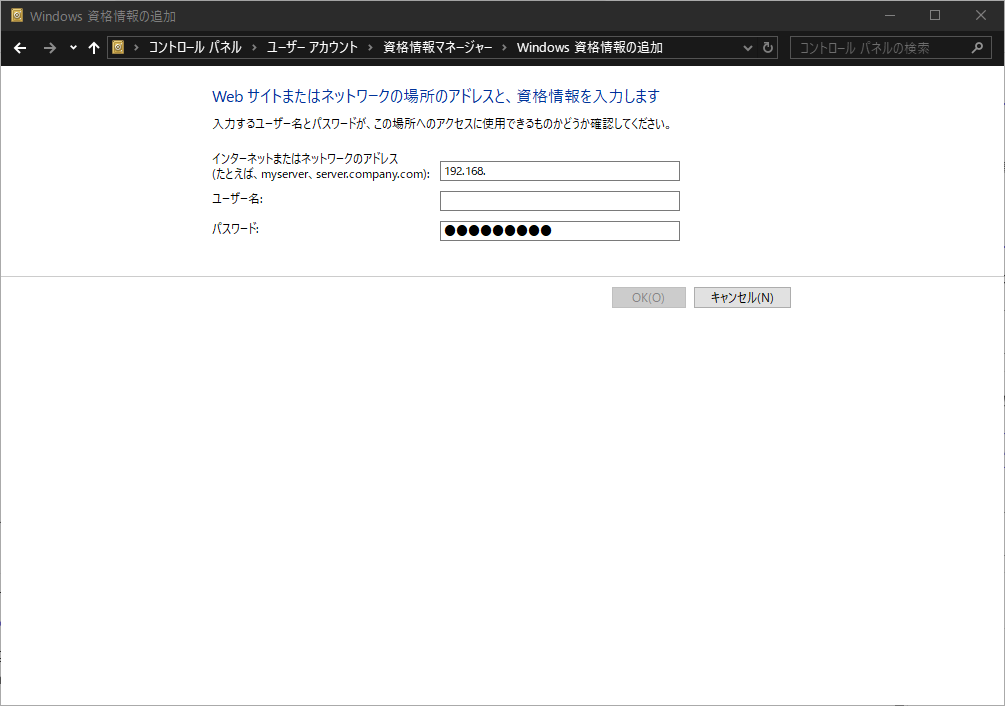
Alternatively, creating Windows credentials in advance can sometimes make the connection process go more smoothly.
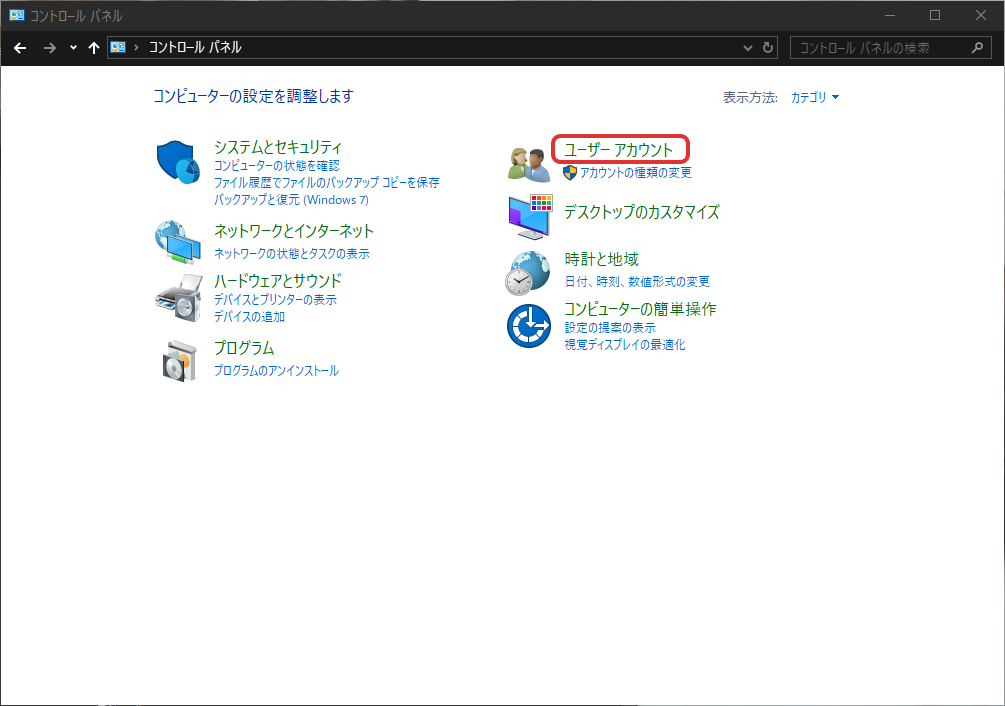
Go to Control Panel > User Accounts > Credentials Manager > Add Windows Credentials, enter the private IP address of your Zorin OS PC, and enter the Samba username and password.
Key Point
Creating Windows credentials in advance can sometimes make the connection process go more smoothly.
If you configure the Samba configuration files and user management properly, it will function as a file server.
Personal Impressions
The desktop environment is KDE; it’s not particularly lightweight, but it’s not overly heavy either. It uses Dolphin as the file manager, and Samba is installed by default, allowing for easy file sharing via the GUI. I think it’s a good OS for switching from Windows, but unfortunately, since its appearance and usability closely resemble Windows 11, it’s a shame they’ve had to change the name to avoid getting in trouble with Microsoft.
Summary
Winux uses Dolphin as its file manager, and Samba is pre-installed. You can share files via the GUI using Dolphin’s features.
First, select the folder you want to share, right-click to open Properties, go to the Sharing tab, set a Samba password, and configure the sharing settings.
After restarting once, try accessing it from another PC. You’ll be prompted to enter a password (e.g., “Enter network credentials”), so enter the Samba password you just set.
It may take some time to connect. Try restarting both PCs or waiting a few minutes before attempting to access the folder again.
If you configure the Samba configuration files and user management properly, it will function as a file server.

