

Click here for the Winux (formerly Windowsfx, Linuxfx, and Wubuntu) Overview page


Winux is an Ubuntu-based Linux distribution that has changed its name several times and features a user interface that closely resembles Windows 11.
It was formerly known as "Windowsfx," then "Linuxfx" and "Wubuntu," and is now called "Winux."
Winux uses the KDE desktop environment.
In this post, I’ll explain the steps for setting up a local WordPress environment.
1. Installing Apache
First,
sudo apt update
sudo apt upgrade
update to the latest version.

Set the time zone
Please set your time zone.
For example
sudo timedatectl set-timezone Asia/Tokyo
Install Apache
sudo apt -y install apache2
Configure it to start automatically when the PC boots up.
sudo service apache2 start
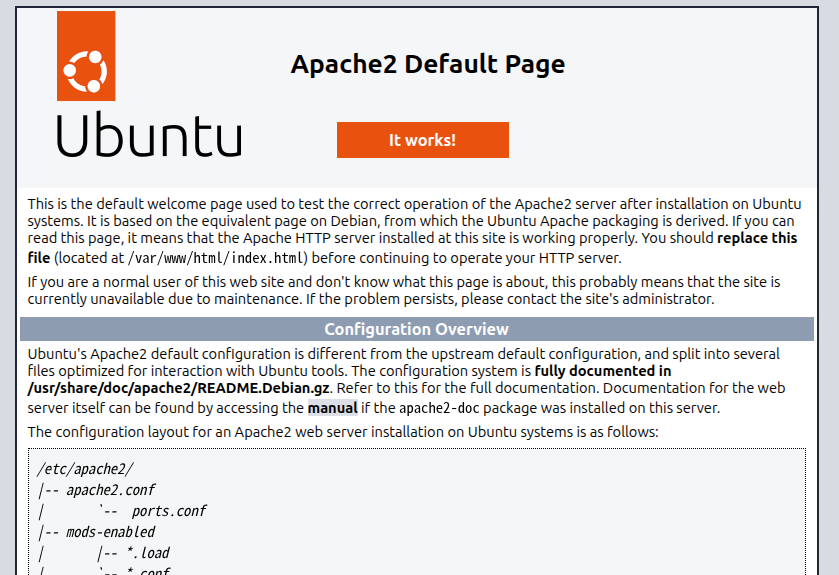
Access 127.0.0.1 or localhost in your web browser.
If this screen appears, Apache is working properly.
Enable mod_rewrite
When you install Apache2, mod_rewrite is installed by default. However, since it is not enabled, you may encounter errors when trying to save a post in WordPress unless you enable it. Therefore, let’s enable mod_rewrite.
sudo a2enmod rewrite
Restart Apache.
sudo service apache2 restart
Then edit the Apache2 configuration file.
sudo gedit /etc/apache2/apache2.conf
Around line 170,
<Directory /var/www/>
Options Indexes FollowSymLinks
AllowOverride None
Require all granted
</Directory>
Change “AllowOverride None” to
“AllowOverride ALL” and save the file.
Then, restart Apache2
sudo service apache2 restart
2. Install PHP 8.5
Install PHP 8.5 on Winux.
sudo apt update
sudo apt -y install software-properties-common
sudo add-apt-repository ppa:ondrej/php
If any packages are available for upgrade,
sudo apt upgrade
please upgrade them.
Install PHP 8.5.
sudo apt -y install php8.5
Add the MariaDB extension to PHP
sudo apt install php8.5-mysql
Check the version.
3. Install MariaDB
Install the database required for WordPress.
Run the following command.
Install MariaDB.
sudo apt -y install mariadb-server mariadb-client
Start MariaDB.
sudo service mariadb start
Check the version.
sudo mariadb -v
4. Create a database for WordPress
Log in to MariaDB.
Create a database for WordPress in MariaDB.
sudo mariadb
Create a database named "wordpress".
CREATE DATABASE wordpress DEFAULT CHARACTER SET utf8;
Create a MariaDB user for WordPress
Create a database user.
CREATE USER 'wpuser'@'localhost' IDENTIFIED BY 'password';
In the example above, the username is "wpuser."
Please change the "password" to a value of your choice.
GRANT ALL ON wordpress.* TO wpuser@localhost IDENTIFIED BY 'password';
Please keep the username and password safe, as they are required for the WordPress installation.
Next, enter the following command. Save the changes to MariaDB.
FLUSH PRIVILEGES;
Finish configuring MariaDB.
EXIT


5. Installing WordPress
Download the WordPress ZIP file.

For now, save it to the "Downloads" folder.
Open the Downloads folder, right-click on wordpress-6.9.4-ja.zip (the latest version as of May 16, 2026), and select "Open with Ark" to extract the ZIP file.
Copy this folder to the Apache document root, /var/www/html.
sudo cp -r /home/username/download/wordpress /var/www/html/wordpress
Replace "username" with your actual username.
Since the name of the copied directory becomes the URL, you can create multiple independent WordPress sites by changing the directory name when copying. (A database is required.)
Navigate to the destination directory.
cd /var/www/html/
Use the `ls` command to verify that the `wordpress` folder is present.
Then, run the following command. Change the ownership of the WordPress directory.
sudo chown -R www-data:www-data .
Then, enter the WordPress folder.
cd wordpress
Since you can't find wp-config.php using the ls command, copy the sample file and rename it.
sudo cp wp-config-sample.php wp-config.php
sudo gedit wp-config.php
Now edit wp-config.php.
Starting around line 21,
/** Database username */ define( 'DB_USER', 'username_here' );
/** Database password */ define( 'DB_PASSWORD', 'password_here' );
/** Database hostname */ define( 'DB_HOST', 'localhost' );
/** Database character set to use when creating database tables. */ define( 'DB_CHARSET', 'utf8mb4' );
/** The database collate type. Don't change this if in doubt. */ define( 'DB_COLLATE', '' );
Enter the database name, username, and password you created earlier in MariaDB here, then save.
Save and close.
Restart Apache.
6. WordPress initial setup
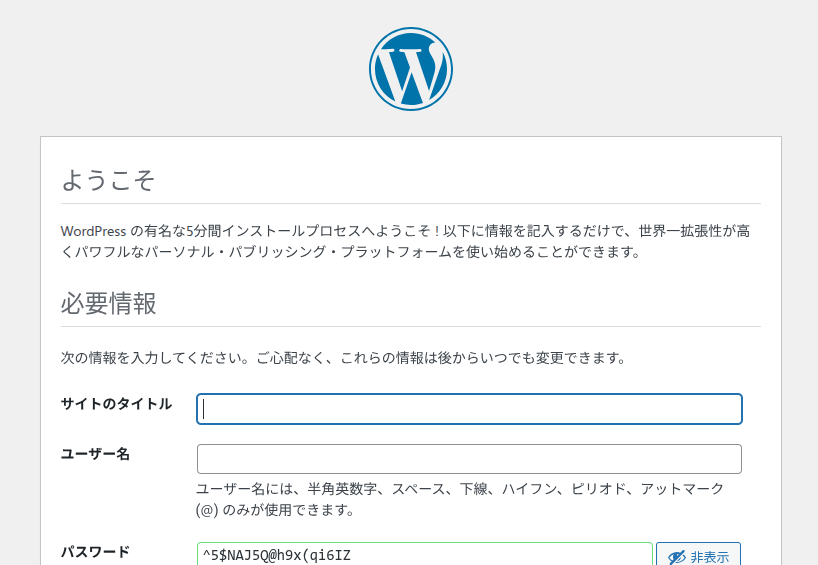
Enter “localhost/wordpress” in the address bar of your web browser.
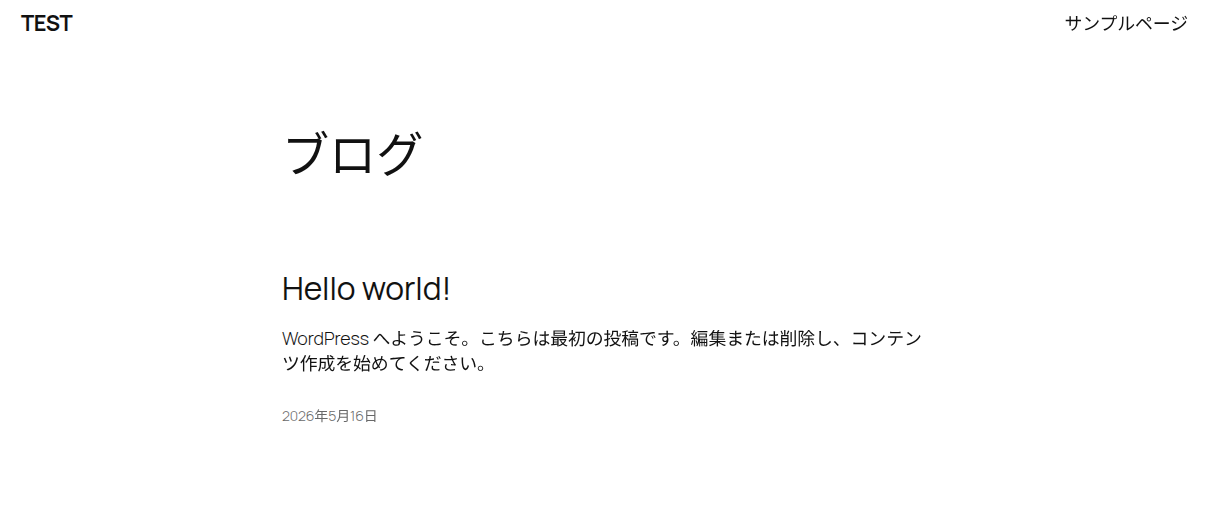
When this screen appears, enter your WordPress site name, WordPress username, and password to create the site and log in.
In the General settings of WordPress, set the “WordPress Address (URL)” and “Site Address (URL)” from
http://localhost/wordpress
to
http://192.168.xxx.xxx/wordpress
to your local IP address. This will allow you to view and log in to the site from other computers on your local network.
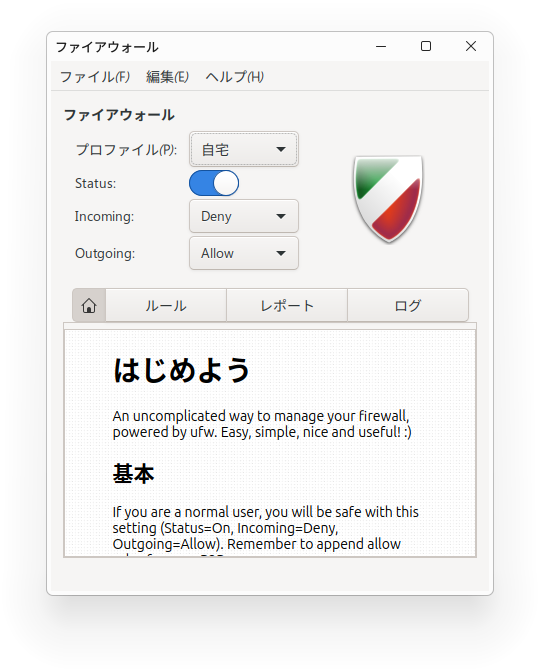
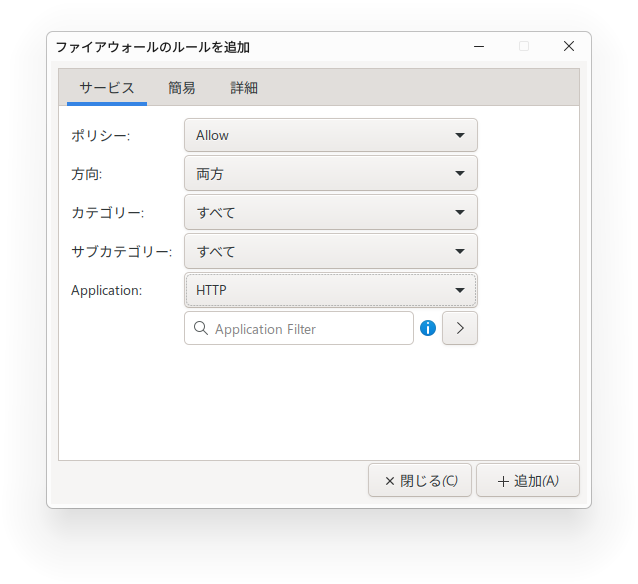
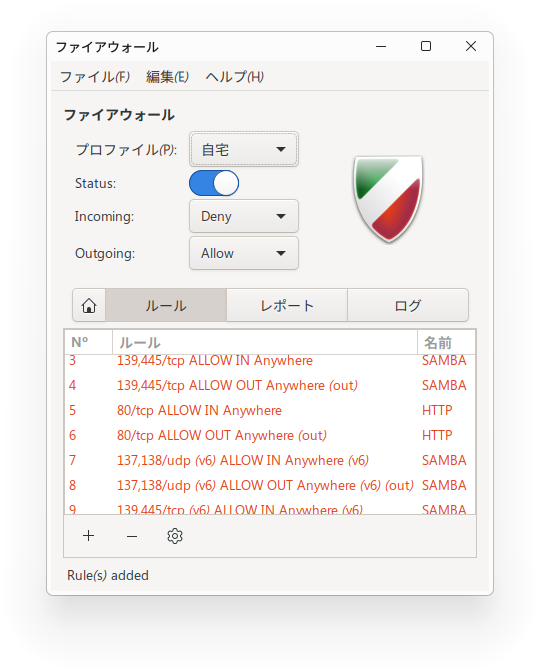
To access the site from other computers on your local network, open “Firewall Configuration” from the Start button, click the “+” in the lower-left corner of the “Rules” section, set the direction to “Both,” and select “HTTP”
It might be best to set a static private IP address for file sharing and web browsing. In Winux settings, go to “Network & Internet” > “Ethernet” > “IPv4 Settings” to manually configure the private address. If you also set the router to manual assignment, the private IP address will be fixed, and both file sharing and web addresses will remain stable without the private IP address changing.
You’ve now set up a WordPress website for learning and testing in your local environment.
Summary
To run WordPress on Winux, first install Apache, PHP, and MariaDB.
Install Apache and enable mod_rewrite.
Log into MariaDB, create a database for WordPress, and set up a user and password.
If wp-config.php doesn’t exist, copy it from the sample. Then, use a text editor to enter the database name, username, and password in wp-config.php and save it.
In a web browser, enter localhost/wordpress (in this case) in the address bar.
To view or log in to the WordPress site from another computer on the local network (other than the one where Winux is installed), change the site URL in the WordPress settings to something like 192.168.xxx.xxx/wordpress and open HTTP in the firewall configuration.

